Configuring the Certificate Authority
This section describes how to configure the ActivID CMS Operator Portal for OpenTrust.
For detailed instructions on creating directories and CAs in the ActivID CMS, refer to Configuring Repositories and Procedures for Configuring Connections to Certificate Authorities.
-
Log on to the ActivID CMS Operator Portal with an ActivID CMS Administrator certificate.
-
Click the Configuration tab, and then click Repositories.
-
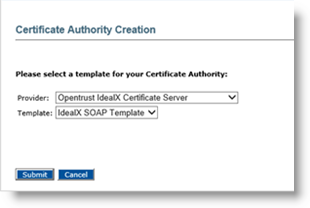
Click Add Certificate Authority, and then from the drop-down list, select OpenTrust IdealX Certificate Server. For Template, accept Default.
-
Click Submit.
-
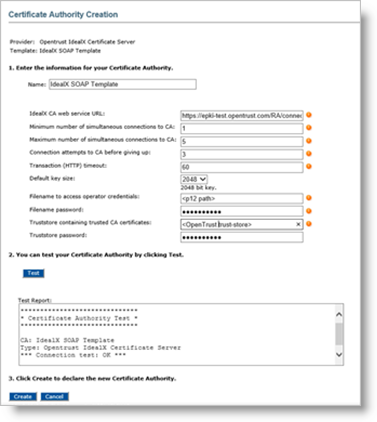
Enter a Name for the Certificate Authority.
-
Enter the appropriate values for all the required fields.
-
Click Test to verify the CA configuration.
-
Click Create to apply your changes.


