Creating the Device Policy
This section illustrates how to create a device policy that issues OpenTrust certificates to the user smart card. For more information about creating a device policy, refer to Creating a Device Policy.
To create a device policy, perform the following tasks:
-
Log on to the ActivID CMS Operator Portal with an ActivID CMS Administrator certificate.
-
Click the Configuration tab, and then click Policies.
-
Depending upon the number of PKI applications to be used, add a new device policy.
-
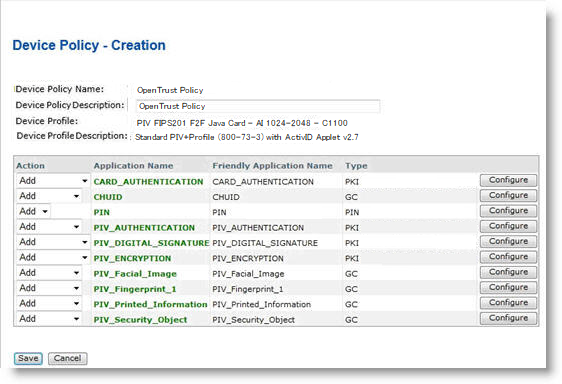
Click Next, and then add the corresponding PKI1 applications.
-
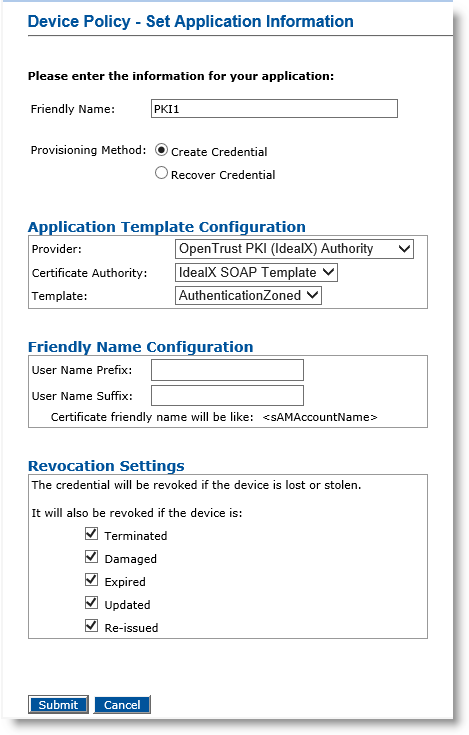
Click the Configure button associated with the PKI to display the Device Policy - Set Application Information page.
-
In the Friendly Name field, enter a valid, descriptive name for the certificate in use for the device policy.
-
In the Provider drop-down menu, select OpenTrust PKI (IdealX) Authority.
-
In the Certificate Authority drop-down menu, click to select a Certificate Authority host name.
-
Depending on the Provisioning Method selected, the fields appear differently. Perform the appropriate tasks based on your selection.
Note: Selecting the Recover Credential option is the equivalent of setting the former Recover Application option (available in previous ActivID CMS versions) to Yes.-
Provisioning Method set to Create Credential
-
If you select Create Credential for the Provisioning Method, select Template as encryption template (key escrow) or authentication template (non-escrow) as per your requirement. The encryption template allows key escrow.
-
Click Submit.
-
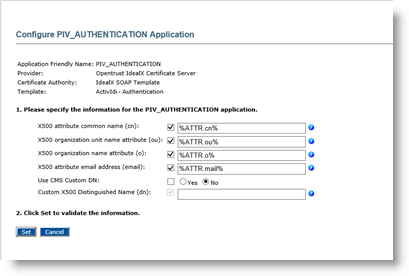
Enter appropriate information in all the required fields.
-
Click Set.
-
-
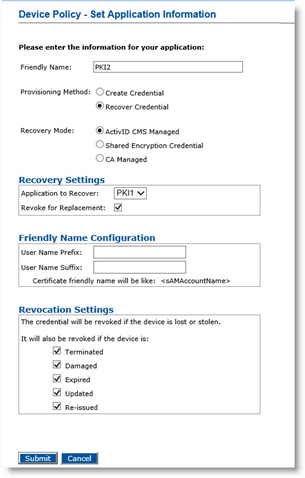
Provisioning Method set to Recover Credential
-
If you select Recover Credential for the Provisioning Method, the Recovery Mode options become available. Select ActivID CMS Managed.
-
Under Recovery Settings, select Revoke for Replacement.
-
Click Submit.
-
-
-
Click Save.
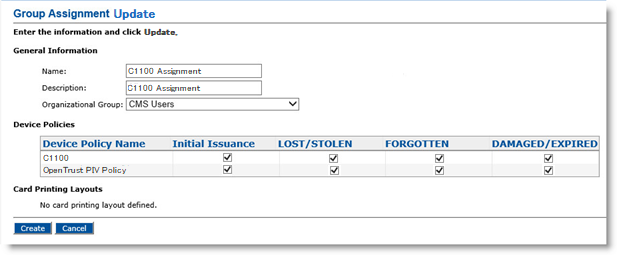
You can now assign and update the device policy for OpenTrust CA (see the following illustration). For detailed instructions, refer to Updating a Device Policy.