Initialize the Principal HSM
Perform this operation to initialize a new HSM. This HSM is the Principal HSM The first or main HSM. If you require multiple HSMs with the same master keys, use HSM manufacturer tools to duplicate the keys in the other HSM. that contains all the keys required by the credential management system.
For SafeNet Luna PCI-E, you can use any HSM (new or already initialized), but this operation deletes any existing keys and PINs. If you are using an Entrust Datacard nShield HSM for the initialization process, then just add the keys to the HSM from the principal.cfg file.
-
If your Luna PCI-E is new (from the factory), then the Security Officer (SO) PIN is set to default. Thus you must use "default" during the first step to initialize the Principal HSM.
-
If your Luna PCI-E is initialized already, then the SO PIN cannot be changed. Thus, you must use the same SO PIN or you can reset the HSM to its factory state using the SafeNet lunacm tool (hsm -f command). This will set the SO PIN back to "default."
-
For a Luna SA, the keys are just added (the partition must be cleaned using SafeNet tools).
-
Insert an HSM token into your SafeNet Luna Dock PC Card Reader, or if you are using a different HSM, make sure it is properly connected.
-
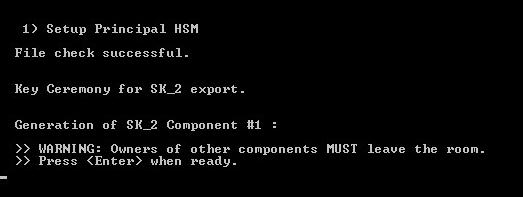
From the ActivID KMS main menu, type 1 (Setup Principal HSM). The following screenshot illustrates the Setup Principal HSM page for an Entrust Datacard nShield HSM.
 Note:
Note:-
You may be prompted for the Operator PIN if it has not been entered previously.
-
New HSMs might not support 2TDEA keys: when importing the principal.cfg, KMS will read the file to check if there are 2TDEA keys in the file. If such keys are present, the following prompt will appear:
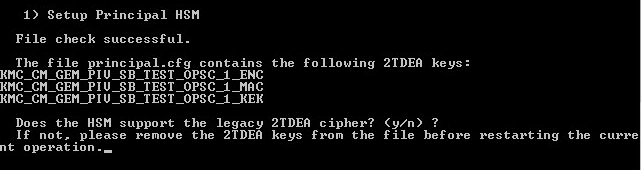
Press “Y” to continue with the initialization. Press “N” to quit initialization process.
-
-
Press ENTER. ActivID KMS automatically erases the screen and then computes or imports the master keys according to the principal.cfg file.
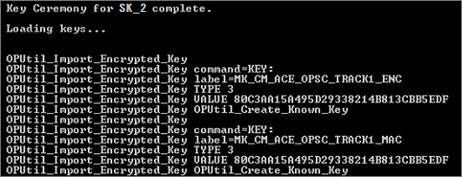 Note: Your command prompt might/will display different/other “Loading keys...” lines before the final prompt to Press <Enter> to return to the main menu.
-
Press ENTER to return to the main menu.
Add a transport key first as the master key is sent encrypted with a transport key.
For details, see Add or Import a Transport Key.
After you initialize the Principal HSM, you can add a transport key, if required.
If you want to re-initialize an existing HSM:
-
For SafeNet Luna PCI-E or Luna SA, the Initialize Principal HSM action completely resets the content of the HSM (or specific partition for SafeNet Luna SA).
-
For Entrust Datacard (formerly Thales) nShield HSMs, any key created during the first initialization of the HSM must be deleted manually using Entrust Datacard KeySafe.
-
For AEP Keyper, Initialize Principal HSM completely resets everything for a specific slot.


