Configure Handler Mappings
-
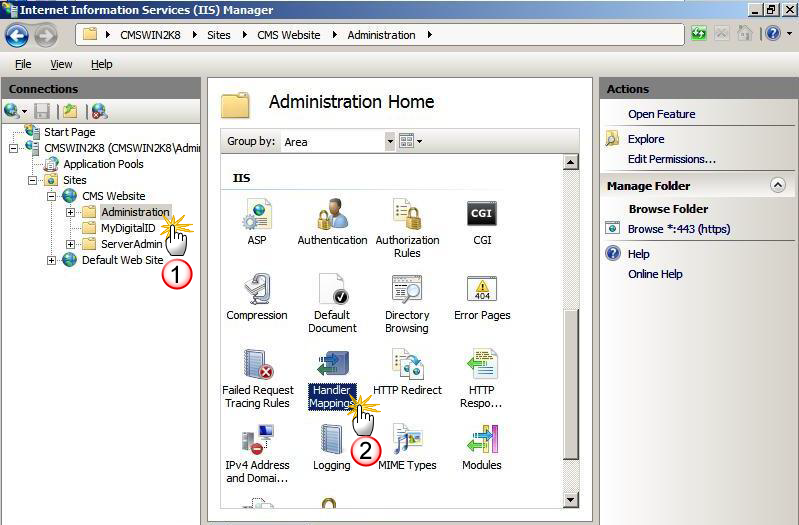
In the Connections panel, under CMS Website, click Administration.
-
On the Administration Home page, click Handler Mappings. The Handler Mappings page appears.
-
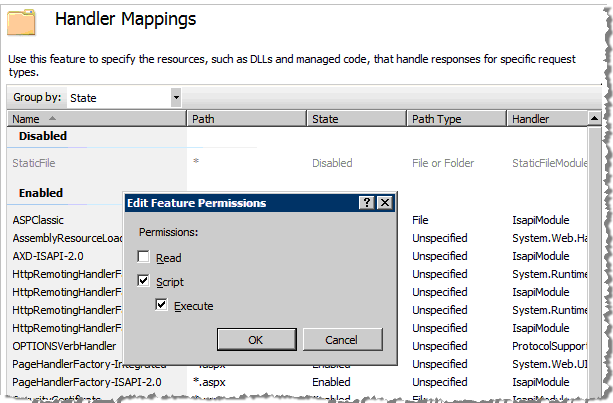
On the Handler Mappings page, right-click to display the shortcuts menu, and then click Edit Feature Permissions. The Edit Feature Permissions dialog appears.
-
To configure Handler Mappings in the Admin virtual directory, select the Script option and the Execute option.
-
Click OK to save your configuration choices.
-
To configure the Edit Feature Permissions for the MyID virtual directory, in the Connections panel, select the CMS Website.
-
Click MyDigitalID.
-
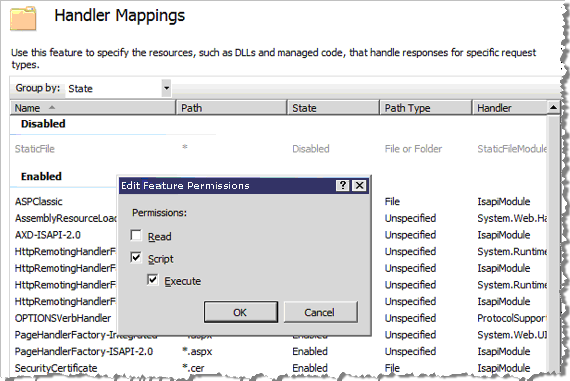
In the Handler Mappings page, right-click to display the shortcuts menu, and then click Edit Feature Permissions. The Edit Feature Permissions dialog appears.
-
To configure Handler Mappings in the MyDigitalID virtual directory, select the Script option and the Execute option.
-
Click OK to save your configuration choices.
The next step is to Enable Anonymous Authentication for Anonymous Users .


