Configuring a VCI Application
This section describes how to configure a VCI Virtual Contact Interface application for a device that needs to be used over a contactless interface.
-
Go to the Device Policy - Creation page.
-
In the Action column, next to VCI, click Add, and then click Configure.
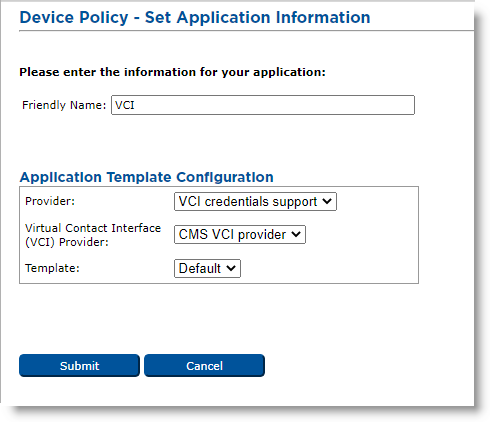
The Device Policy - Set Application Information page appears:
-
Friendly Name—Enter a name that easily identifies the type of application you have selected for the device policy.
-
Provider drop-down list—Select VCI credentials support.
-
Virtual Contact Interface (VCI) Provider drop-down list—Select the name of the VCI Provider that will manage the credentials for this application. This provider must have been configured in ActivID CMS previously. For details on configuring a VCI provider, see Adding a Virtual Contact Interface (VCI) Provider.
-
Template drop-down list—Select the template for this application.
-
Click Submit.
-
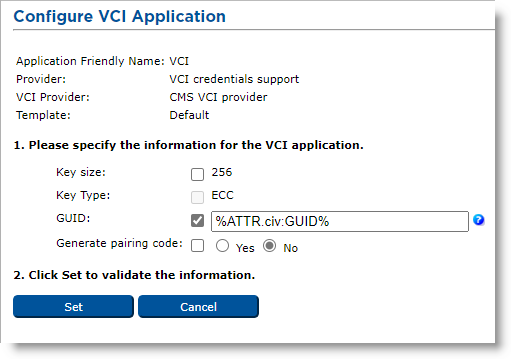
Make any necessary changes.
Note: If you set the Generate pairing code option to Yes, the pairing code is provided when the device is issued. It is also possible to recover the pairing code using the Help Desk. For details, see Getting the Pairing Code for a Device. -
Click Set.


