Installing the Keyfactor EJBCA Server
This section provide some guidance as to how to configure the EJBCA server, but you also need to refer to the Keyfactor documentation for more details.
Prerequisites
-
The Keyfactor server must be up and running.
-
Some basic configuration must already be performed:
-
Network configuration
-
Database selection
-
HSM selection
-
-
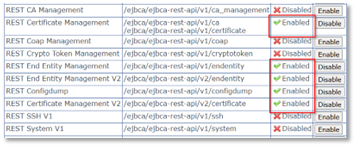
The following REST API endpoints must be enabled:
-
REST Certificate Management (v1 and v2)
-
REST End Entity Management (v1 and v2)
-
REST Configdump
-
Creating the CA in EJBCA
The CA creation is performed in two steps. For more information, refer to the Setup Steps Overview section in the Keyfactor documentation.
-
Create a Crypto Token.
-
Create the CA using that token, with the following requirement:
-
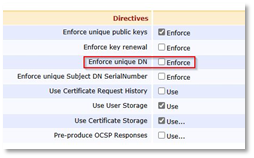
Uncheck Enforce unique DN:
-
The name of the CA will be used in the CMS configuration (EJBCA CA Name field in step 10 of Configuring the Keyfactor EJBCA Certificate Authority).
-
Download the CA PEM chain: it will be the “truststore file” used in the CMS configuration (Truststore file containing the CA Certificate field in step 11 of Configuring the Keyfactor EJBCA Certificate Authority).
-
Enroll a server certificate using this CA, and use this certificate in the EJBCA TLS configuration.
Enrolling the CMS Agent on the EJBCA Server
-
Using the CA created above, enroll a specific agent for CMS.
-
Either use EMPTY / ENDUSER, or a specific End Entity and Certificate profile (respectively, Certificate Type and Certificate Subtype in the RA web screen).
-
Key-pair generation must be set to By the CA.
-
Download the PKCS#12 for the new End Entity.
Important:
Keep this .p12 file and its password; it will be used during CMS configuration (specifically, for the PKCS#12 file containing the client certificate and key and Password for the PKCS#12 file containing the client certificate and key fields in step 12 of Configuring the Keyfactor EJBCA Certificate Authority). -
Copy the certificate serial number, and use it to register the user as a Super Administrator.
End Entity and Certificate Profiles
This section highlights the basic procedure to integrate an EJBCA with CMS. Specific implementations using PIV and CIV templates are provided below in PIV/CIV Support.
Certificate Profiles
Create the certificate profiles first.
End Entity Profiles
Create dedicated End Entity profiles, according to your needs:
-
One for the device-generated certificates (authentication, signature)
-
One for the CA-generated recoverable certificates (encryption)
Configure the following properties:
Subject DN Attributes
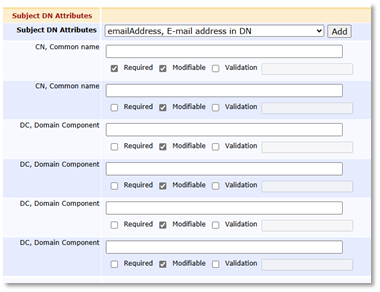
The structure of the Subject DN must be completely described, down to the maximum number of each attribute: CN, DC, OU, etc.
For example:
Main Certificate Data
-
Select the Certificate profiles that can be issued using the End Entity profile. You may group several certificate profiles in one End Entity profile, provided that they all share the same token configuration (either User Generated or P12 file).
Other Data
-
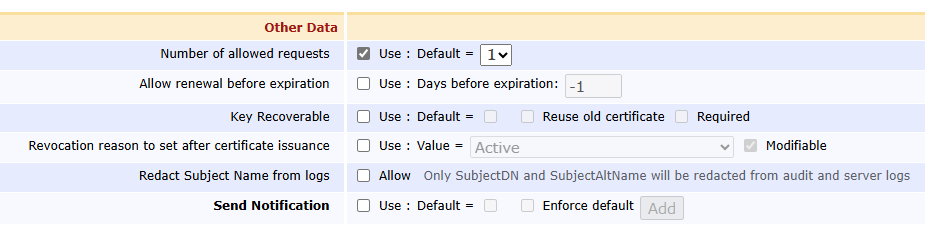
Set the Default value for the Number of allowed requests to "1".
PIV/CIV Support
NACI
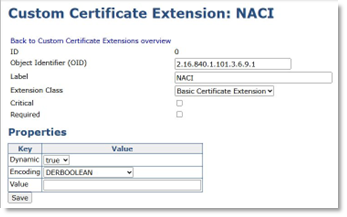
Add a Custom Certificate Extension: NACI
Its Object Identifier (OID) is: 2.16.840.1.101.3.6.9.1.
PIV_AUTHENTICATION Certificate Profile
Clone the ENDUSER certificate profile, and set the following properties:
Permissions
-
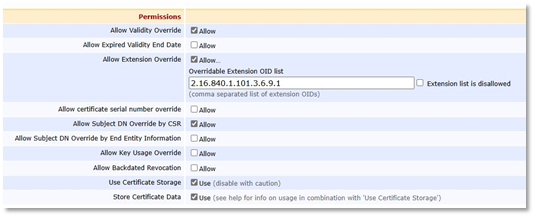
Allow Validity Override
-
Allow Extension Override: 2.16.840.1.101.3.6.9.1
-
Allow Subject DN Override by CSR
-
Use Certificate Storage
-
Store Certificate Data

X.509v3 Extensions
-
Key Usage: Digital Signature
-
Extended Key Usage: Any Purpose, Client Authentication, MS Smart Card Logon
-
Certificate Policies: 2.16.840.1.101.3.2.1.3.13
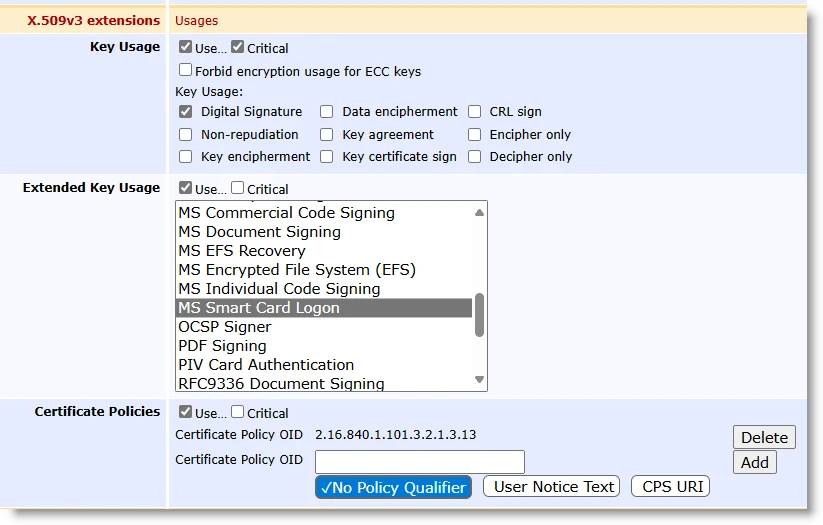
In order for users to be able to authenticate to the CMS Self-Service portal, the Extended Key Usage must be set to use MS Smart Card Logon (see above screenshot).
CARD_AUTHENTICATION Certificate Profile
Clone the ENDUSER certificate profile, and set the following properties:
Permissions
-
Allow Validity Override
-
Allow Extension Override: 2.16.840.1.101.3.6.9.1
-
Allow Subject DN Override by CSR
-
Use Certificate Storage
-
Store Certificate Data
X.509v3 Extensions
-
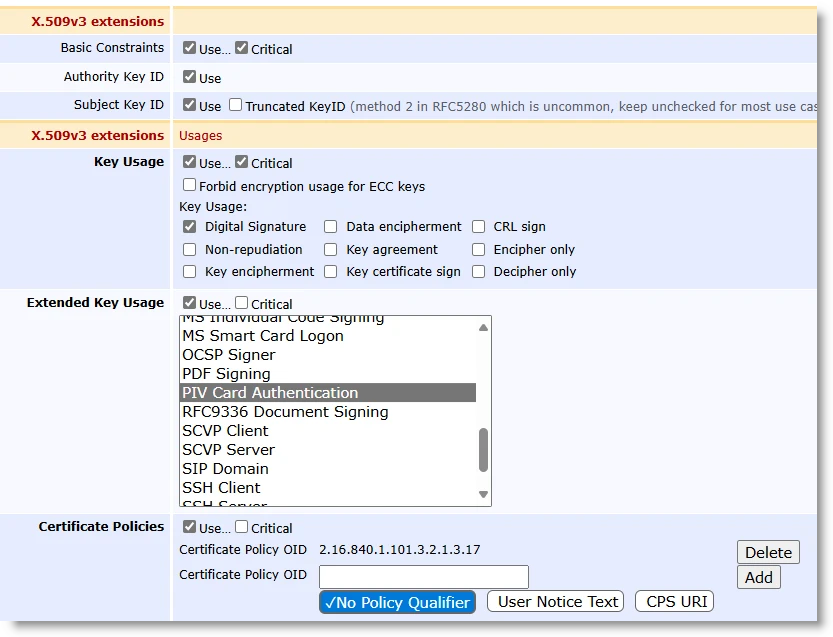
Key Usage: Digital Signature
-
Extended Key Usage: PIV Card Authentication
-
Certificate Policies: 2.16.840.1.101.3.2.1.3.17
PIV_DIGITAL_SIGNATURE Certificate Profile
Clone the ENDUSER certificate profile, and set the following properties:
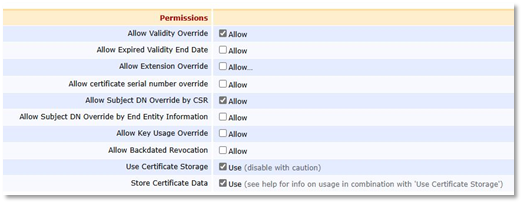
Permissions
-
Allow Validity Override
-
Allow Subject DN Override by CSR
-
Use Certificate Storage
-
Store Certificate Data
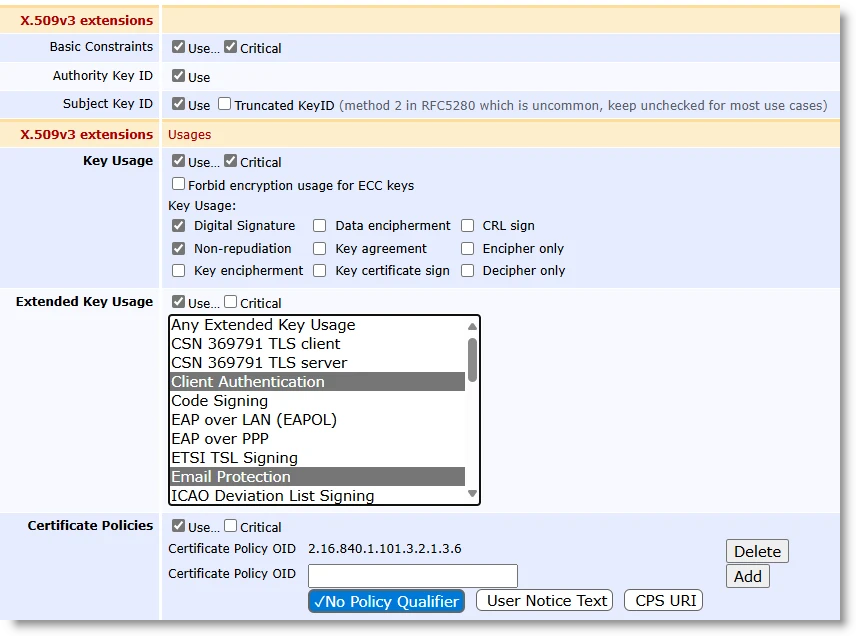
X.509v3 Extensions
-
Key Usage: Digital Signature, Non-repudiation
-
Extended Key Usage: Client Authentication, Email Protection
-
Certificate Policies: 2.16.840.1.101.3.2.1.3.6
PIV_ENCRYPTION Certificate Profile
Clone the ENDUSER certificate profile, and set the following properties:
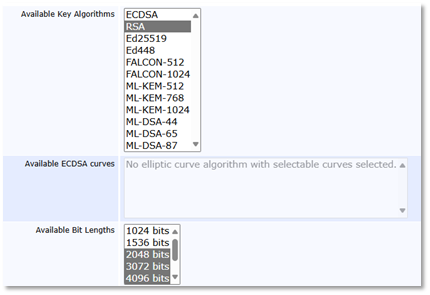
Available Key Algorithms
Only allow RSA keys that are 2048 bits or higher.
Permissions
-
Allow Validity Override
-
Allow Subject DN Override by CSR
-
Use Certificate Storage
-
Store Certificate Data
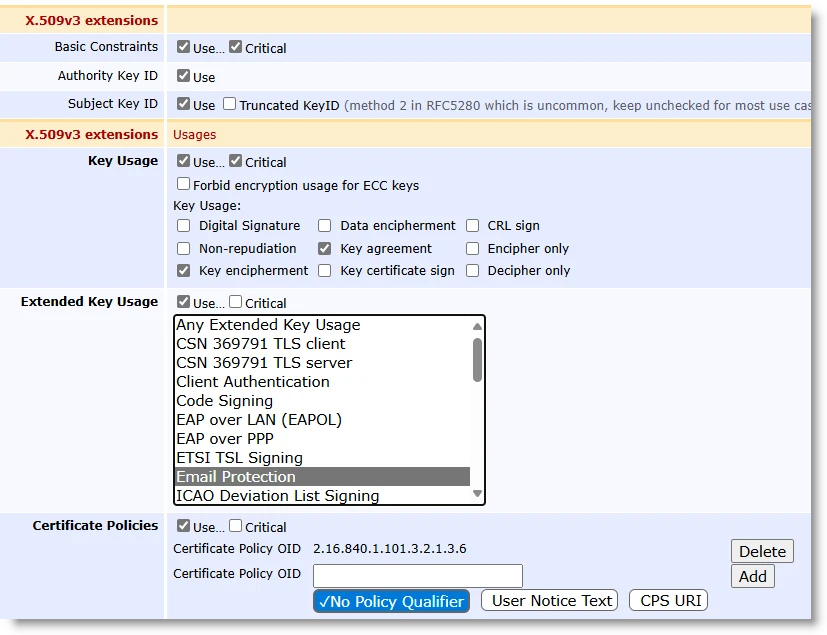
X.509v3 Extensions
-
Key Usage: Key encipherment, Key agreement
-
Extended Key Usage: Email Protection
-
Certificate Policies: 2.16.840.1.101.3.2.1.3.6
PIV End Entity Profile
Create an End Entity profile name "PIV" and configure the following properties:
Subject DN Attributes
The structure of the Subject DN must be completely described, down to the maximum number of each attribute: CN, DC, OU, etc.
For example:
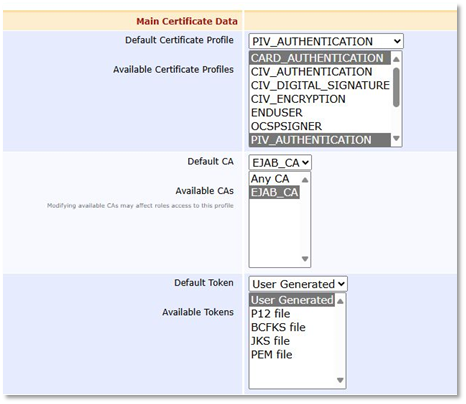
Main Certificate Data
-
Select the Certificate Profiles that can be issued using the End Entity profile. You may group several certificate profiles in one End Entity profile, provided that they all share the same token configuration (see below). Hence for this specific profile, you can group PIV_AUTHENTICATION, PIV_DIGITAL_SIGNATURE, and CARD_AUTHENTICATION.
-
Select PIV_AUTHENTICATION as the Default Certificate Profile.
-
The Default Token and the Available Tokens must be set to User Generated.
Other Data
-
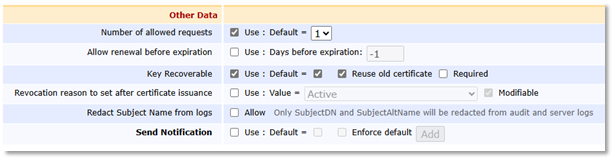
Set the Default value for the Number of allowed requests to "1".
-
Leave all other options unchecked.
PIV_ENCRYPTION End Entity Profile
Create an End Entity profile named "PIV_ENCRYPTION" and configure the following properties:
Subject DN Attributes
The structure of the Subject DN must be completely described, down to the maximum number of each attribute: CN, DC, OU, etc.
For example:
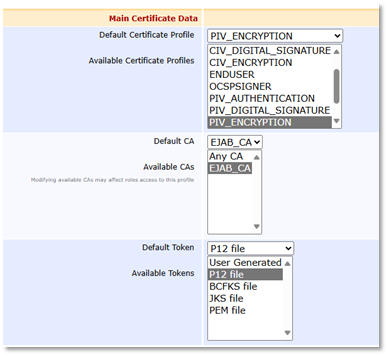
Main Certificate Data
-
Select the PIV_ENCRYPTION Certificate Profile that can be issued using the End Entity profile.
-
Select PIV_ENCRYPTION as the Default Certificate Profile.
-
The Default Token and the Available Tokens must be set to P12 file.
Other Data
-
Set the Default value for the Number of allowed requests to "1".
-
Leave all other options unchecked.
CIV Support
-
For CIV, create the following Certificate Profiles: CIV_AUTHENTICATION, CIV_DIGITAL_SIGNATURE, and CIV_ENCRYPTION.
-
Start from the PIV equivalents, and remove:
-
NACI Support from CIV_AUTHENTICATION (2.16.840.1.101.3.6.9.1 Extension Override)
-
PIV-specific OIDs in Certificate Policies
-
-
Create similar CIV and CIV_ENCRYPTION End Entity profiles as well.


