Configuring a PKI Application Using an OpenTrust PKI CA
-
Go to the Device Policy - Creation page.
-
In the Action column, next to PKI1, click Add, and then click Configure.
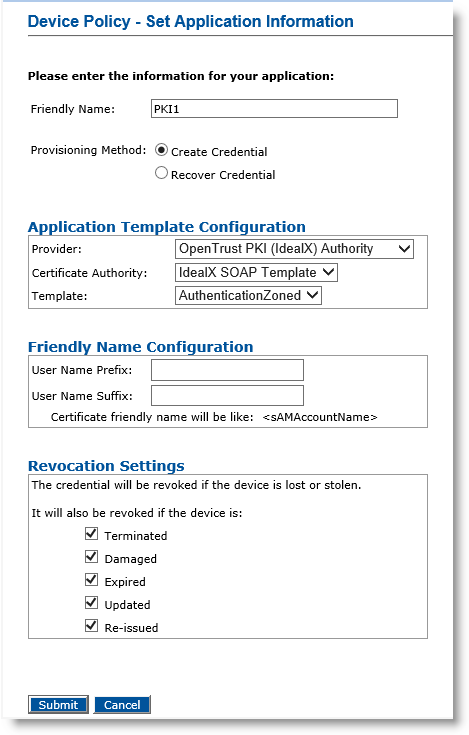
The Device Policy - Set Application Information page appears:
-
Friendly Name—Enter a name that easily identifies the type of application you have selected for the device policy.
-
Provisioning Method —Select Create Credential.
-
Provider drop-down list—Select OpenTrust PKI (IdealX) Authority.
-
Certificate Authority drop-down list—Select the CA that issues the certificate for this application.
-
Template drop-down list—Select the template for this application.
-
In the User Name Prefix and User Name Suffix fields, enter a prefix and suffix for the certificate (if applicable).
-
Revocation Settings — By default, the credentials are revoked for all the listed states of the device. You can clear the check box(es) to indicate any state(s) for which you do not want to revoke the credentials. For example, if you clear the Damaged check box, the credentials in a device in the Damaged state will not be revoked.
-
Click Submit.
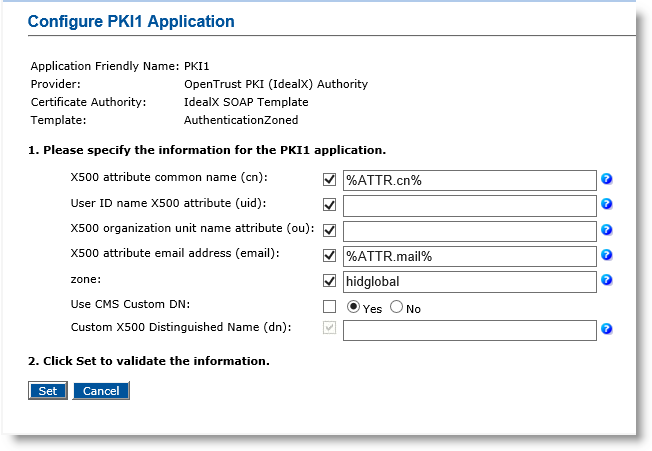
The Configure PKI1 Application page appears:
-
Make any necessary changes.
-
Click Set.


