Issuing an Initial Device to a User Not in Your Directory
-
Go to the Device Issuance page.
-
Click Create New User.
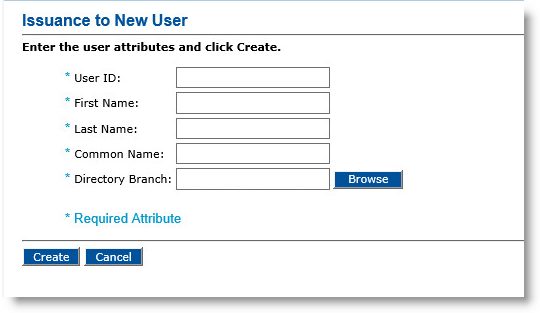
The Issuance to New User page appears:
-
Enter a User ID for the new user.
-
Enter the user’s First Name.
-
Enter the user’s Last Name.
-
Enter the user’s Common Name.
-
Enter the Directory Branch where you want to add the user. Alternatively, click Browse to select the appropriate branch.
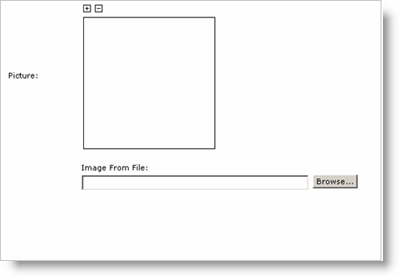
If your system is configured to accept a picture of the user, then the following fields will appear.
-
In the Image From File field, click Browse to search for the image.
After the image is imported, it appears in the Picture box.
-
Click Create (not illustrated).
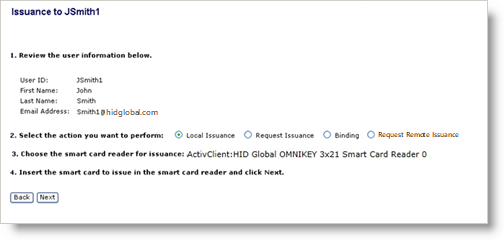
The Issuance to <user name> page appears:
-
Click Next and complete the steps starting at step 11 in the Issuing an Initial Device to a User in Your Directory.