Reset Password
When user forgets the current password, follow the steps below to reset your password:
-
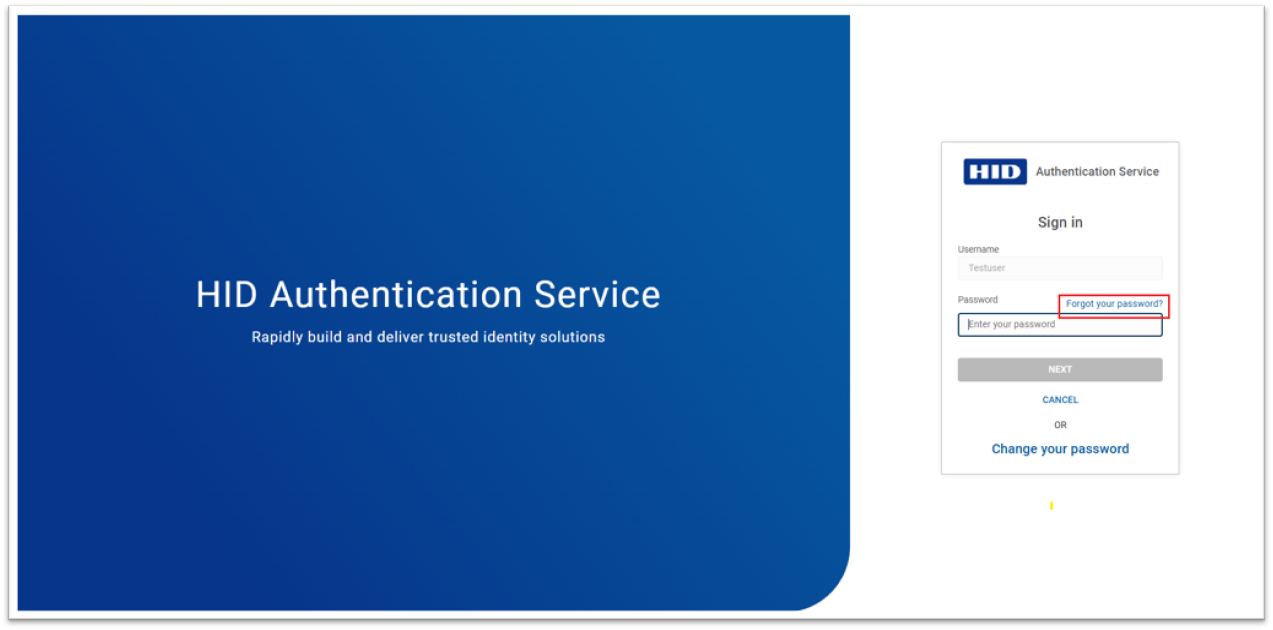
Go to the login page of the Self Service Portal where your Password is used as an authenticator and click on Forgot your password?.
-
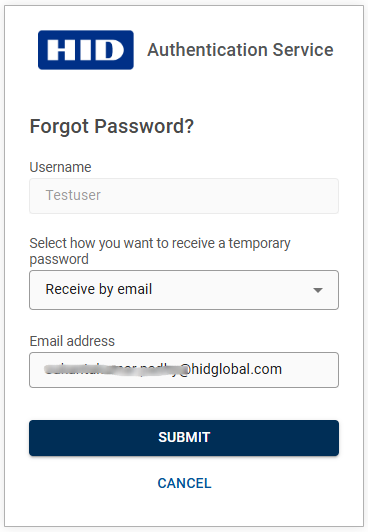
You will be prompted to Forgot Password screen, select Receive by email or Receive by SMS option and then enter your email address or mobile phone number to receive a temporary password.
-
Click SUBMIT, then you will get a temporary password via email or SMS (based on your selection in the previous step).
-
Enter the temporary password (received via email/SMS), then enter the new password and confirm new password. Click SUBMIT.
Note: Please follow the password rules and constraints displayed while creating your new password.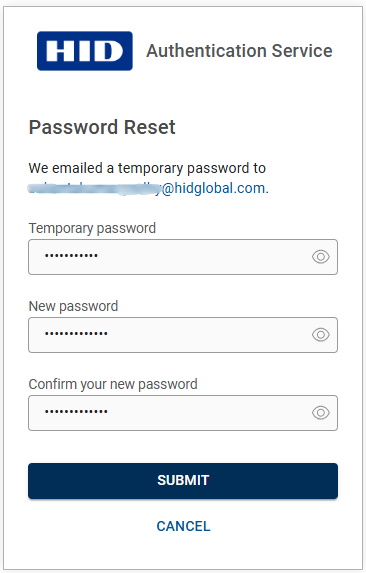
-
You will see a success message once your password is reset. Then, log in to the application with your new password.


