Fingerprint Credentials
If there is a fingerprint reader built into or connected to your computer, you can enroll and manage your fingerprints.
Enroll Fingerprints with a Fingerprint Reader
To enroll your fingerprints or manage your fingerprints credential:
-
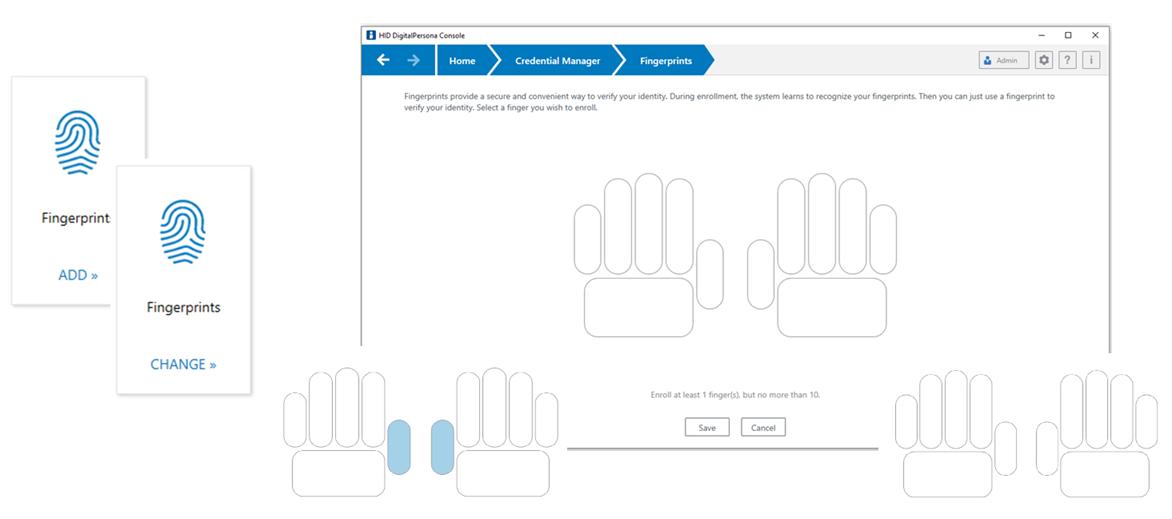
In the DigitalPersona Console, select Credential Manager, and click ADD on the Fingerprints tile to display the Fingerprints page.
Note: The CHANGE option displays on the Fingerprints tile after the first fingerprint has been enrolled and saved.The Fingerprints page displays an outline of two hands. Fingers that have been previously enrolled are highlighted.
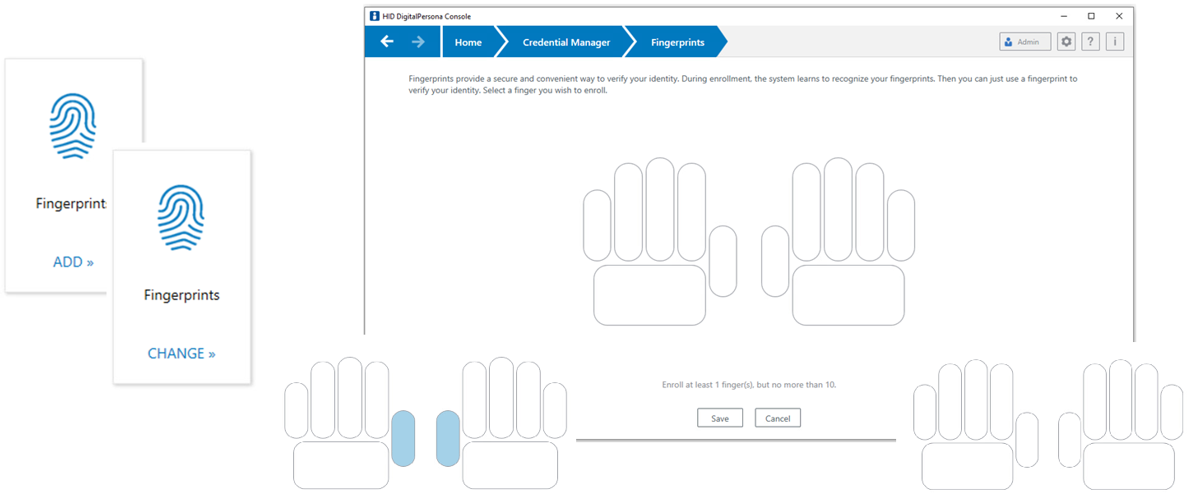
-
To enroll a fingerprint, click the image of any finger not previously enrolled.
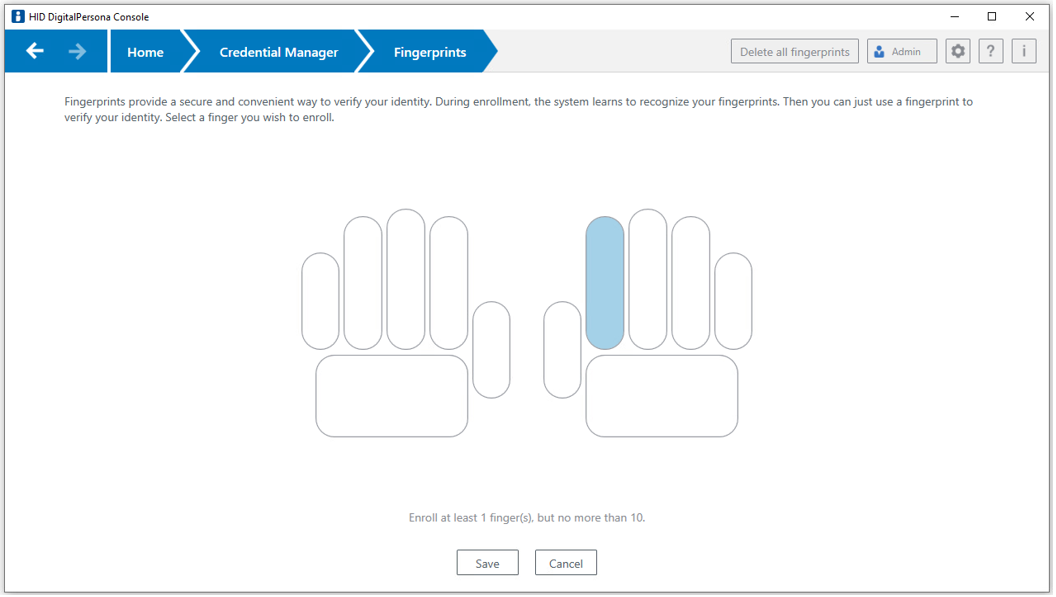
-
Scan the finger until its fingerprint is successfully enrolled. Index or middle fingers are preferable.
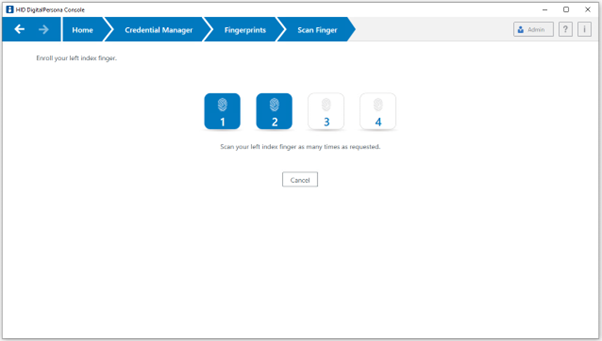
When enrollment is complete, the Fingerprints page redisplays with the enrolled finger highlighted.
-
Click Save.
Note: Fingerprint enrollment is not complete until you click Save. If you leave the computer inactive for a while without clicking Save, or close the program, any changes will not be saved.
Delete Enrolled Fingerprints
To delete enrolled fingerprints:
-
To delete a single fingerprint:
-
Click a highlighted finger on the outline.
-
Then confirm the deletion and click Save to return to the Credential Manager page.
-
-
To delete the entire fingerprint credential:
-
In the upper-right portion of the page, click the Delete all fingerprints button.
-
In the confirmation dialog, click Delete to confirm the deletion.
-


