Multi-Forest Deployment
This chapter describes the deployment of DigitalPersona LDS in a multi-forest environment. Specifically, the following procedures describe deployment scenarios for two AD Forests with bidirectional trust.
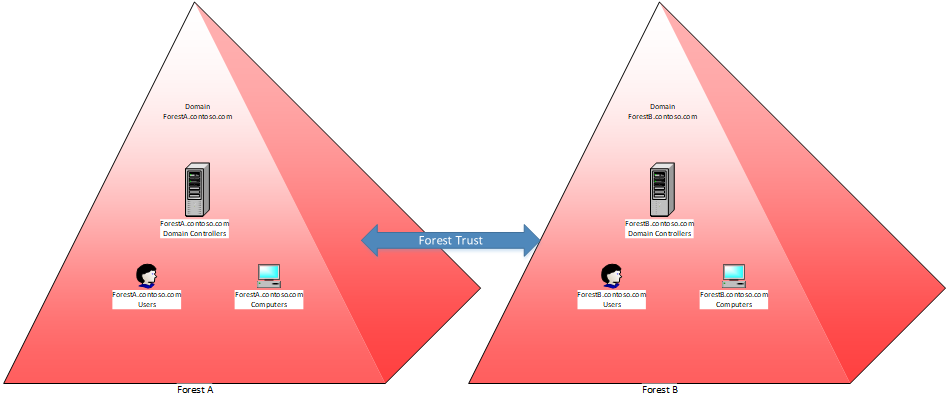
Both scenarios assume that users of the ForestA.contoso.com AD domain are primarily operating inside this domain and are using computers which belong to the ForestA.contoso.com domain.
But occasionally they have a need to log on to a computer which belongs to the ForestB.contoso.com domain and ForestB users also occasionally log on to a computer in ForestA.
The HID DigitalPersona LDS solution can provide the following features for both sets of users:
-
Multi-factor logon to Windows
-
Multi-factor logon to Office365
-
Password Manager
Scenario One - Deployment in Both Forests
In this scenario, we would be deploying HID DigitalPersona LDS Servers and clients in both the ForestA.contoso.com and ForestA.contoso.com domains:
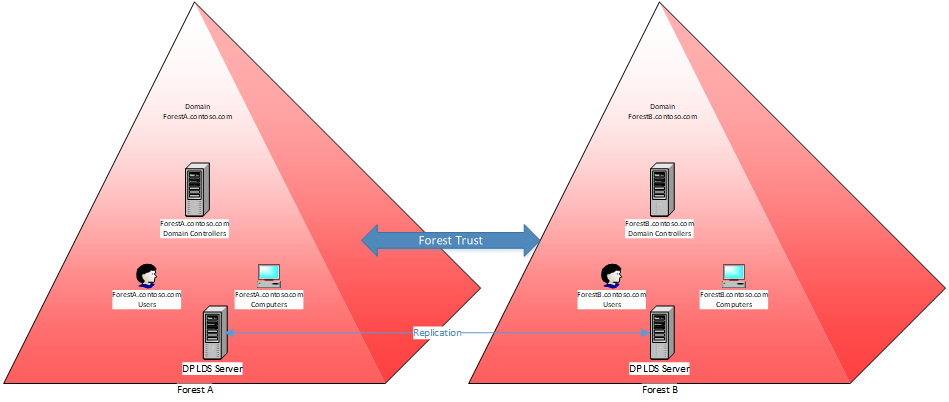
Deployment steps:
-
Begin with a new installation of Microsoft Windows Server (see System Requirements) on a physical or virtual machine and join it to the ForestA.contoso.com domain.
-
Deploy Microsoft LDS on the machine. During deployment, create a new LDS Instance (using the Domain Admin user- for example, admin@ForestA.constoso.com with an instance name such as "DPInstance". Take note of the LDAP port#.
-
Extend the Microsoft and DigitalPersona schemas.
-
Deploy the HID LDS Server. See Installing the Server Components
-
On the ForestB server, add the user admin@ForestA.constoso.com from step#2 to the local built-in Administrators group.
-
Log in to the ForestB server as admin@ForestA.constoso.com.
-
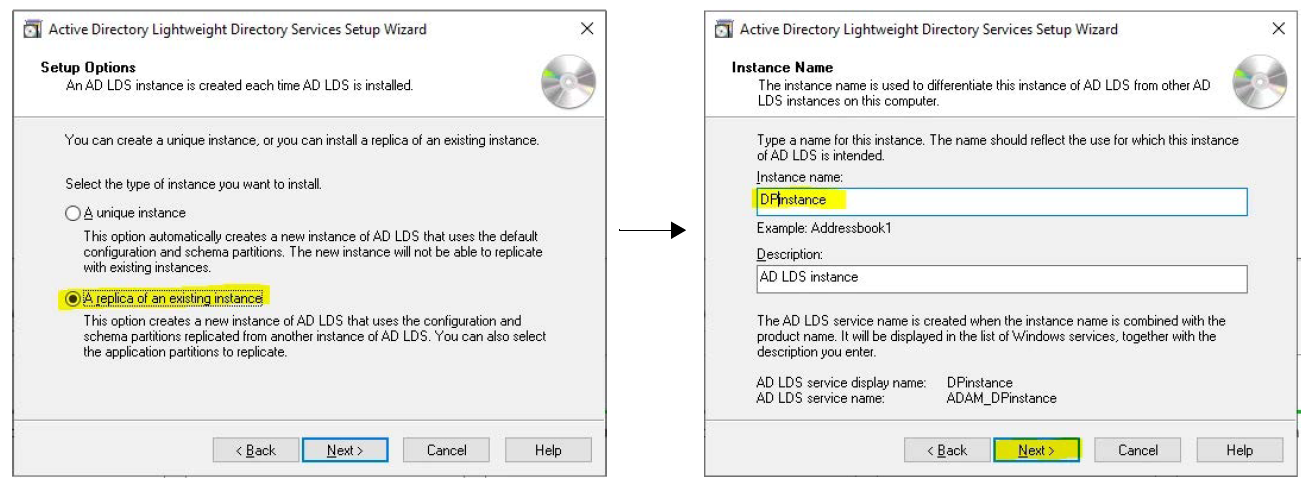
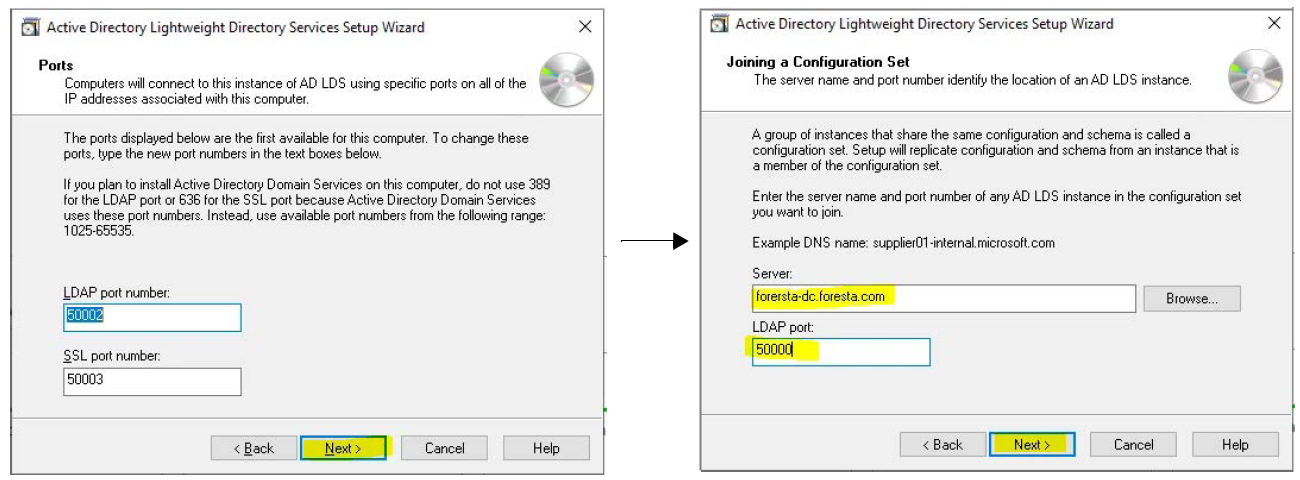
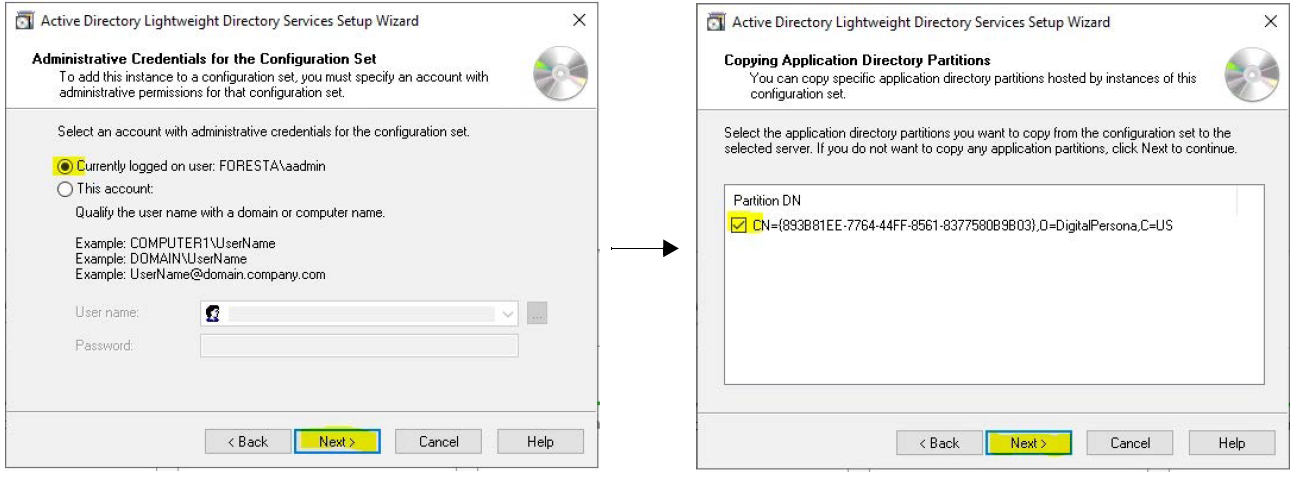
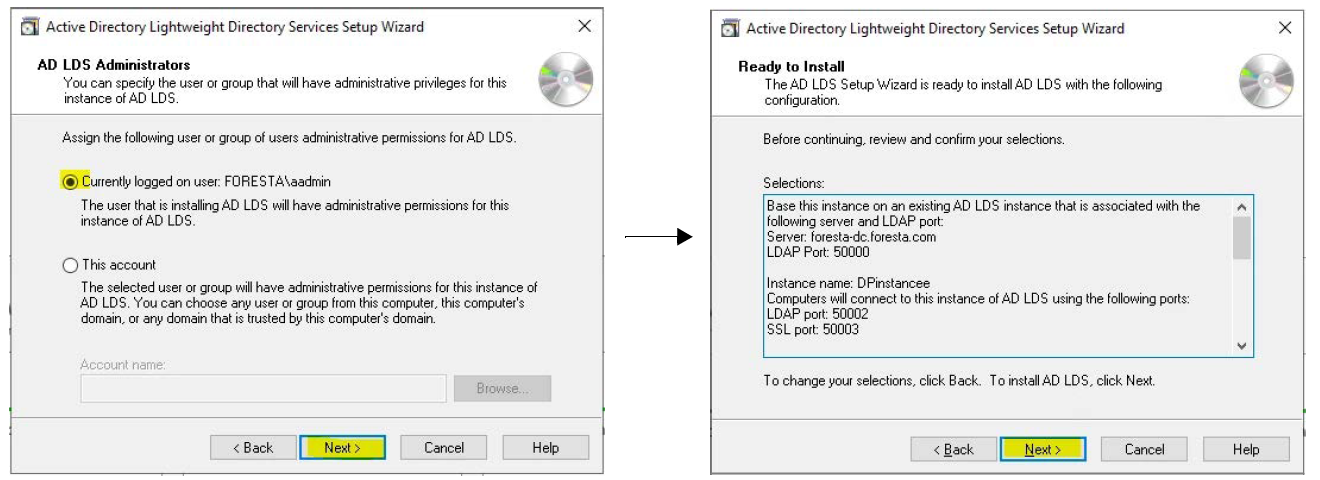
Create a replica of the existing AD LDS instance on the ForestB server. See the following illustrations for an example of this process:

-
-
As necessary, add additional DigitalPersona LDS Servers to ForestA.contoso.com or ForestA.contoso.com domains, or to both domains. Join all LDS instances to the existing instance (i.e. DPInstance or your selected name).
-
Deploy DigitalPersona Web Components to any DigitalPersona LDS Server machine in either domain. In our example we have installed the Web Components in ForestA.contoso.com.
-
It is a good idea to deploy DigitalPersona Web Components on other DigitalPersona LDS Servers, for failover. See Installing the Web Management Components.
-
Deploy DigitalPersona clients (DigitalPersona Workstation and/or DigitalPersona Kiosk) to the ForestA.contoso.com domain. See Installing DigitalPersona LDS Workstation and Installing DigitalPersona LDS Kiosk.
-
Deploy DigitalPersona clients (DigitalPersona Workstation and/or DigitalPersona Kiosk) to the ForestA.contoso.com domain. See Installing DigitalPersona LDS Workstation and Installing DigitalPersona LDS Kiosk.
-
Configure GPO settings. Note that GPO Settings will need to be configured separately in each domain. When updating GPOs, updated GPOs on ForestA.contoso.com will automatically be reflected on ForestA.contoso.com with out a need for a gpupdate (and vice-versa) once the LDS Server and the DigitalPersona Admin tools are installed in both domains.
-
Start enrolling users in both domains.
Once the process is completed, users from ForestA.contoso.com domain logging in (using Password Manager) to a computer which belongs to the ForestA.contoso.com domain, will hit the DigitalPersona LDS Server located in the ForestA.contoso.com domain and can use their credentials (fingerprints for example) to authenticate.
If the same user in Forest B attempts to log on to a computer located in the ForestA.contoso.com domain, they will hit the DigitalPersona LDS Server located in the ForestA.contoso.com domain; but because his data was replicated to this LDS Server, they can still use their Fingerprints (for example) for authentication.
The same holds true for users from the ForestA.contoso.com domain.
For Web authentication (Office365 for example) we recommend using different URLs for each domains, i.e. users from the ForestA.contoso.com domain will type the URL for the ForestA.contoso.com domain and contact the DigitalPersona LDS Server located in the ForestA.contoso.com domain no matter where they are located. And users from ForestB.contosoa.com will use a URL from that domain.
The following images illustrate the different paths followed by users from one domain logging in to the DigitalPersona Identity Server.
-
DigitalPersona Web components are installed in ForestA:

-
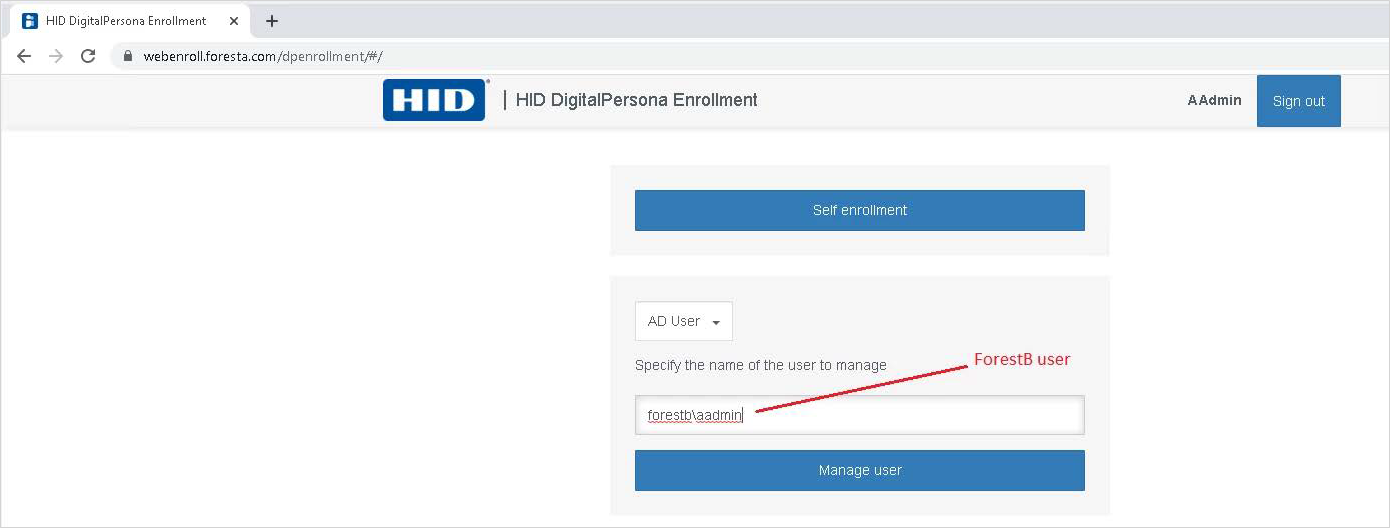
HID DigitalPersona (Web) Attended Enrollment of user from ForestB:
-
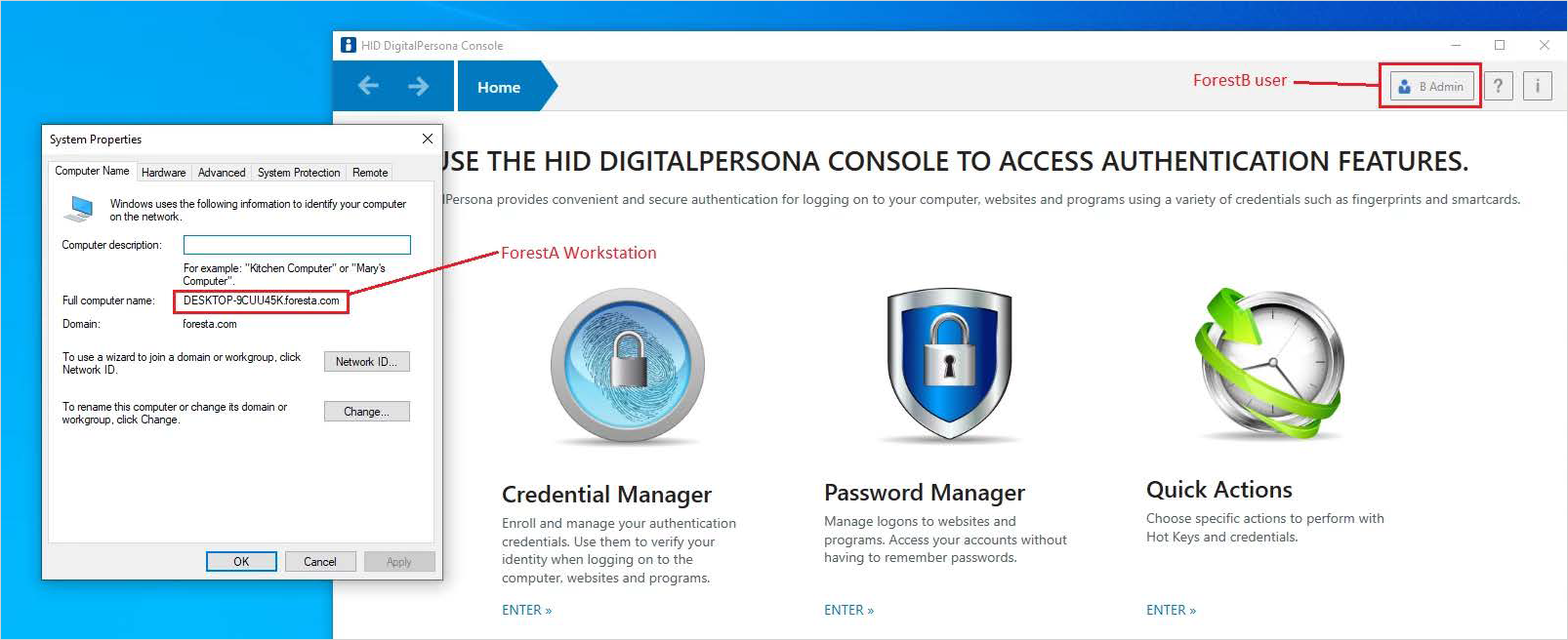
ForestB user logging in to a DigitalPersona Workstation within ForestA using their enrolled credentials - the same as a ForestA user logging in to a Workstation within ForestB:
-
ForestB user authenticating to the desktop version of Attended Enrollment for enrolling a Forest A user - the same as a ForestA user enrolling a Forest B user:

-
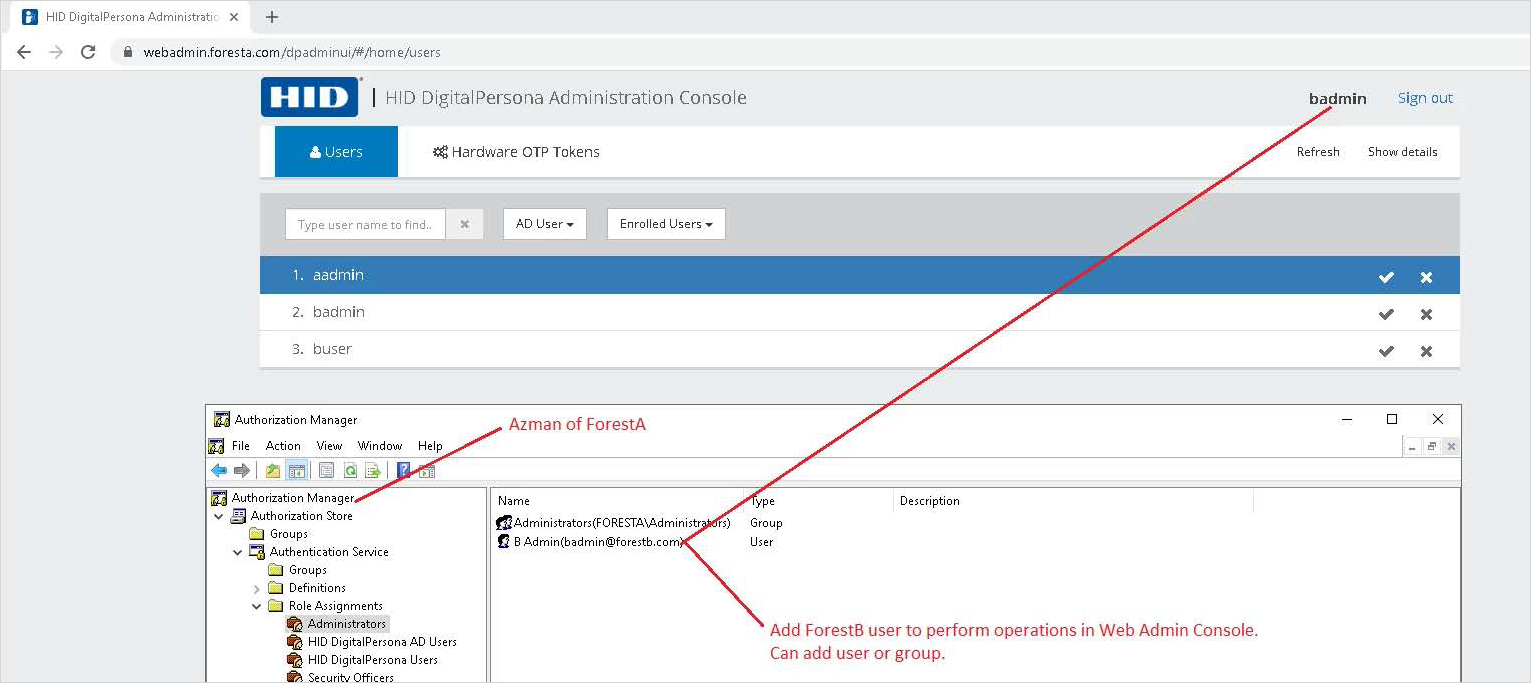
AzMan authorization for a ForestB user to perform actions and operations in the (Web) HID DigitalPersona Administration Console:
Scenario Two - Deployment in a Single Forest
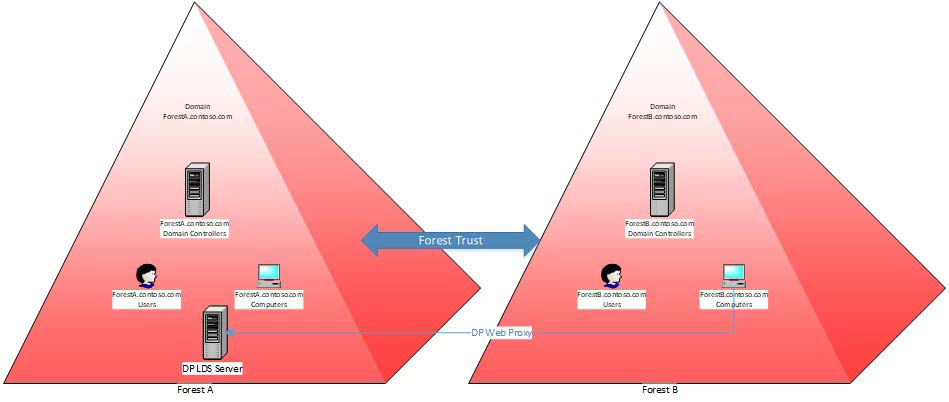
In this option we would deploy DP LDS Servers in the ForestA.contoso.com domain only.
Deployment steps:
-
Begin with a new installation of Windows Server 2016 or 2019 on a physical or virtual machine and join it to the ForestA.contoso.com domain.
-
Deploy Microsoft LDS on the machine. During deployment, create a new LDS Instance (using the Domain Admin user- for example, admin@ForestA.constoso.com with an instance name such as "DPInstance". Make a note of the LDAP port#.
-
Extend the Microsoft and DigitalPersona schemas.
-
Deploy the HID DigitalPersona LDS Server. See Installing the Server Components.
-
As necessary, add additional DigitalPersona LDS Servers to ForestA.contoso.com. Join all LDS instances to the existing instance (i.e. DPInstance or your selected name).
-
Deploy DigitalPersona Web Components to the DigitalPersona LDS Server machine in the ForestA.contoso.com domain. See Installing the Web Management Components.
-
Configure GPO setting to use the Web Proxy in the ForestA.contoso.com domain.
-
Deploy DigitalPersona clients (DigitalPersona Workstation and/or DigitalPersona Kiosk) to the ForestA.contoso.com domain. See Installing DigitalPersona LDS Workstation and Installing DigitalPersona LDS Kiosk.
-
Deploy DigitalPersona clients (DigitalPersona Workstation and/or DigitalPersona Kiosk) to the ForestA.contoso.com domain. See Installing DigitalPersona LDS Workstation and Installing DigitalPersona LDS Kiosk.
-
Configure GPO settings in each domain. They will not replicate.
-
Start enrolling users in both domains.
When users from the ForestA.contoso.com domain log in using password Manager on a computer which belongs to the ForestA.contoso.com domain, they will hit the DigitalPersona LDS Server located in the ForestA.contoso.com domain over DCOM, and can authenticate using their enrolled credentials (fingerprints for example).
The same users, located in Forest B and logging in to a computer in the ForestA.contoso.com domain, will hit the DigitalPersona LDS Server located in the ForestA.contoso.com domain over the DigitalPersona Web Proxy. Therefore they will be able to authenticate using their enrolled credentials for authentication.
When users from the ForestA.contoso.com domain log in using Password Manager to a computer in the ForestA.contoso.com domain, they will hit the DigitalPersona LDS Server located in the ForestA.contoso.com domain over the DigitalPersona Web Proxy. Therefore they will be able to authenticate using their enrolled credentials for authentication.
The same users, located in Forest A and logging in to a computer in the ForestA.contoso.com domain, will hit the DigitalPersona LDS Server located in the ForestA.contoso.com domain over DCOM, and can authenticate using their enrolled credentials (fingerprints for example).
For Web authentication (Office365 for example) we recommend using the same URL for both users from ForestA.contoso.com and ForestA.contoso.com. This will result in both sets of users contacting the same DigitalPersona LDS Server located in the ForestA.contoso.com domain.


