Passkey (Device-Bound) Credentials
Passkeys (device-bound) supported by your organization may be used as a credential for authentication.
A passkey is a type of passwordless digital credential that is used as an authentication method. From a technical standpoint, passkeys are FIDO-based credentials that are discoverable by browsers or housed within native applications, or security keys for passwordless authentication.
Passkeys that are synced between a user's devices via a cloud service are generally referred to as "synced passkeys", while ones that never leave a single device are referred to as "device-bound passkeys".
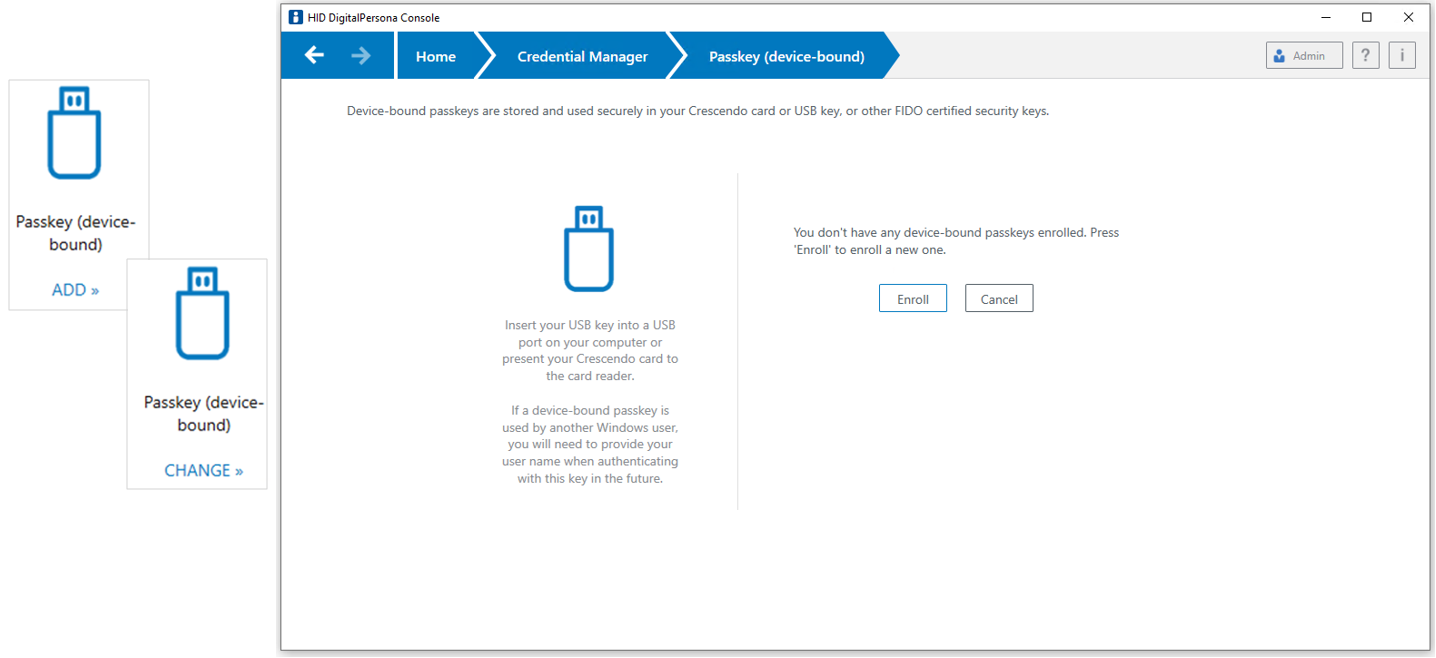
On the Passkey (device-bound) page, you can add a new device or change your device.
To enroll a Passkey (synced) credential, use the DigitalPersona web-based enrollment as described in Passkey (Synced) Credential.
You can enroll multiple passkeys (for example, as backup passkeys or to access shared accounts using unique devices).
Beginning with DigitalPersona version 3.4, passkeys are supported via the FIDO2 protocol.
FIDO UTF is no longer supported, and any previously enrolled passkeys need to be re-enrolled with DigitalPersona 3.4 or later.
Changing or resetting the PIN associated with a passkey is not done in your DigitalPersona software, but through your Microsoft Account. Under Manage, select Microsoft Security Key (their name for passkeys).
Enroll a Passkey (Device-Bound) Credential
-
In the DigitalPersona Console, select Credential Manager, and click ADD (if no passkeys have been enrolled yet) or CHANGE (if at least one passkey is already enrolled) on the Passkey (device-bound) tile to display the Passkey (device-bound) page.
-
Insert a passkey into an available USB port or present your Crescendo card to the card reader, and click Enroll.
-
Depending on the type of passkey being used, activate it through one of the following actions.
-
Tap the sensor on the device.
-
Press a button on the device.
-
Remove and reinsert the device.
-
Tap the Touch or Tap the message window.
-
Enter the Passkey PIN.


-
Upon successful enrollment, CHANGE is added to the passkey credential icon.
Change the Passkey (Device-Bound) Currently Used as a Credential
-
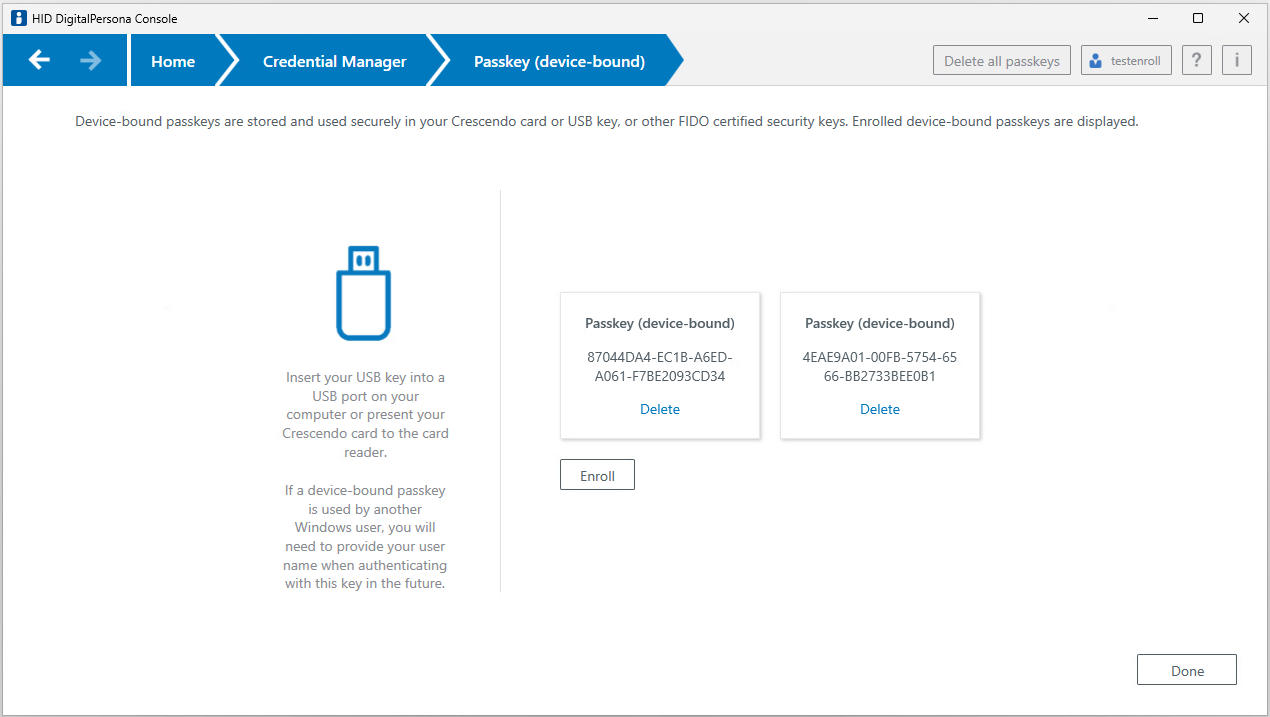
In the DigitalPersona Console, select Credential Manager, and click CHANGE on the Passkey (device-bound) tile to display the Passkey (device-bound) page.
The Credential Manager displays details of the passkeys you have already enrolled.
-
To enroll another passkey, insert it into an available USB port or present your Crescendo card to the card reader, and click Enroll.
-
Depending on the type of passkey being used, activate it through one of the following actions.
-
Tap the sensor on the device.
-
Press a button on the device.
-
Remove and reinsert the device.
-
Tap the Touch or Tap the message window.
-
Enter the Passkey PIN.
-
Upon successful enrollment, the Credential Manager page is displayed again.
Delete the Passkey (Device-Bound) Credential
-
In the DigitalPersona Console, select Credential Manager, and click CHANGE on the Passkey (device-bound) tile to display the Passkey (device-bound) page.
-
To delete a specific passkey, click Delete on the corresponding tile.
To delete all the enrolled passkeys, click Delete all passkeys in the top right corner of the page.
-
Confirm the deletion.


