Extending the Active Directory Schema
Prior to installing DigitalPersona AD Server, the Active Directory schema must be extended to create new attributes for the user object and new classes, as well as to make modifications to existing classes. The Active Directory Schema Extension Wizard automatically handles all of the necessary changes to the schema.
Each schema extension has a schema extension version number that is independent of the DigitalPersona product version number. Each DigitalPersona product release will identify the schema extension version it requires. This schema extension is global to the Active Directory forest.
You can view the details of the changes that will be made to the schema by opening the dp-schema.ldif file located in the server\Server Deployment Tools\AD\Schema Extension folder in the product package.
The Active Directory Schema Extension Wizard must be run from the schema master domain controller, or the data may not replicate fast enough to allow the wizard to continue. If the data is not replicated fast enough, the wizard will terminate, and you should then wait one replication cycle before running the wizard again.
After the schema extension, and again after configuring your domains, you must wait for Active Directory schema replication to be completed. The amount of time this takes will depend on the complexity of your Active Directory structure.
You must have Schema Administrator privileges to run the Schema Extension Wizard.
To run the Active Directory Schema Extension Wizard:
-
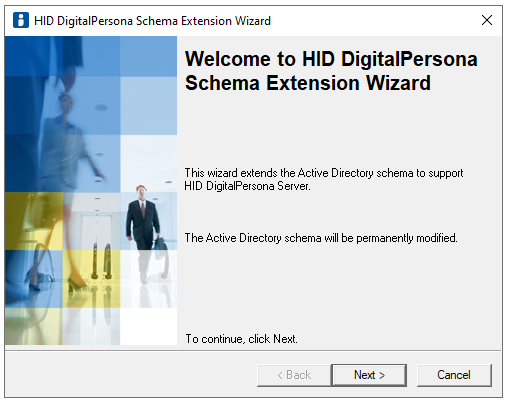
Double-click the DPSchemaExt.exe in the Server Deployment Tools\AD\Schema Extension folder of the Server installation package and click Next.
-
Read the terms and conditions on the License Agreement page. If you agree with them, select I accept the license agreement and then click Next.
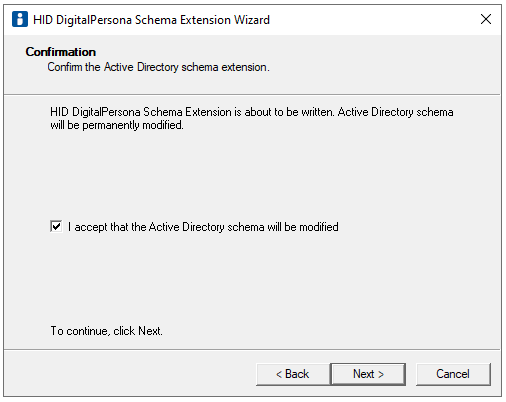
A warning reminds you that the Active Directory schema will be permanently modified.
-
If you are sure that you want to proceed with the schema extension, select I accept that the domain will be configured and click Next.
-
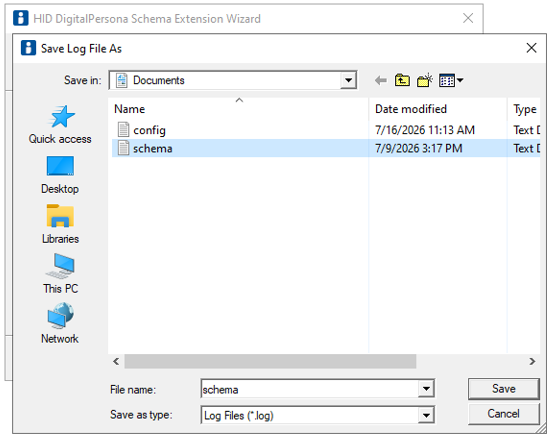
Specify a location and name for the log file generated by the Schema Extension Wizard in the Save Log File As dialog box and click Save.
-
If prompted to make the schema writable and perform the schema extension, click Yes.
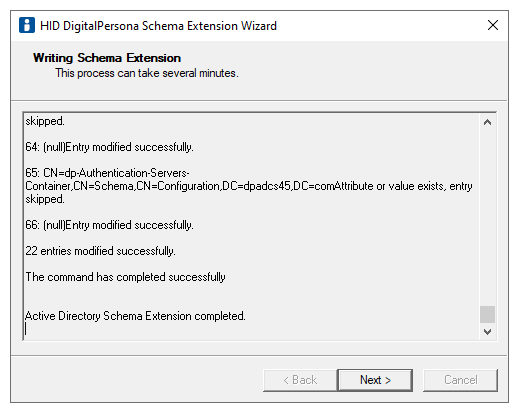
The wizard will extend the schema and provide information such as the class and attribute names.
-
Click Next and then Finish to close the wizard.
The name of each new attribute and class added to the Active Directory schema follows Microsoft naming conventions. The names are assigned a “dp” prefix, which is registered with Microsoft.
The OID base, generated by Microsoft, is 1.2.840.113556.1.8000.651.


