Integrating the DigitalPersona ADFS Extension
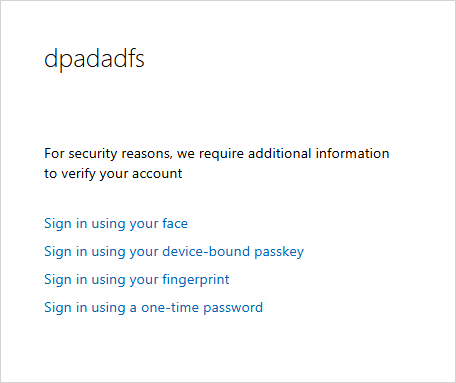
The DigitalPersona ADFS Extension adds multi-factor authentication (DigitalPersona fingerprint, OTP, Face and passkey (device-bound and synced) credentials) to an ADFS environment.
On your Microsoft Windows Server, install the Active Directory Federation Services role using the Add roles and features function of the Server Manager, or using the Install-WindowsFeature ADFS-Federation -IncludeManagementTools PowerShell command.
Complete the configuration of AD FS using in the Server Manager's configuration wizard.
Install the DigitalPersona ADFS Extension
-
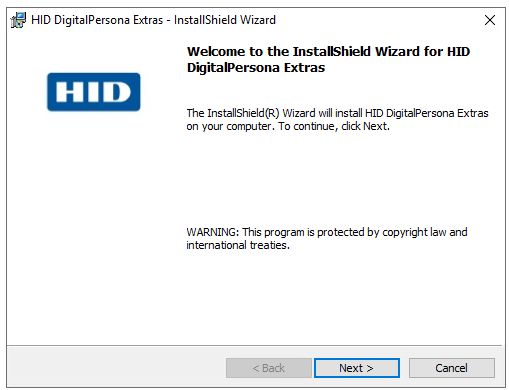
Double-click the setup.exe in the DigitalPersona Extras folder of the product package and click Next.
If Windows Web Server (IIS) has not been previously added to the machine, it will be added as part of this process, and a reboot may be required in order to continue.
-
Read the terms and conditions on the License Agreement page. If you agree with them, select the I accept the license agreement button and then click Next.
-
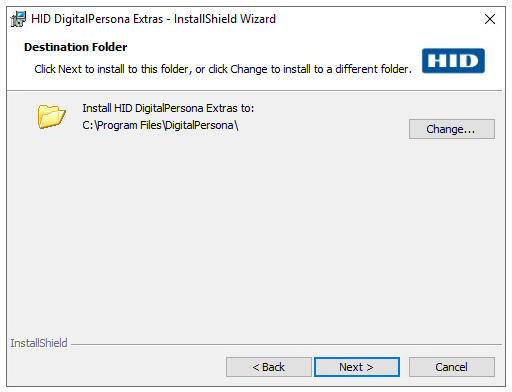
Specify the folder in which DigitalPersona Extras will be installed.
If you want to install the components in the default location, which is C:\Program Files\DigitalPersona, click Next.
If this is the first DigitalPersona product being installed on this machine, there will also be a Change button which allows you to change the installation directory.
Additional DigitalPersona product installations may remove this button in order to ensure that associated products are installed to the same directory.
-
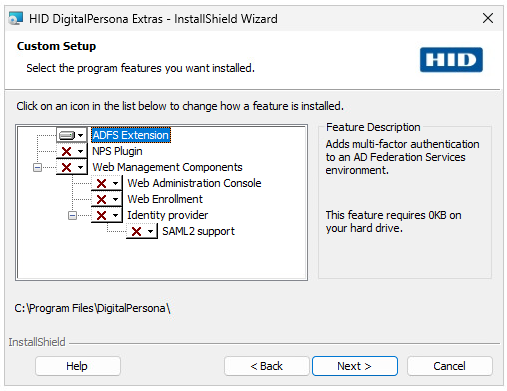
On the Custom Setup page, select the ADFS Extension feature and click Next.
-
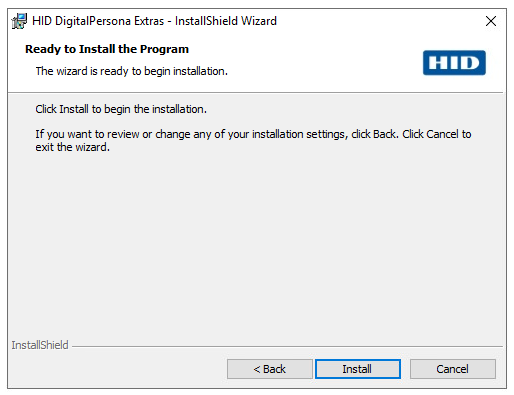
Click Install to begin the installation.
-
When installation is complete, click Finish.
Select the DigitalPersona Credentials
With the DigitalPersona ADFS Extension installed, you can select or deselect additional DigitalPersona credentials for AD FS authentication through the AD FS Management Console.
-
From the Server Manager, select Tools, then select AD FS Management.
-
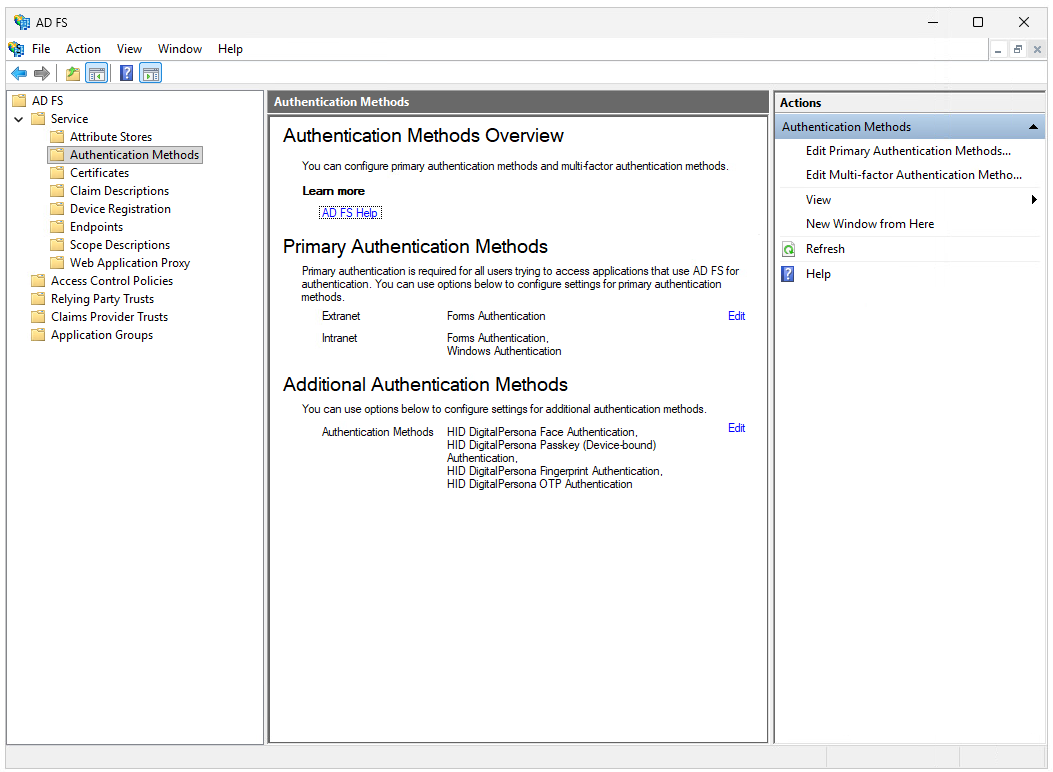
In the AD FS Management Console, select Authentication Policies.
-
Scroll down to the Multi-factor Authentication section.
-
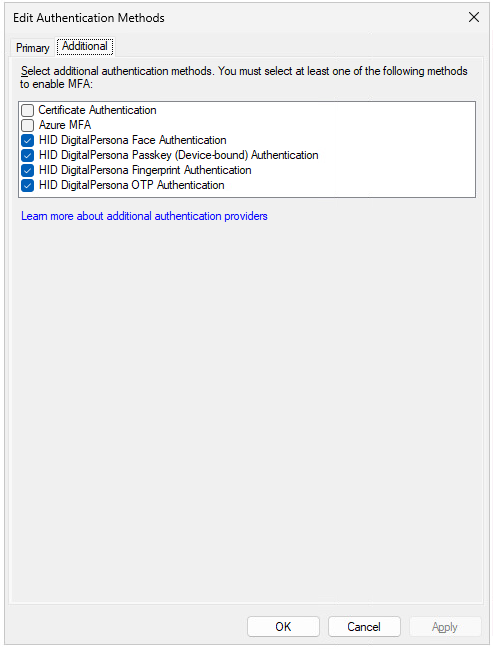
To the right of the Global Settings area, click Edit.
-
In the Edit Global Authentication Policy dialog, select or deselect additional DigitalPersona credentials for multi-factor authentication.


