Installing the DigitalPersona LDS Server
Available Features
DigitalPersona LDS Authentication Server
Note also that the installation will set three inbound firewall policies necessary for the operation of DigitalPersona software as follows:
| Policy Name | Description |
|---|---|
|
DigitalPersona Authentication Service (Echo Request - ICMPv4-In) |
Inbound rule for DigitalPersona Authentication Service to allow Echo Request messages to be sent as ping requests. |
|
DigitalPersona Authentication Service (DCOM-In) |
Inbound rule for DigitalPersona Authentication Service to allow remote DCOM activation via the RPCSS service. |
|
DigitalPersona Authentication Service (TCP-In) |
Inbound rule for DigitalPersona Authentication Service to allow it to be remotely connected via DCOM. |
DigitalPersona LDS Administration Tools
The installation package includes the following Administration Tools:
-
License Activation Manager - to activate and manage your DigitalPersona licenses through a series of intuitive wizards (see License Activation and Management)
-
GPMC Extensions - used to link product policies and settings to Active Directory containers (see Policies and Settings)
-
User Query Snap-in - provides a means for the administrator to query the DigitalPersona LDS user database for information about DigitalPersona LDS users and to perform certain operations and to set values associated with a selected user (see User Query Snap-in)
By default, all Administration Tools are installed and you can customize the setup to deselect any tools you do not wish to install.
Install DigitalPersona LDS Server Locally
-
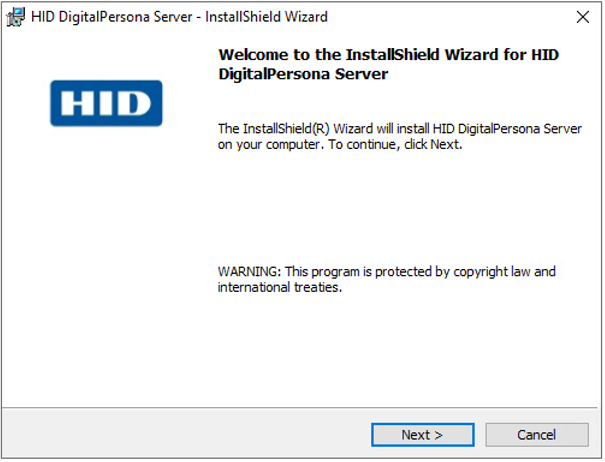
Double-click the Setup.exe in the ../Server folder of the product package to run the DigitalPersona Server Installation Wizard and click Next.
-
Read the terms and conditions on the License Agreement page. If you agree with them, select the I accept the license agreement button and then click Next.
-
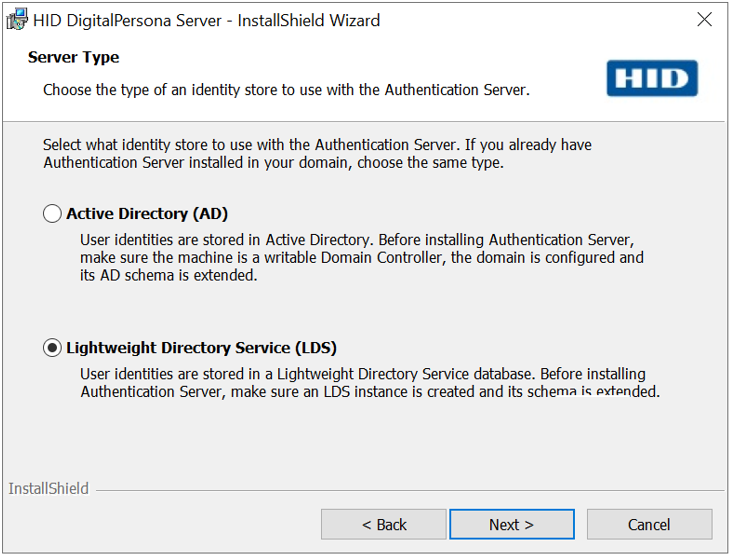
Select Lightweight Directory Service (LDS) as the Server Type and click Next.
-
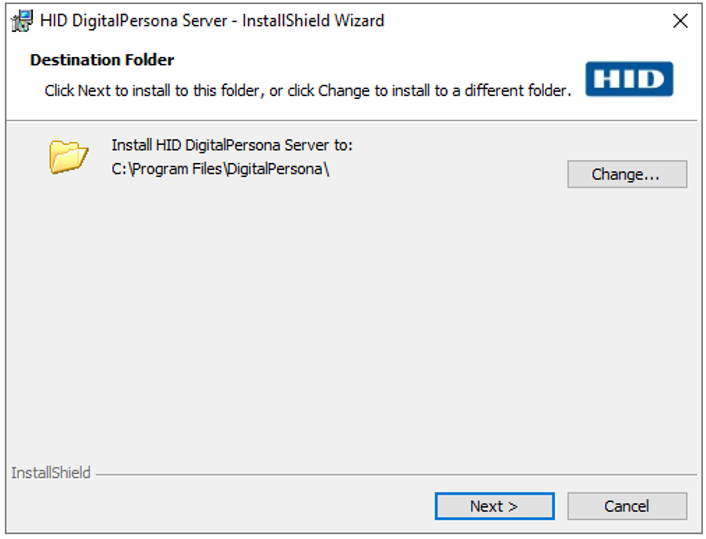
Specify the folder in which DigitalPersona LDS Server will be installed.
If you want to install the server in the default location, which is C:\Program Files\DigitalPersona, click Next.
Otherwise, click Change to specify a new location and then click Next to continue.
-
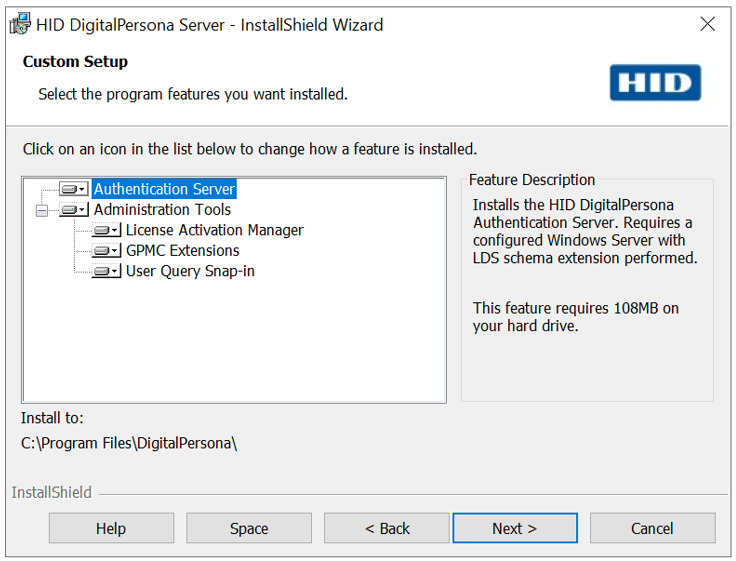
Select the features you want to install and click Next:
-
Authentication Server - installs the DigitalPersona LDS Authentication Server
-
Administration Tools:
-
License Activation Manager - to activate and manage your DigitalPersona licenses through a series of intuitive wizards (see License Activation and Management)
-
GPMC Extensions - used to link product policies and settings to Active Directory containers (see Policies and Settings)
-
User Query Snap-in - provides a means for the administrator to query the DigitalPersona LDS user database for information about DigitalPersona LDS users and to perform certain operations and to set values associated with a selected user (see User Query Snap-in)
-
-
-
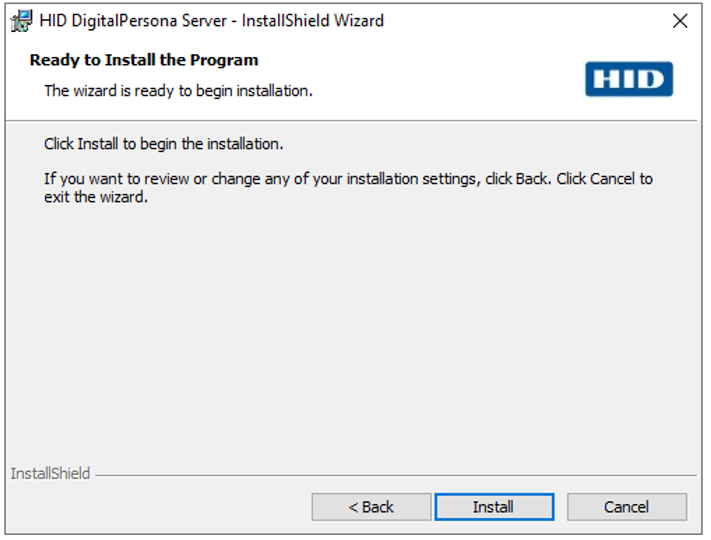
Click Install to begin the installation.
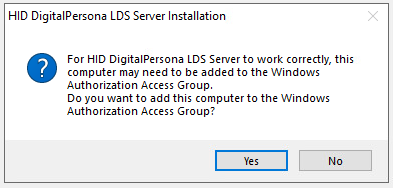
Windows Authorization Access Group for DigitalPersona Server to provide access control, it requires access to authorization information on user account objects.
By default, members of the "Pre-Windows 2000 Compatible Access" group have access to this data.
-
If the “Permissions compatible with pre-Windows 2000 servers" option was selected during the DCPromo process when the domain was created, “Everyone" would have been added to the "Pre-Windows 2000 Compatible Access" group and DigitalPersona Server would be able to access the necessary user authorization information in Active Directory.
-
However, if this option was not selected, DigitalPersona Server would not have access to the user authorization information and as result, user enrollment will fail with an "Access Denied" error.
Therefore, the machine account where DigitalPersona Server is running must be added to the Windows Authorization Access Group.
-
-
When installation is complete, click Finish.
-
If prompted to do so, reboot the computer.
Install DigitalPersona LDS using the Command Line
DigitalPersona LDS Server can also be installed or uninstalled using MSI at the command line.
In addition, deployment of the DigitalPersona LDS is typically limited to Domain Controllers or Server(s) with AD LDS.
The syntax of the msiexec command is shown below and is followed by a description of the command line options, parameters and values available:
msiexec /quiet /norestart /i "HID DigitalPersona Server.msi" [SERVER_TYPE=<server type>] [ADDLOCAL=<features>] [REMOVE=<features>]Command Line Options
| Options | Description |
|---|---|
|
/quiet |
(Optional) Hides the user interface when installing the software on the computer, allowing a “silent install.” If used, it is placed at the end of the command line. |
| /norestart | (Optional) Prevents the computer from automatically restarting after the installation process finishes. |
|
/i |
(Required) Indicates that MSI will be used to install the DigitalPersona software. It must be followed by the full pathname to the .msi file. |
Parameters
The following parameters indicate where the software should be installed on the computer, as well as what components should be included or removed:
| Parameters | Description |
|---|---|
|
SERVER_TYPE |
Specifies the type DigitalPersona server installation. By default, the type is AD. Possible values for <server type> are:
|
|
ADDLOCAL |
(Optional) Indicates which DigitalPersona features to install by providing one of the values in a comma-separated list. |
|
REMOVE |
(Optional) Indicates which DigitalPersona software features to uninstall by providing one of the values in comma-separated list. |
ADDLOCAL and REMOVE Values
The table below lists the values that may be provided with the ADDLOCAL and REMOVE parameters and provides a description of each value:
| Values | Description |
|---|---|
|
ALL |
Installs all of the DigitalPersona software components and features, or removes those currently installed, based on the SERVER_TYPE. |
|
Server |
Installs or removes the DigitalPersona authentication server. Selected by default. |
|
Admin |
Installs or removes the server administration tools. Selected by default. Includes the sub-features: |
|
|
|
|
|
|
|
|
|
Following are a few rules when using these parameters and their values:
-
If ADDLOCAL or REMOVE are not specified, msiexec will install all the DigitalPersona LDS features.
Individual software features cannot be installed unless the
Allvalue was used with theADDLOCALparameter first. -
To install DigitalPersona LDS Server for the first time while omitting one or more software features, use
ADDLOCAL=ALL, followed by theREMOVEparameter with each software component you do not want to install separated by a comma.
For example:
-
To perform a full installation of the DigitalPersona LDS Server and admin tools:
Copymsiexec /qn /i "HID DigitalPersona Server.msi" SERVER_TYPE=LDSCopyWhich is equivalent to the more explicit command:msiexec /qn /i "HID DigitalPersona Server.msi" SERVER_TYPE=LDS ADDLOCAL=ALL -
To only install the DigitalPersona LDS Server:
Copymsiexec /qn /i "HID DigitalPersona Server.msi" SERVER_TYPE=LDS REMOVE=AdminCopyWhich is equivalent to the more explicit command:msiexec /qn /i "HID DigitalPersona Server.msi" SERVER_TYPE=LDS ADDLOCAL=Server REMOVE=Admin
-
To uninstall the DigitalPersona LDS Server:
Copymsiexec /quiet /norestart /x "HID DigitalPersona Server.msi"
Activate the DigitalPersona Server License
In most cases, you will activate your DigitalPersona Servers over the internet through Active Directory and the DigitalPersona Activation wizard.
For additional license activation options, see License Activation and Management.
-
From the computer where the DigitalPersona Server to be licensed is installed, open the Local Group Policy Editor (gpedit.msc).
-
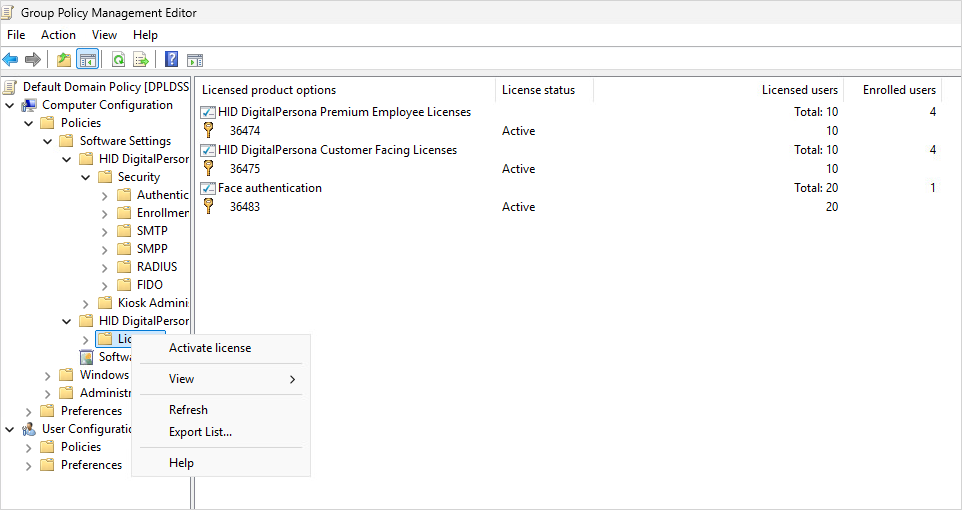
In the Group Policy Management Editor, navigate to Computer Configuration, Policies, Software Settings, DigitalPersona Server, Licenses.
-
Right-click on Licenses and select Activate license.
-
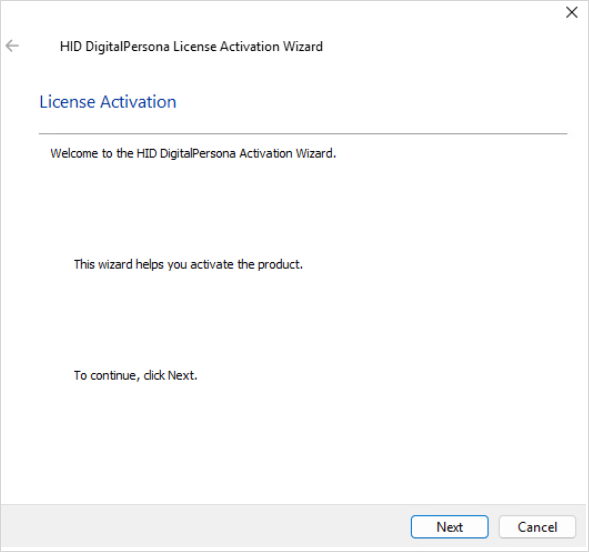
When the DigitalPersona Activation Wizard displays, click Next.
-
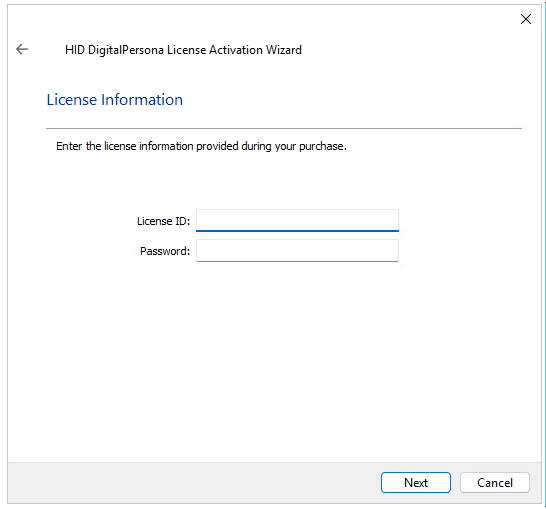
Enter the license information provided during the purchase of your DigitalPersona software.
-
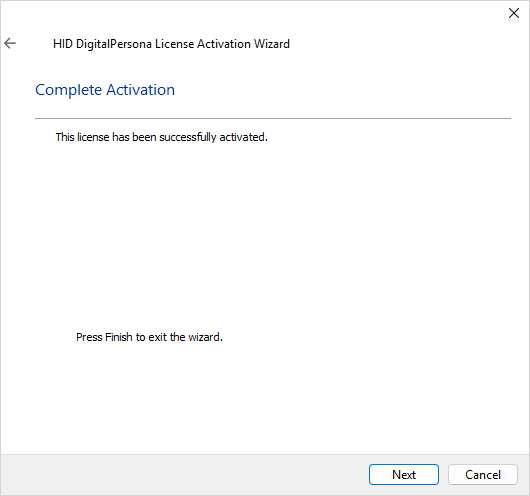
If the license information is valid and the wizard is able to contact the activation server, the license will be activated.
Published information
The DigitalPersona Server publishes its service using the following properties:
-
Service Class Name, DPAltusSvr.
-
Service Class GUID, set to {708A50AA-F647-49E8-820A-F3D6BAF02330}.
The Server publishes its service in compliance with the Active Directory Service Connection Point specifications.
Uninstalling DigitalPersona LDS Server
DigitalPersona LDS Server can be uninstalled from the Add/Remove Programs Control Panel in Windows if you have administrator privileges on the domain on which DigitalPersona LDS Server is installed.
The software is listed as “DigitalPersona LDS Server.”
When you uninstall the Server software, the published information (described in Published information) is removed.


