Using DigitalPersona Workstation
DigitalPersona Workstation is a robust and fully featured workstation client which allows you to significantly and easily increase the security of computers in your enterprise. Its specific features, options and behavior can be configured though Active Directory GPOs and other tools.
-
Attended Enrollment, an optional component of DigitalPersona Workstation, allows administrators to assign a specific user or group to supervise the credential enrollment process. See Using DigitalPersona Attended Enrollment.
-
DigitalPersona Kiosk, a separate DigitalPersona client with many of the same features, provides users with fast, convenient and secure multi-factor identification and authentication in environments where users share a common Windows account yet need separately controlled access to resources, applications and data. See Using DigitalPersona Kiosk.
Most of the content in this section is written from the end-user perspective, and can also be accessed from the various DigitalPersona help features.
 Multi-Factor Authentication for Microsoft Windows Servers and Domain Controllers
It addition to the end-user features described in the following sections, DigitalPersona Workstation may be used to provide multi-factor authentication on supported versions of Microsoft Windows Server (sometimes referred to as Client On Server or COS).
However, DigitalPersona Workstation is designed to be installed on a domain controller in an AD deployment. It is not designed with this capability in an LDS deployment and will not work on a domain controller due to the fact that all domain users will become local users if you run the software on the domain controller.
In the above scenarios, if DigitalPersona Server is installed on the machine, DigitalPersona Workstation must be installed after the DigitalPersona Server and it must only be used for authentication.
Getting Started
By default, DigitalPersona credentials are enrolled through the DigitalPersona Attended Enrollment component. However, a DigitalPersona administrator may optionally choose to allow Windows users to self-enroll (that is, enroll their credentials through the DigitalPersona Workstation).
User Onboarding
User Onboarding can be triggered during Windows logon using the following methods:
-
When the user clicks the First time using HID DigitalPersona? link on the User tile
-
Automatically after the user authenticates with their Windows password
“First time using HID DigitalPersona?” Link at Windows Logon
The “First time using HID DigitalPersona?” link is displayed on a user's tile during Windows logon or unlock if the user is unlicensed in your DigitalPersona system (that is, they have not yet enrolled a DigitalPersona credential):
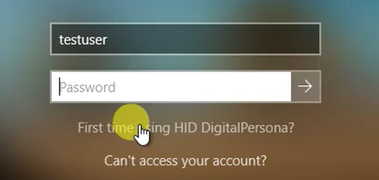
When the user clicks this link, the User Onboarding process is initiated.
The link will only display:
-
On the User tile as the username is known and their license status can be determined
It will not display on the Other user tile.
-
On Windows password or DigitalPersona-related credential tiles (such as OTP, PIN, cards, fingerprints, etc.)
It does not display on the PKI Smart Card tile.
-
If the Allow user onboarding policy setting is enabled or not configured
If this GPO is explicitly disabled, Automatic Onboarding will not start.
-
If the user does not yet have a DigitalPersona license because they have not enrolled a DigitalPersona credential
Once the user enrolls a credential and consumes a license, the link will no longer display.
Automatic Onboarding after Successful Windows Password Authentication
DigitalPersona automatically triggers the User Onboarding process if a user successfully authenticates with a Windows password but does not have enough enrolled credentials to satisfy Multi-factor authentication (MFA) requirements and log on to Windows.
Automatic Onboarding will only be triggered if all the following conditions are met:
-
The user has successfully authenticated with their Windows password
-
Multi-factor authentication (MFA) is configured so that the user cannot log on to Windows using only their password
If password-only logon is allowed, Automatic Onboarding will not start.
-
The Allow user onboarding policy setting is enabled or not configured
If this GPO is explicitly disabled, Automatic Onboarding will not start.
-
The computer has an active connection to the DigitalPersona Server
If no connection exists, user enrollment is not possible, and therefore Automatic Onboarding will not start.
-
The user does not yet have a DigitalPersona license because they have not enrolled a DigitalPersona credential
If the user already has a DigitalPersona license, Automatic Onboarding will not start, even if the user does not yet have sufficient enrolled credentials to satisfy MFA requirements.
-
Self-enrollment rights are enabled for the user
If the user is not permitted to self-enroll credentials, onboarding will not be successful.
Sample Workflow
-
The DigitalPersona Logon Policy is Password plus PIN and a user has never enrolled a DigitalPersona credential before.
-
The user attempts to log on using their password or a PKI Smart Card.
-
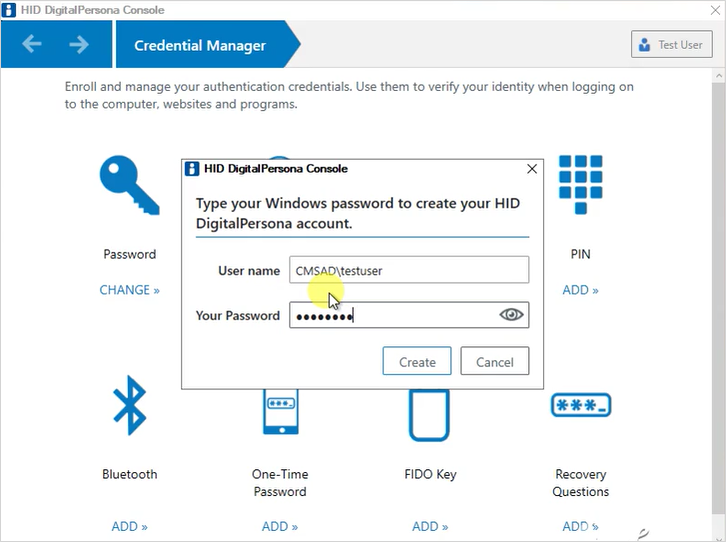
The HID DigitalPersona Console displays, with a window where the user can create a DigitalPersona account, needed to enroll the PIN credential.
-
The user enters their password and clicks Create in order to establish their HID DigitalPersona account.
Note: Once the account is created, if the user is unable to enroll any credentials, the onboarding process will not appear again. In this case, an administrator may use Attended Enrollment to assist the user in enrolling any additional required credentials. -
They close the Console by clicking on the Close (X) button in the upper right portion of the window.
-
The Windows Logon screen redisplays, with a new link - First time using HID DigitalPersona?
-
The user clicks the link to redisplay the HID DigitalPersona Console.
-
They authenticate with their password and then click the PIN tile to enroll their personal PIN.
-
They close the Console by clicking on the Close (X) button in the upper right portion of the window.
A message displays that the user can now use their credentials for authentication.
-
The Windows Logon screen re-displays.
-
The user enters their password, the system requests their PIN, they enter it and are logged on to Windows.
As a solution, it is recommended that Attended Enrollment is used as the primary enrollment method. This ensures that all required credentials, including FIDO device-bound passkeys, are enrolled before MFA policies for Windows logon are enforced.
Other solutions include:
Configuring multiple MFA authentication methods for Windows logon, such as:
Windows Password and Device-Bound Passkey
Windows Password and OTP (One-Time Password)
Users can initially authenticate with OTP and later enroll their FIDO passkeys after signing in to Windows.
Introducing an grace period before enforcing MFA across the organization to allow users to complete credential enrollment
Using DigitalPersona Web Enrollment, which supports FIDO enrollment from any supported workstation and satisfies WebAuthn interactive-session requirements
The DigitalPersona Console
The DigitalPersona Console is the central location for primary access to the DigitalPersona Workstation features and settings.
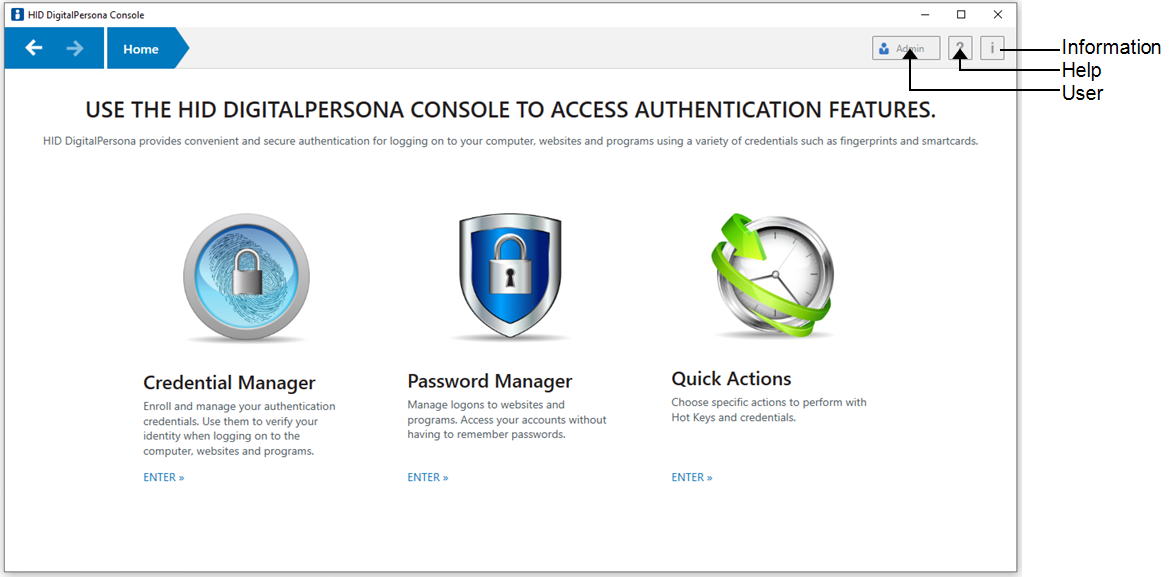
Password Manager (which includes Quick Actions) is an optional feature that may be installed by selecting Custom as the Setup Type during installation.
The DigitalPersona Console may include the following features.
-
Credential Manager - Enroll and manage DigitalPersona credentials and their settings.
-
Password Manager - (Optional) Create and manage Password Manager logons and accounts.
-
Quick Actions- Configure the DigitalPersona Hot Key sequence, and assign tasks to various credential and key+credential combinations. (Included with DigitalPersona Password Manager.)
-
Help - Displays online help for the DigitalPersona Console.
-
Information - Displays information about DigitalPersona Workstation, including the software version, copyright information and the DigitalPersona Server connection status.
-
User - Displays the Windows account name of the currently logged in user.
Opening the DigitalPersona Console
You can open the DigitalPersona Console in any of the following ways:
-
From the Apps screen, under DigitalPersona, select DigitalPersona Console.
-
Double-click the DigitalPersona Workstation icon in the notification area, at the far right of the taskbar.
-
Right-click the DigitalPersona icon, and click Open DigitalPersona Console.
-
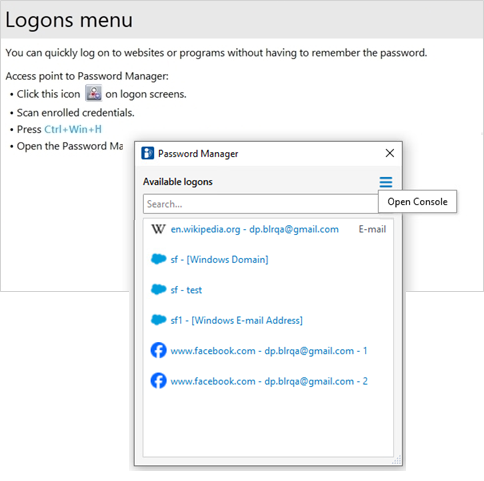
Press the hot key combination Ctrl+Win Logo Key+H to open the Logons menu and then click DigitalPersona Console (when no logons have been created yet) or Manage (after logons have been created).
Authenticating to your Microsoft Windows Computer with DigitalPersona Credentials
Once your DigitalPersona Workstation client has been installed, logon (authentication) to Microsoft Windows is controlled by the Logon Authentication Policy and Enhanced Logon Policy, which are set by GPOs in Active Directory. The path to these settings is: Computer Configuration\Policies\Software Settings\DigitalPersona Client/Security/Authentication
For a complete description of these policies, see Logon Authentication Policy.
Credentials that may be used to authenticate for Windows logon will be limited to those specified in the policy and supported by required hardware or software present on the workstation.
Some credentials, such as PKI Smart Cards, need to be previously formatted and initialized using the manufacturer’s middleware. Contactless Cards must be enrolled by the end user, on their computer, or through the DigitalPersona Attended Enrollment components (see Using DigitalPersona Attended Enrollment).
The actual process of using DigitalPersona credentials will vary slightly depending on the type of credential, but will generally follow Microsoft usage with the exceptions described in the following sections.
This prompt is not displayed when unlocking the machine.
For further information, see About Mandatory Credentials.
Multi-Factor Authentication
One of the primary benefits of the DigitalPersona solution is the easy implementation of multi-factor authentication (MFA), that is, requiring more than one credential in order to log on to Microsoft Windows (and other resources as defined by the administrator).
When DigitalPersona MFA is enabled and you have logged on for the first time, the system will remember which credentials you have used to log on with, and the sequence they were used in. For example, if you used your Windows Password first and your fingerprints second, the next time you go to log on, you will not have to select these, but will automatically be presented with the UI necessary to authenticate with those credentials in that order.
Card Authentication
To use a Contactless ID card to log on to Microsoft Windows, you must click your user tile on the Windows Logon screen before presenting the card. Then you can use a Contactless ID card in conjunction with another credential as specified by the Logon Authentication Policy in force.
A PKI smart card or Contactless Writable card may be presented directly from the Logon screen for immediate logon to Windows.
Locking/Unlocking your Computer
To lock a DigitalPersona-managed computer:
-
From the Start screen, click your user name and select Lock from the menu.
-
Press the Windows Logo key+L.
-
When configured by the DigitalPersona administrator, you can lock the computer by removing the card which was used to log on to Windows from the card reader.
To unlock a DigitalPersona-managed computer:
Use any authorized credential or required combination of credentials to unlock the computer and log on to the workstation.


