Face Credentials
A face credential is a biometric credential that uses facial recognition to securely authenticate your identity and grant access to authorized systems and applications.
Your computer must have a built-in or connected camera to enroll a Face credential
You computer must be a 64-bit version of Microsoft Windows
Enroll a Face Credential
If the camera being used to enroll your Face credential is an IR camera, and it is being used in bright daylight, the Face credential will still be enrolled, but the image shown after enrollment may be too dark to see any features.
-
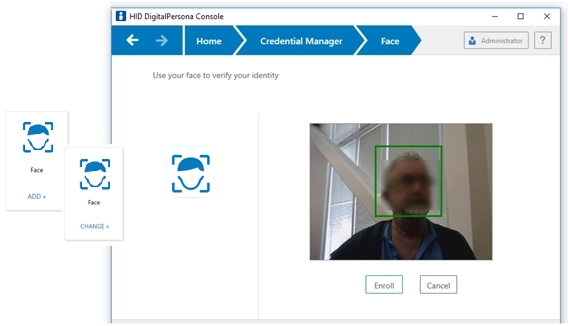
From the DigitalPersona Console, click Credential Manager, and click ADD on the Face tile.
-
If multiple cameras are available, select a camera from the drop-down list.
-
Center your face within the frame and click Enroll.
A green rectangle will display around your face in the camera image.
Once enrollment is complete, the screen will refresh and display the nine separate frames used in enrolling your Face credential.
Authenticate with your Face Credential
To authenticate with your Face credential, use one of the following options depending on from where you are authenticating:
-
At Windows logon, select Sign-in options and then select the Face tile.
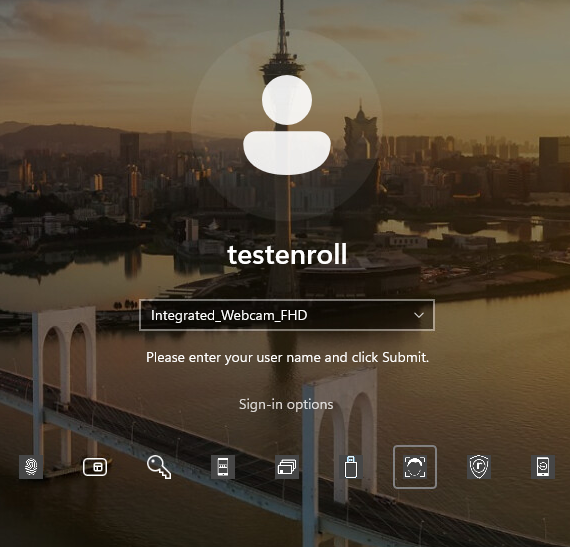
If more than one camera is detected for your machine, select the required camera.
-
On any Verify your Identity screen, select the Face tile.
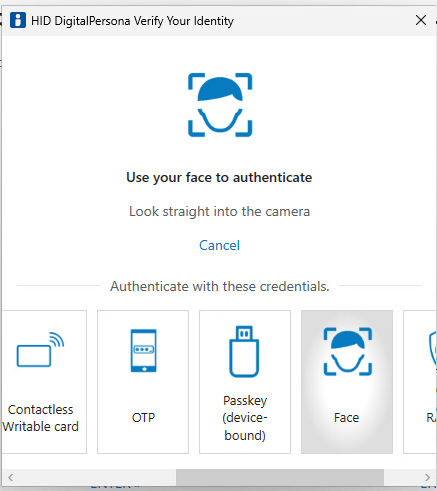
Look directly and steadily at the camera and wait for the camera to analyze your face.
Change your Face Credential
Once a Face credential has been enrolled, the word CHANGE appears below the credential's tile.
-
Click CHANGE to display the Face page.
-
Click Re-Enroll.
Delete your Face Credential
-
Click CHANGE on the Face tile.
-
In the upper right section of the page, click Delete Credential.
-
Confirm the deletion.


