Fingerprint Credentials
If there is a fingerprint reader built into or connected to your computer, you can enroll and manage your fingerprints.
Enroll a Fingerprint Credential
To enroll your fingerprints or manage your fingerprints credential:
-
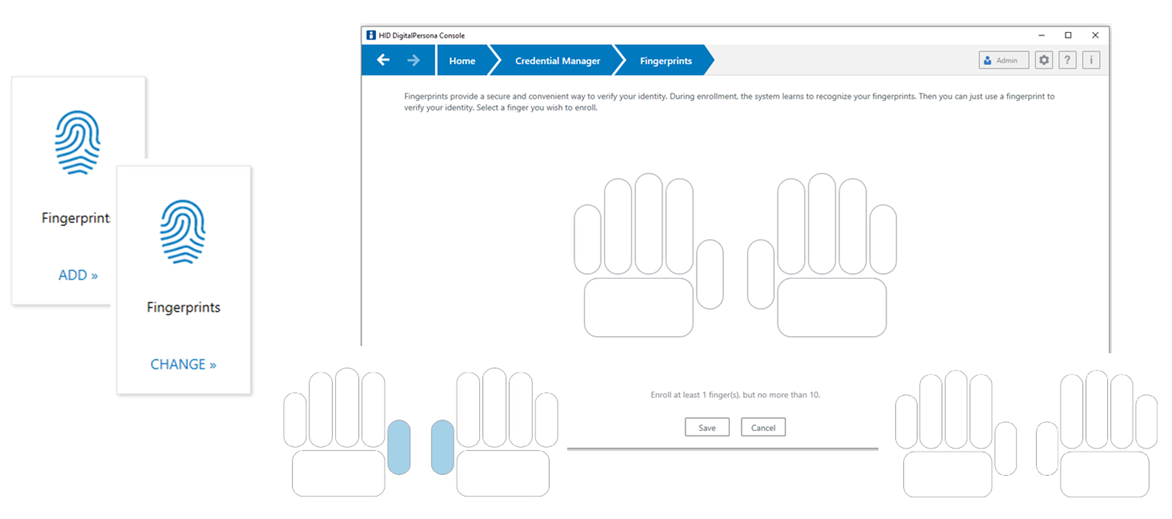
In the DigitalPersona Console, select Credential Manager, and click ADD on the Fingerprints tile.
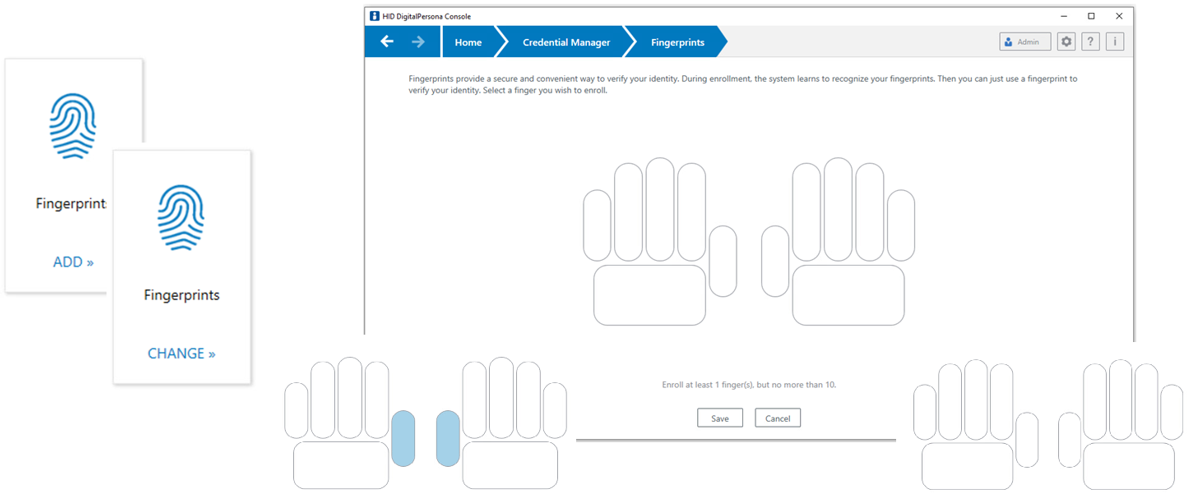
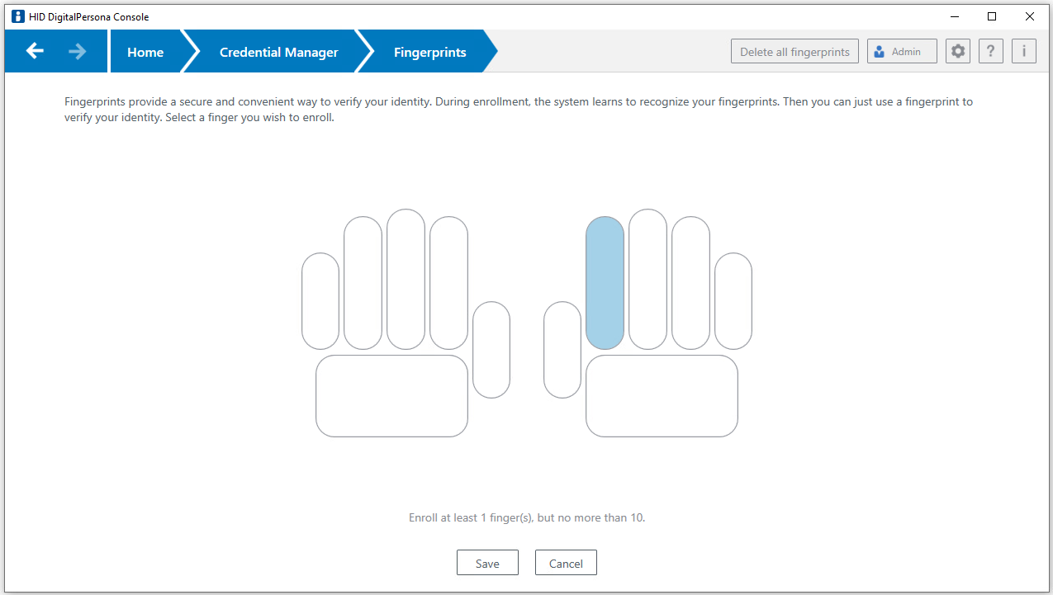
The Fingerprints page displays an outline of two hands. Fingers that have been previously enrolled are highlighted.
-
To enroll a fingerprint, click the image of any finger not previously enrolled.
-
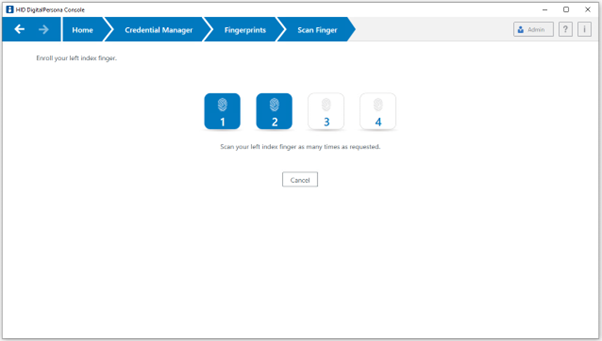
Scan the finger until its fingerprint is successfully enrolled. Index or middle fingers are preferable.
When enrollment is complete, the Fingerprints page re-displays with the enrolled finger highlighted.
-
Click Save.
Note: Fingerprint enrollment is not complete until you click Save. If you leave the computer inactive for a while without clicking Save, or close the program, any changes will not be saved.
Authenticate with Your Fingerprint Credential
To authenticate with your Fingerprint credential, use one of the following options depending on from where you are authenticating
-
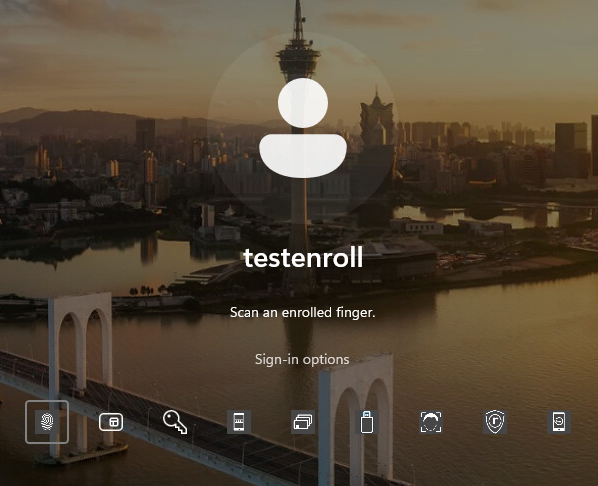
At Windows Logon, select the Fingerprint option and place your finger on the biometric reader attached to your computer:
-
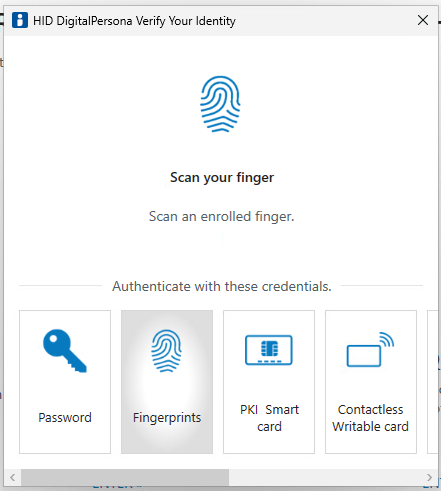
To verify your identity in the DigitalPersona applications, select the Fingerprint tile and place your finger on the biometric reader attached to your computer:
Delete Enrolled Fingerprints
To delete enrolled fingerprints, select the Fingerprints tile:
-
To delete a single fingerprint:
-
Click a highlighted finger on the outline.
-
Then confirm the deletion and click Save to return to the Credential Manager page.
-
-
To delete the entire fingerprint credential:
-
In the upper-right portion of the page, click the Delete all fingerprints button.
-
In the confirmation dialog, click Delete to confirm the deletion.
-


