One-Time Password via App
Enroll an OTP via App Credential
During enrollment, you may choose not to use OTP Push Notification by selecting Decline on the Push Authentication page, in which case, you can still use regular (non-push) OTP.
On the Credential Manager, One-Time Password page, you can download an OTP authentication app, and then enroll the OTP credential for use with the authenticator app and OTP Push Notification (if configured).
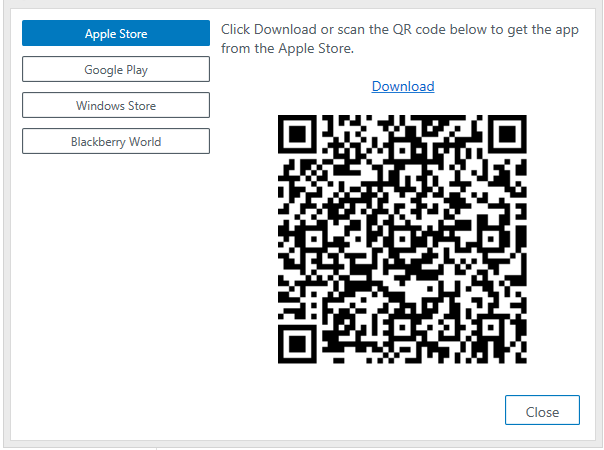
The steps to enrolling a software-based OTP token to be used with an authenticator app or OTP Push Notification are:
Download an Authenticator App
-
From the DigitalPersona Console, click Credential Manager, and then click the One-Time Password tile.
-
On the One-Time Password page, select Software token as the token type if it is not already selected. (It is the default.)
-
Click the Download phone app link to display a dialog where you can download and install the authenticator app for your device.
A new QR Code for downloading the app and a means to choose which app store to download it from is displayed.
-
Scan the QR code or click the button for your device's app store.
The DigitalPersona app is currently available from the Apple® Store and Google® Play.
Scanning the QR code with a QR Code scanner app on your device is the simplest procedure. It will automatically open your device’s default web browser and display the product page for the selected Authenticator app so that you can download and install the app.
Clicking the store download buttons will open the selected app store in your computer’s default browser. Some app stores may require signing in and/or downloading the app and copying it to your device.
The instructions that follow are for the DigitalPersona app as installed on an Apple iPhone®. Instructions for the use of other authentication apps and devices may differ slightly.
Set Up a DigitalPersona Account on Your Device
-
Launch the DigitalPersona mobile app on your device:
-
On iOS - The first time the app is launched, the Register screen displays, with a popup dialog requesting you to allow the app to send you notifications. Click OK to allow DigitalPersona Mobile to send you notifications.
Note: If you do not allow notifications, you will not be able to use the PUSH notification feature for One Touch Passwords. -
On Android systems - The first time the app is launched, the Register screen displays.
Notifications are enabled by default for the app, and therefore PUSH OTP will be operational (if the Privacy Policy is accepted as described below).
-
-
Click Register.
-
Enter and verify a six-digit passcode.
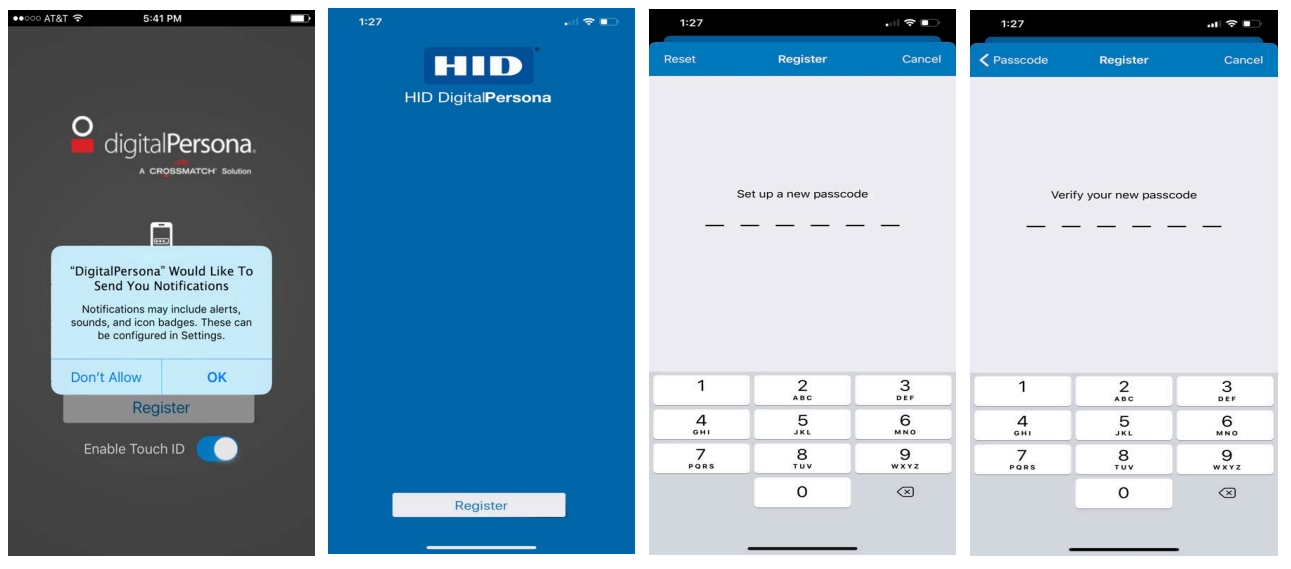
-
On the Diagnostic and Usage page, accept the defaults or tap an option to deselect it.
-
On the Accounts screen, click the Camera icon. You will be asked for permission to access your device’s camera. Tap OK if you want to use the camera to scan the QR Code for automatically creating your DigitalPersona Mobile account. If you click Don’t Allow, you will not be able to create an account or use the Authenticator app.
-
On the Scan QR Code screen, scan the QR code that displays on the One-Time Password Page. Do not scan the same QR code again from the dialog that has the app stores on it which was used to download the app.
-
If the Push Authentication Server has been previously setup by your DigitalPersona Administrator, Push Authentication will be automatically enabled for your device once you choose to Accept the associated Privacy Policy. If you choose to Decline the Privacy Policy, Push Authentication will not be enabled.
-
Once the account information is displayed, tap Save. The DigitalPersona Mobile account will be created and the Accounts screen displayed with the new account and your first One-Time Password shown.
Sign in to the DigitalPersona Mobile App
Once you have registered as described in the previous pages, you can sign in to the app as follows.
-
Launch the DigitalPersona Mobile app.
-
Sign In.
-
Fingerprint enabled devices - You can enable fingerprint authentication to the DigitalPersona Mobile app by selecting Enable Touch ID on the Sign In screen or later in the DigitalPersona Mobile Settings. Then touch the fingerprint sensor to sign in.
-
Non-fingerprint enabled devices - Tap Sign In and then enter your six-digit DigitalPersona Mobile passcode.
-
Enroll the OTP Credential
-
On the DigitalPersona Console Home page, select Credential Manager, and click ADD on the One-Time Password tile.
-
On your device, sign in to the DigitalPersona Mobile app.
-
On your computer, enter the six-digit verification code displayed in the app and click Save.
Authenticate with a One-Time Password
To authenticate with your One-Time Password, use one of the following options depending on from where you are authenticating:
-
At Windows logon, select Sign-in options and then select the One-Time Password (or OTP) tile to display One-Time Password options.
-
On any Verify your Identity screen, select the One-Time Password (or OTP) tile.
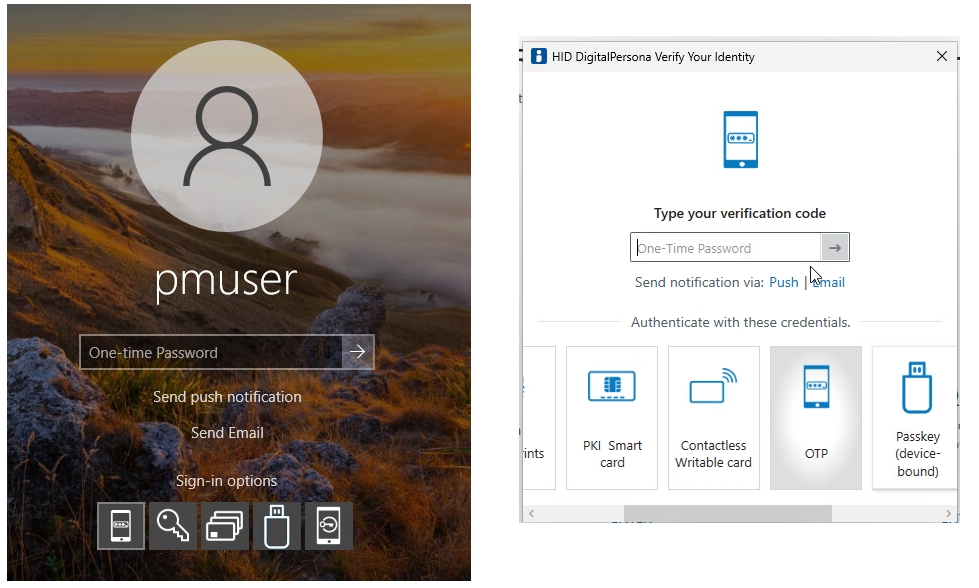
-
Launch your previously registered authentication app on your mobile device and enter the resulting One-Time Password into the entry field on your computer.
-
In most cases, enter your One-Time Password into the One-Time Password field on your computer screen and select the arrow button.
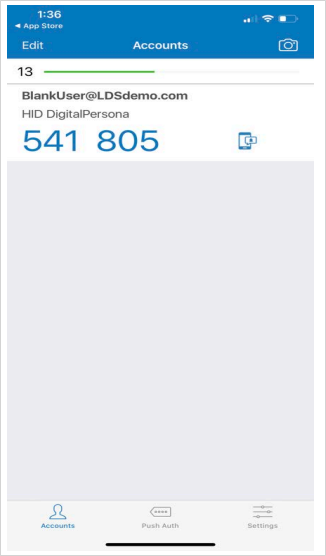
Change your OTP Credential
Once the credential has been enrolled, the word CHANGE will display beneath the OTP tile.
-
On the Credential Manager page, click CHANGE on the One-Time Password tile.
-
Confirm that you want to delete the current OTP credential and enroll a new credential.
-
Enroll the new OTP credential.
Delete your OTP Credential
-
Click CHANGE on the OTPtile.
-
In the upper right section of the page, click Delete Credential.
-
Confirm the deletion.


