One-Time Password via Hardware Token
On the One-Time Password page, you can enroll a hardware token as a DigitalPersona credential. The hardware device can then be used to generate a code for authentication.
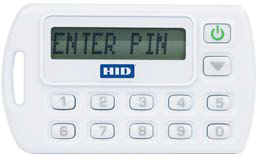
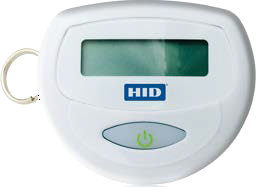
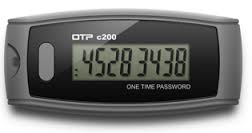
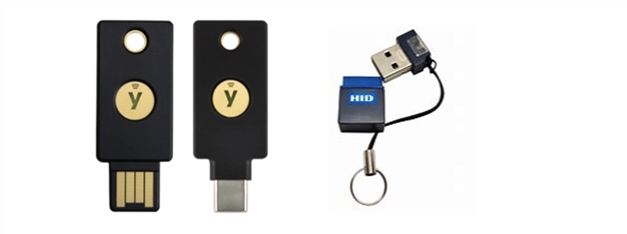
Enroll an Hardware OTP Credential
To enroll an OTP credential using a hardware token:
-
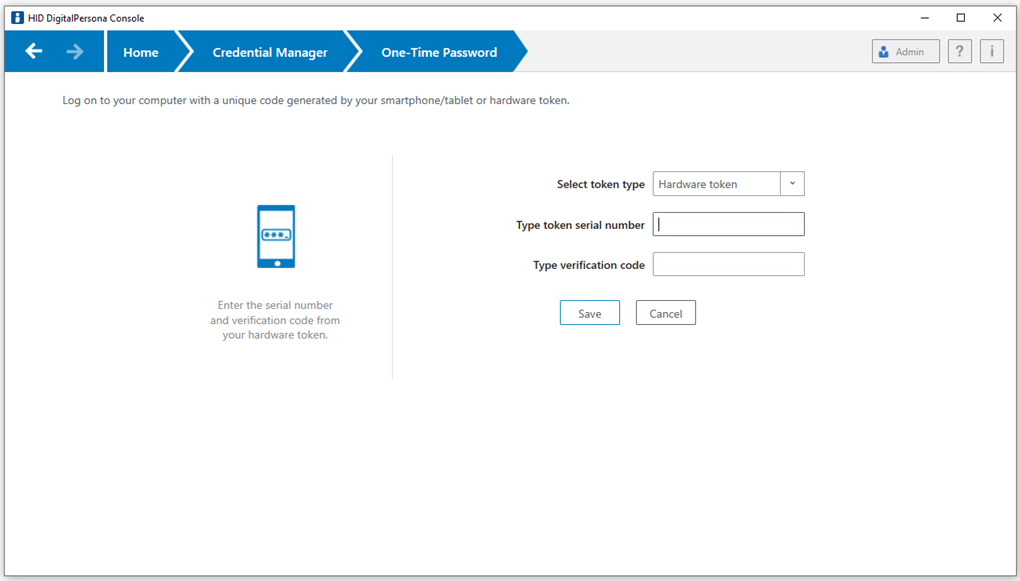
From the DigitalPersona Console, click Credential Manager, click the One-Time Password tile and, from the Select token type drop-down list, select Hardware token.
-
Enter the serial number for your hardware token, which is usually found on the back of the device.
-
Activate your hardware device. On some hardware tokens, you will simply need to press a button to do so, on others you will need to enter a preselected PIN to display the valid code on your device.
-
Enter the verification code displayed on your device and click Save.
Authentication with a One-Time Password
To authenticate with your One-Time Password, use one of the following options depending on from where you are authenticating:
-
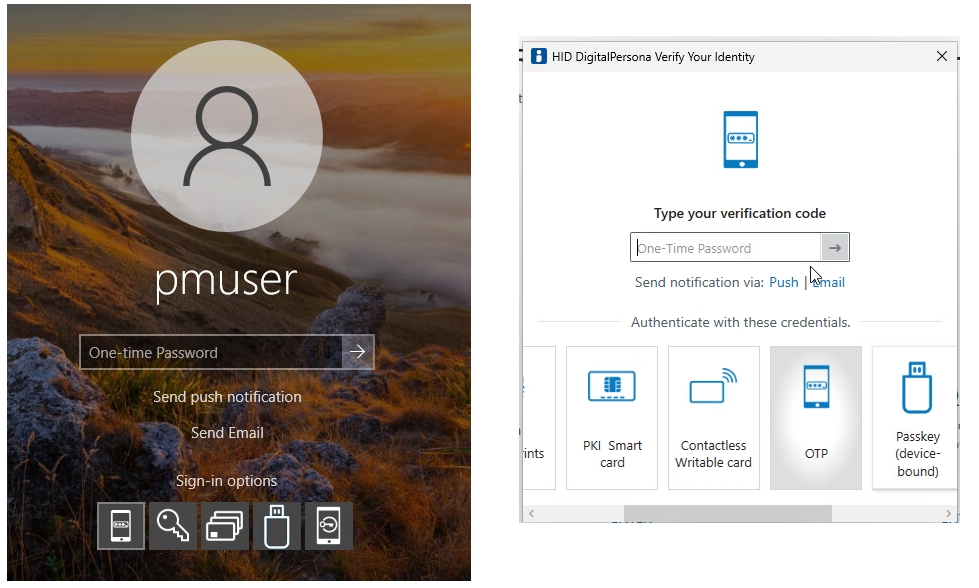
At Windows logon, select Sign-in options and then select the One-Time Password (or OTP) tile to display One-Time Password options.
-
On any Verify your Identity screen, select the One-Time Password (or OTP) tile.
-
Activate the display on an enrolled hardware token, and enter the displayed One-Time Password on your computer.
-
In most cases, enter your One-Time Password into the One-Time Password field on your computer screen and select the arrow button.
For some types of HOTP HOTP (HMAC-Based One-Time Password) is a one-time password algorithm that generates a unique authentication code based on a shared secret key and a counter value. Each code can only be used once, providing stronger security than static passwords. tokens, make sure that focus is located on the One-Time Password field, push the button on the device, and then click on the arrow button.
The OTP displayed on a hardware token device generally changes every 30 to 60 seconds, depending on the manufacturer and any optional configuration by your administrator.
Change your OTP Credential
Once the credential has been enrolled, the word CHANGE will display beneath the OTP tile.
-
On the Credential Manager page, click CHANGE on the One-Time Password tile.
-
Confirm that you want to delete the current OTP credential and enroll a new credential.
-
Enroll the new OTP credential.
Delete your OTP Credential
-
Once the credential has been enrolled, the word DELETE will display beneath the OTP tile.
-
On the Credential Manager page, click DELETE on the One-Time Password tile.
-
Confirm the deletion.


