Face Credentials
A face credential is a biometric credential that uses facial recognition to securely authenticate your identity and grant access to authorized systems and applications.
-
Your computer must have a built-in or connected camera to enroll a Face credential
Enroll a Face Credential
Browsers do not support IR (infrared) cameras. If your machine has both an IR camera and a HD camera, only the HD camera will be detected by the browser.
You must grant permission to use a camera in the browser (usually via a prompt to allow or deny access)
-
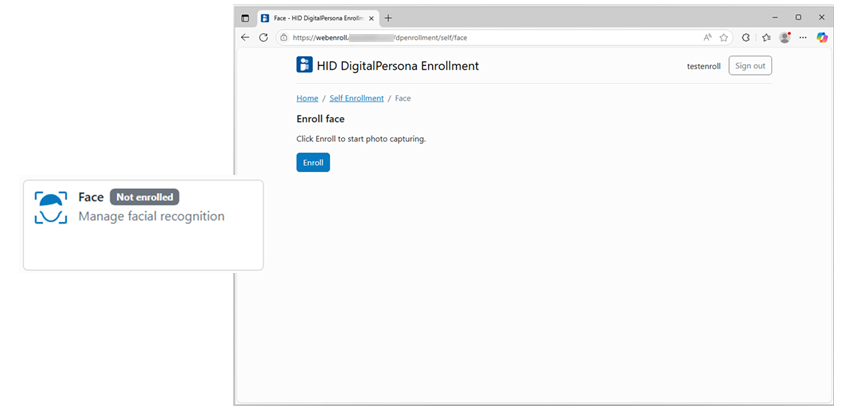
Click the Face tile to display the Enroll your Face dialog.
-
If multiple cameras are available, select a camera from the drop-down list that will be displayed.
-
Click Enroll and look straight into the camera.
-
Wait until the system completes capturing your image. When successful, the process should look like this.

During the capture process, various messages may appear if the lighting is not adequate, you are too near or too far away, or when multiple faces are detected.
Authenticate with Your Face Credential
To authenticate with your Face credential:
-
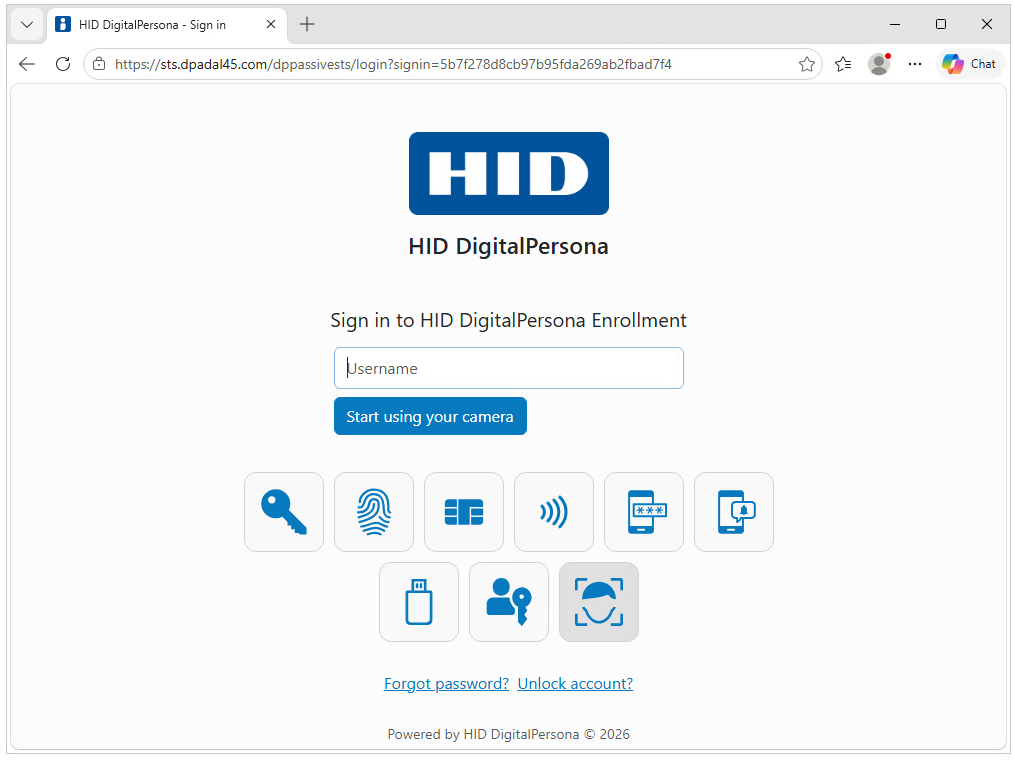
Select the Face tile and enter your username.
-
Click Start using your camera.
-
Look directly and steadily at the camera and wait for the camera to analyze your face.
Change your Face Credential
-
Select the Face tile.
-
In the credential page, click the delete icon
 .
-
In the dialog, click Delete to confirm deletion of your Face credential.
-
You can now re-enroll your Face credential.
Delete your Face Credential
-
Select the Face tile.
-
In the credential page, click the delete icon
. -
In the dialog, click Delete to confirm deletion of your Face credential.


