Fingerprint Credentials
If there is a supported fingerprint reader built into or connected to your computer, you can enroll and manage your fingerprints.
Enroll a Fingerprint Credential
To enroll your fingerprints or manage your fingerprints credential:
-
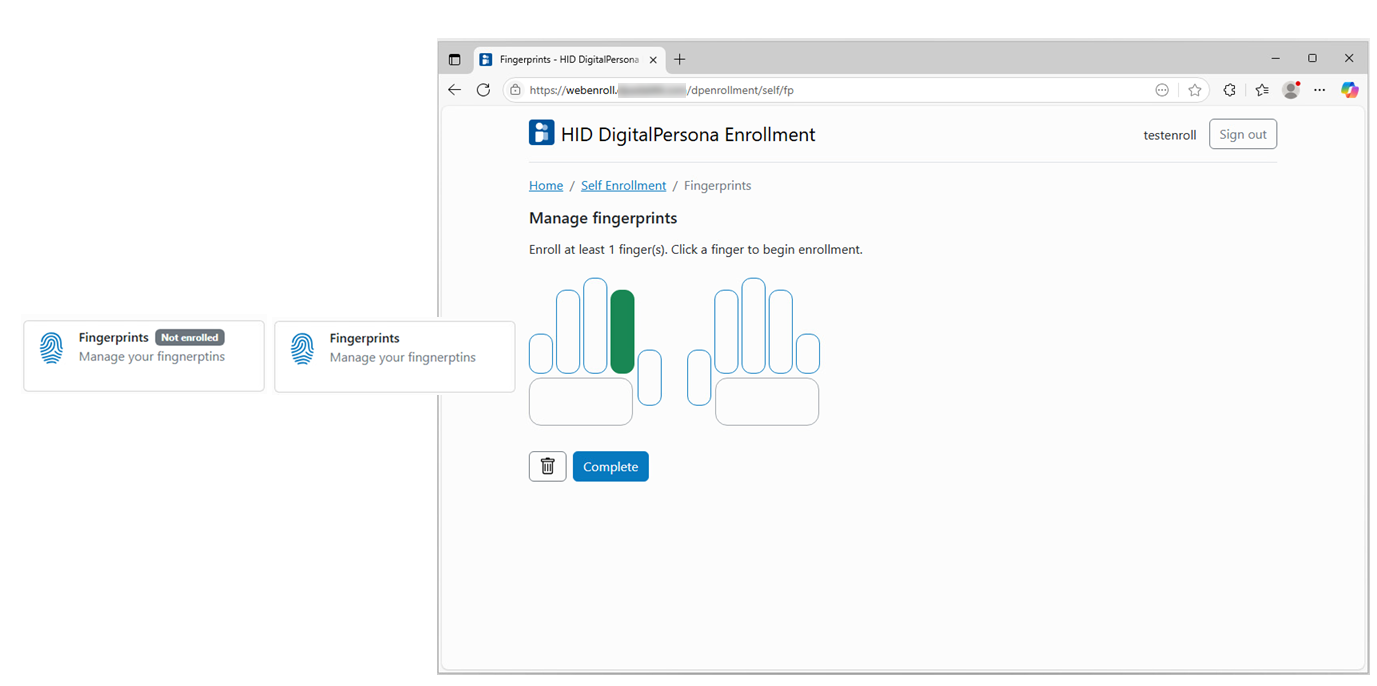
Click the Fingerprints tile to display the Manage fingerprints window.
-
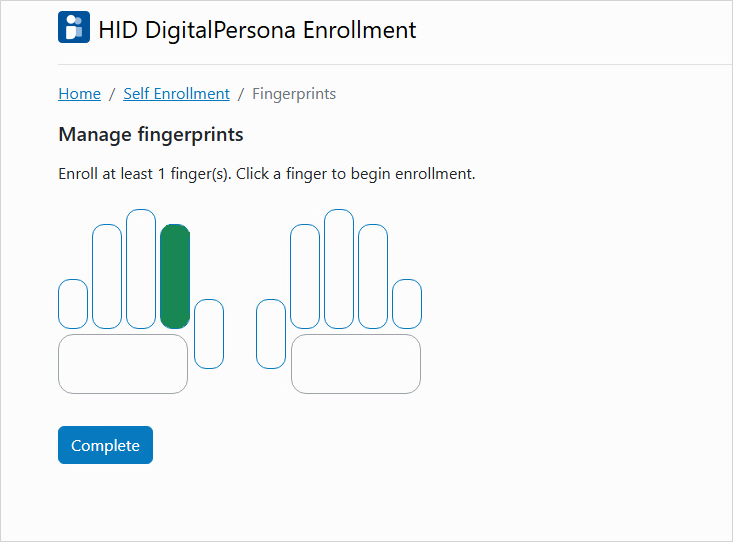
Select a finger in the displayed hand image.
-
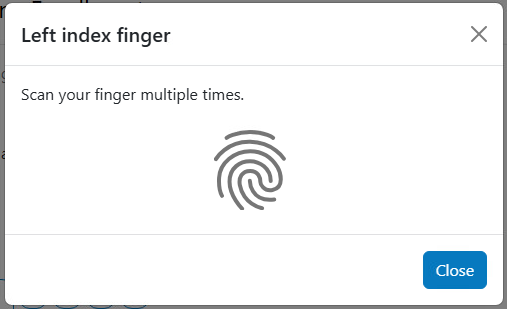
Place the selected finger on the biometric reader and scan it as many times as necessary to enroll the fingerprint.
As you scan, the fingerprint icon turns blue until the scan is complete.
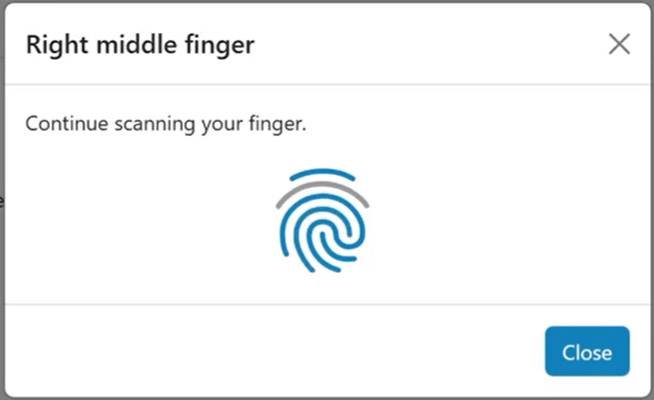
When an adequate number of images have been captured, this window will close automatically and the Manage fingerprints window will redisplay.
Note: Verification by the Security Officer may be required before the fingerprint credential is saved. -
Repeat the above steps to enroll the required number of fingerprints and click Complete.
Authenticate with Your Fingerprint Credential
To authenticate with your Fingerprint credential:
-
Select the Fingerprint tile and enter your username.
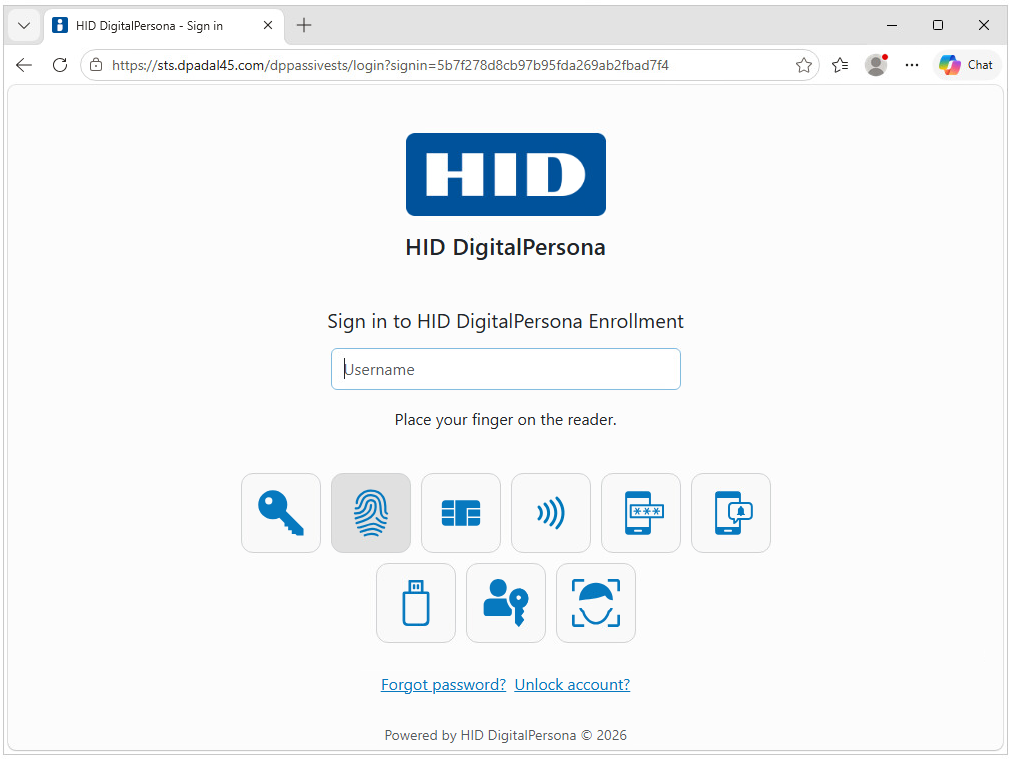
-
Place your finger on the biometric reader attached to your computer.
Delete a Fingerprint
To delete enrolled fingerprints, select the Fingerprints tile:
-
To delete a single fingerprint:
-
Click any highlighted finger and click the delete icon
 .
-
Click Delete to confirm deletion of your Fingerprint credential.
-
-
To delete the entire fingerprint credential:
-
Once the credential has been enrolled, a Delete All Fingerprints button is added to the Manage fingerprints window.
-
Click Delete All Fingerprints and then click Yes in the message box that displays to confirm the deletion.
-


