Using DigitalPersona Web-Based Enrollment
HID DigitalPersona Enrollment is a web-based application that enables you to enroll and manage your DigitalPersona credentials.
It is compatible with most web browsers on popular desktop and mobile platforms.
Accessing HID DigitalPersona Enrollment
-
Navigate to the URL provided for HID DigitalPersona Enrollment.
-
Authenticate to the DigitalPersona Identity Provider using your corporate account name and password.
-
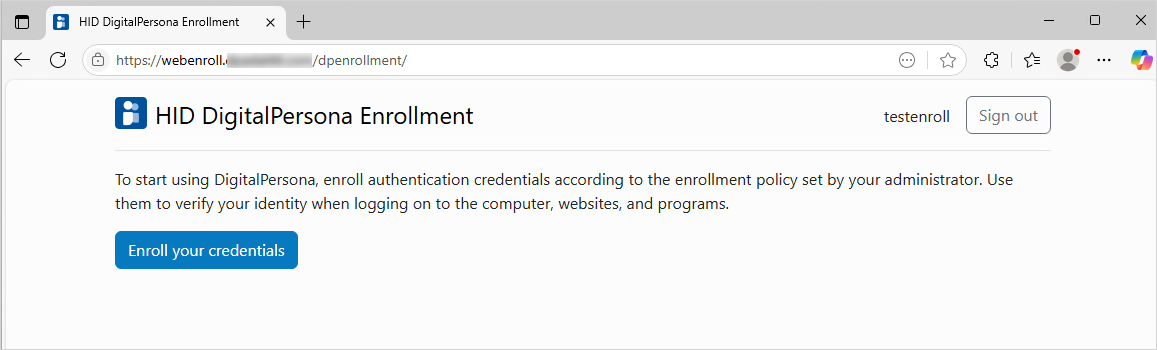
After authentication, click Enroll your credentials.
Note: Depending on the version of DigitalPersona deployed by your organization, if you do not have a DigitalPersona account, you are prompted to either enter or change your Windows password.The HID DigitalPersona Enrollment page is displayed.
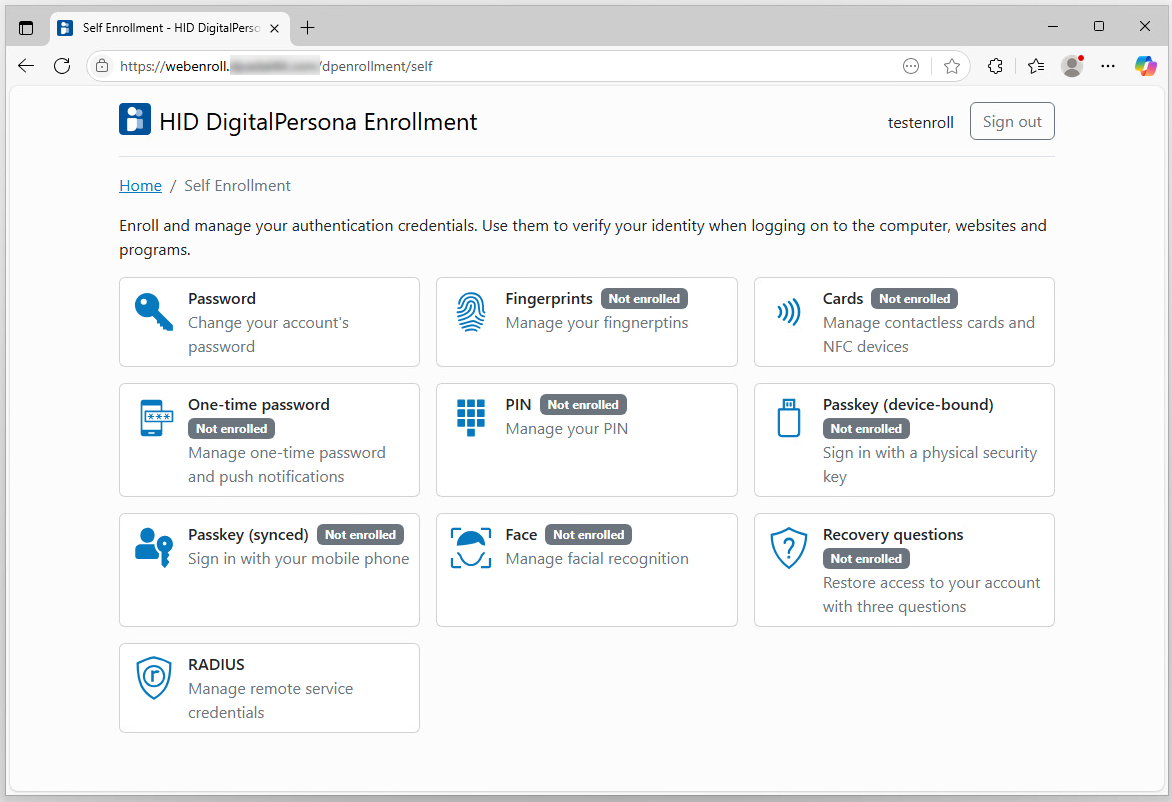
Each tile represents a credential type. Once enrolled, the tile also provides the available actions to manage the credential.
The available credentials can vary depending on the security devices built into or connected to the computer.
The exact credentials required to access a given resource may vary depending on
Enrolling Credentials
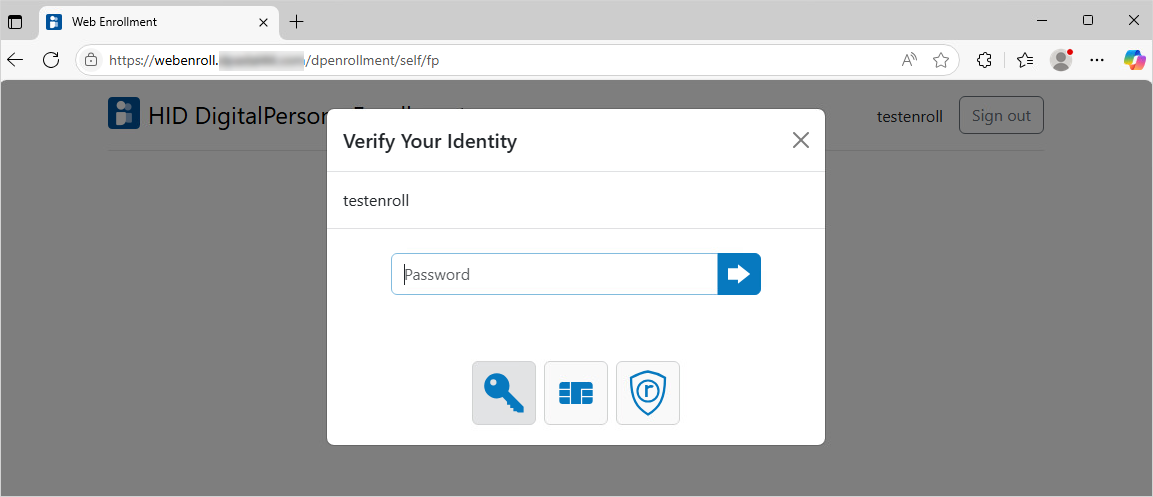
The first time, within a browser session, that you click a credential tile, you will be asked to verify your identity by submitting a previously enrolled credential.
This might be your password or any other DigitalPersona credential that you have enrolled for your account.
You should enroll as many credentials as possible from those shown on the DigitalPersona Enrollment screen.
-
To manage a credential - click the ADD or CHANGE button on the credential tile and then follow the on-screen instructions.
-
To delete a credential - refer to specific instructions in the help topic for that credential.
The sections in Managing Your Credentials using the Web Console explain how to enroll or set up your credentials for use with the product’s features and applications.
Once additional credentials have been enrolled, you can use any of those credentials or credential combinations to log in (as specified by any authentication policy in force).


