One-Time Password via Email
Enroll an OTP via Email Credential
If the option to receive an One-Time Password via email has been enabled by your administrator, the feature is automatically available (enrolled) upon completing the enrollment of any of the other types of OTP credentials. No further enrollment steps are required.
Authenticate with a One-Time Password
To authenticate with your One-Time Password, use one of the following options depending on from where you are authenticating:
-
At Windows logon, select Sign-in options and then select the One-Time Password (or OTP) tile to display One-Time Password options.
-
On the DigitalPersona Identity Provider or Verify your Identity screen, select the One-Time Password (or OTP) tile.
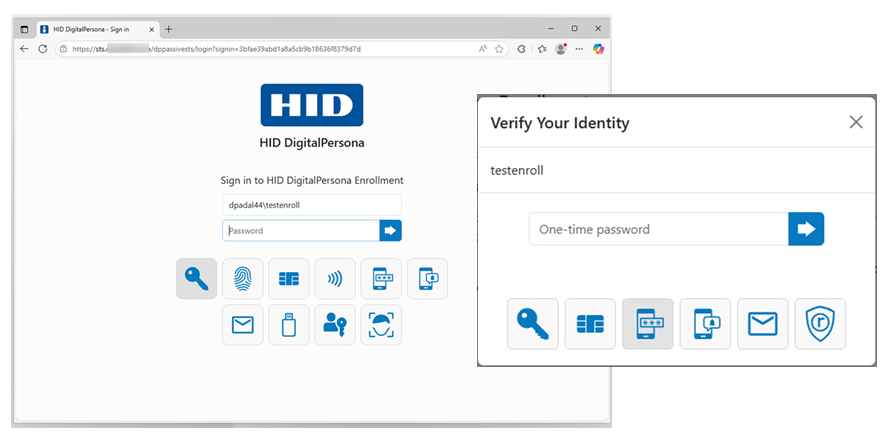
-
Select Send Email to send a One-Time Password to your enrolled mobile device allowing you to Approve or Deny authentication.
-
In most cases, enter the code sent to your email address into the One-Time Password field on your computer screen and select the arrow button.
Change your OTP Credential
-
Select the One-time password tile.
-
In the credential page, click the delete icon
 .
-
In the dialog, click Delete to confirm deletion of your OTP credential.
-
You can now re-enroll your OTP credential.
Delete your OTP Credential
-
Select the One-time password tile.
-
In the credential page, click the delete icon
. -
Click Delete to confirm deletion of your OTP credential.


