One-Time Password via Hardware Token
On the One-Time Password page, you can enroll a hardware token as a DigitalPersona credential. The hardware device can then be used to generate a code for authentication.
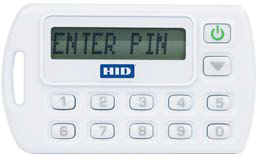
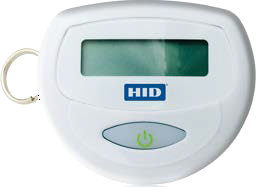
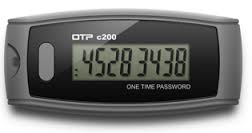
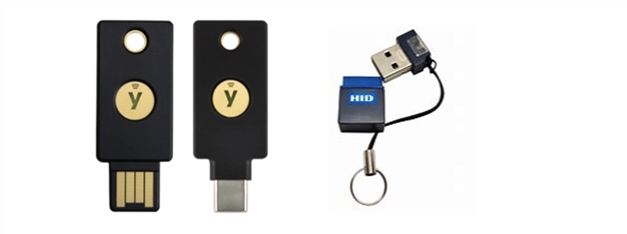
Enroll an OTP Hardware Token
To enroll an OTP credential using a hardware token:
-
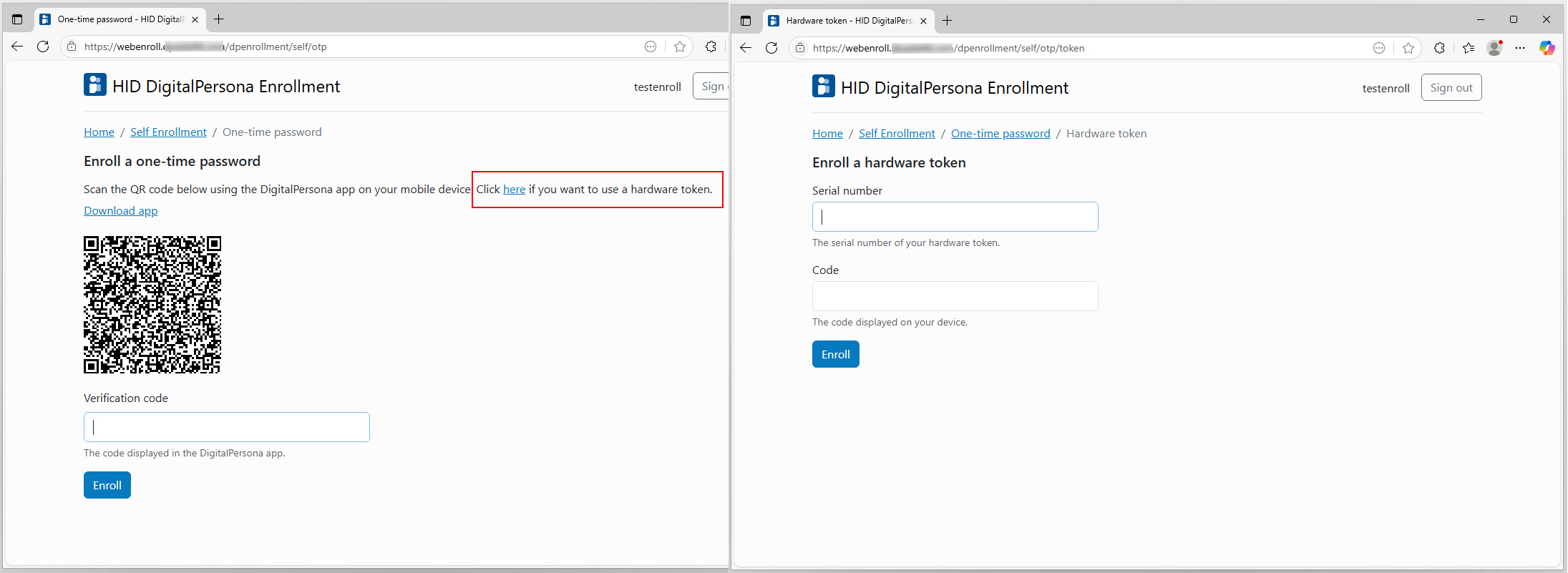
From the Enroll a One-Time Password window, click the here link to display the hardware token enrollment page.
-
Enter the Serial number for your hardware token which is usually found on the back of the device.
-
Activate your hardware device.
On some hardware tokens, you will simply need to press a button to do so, on others you will need to enter a preselected PIN to display the valid code on your device.
-
Enter the verification Code displayed on your device and click Enroll.
Authenticate with a One-Time Password
To authenticate with your One-Time Password, use one of the following options depending on from where you are authenticating:
-
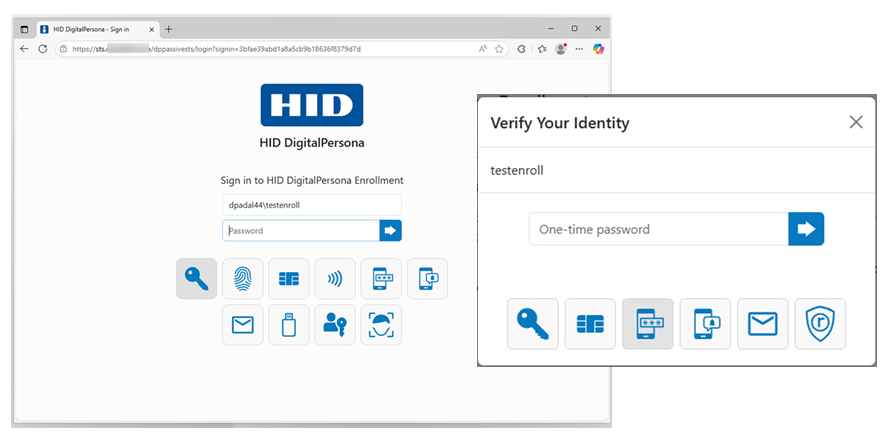
At Windows logon, select Sign-in options and then select the One-Time Password (or OTP) tile to display One-Time Password options.
-
On the DigitalPersona Identity Provider or Verify your Identity screen, select the One-Time Password (or OTP) tile.
-
Activate the display on an enrolled hardware token, and enter the displayed One-Time Password on your computer.
-
In most cases, enter your One-Time Password into the One-Time Password field on your computer screen and select the arrow button.
For some types of HOTP HOTP (HMAC-Based One-Time Password) is a one-time password algorithm that generates a unique authentication code based on a shared secret key and a counter value. Each code can only be used once, providing stronger security than static passwords. tokens, make sure that focus is located on the One-Time Password field, push the button on the device, and then click on the arrow button.
The OTP displayed on a hardware token device generally changes every 30 to 60 seconds, depending on the manufacturer and any optional configuration by your administrator.
Change your OTP Credential
-
Select the One-time password tile.
-
In the credential page, click the delete icon
 .
-
In the dialog, click Delete to confirm deletion of your OTP credential.
-
You can now re-enroll your OTP credential.
Delete your OTP Credential
-
Select the One-time password tile.
-
In the credential page, click the delete icon
. -
Click Delete to confirm deletion of your OTP credential.


