Configuring and Using Microsoft Outlook Usability Enhancements
The purpose of the Microsoft Outlook Usability Enhancements feature in ActivClient is to simplify the configuration and usage of Microsoft Outlook for email signature, encryption, and decryption using certificates stored on a smart card.
They also enable administrators to enforce corporate policies regarding email security.
-
Refer to Environment for Microsoft Outlook Usability Enhancements for an overview of the environment required to use this feature.
-
Refer to Outlook Enhancements for the complete list of ActivClient policies used to configure Microsoft Outlook Usability Enhancements.
In some environments, Microsoft Defender Attack Surface Reduction (ASR) rules may block ActivClient from displaying the external PIN entry dialog in Microsoft Outlook. This occurs because certain ASR rules prevent Office applications from launching child processes.
As a result, the PIN prompt is not displayed, preventing the user from completing operations that require smart card authentication.
To resolve this issue, configure Microsoft Defender to allow the ActivClient PIN entry component by defining an ASR exclusion for the pinentry-hid.exe executable (signed and distributed with ActivClient). Refer to the official Microsoft Defender documentation for instructions on configuring ASR rules exclusions.
Alternatively, try disabling PIN caching for Microsoft Outlook using ActivClient's Exclude executables from ActivClient PIN cache policy.
Key Capabilities
-
Auditing of the Outlook security profile configuration and certificate publishing to the GAL
-
Incoming email management:
-
Automatic certificate saving to contacts: Automatic addition of sender’s certificates to Outlook Contacts
-
Automatic email decryption: Automatic decryption of encrypted emails
-
To avoid Outlook crashing with the AIP add-in on encrypted email, follow these steps:
-
Enable the ActivClient PIN Caching policy Exclude executables from ActivClient PIN cache and add outlook.exe to the list.
-
Restart the machine to update the policy changes.
Environment for Microsoft Outlook Usability Enhancements
The environments involved in email exchanges using Microsoft Outlook and ActivClient's Microsoft Outlook Usability Enhancements feature are:
-
The end user’s Microsoft Outlook client (on any supported Windows platform). For the complete list of supported versions, see Microsoft Outlook Email Clients.
-
Microsoft Outlook Exchange Server (for the complete list of supported versions, see Microsoft Exchange Server).
-
Emails from and to any email client on any platform.
Microsoft Outlook Email Clients
ActivClient supports the following versions of Microsoft Outlook:
-
Microsoft Outlook 2019
-
Microsoft Outlook 2021
Email account configurations can be either:
-
Microsoft Exchange Server, or
-
Internet emails (POP3, IMAP, HTTP, other mail server)
Microsoft Exchange Server
ActivClient supports the following versions of Microsoft Exchange Server:
-
Exchange Server 2019
Outlook Security Profile Configuration
When a token is inserted, ActivClient automatically configures the Outlook security profile based on the following:
-
The contents of the inserted token
-
Outlook Enhancements policy settings in ActivClient
-
Environment conditions as described in Environment for Microsoft Outlook Usability Enhancements

Viewing Outlook Security Profile Configuration
To view the security settings for Outlook 2021:
-
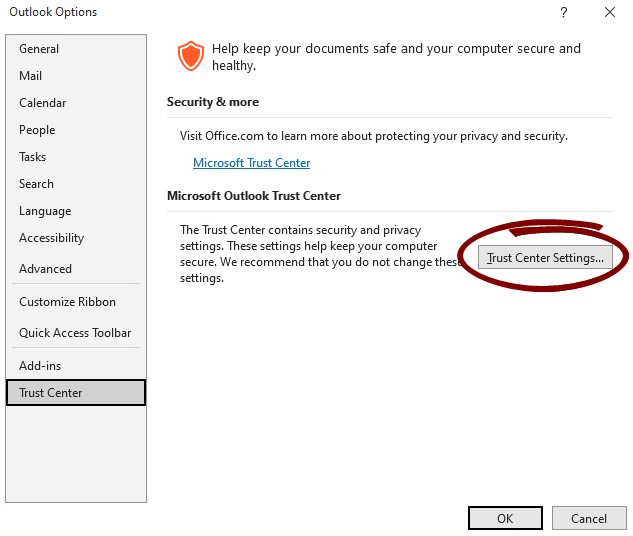
Go to File > Options.
-
In the Outlook Options window, select Trust Center from the menu.
-
Click Trust Center Settings.
-
In the left pane, click Email Security.
-
In the Encrypted e-mail section, click Settings…
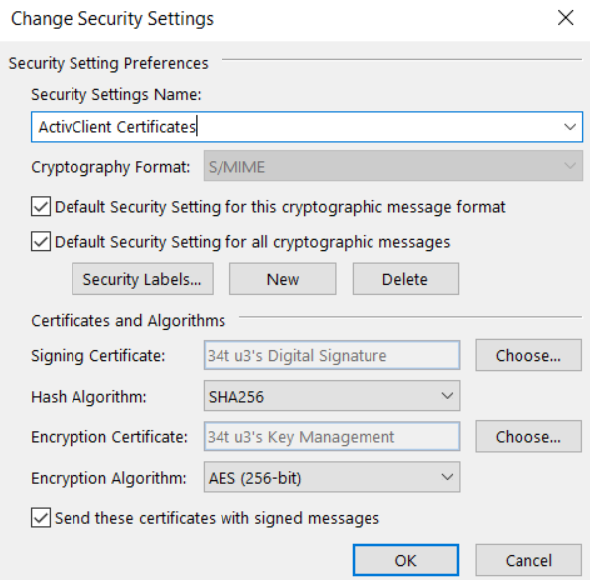
The Change Security Settings window is displayed.
Outlook Security Profile Parameters
The Outlook security profile created by ActivClient defines the following parameters (for a table of values configured by ActivClient, see Outlook Security Profile Settings and Values):
-
Security Settings Name
-
Cryptography Format
-
Signing Certificate
-
Hash Algorithm
-
Encryption Certificate
-
Encryption Algorithm
Outlook Security Profile Settings and Values
The Outlook security profile values updated by ActivClient are retrieved either from the token (certificates) or from the configured policies (ActivClient policies or Microsoft policies).
The following table lists the value configured for each setting when the Outlook security profile is created or updated.
Outlook Security Profile Update
In the default configuration (that is, when the Turn Off Setup Email Certificates in Microsoft Outlook on Card Insertion policy is not enabled), ActivClient automatically updates the Outlook security profile whenever a token is inserted, provided that the following prerequisites are met.
General Prerequisites
-
Certificate propagation: The Microsoft certificate propagation service (CertPropSvc) must be enabled.
-
A default Microsoft Outlook security profile must be defined, and a Microsoft Exchange account must be set for this profile (for example, POP accounts are ignored).
Prerequisites for Signature Certificates
ActivClient selects the most recent signature certificate (based on the "Valid From" date) that meets the following criteria:
-
Validity:
The current date must fall between the certificate's "Valid From" and "Valid To" dates.
-
Key Usage:
The Key Usage extension must include "Digital Signature".
-
Intended Key Usage:
-
Must include CERT_KEY_DIGITAL_SIGNATURE_USAGE, or
-
Must be identified as a CAC Signature Certificate or a PIV Digital Signature Key.
-
Prerequisites for Encryption Certificates
ActivClient selects the most recent encryption certificate (based on the "Valid From" date) that meets the following criteria:
-
Validity:
The current date must fall between the certificate’s "Valid From" and "Valid To" dates.
-
Key Usage:
The Key Usage extension must include "Key Encipherment" or "Data Encipherment".
-
Intended Key Usage:
-
Must include CERT_KEY_ENCIPHERMENT_KEY_USAGE, or
-
Must be identified as a CAC Encryption Certificate or a PIV Key Management Key.
-
Additional Certificate Validation Checks
Depending on the configuration settings, ActivClient performs additional checks on the selected signature and encryption certificates before updating the Microsoft Outlook Security profile and publishing to the Global Address List (GAL).
Email Address Consistency
By default, the email address in the smart card certificate must match the email address configured in the Microsoft Exchange account.
This prerequisite can be disabled using the Allow Different Email Addresses in Smart Card Certificate and Microsoft Exchange Account policy.
If this policy is enabled:
-
The email address is retrieved from the certificate RFC822 Subject alternate name.
(If the attribute is missing, the email address is retrieved from the E= field in the certificate's subject.)
-
If online, ActivClient validates the email address against Active Directory.
-
If offline, this check is automatically bypassed, even if the policy is enabled.
-
-
Matching behavior:
-
If the email addresses match: ActivClient updates the Outlook profile and publishes the certificate to the Global Address List (GAL).
-
If the email addresses do not match: ActivClient continues to check if Outlook or the GAL needs to be updated.
-
If no update is needed (that is, the card certificates are already used to configure Outlook and published to the GAL): no action is performed.
-
If an update is needed: ActivClient prompts the user by displaying the email address configured in Microsoft Exchange and the email address contained in the token certificate. The user can then make an informed decision about whether to proceed with updating the Outlook profile and publishing to the GAL.
-
-
If the Allow Different Email Addresses in Smart Card Certificate and Microsoft Exchange Account policy is disabled:
-
The email address is retrieved from the certificate's RFC822 Subject alternate name.
If the attribute is missing, the email address is retrieved from the E= field in the certificate's subject.
-
If online, ActivClient validates the email address against Active Directory.
-
If offline, this check is automatically bypassed.
-
If the email addresses match, ActivClient updates the Outlook profile and publishes the certificate to the GAL.
If the email addresses do not match, these actions are not performed.
Certificate Revocation List Check
If the Check CRL for Microsoft Outlook Security Profile Creation and Publish to GAL policy is enabled and:
-
The CRL check fails (the certificate is revoked or on hold, or the CRL check times out):
-
If the policy is enabled and enforced:
The certificate is ignored and the operation
is not performed. -
If the policy is enabled and not enforced:
The certificate is accepted and the operation
is performed; however, the certificate is marked as not CRL-valid, and a warning event is added in the Microsoft Windows event log.
-
-
The CRL check succeeds:
-
If the policy is enabled (and enforced or non-enforced):
The certificate is marked as CRL-valid.
-
If the Check CRL for Microsoft Outlook Security Profile Creation and Publish to GAL policy is disabled:
-
The operation
is performed regardless of the CRL check status.
-
The whole certificate chain is checked.
-
For performance reasons, the CRL check is performed only if the security profile needs to be updated (that is, after comparing with the current configuration).
-
If an OCSP provider is installed and configured on the Windows client, ActivClient will check the certificate status with OCSP instead of the CRL.
The description above applies when the workstation is connected to the corporate network (that is, when Active Directory is accessible). If the workstation is not connected and Active Directory is unavailable, the automatic configuration is still performed, but with two differences:
-
No user account check is performed.
-
No CRL check is performed, regardless of the CRL check configuration.
Once the prerequisites above are met, the security profile and the encryption/signature options are always updated as follows:
-
If a security profile named ActivClient Certificates already exists:
-
The profile is overwritten.
-
The default profile setting remains unchanged:
-
If it was the default profile, it remains the default profile.
-
If it was not the default profile; it is not set as the default profile.
-
-
-
If no security profile named ActivClient Certificates exists:
-
The profile is created and set as default.
-
All other security profiles (not named ActivClient Certificates) remain unaltered.
-
Certificate Publication to the Global Address List (GAL)
ActivClient can publish a user's encryption certificate (used for secure email communication) to the corresponding user object in Active Directory. This allows other Microsoft Exchange users of Microsoft Outlook to automatically access the encryption certificate when sending encrypted messages to the user.
The ActivClient Publish to GAL process can be performed in two ways:
-
Automatically, by enabling the Turn on automatic publication of certificates to the Global Address List policy setting
-
Manually, using the Publish to GAL option in the ActivClient Agent
This capability is functionally equivalent to the Publish to GAL option in the Microsoft Outlook Trust Center, although the workflow differs slightly.
In full Microsoft environments (e.g., when using a Windows-based CA A Certificate Authority is a trusted entity that issues digital certificates, confirming the ownership of public keys and other identity attributes. Within a Public Key Infrastructure (PKI), the CA typically relies on a Registration Authority (RA) to verify the certificate requestor's information before issuing the certificate.), Active Directory attributes are updated automatically when certificates are issued. In such cases, using ActivClient's or Outlook's Publish to GAL feature may lead to certificate duplication or inconsistency.
For this reason, the ActivClient automatic certificate publication feature is disabled by default.
Email Account Compatibility
Certificate publication to the GAL is available only for Microsoft Exchange accounts. It does not apply to Outlook configurations that use third-party mail servers or POP3.
Configuration Dependency
The Turn on automatic publication of certificates to the Global Address List policy is effective only if the Turn off setup email certificates in Outlook on card insertion policy is either Disabled (default setting) or Not Configured.
Workflow
When a token is inserted, ActivClient publishes the certificate after automatically updating the Microsoft Outlook security profile.
-
Outlook Security Profile Update:
-
If the token contains valid certificates, ActivClient updates the Microsoft Outlook security profile.
-
For details, see Outlook Security Profile Update.
-
-
Certificate Publication to the GAL:
-
ActivClient publishes the user's encryption certificate that has been set in the Outlook security profile to the GAL by updating the following attributes in the user’s Active Directory object:
-
userSMIMECertificate
-
This attribute (defined in RFC 2798) contains the user’s S/MIME configuration.
It is multi-valued and includes the user’s encryption and signature certificates, including their full certificate chains.
-
Format : PKCS #7.
-
ActivClient erases the existing content of this attribute and publishes the current user’s encryption and signature certificates.
-
This behavior is equivalent to the native Outlook Publish to GAL workflow.
-
-
userCertificate
-
Format: DER-encoded.
-
This attribute is multi-valued and it may contain all user certificates (signature, encryption, logon, EFS, etc.) if the certificates are issued by a Microsoft CA A Certificate Authority is a trusted entity that issues digital certificates, confirming the ownership of public keys and other identity attributes. Within a Public Key Infrastructure (PKI), the CA typically relies on a Registration Authority (RA) to verify the certificate requestor's information before issuing the certificate..
-
Native Outlook Publish to GAL behavior:
-
Adds new encryption certificates without removing earlier ones, which may lead to multiple encryption certificates and cause conflicts in some configurations.
ActivClient Publish to GAL behavior:
-
Clears the attribute and republishes only the current user’s encryption certificate. This ensures that the Active Directory configuration matches the local Outlook configuration and helps avoid issues with encrypted email delivery.
-
-
-
-
Once the certificate is published, other Exchange users with access to the GAL can send encrypted emails without manually configuring the recipient's encryption certificate.
If the user cancels the PIN prompt (when required for updating the userSMIMECertificate attribute), no certificates are published to either the userSMIMECertificate or userCertificate attributes.
Error Handling
Any errors during the Publish to GAL process are logged in the Windows Event Viewer of the user workstation. No error messages are displayed to the user directly. For details, see Auditing Outlook Security Profile Updates and Certificate Publication to the GAL.
-
To limit write operations to Active Directory, ActivClient first reads the existing attributes to check if an update is needed. This verification ensures that the certificate(s) match those configured in the local Outlook security profile.
-
PIN prompt behavior:
The user's token is used to sign the certificates in PKCS#7 format when updating the userSMIMECertificate attribute. Depending on the PIN caching policy settings, the user may be prompted to enter their PIN when certificates are published to Active Directory. This occurs only when the certificate has changed. If the certificates already stored in Active Directory are up to date, no PIN prompt is displayed.
-
Avoiding conflicting updates:
If the ActivClient Publish to GAL feature is enabled, consider disabling the native Outlook Publish to GAL feature to prevent conflicting updates to the userCertificate attribute in Active Directory. You can do this by using an Outlook policy; refer to the relevant Microsoft documentation for details.
Environment Considerations
Users must have the necessary permissions to update their Active Directory object. This implies the following:
-
Scenarios where the email account is configured for a different user name than the Windows account user are not supported.
-
If the user is not authenticated with Active Directory, automatic certificate publishing to the GAL will fail.
Manual Publication to the GAL in the ActivClient Agent
In addition to the automatic Publish to GAL operations (performed in the background on token insertion), users can manually trigger the process through the ActivClient Agent.
Navigation:
- Right-click the ActivClient Agent icon in the Windows system tray.
-
Select Advanced > Publish to GAL from the menu.
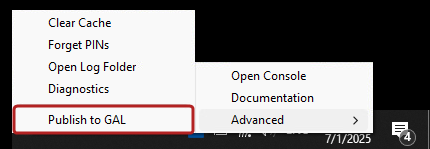
This option is equivalent to the automatic Publish to GAL process and performs the following operations:
-
Performs the Outlook security profile update and publishes certificates to the GAL, as described above.
This occurs regardless of whether the following ActivClient policies, which control automatic execution, are enabled or disabled:
-
Displays success and error messages in dialog boxes and logs events in the Windows Event Viewer.
-
Prompts the user to authenticate with Active Directory, if required for the operation.
-
Uses the same Certificate Revocation List (CRL) check configuration as the automatic mode.
Auditing Outlook Security Profile Updates and Certificate Publication to the GAL
ActivClient allows auditing both the Outlook security profile updates and certificate publication to the GAL, logging successes and failures of these operations and recording them in the Windows Event Viewer.
Audit Events Logging Format and Location
The ActivClient audit events follow the Microsoft logging format and are:
-
Logged in the HID Global section of the Applications and Services Logs of the Windows Event Viewer.
-
Labeled with ActivClient as the event Source.
Each event contains the following elements:
-
Event level (Information, Warning, Error)
-
Event ID
Tip! For the complete list of event ID codes, see Audited Event ID Codes List.
-
Event description (specifies the user name, domain, and if applicable, a failure reason)
Auditing Changes to Active Directory
You can also audit changes made directly to Active Directory objects during the certificate publishing process.
To enable this:
-
On the domain controller, go to:
Default Domain Controller Security Settings > Security Settings > Local Policies > Audit Policy.
-
Enable Audit directory service access.
-
For each user, specify the attributes that should be audited:
-
Open Advanced Security Settings for the user object.
-
Go to the Auditing tab.
-
Select the following attributes:
-
Write userSMIMECertificate
-
Write userCertificate
-
-
For more information, refer to the official Microsoft documentation.
Audited Event ID Codes List
Automatic Certificate Saving to Contacts
When you receive a signed email, the sender's encryption certificate is attached to the email. ActivClient allows you to automatically save this certificate to the contact associated with the sender.
This contact is created or updated in a designated Contacts folder, which can be specified using the Microsoft Outlook auto-contact destination folder policy setting.
Depending on the existing state of the sender's contact, ActivClient prompts the user for confirmation before taking any action:
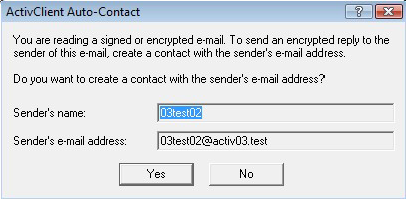
No contact exists for the sender
-
ActivClient asks the user if they want to create a contact in the Contacts folder with the sender's email address.
-
If confirmed, the user is prompted to confirm the addition of the sender's certificate to the contact.
The user can view the certificate before accepting.
-
If accepted, the certificate becomes the default for this contact.
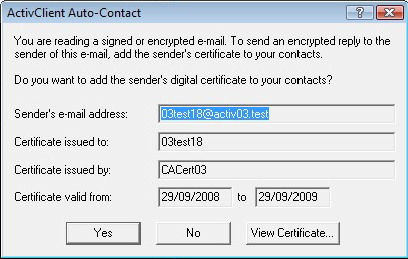
Contact exists but has no certificate
-
ActivClient asks the user if they want to associate the certificate with the contact.
The user can view the certificate before accepting.
-
If accepted, the certificate becomes the default for this contact.
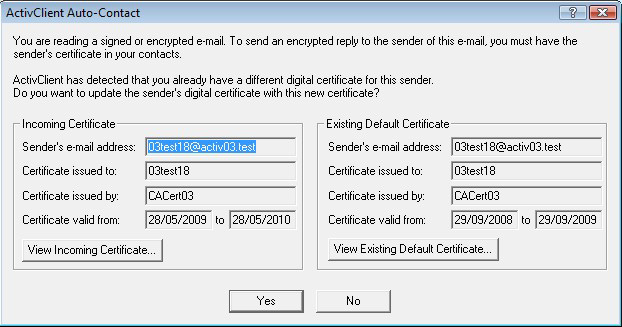
Contact exists with a different certificate
-
ActivClient asks the user if they want to update the sender's digital certificate in the Contacts folder.
The user can easily compare the two certificates.
-
If accepted, the certificate becomes the default for this contact.
Contact exists with the same certificate
No action is taken.
-
If the received email is both signed and encrypted, it must be decrypted first to access the sender’s certificate.
-
In such cases, ActivClient may prompt the user to enter their PIN to decrypt the email.
-
Depending on the PIN caching configuration, the user may be prompted multiple times during this process.
Automatic Email Decryption
ActivClient allows users to automatically save a decrypted copy of encrypted emails to provide access to them later. This ensures continued access to email content even if the private decryption key becomes unavailable.
This feature is specifically useful for deployments without a key backup and recovery mechanism in place.
Enabling the Feature
To enable automatic decryption:
Set the Turn On Automatic Decryption of Encrypted Emails policy to Enabled.
How Auto-Decryption Works
-
The user opens an encrypted email.
-
The email and any attachments are decrypted (may require PIN authentication).
-
A decrypted copy of the email is saved in the same folder as the original.
The digital signature (if present) is preserved in the decrypted copy.
-
The encrypted version of the email is moved to the Deleted Items folder.
-
This feature applies to any encrypted email, regardless of which Outlook folder it resides in.
-
If the original encrypted email is already in the Deleted Items folder, both the decrypted and encrypted versions will remain there after the process.
-
PIN entry may be required depending on ActivClient's PIN caching configuration.