Using HID CMS Self-Service
You can issue and manage your devices using the HID CMS Self-Service Portal.
Before you begin, make sure that:
A CMS server is up and running and the HID CMS Self-Service Portal can connect to it.
A smart card reader is installed on your station (if applicable).
The installed smart card reader is correctly configured.
Note: The appropriate card reader software driver might need to be installed on the workstation/computer; however, this is not a requirement for all readers.All required software is installed (for example, ActivID ActivClient or an applicable Mini-Driver) on the workstation/computer.
You can connect to HID CMS Self-Service using the following URL: https://<CMS Server>/aims/selfservice
There are two authentication options available:
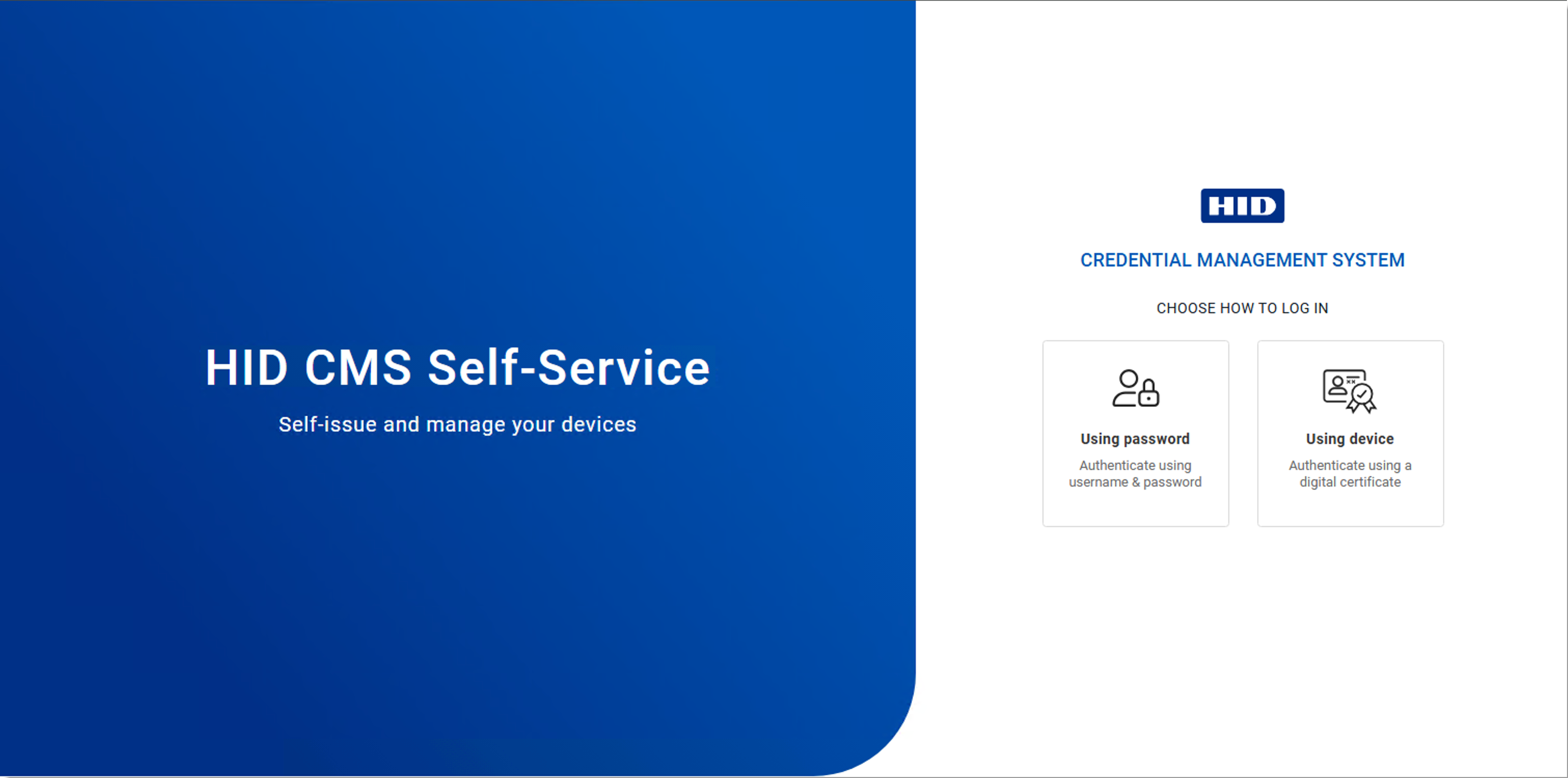
If you choose:
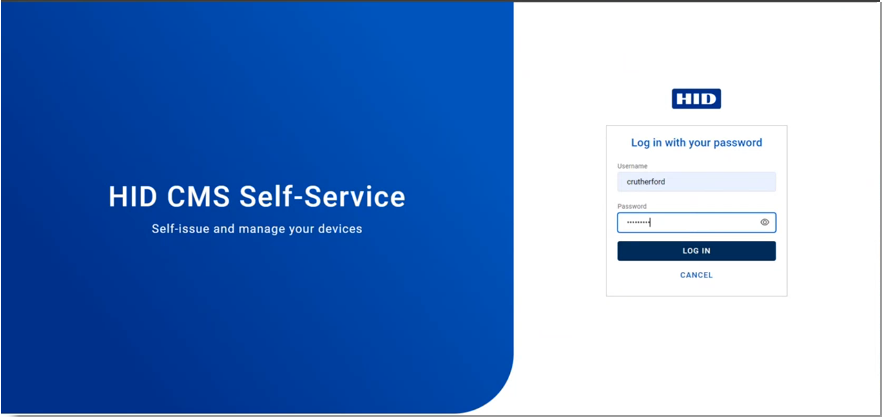
A page appears where you can enter your username and password:
If you choose:
The following page appears:
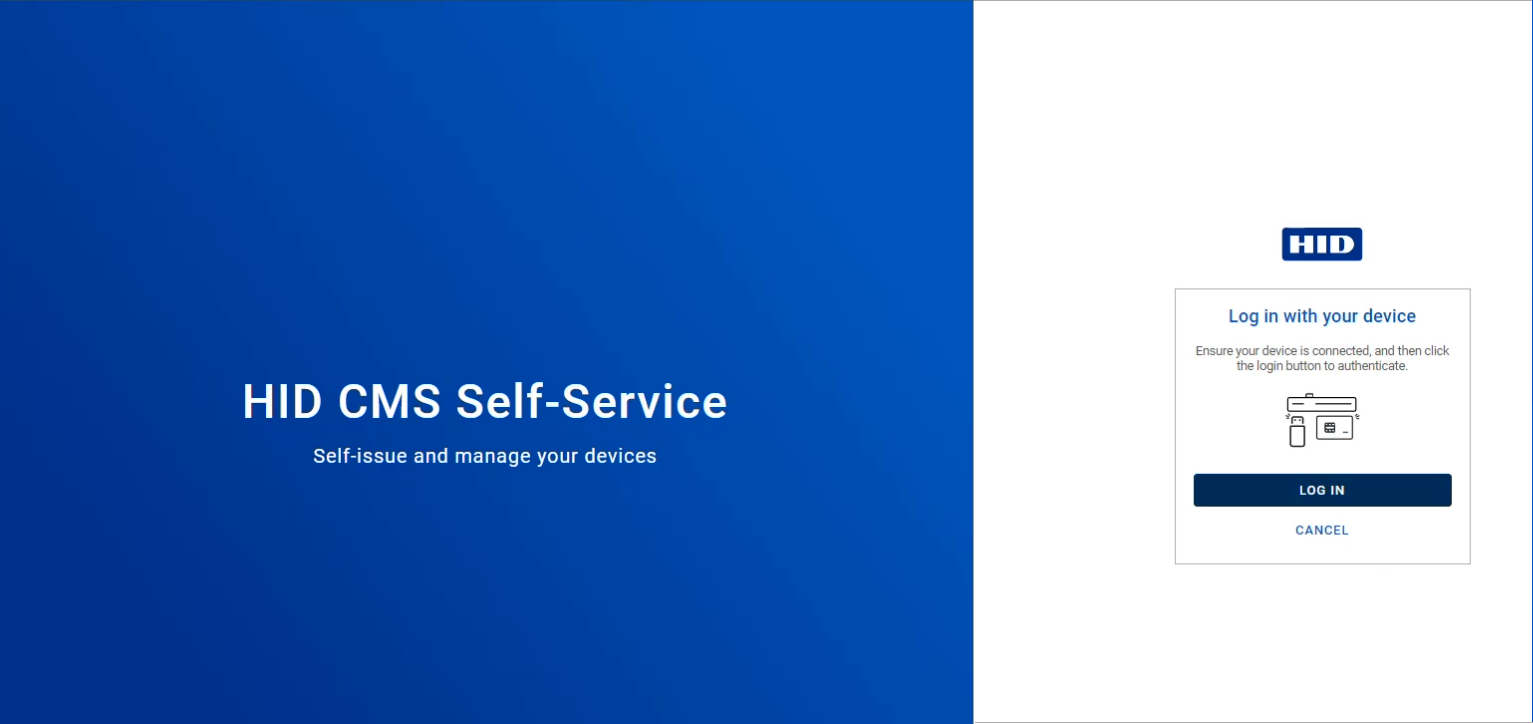
Make sure your device is connected and click Log In. You are prompted to select the certificate for your device; then you are prompted for your PIN.
If authentication using your device fails, you must close your browser before you try again. If you click Cancel, you can log in using a password; however, if you attempt to log in again with your device (without having closed the browser), the authentication will fail.
After authentication, you reach your My Devices page:
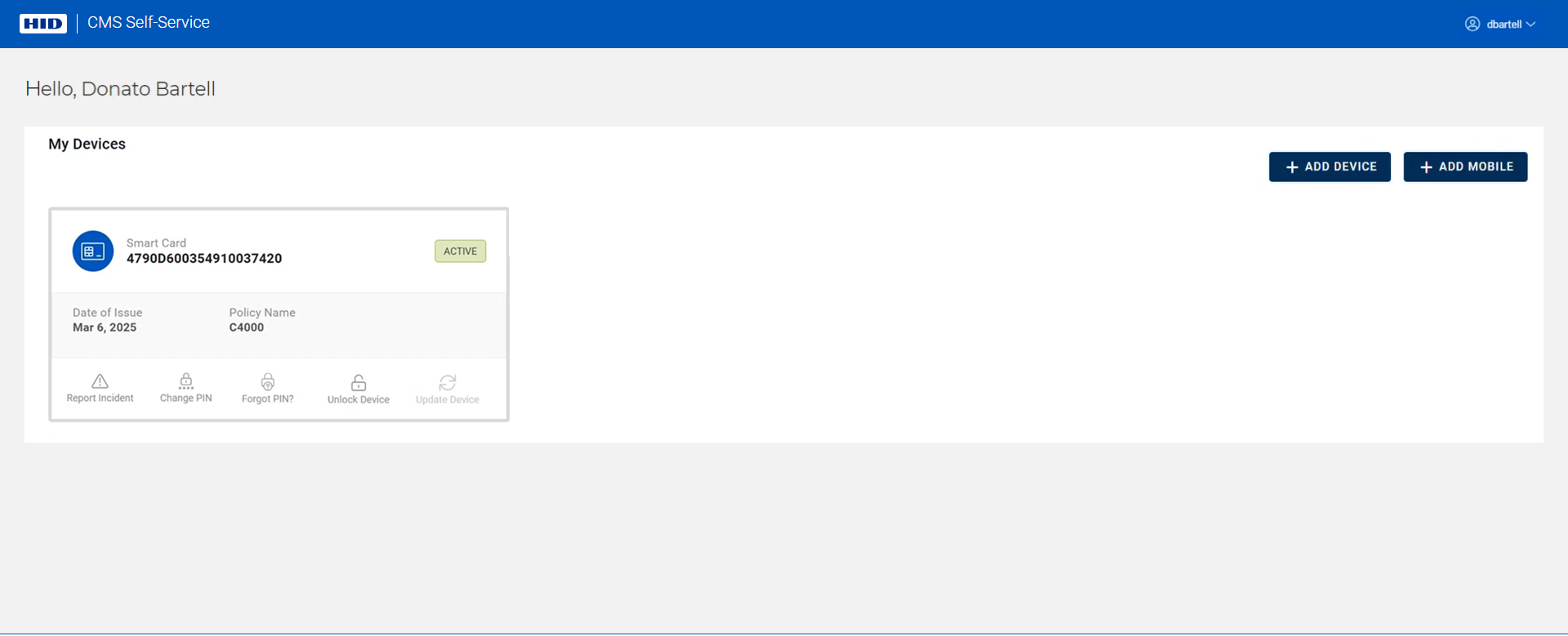
All your devices are displayed and you can perform various actions (update, unlock, etc.) by clicking on the action button associated with each device.
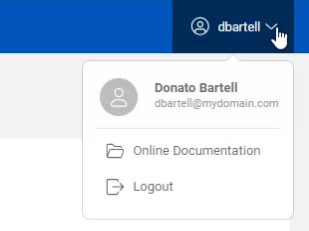
A menu is available in the top right corner. You can use it to access online documentation, or log out and return to the home page:
Current Limitations
-
The self-service portal does not support multiple LDAP directories.
-
You can authenticate with a YubiKey device using the Microsoft Minidriver; however, it is not possible to authenticate with a YubiKey device that uses an RSA 3K key.
-
Authentication with an RSA 3K key is only possible when you are using Crescendo Key v3 or Crescendo 4000 devices, using the HID Crescendo Minidriver.
-
Currently, authentication to the self-service portal with a device does not work with a peer server configuration..
About Using Google Chrome or Microsoft Edge Browsers with the Self-Service Portal
You can use Google Chrome™ or Microsoft Edge browsers to connect to the Self-Service Portal. However, you need to install the ActivID CMS browser extension and the CMS Client in order to self-issue and update devices.
For Microsoft Edge browsers, you must make sure that the “Allow extensions from other stores” option is checked in the Extensions menu before downloading the ActivID CMS extension.
When you use a Google Chrome or Microsoft Edge browser on the Self-Service Portal, HID CMS verifies whether the ActivID CMS browser extension is installed. If this is not the case, a message is displayed with instructions containing a link so that you can download the ActivID CMS extension:
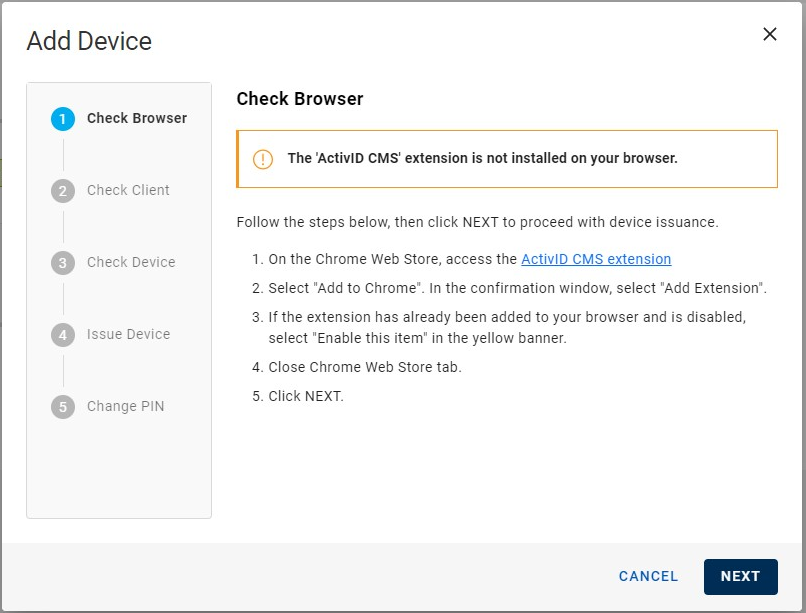
Once you have downloaded the ActivID CMS extension, HID CMS then checks whether the CMS Client is installed. If this is not the case, a new message is displayed with instructions containing a link so that you can download so that you can download the CMS Client:
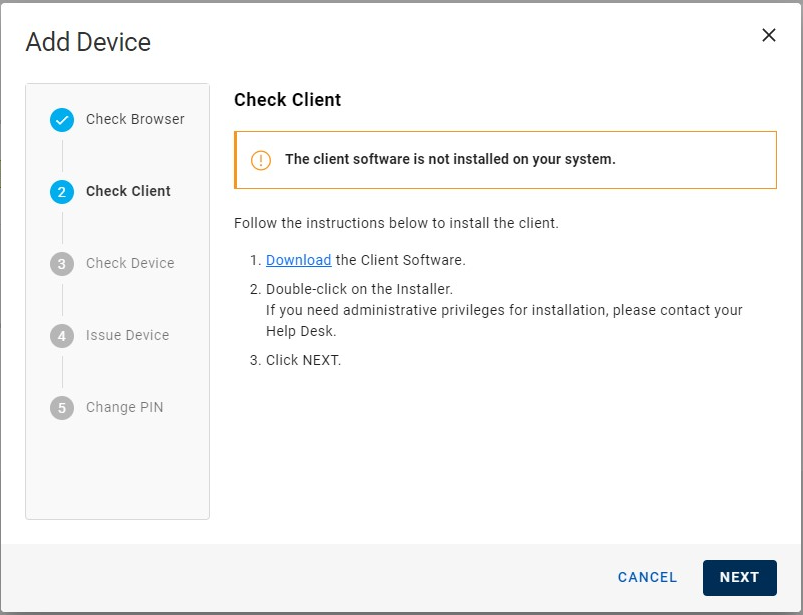
Once the ActivID CMS browser extension and the CMS Client are installed successfully, you can proceed as usual to self-issue or update your device.
Once the ActivID CMS extension and CMS Client are installed correctly, HID CMS detects them automatically each time you connect to the Self-Service Portal and no further action is required. However, if the ActivID CMS extension is disabled in your browser, you will need to reload the page in the Self-Service Portal after you have re-enabled the extension in order for it to be detected by HID CMS.
Particularities About Installing the CMS Client on Linux
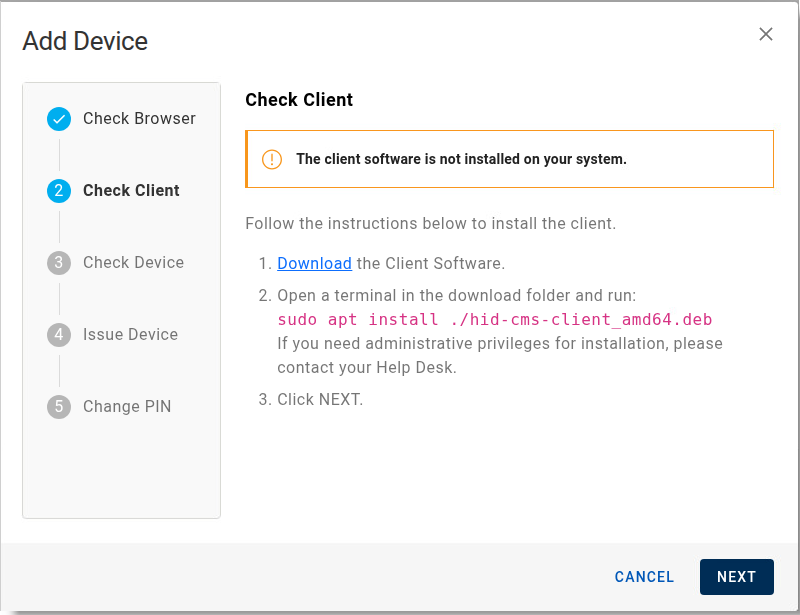
On Linux, the CMS Client is delivered as a Debian package: hid-cms-client_amd64.deb. It is intended to be installed on a Ubuntu 24.04 LTS machine. If the CMS Client is not installed, the following message appears: