Update a Device
-
On the Devices page, click on the action button (
 ) in the details of the connected device and select Update:
 Note: On the User page, a warning icon (
 ) is displayed next to the status of the device when an update is required. The procedure for updating a device is the same as described here.
 -
Select the device policy using the Choose Device Policy drop-down list and click Continue:
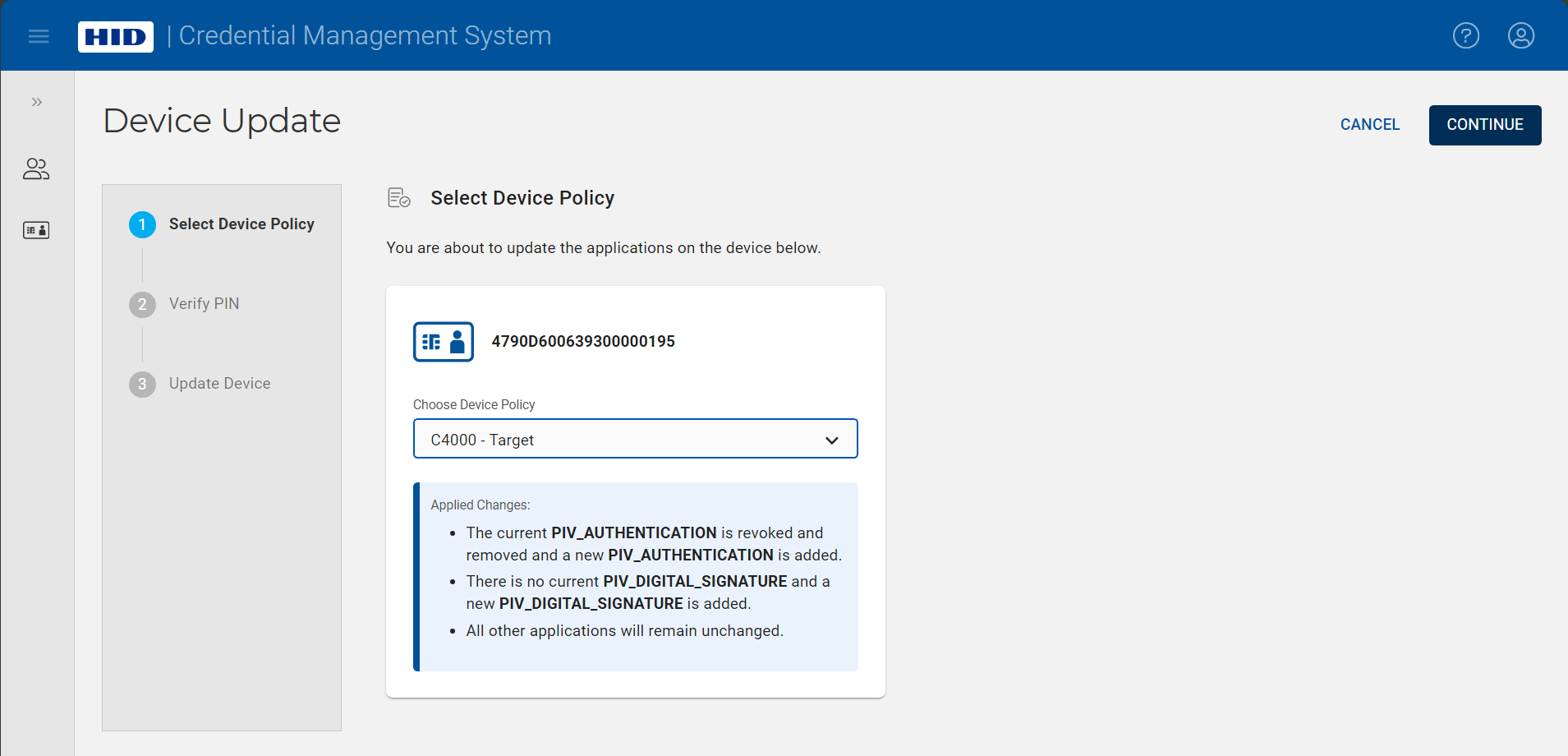 Note: Once you select the device policy, details about the applications impacted by the update are displayed.
 -
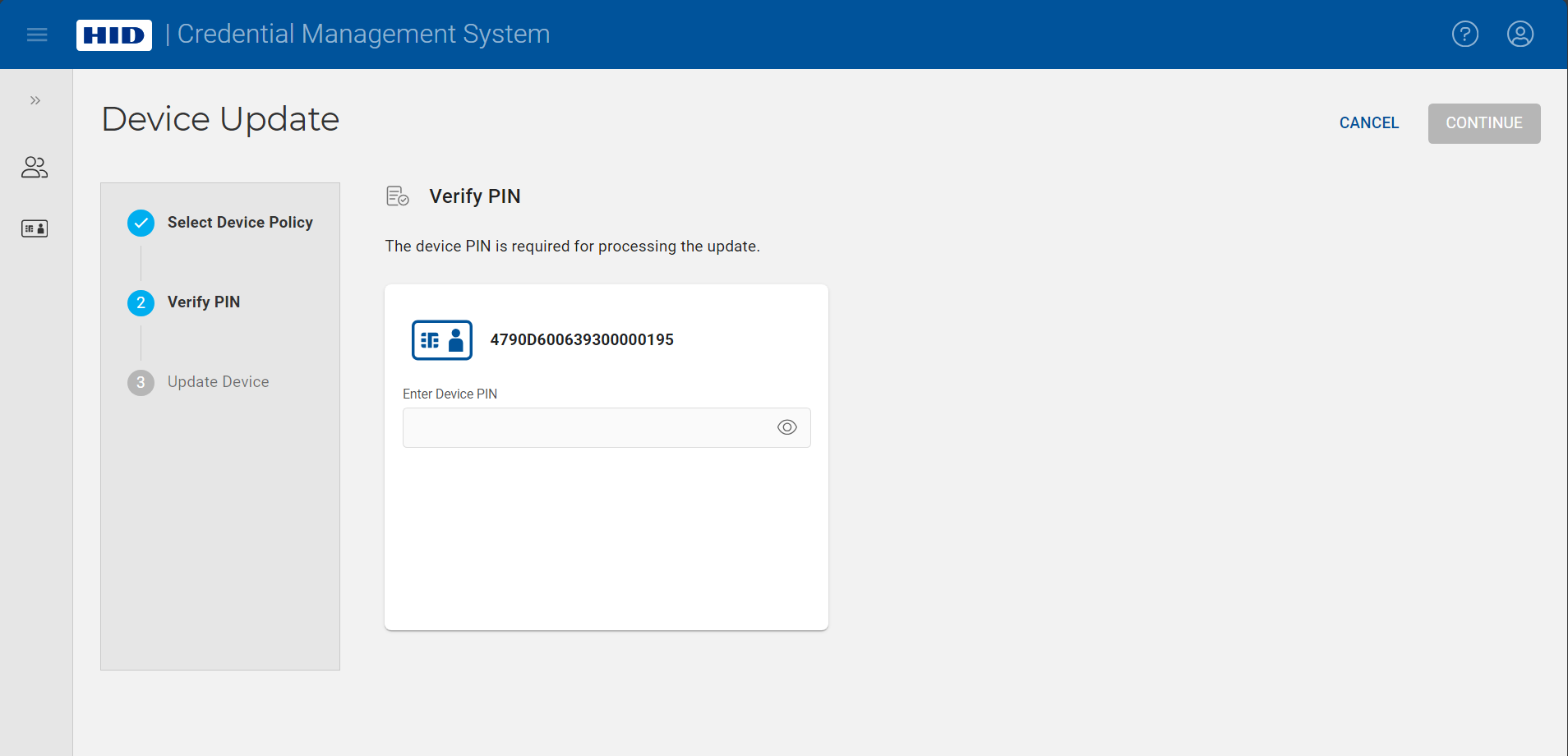
Enter the device PIN and click Continue to update the device:
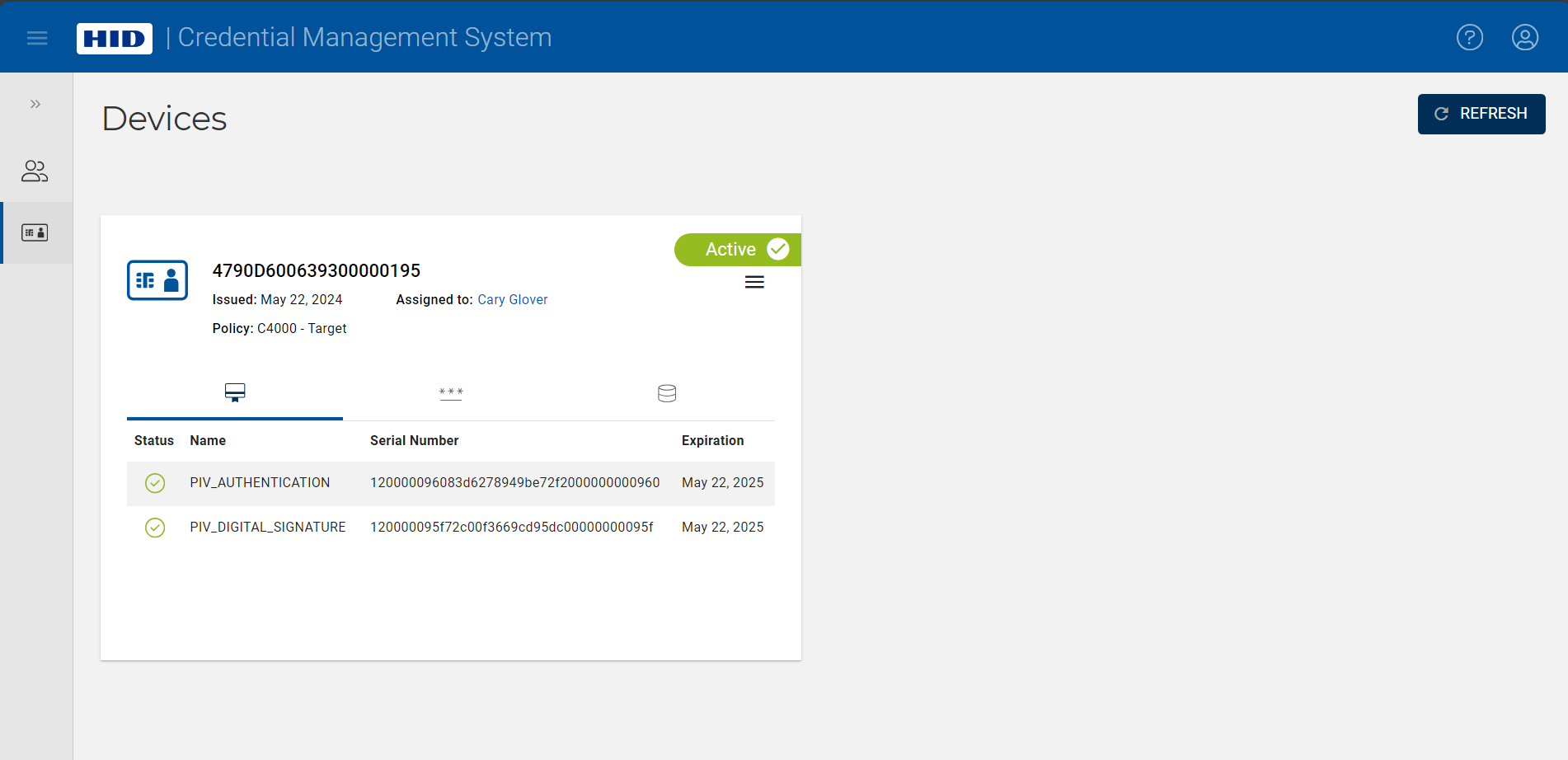
After the update is completed successfully, the Devices page is displayed again:
If the update fails, a dialog box appears with information concerning the error encountered:
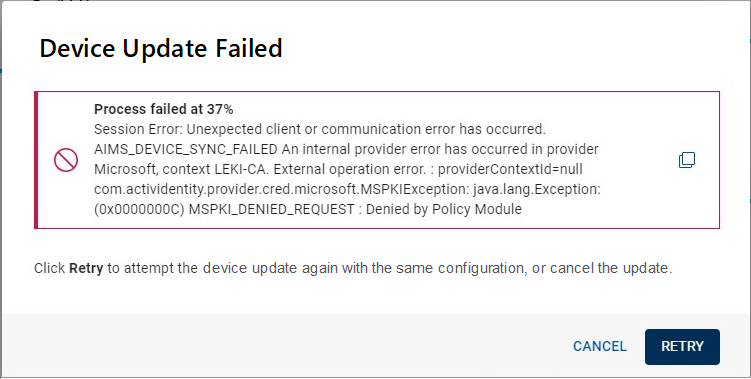
 to copy the error information.
Clicking Retry attempts the update again using the same parameters. Do not remove the device from the reader.
Clicking Cancel returns to the Devices page; the device is still assigned to the user, but is displayed as Invalid. You can either update the device or terminate it.


