About the HID CMS Operator Portal
Currently, the HID CMS Operator Portal is accessible for specific operators only. See Current Limitations below for more details.
Operators can issue and manage devices using the HID CMS Operator Portal interface. To connect to the HID CMS Operator Portal, use the following URL: https://<CMS Server>/aims/gui
After authentication, you reach the portal’s Welcome page:
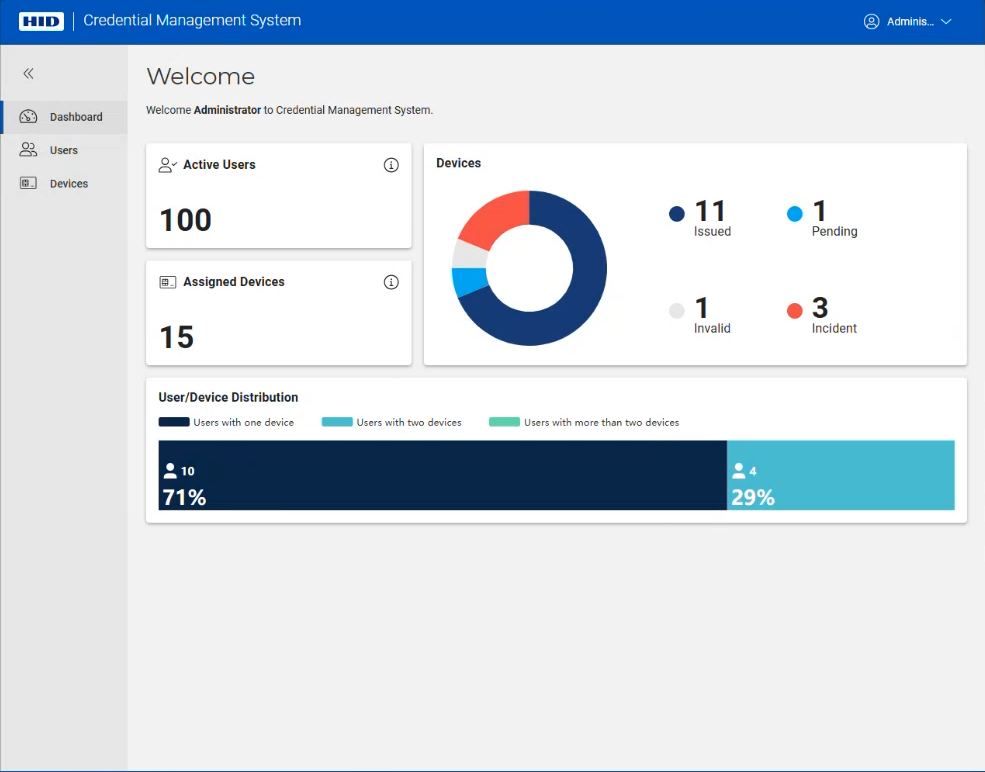
Overview of Welcome Page
A dashboard displays the number of active users and assigned devices, as well as details about the difference device states and their distribution.
Click the Users button in the left margin ( ) to access the Users Page, where you can search for a user, and issue and manage their devices.
Click the Devices button in the left margin ( ) to access the Devices Page, where you can perform various actions (terminate, recycle, etc.) on connected devices.
The left panel can be hidden or expanded using the buttons in the top left corner of the Welcome page:
 Button to hide panel
 Button to expand panel
Two additional buttons are found in the top right corner of the Welcome page:
 Help button to access online documentation
 Button to log out and return to the standard interface
Current Limitations
-
Only operators with specific predefined roles can access the HID CMS Operator Portal. For details about defining and assigning these roles, see Configuring Operator Permissions.
- When support for multiple devices is enabled (see Setting Parameters for Devices in the ActivID CMS online documentation), users will not be able to manage their devices with the User Portal and will need to use the Self-Service portal or contact the Help Desk instead.
- If an operator declares an incident for a device (lost or stolen) using the HID CMS Operator Portal, they must also use the HID CMS Operator Portal to either replace or terminate the device.
- It is not possible to manage a device that was declared lost or stolen in the HID CMS Operator Portal using the legacy ActivID CMS Operator Portal. However, once the lost or stolen device has been recycled or terminated using the HID CMS Operator Portal, it is then possible to remove it from the database using the legacy ActivID CMS Operator Portal.
-
If an operator assigns a device to a user using the HID CMS Operator Portal, there is no email containing an initial password sent to the user.
About Using Google Chrome or Microsoft Edge Browsers with the HID CMS Operator Portal
You can use Google Chrome™ or Microsoft Edge browsers to connect to the HID CMS Operator Portal. However, you need to install the ActivID CMS browser extension and the CMS Client in order to issue and update devices.
For Microsoft Edge browsers, you must make sure that the “Allow extensions from other stores” option is checked in the Extensions menu before downloading the ActivID CMS extension.
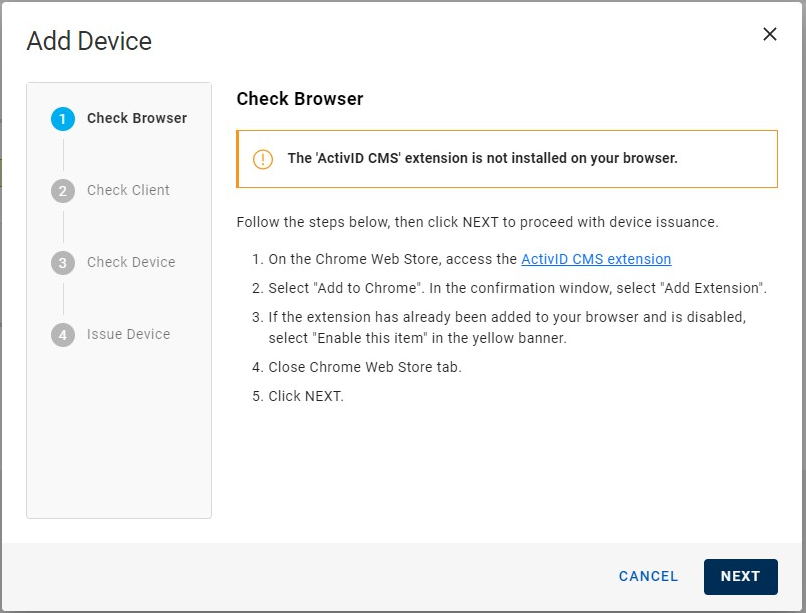
When you use a Google Chrome or Microsoft Edge browser on the HID CMS Operator Portal, HID CMS verifies whether the ActivID CMS browser extension is installed. If this is not the case, a message is displayed with instructions containing a link so that you can download the ActivID CMS extension:
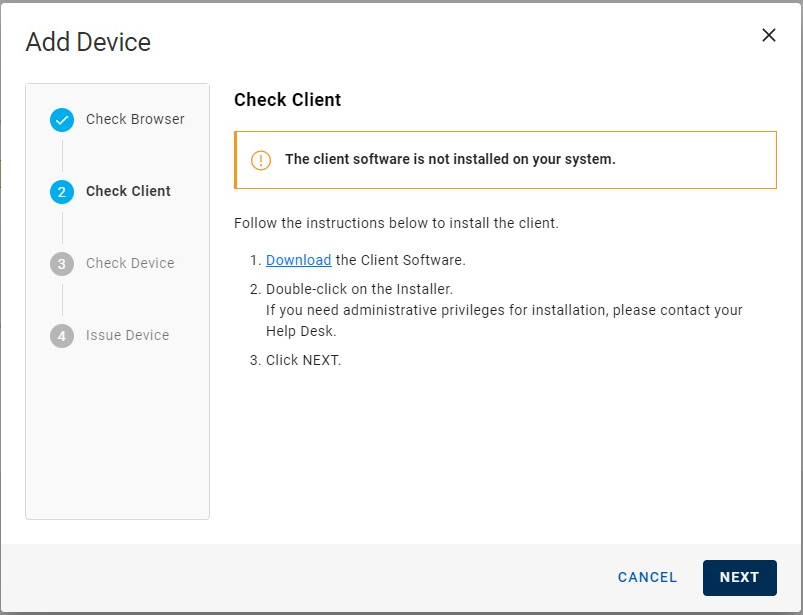
Once you have downloaded the ActivID CMS extension, HID CMS then checks whether the CMS Client is installed. If this is not the case, a new message is displayed with instructions containing a link so that you can download so that you can download the CMS Client:
After the ActivID CMS browser extension and the CMS Client are installed successfully, you can proceed as usual to issue or update devices.
Once the ActivID CMS extension and CMS Client are installed correctly, HID CMS detects them automatically each time you connect to the Operator Portal and no further action is required. However, if the ActivID CMS extension is disabled in your browser, you will need to reload the page in the HID CMS Operator Portal after you have re-enabled the extension in order for it to be detected by HID CMS.
Particularities About Installing the CMS Client on Linux
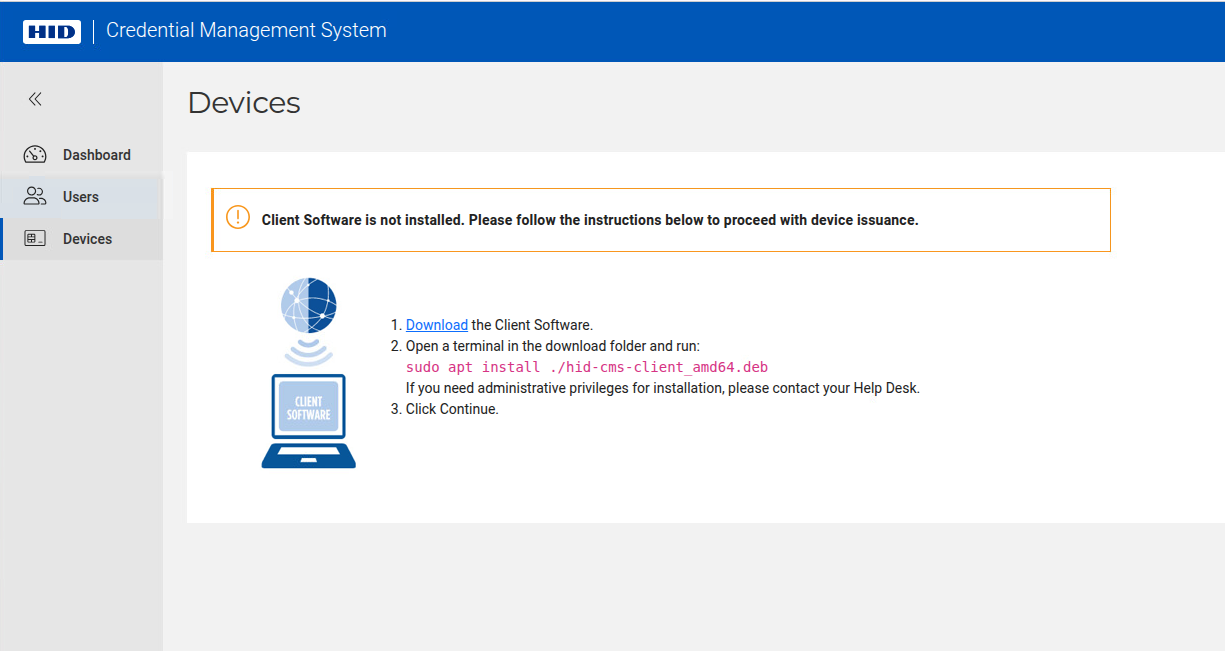
On Linux, the CMS Client is delivered as a Debian package: hid-cms-client_amd64.deb. It is intended to be installed on a Ubuntu 24.04 LTS machine. If the CMS Client is not installed, the following message appears: