Configuring the Database
Validation Authority stores information about issuers, credentials, and revocation lists in a standard SQL database. You must configure database parameters to determine where the database will be located and how Validation Authority will log onto the database.

-
Select the database Vendor from the drop-down menu. For details about completing the remaining fields, see the following:
-
For Microsoft SQL Server, see section Configuring Microsoft SQL Server.
-
For Oracle, see section Configuring Oracle Database.
-
For PostgreSQL, see section Configuring PostgreSQL.
-
-
Enter the Host. This is the host name or IP address of the server that is running the database software. Validation Authority will communicate with the database over a TCP/IP connection to this host. The default is localhost.
-
Enter the Port. This is the TCP/IP port number on the database host server that is used to communicate with the database. If this property is not specified, Validation Authority will attempt to connect to the default port number for the database of that type. For example, if the configuration specifies that the database is Oracle, then Validation Authority will attempt to connect to the database at port 1521. You should only need to specify this property if the database is listening on a port that is not standard for its database type.
-
Enter the name of the database in the Database field. This is the instance that contains the tables for Validation Authority. This instance is an internal partition of the database, and must be created and initialized with the database schema before the software will be able to connect successfully. The default is rtc.
-
Enter the Username. This is the name of the account within the database software that is used to access the database instance on the database server. The default is rtc.
-
Enter the Password. This is the password to validate the connection from Validation Authority to the database.
-
Click Next.
-
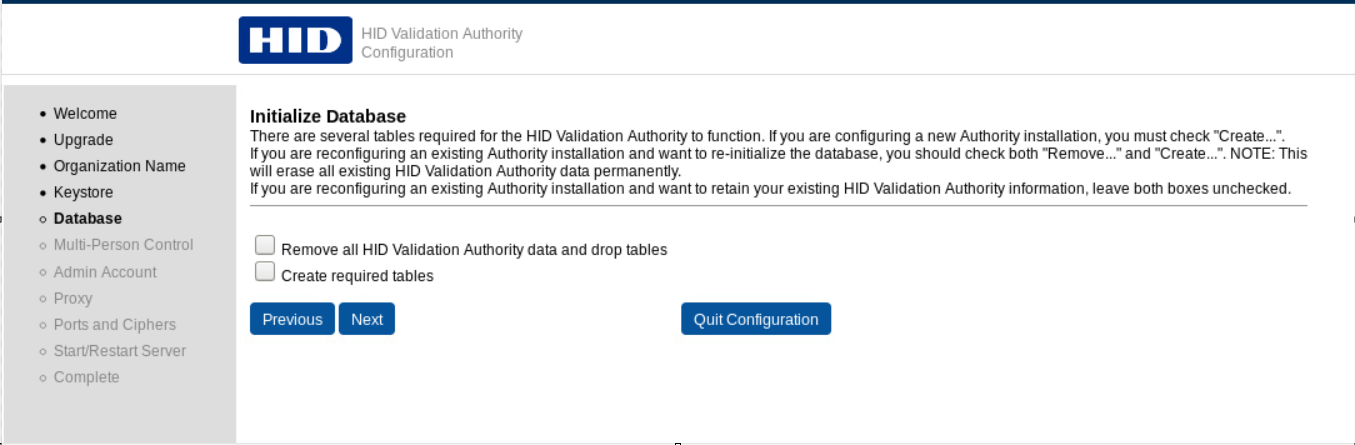
If this is the first time you are configuring a freshly installed Validation Authority, then you must select the Create required tables option.
Do NOT select either option if:
-
This is an upgrade install and you want to retain the contents of the database.
-
You are running the configurator for a second time and want to retain the contents of the database.
If you want to wipe out the contents of the database, then select both options. This will delete all the issuers, certificates and CRLs, among other things in the database.
-
-
Click Next.


