Editing Push Delivery Gateway
-
The push delivery gateway has a toggle button that allows you to enable or disable push-based notifications with a confirmation prompt. When enabled, notifications are sent to users via the push delivery gateway; when disabled, notifications are managed via an external service.
-
You must add at least one public key to your credential profile before enabling it; otherwise, you will not be able to enable it.
When required, you can edit the push delivery gateway details by following the below steps:
-
Click Settings
 in the left navigation bar to open the Settings page.
 -
Click HID Approve Authentication Configuration on the Settings page, then you can see the list of applications.
-
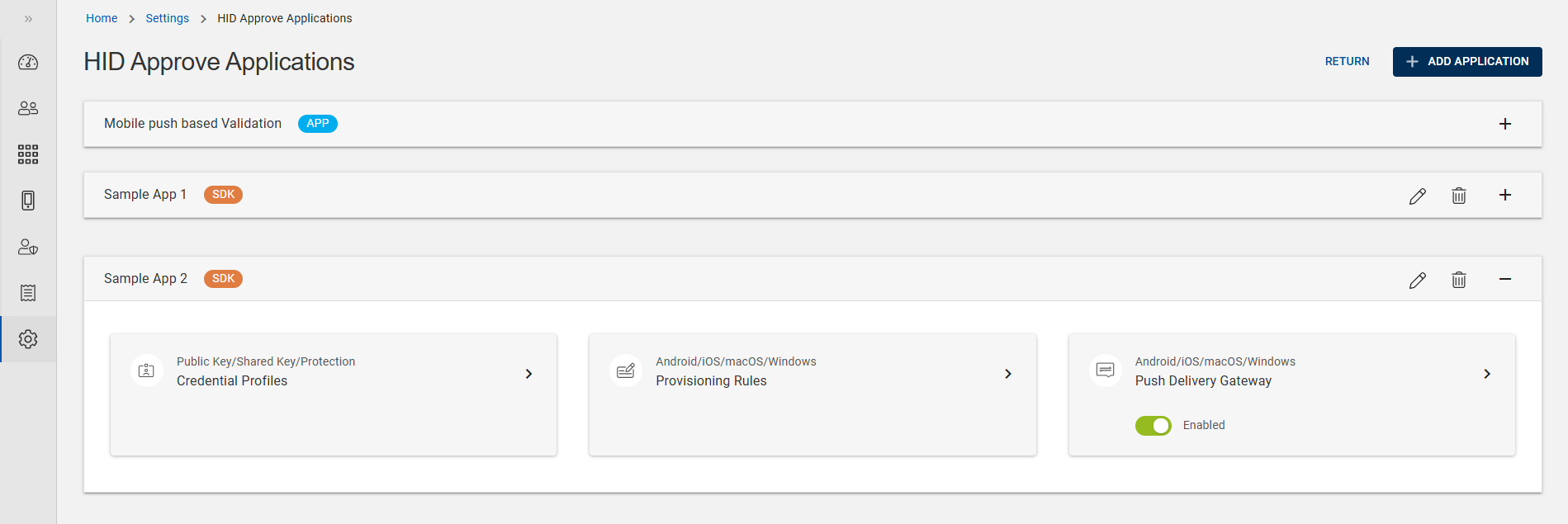
From the list of applications, choose a SDK App for which you want to edit the push delivery gateway details.
Expand the App and click on the arrow (>) of Push Delivery Gateway tile to open the Push Delivery Gateway page.
-
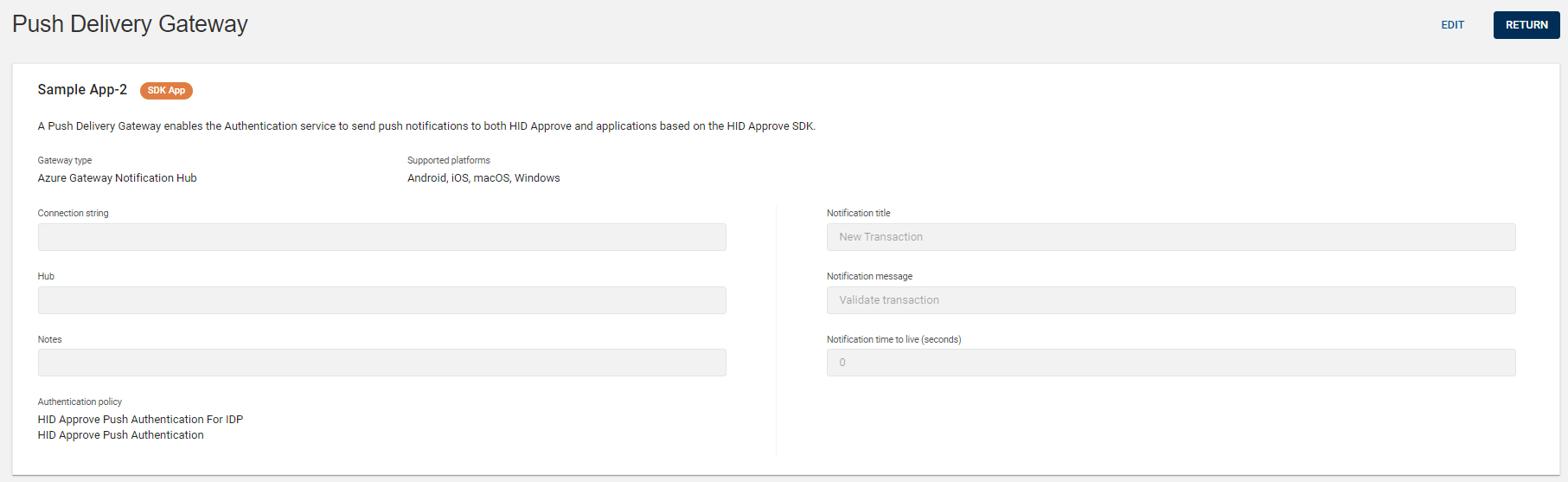
In the Push Delivery Gateway view page, click EDIT to edit the push delivery gateway.
-
Edit Push Delivery Gateway page opens and do the required changes for the below shown parameters.
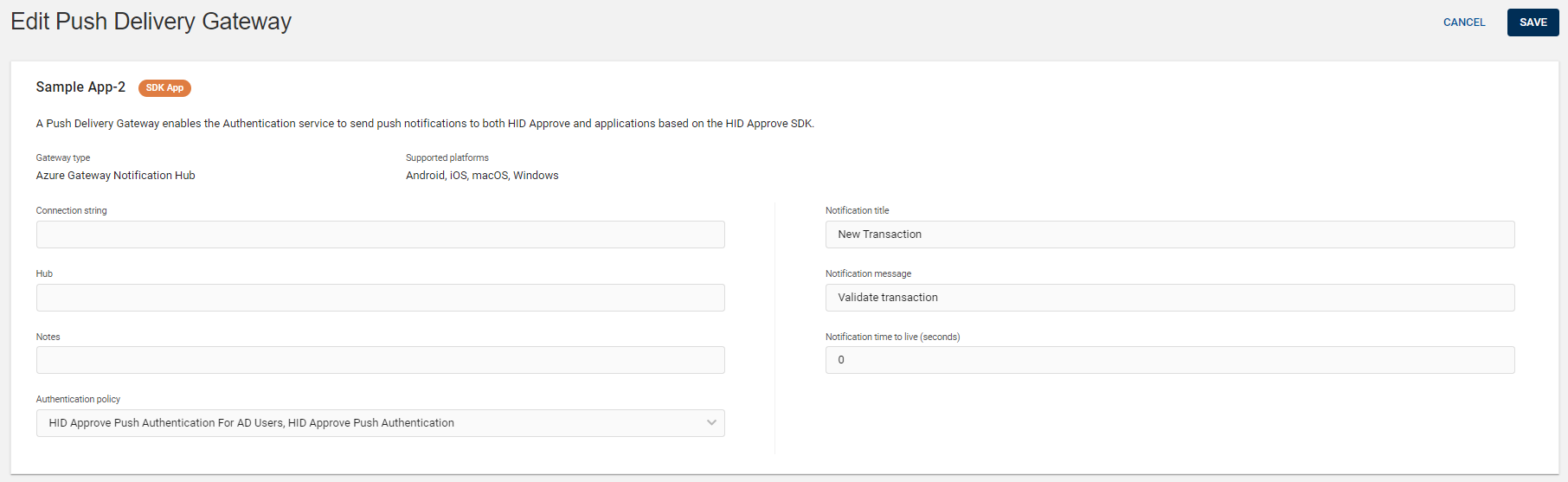
Parameters for Push Delivery Gateway:
Parameters Description Connection string
Azure Notification Hub is a service provided by Microsoft Azure to send push notifications to mobile devices. To interact with Azure Notification Hubs, you typically need a connection string.
The connection string is a piece of information that allows your backend or application to authenticate with the Azure Notification Hub and send push notifications.
The connection string for an Azure Notification Hub looks something like this:
Endpoint=sb://NAMESPACE_NAME.servicebus.windows.net/;SharedAccessKeyName=KEY_NAME;SharedAccessKey=YOUR_ACCESS_KEY
-
NAMESPACE_NAME: The name of the Service Bus namespace associated with your Notification Hub.
-
KEY_NAME: The name of the shared access policy. This is typically DefaultFullSharedAccessSignature or DefaultListenSharedAccessSignature.
-
YOUR_ACCESS_KEY: The key associated with the named shared access policy.
You can find the connection string in the Azure portal.
Important: Remember to keep your connection strings confidential. They allow full access to your Notification Hub, and anyone with the connection string can send push notifications on your behalf. If you believe your connection string has been compromised, regenerate the keys in the Azure portal.Hub The "Hub" is the name you give to your Notification Hub when you create it in Azure.
The Notification Hub is the Azure service you use to push notifications to your application users. Each hub is associated with a specific mobile application.
Notification title Notification title refer to the headline or primary text that appears in a push notification or system notification. They serve as a brief description or introduction to the content or purpose of the notification. Due to the limited space on mobile devices and the frequent nature of notifications, titles should be short. Notification message The notification message is the main content of the notification. Notification time to live (seconds) The "Time To Live" (TTL) setting refers to the duration for which a push notification is valid and can be delivered to the recipient. If a notification isn't delivered within its TTL, it's discarded and won't be delivered to the intended recipient.
By default, the value is 0
-
-
Click SAVE to save the changes.


