Troubleshooting

Using ActivClient Diagnostics
ActivClient includes a diagnostic tool that collects detailed information about the environment, system state, and connected security devices.
ActivClient Diagnostics can be accessed in two ways:
From ActivClient Console
-
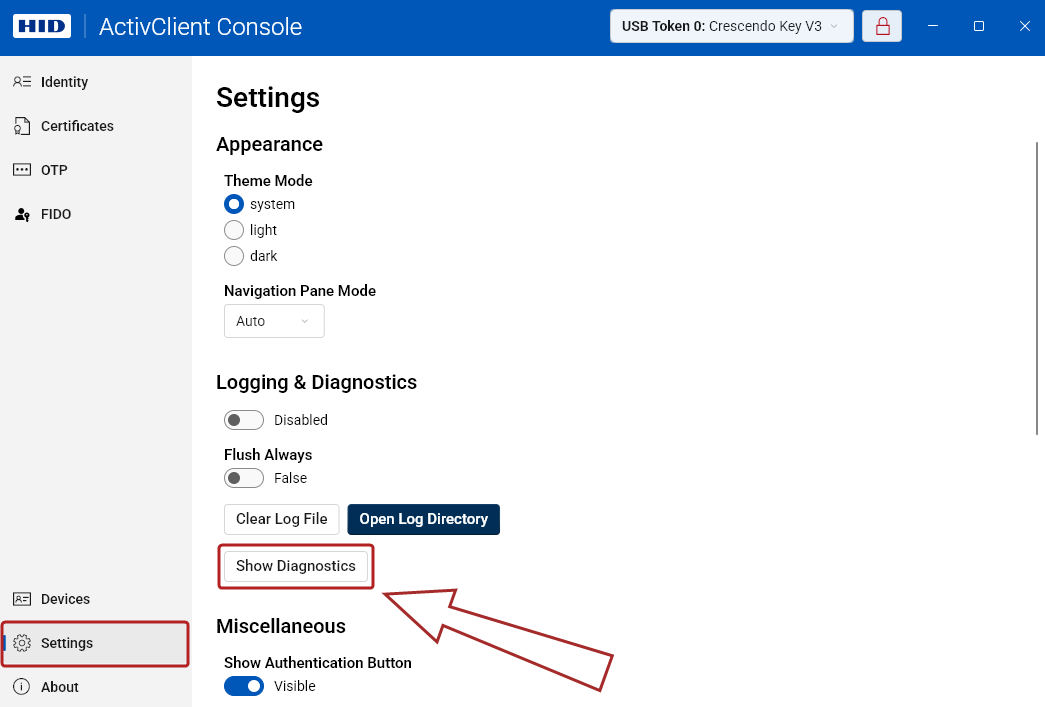
In the ActivClient Console, click Settings in the left navigation pane.
-
Scroll down to Logging & Diagnostics and click Show Diagnostics.
-
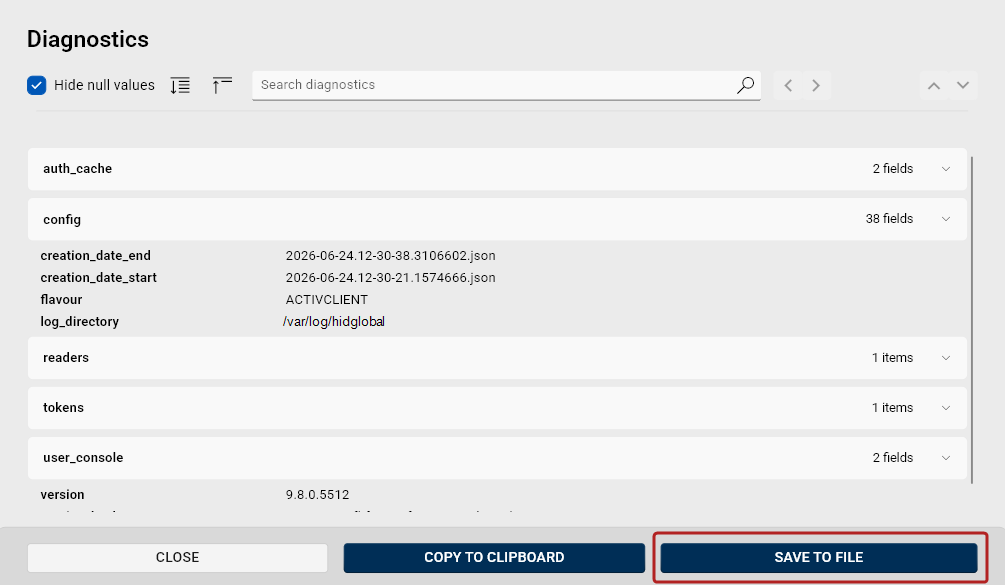
ActivClient performs a diagnostic check and opens the Diagnostics dialog with the results.
To save the results to a .json file, click Save to File. The file can then be shared with your support team for troubleshooting.
From ActivClient Agent
-
Right-click the ActivClient Agent icon in the notification area.
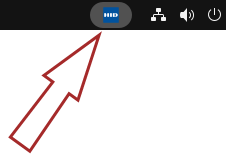 Note: The ActivClient Agent icon appears in the notification area only when a supported device is inserted.
 -
Expand the Advanced submenu.
-
Select Diagnostics.
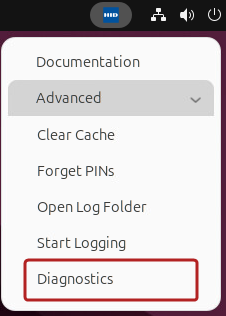
ActivClient performs a diagnostics check and generates a .json file containing the results. You can share this file with your support team for troubleshooting.
Using Logging
For troubleshooting purposes, ActivClient can generate log files to help identify and resolve issues.
By default, logging is disabled and must be explicitly enabled.
Enable Logging in ActivClient Console
To enable logging in ActivClient Console, see Logging & Diagnostics.
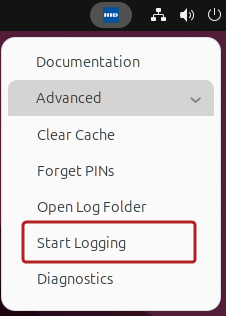
Enable Logging in ActivClient Agent
To enable logging using the ActivClient Agent:
-
Right-click the ActivClient Agent icon in the notification area.
Note: The ActivClient Agent icon appears in the notification area only when a supported device is inserted. -
Expand the Advanced submenu.
-
Select Start Logging.
Log File Location
Once logging is enabled, log files are saved by default in the following directory:
/var/log/hidglobal
Clearing the Cache
For some security devices, updates or changes made on a different machine might not be recognized by the system. In such cases, clearing the cache can help resolve the issue.
Clearing Caches For All Tokens
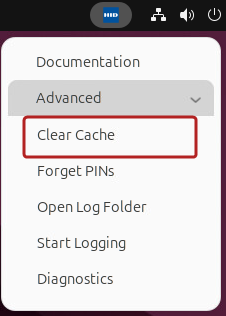
Use the ActivClient Agent Clear Cache option to clear caches for all tokens:
-
Right-click the ActivClient Agent icon in the notification area.
Note: The ActivClient Agent icon appears in the notification area only when a supported device is inserted. -
Select Advanced > Clear Cache.
Clearing Caches For Selected Tokens
Use the ActivClient Console Clear Cache option to clear caches for a selected token only.