Editing Credential Profiles
When required, you can edit an existing credential profile by following the below steps:
-
Click Settings
 in the left navigation bar to open the Settings page.
 -
Click HID Approve Authentication Configuration on the Settings page, then you can see the list of HID Approve applications.
-
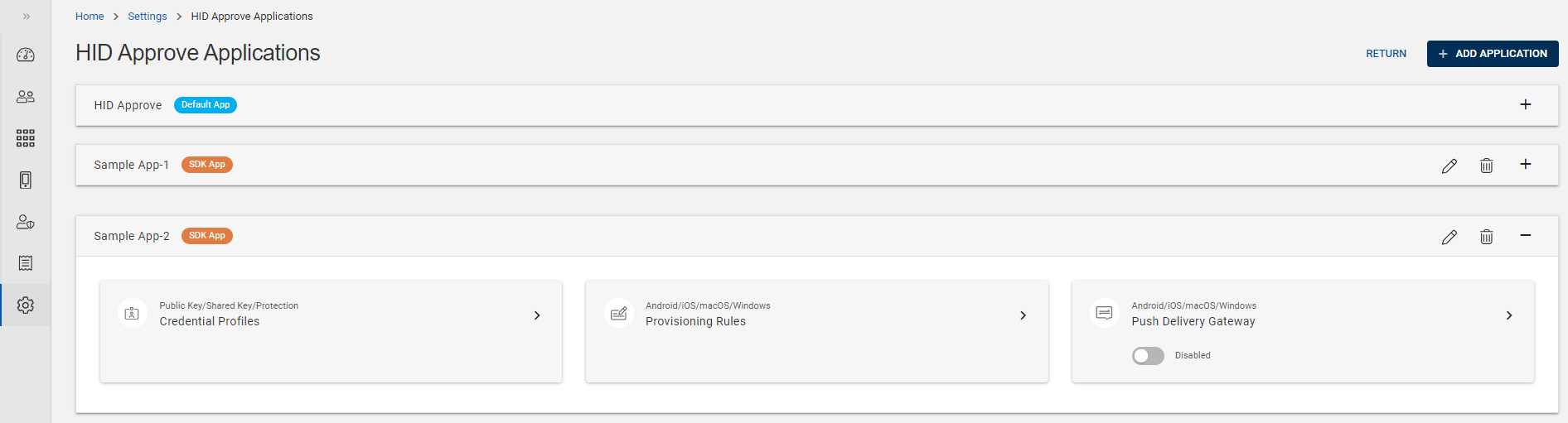
From the list of HID Approve applications, choose the Default App or a SDK App for which you want to edit the credential profile.
Expand the App and click on the arrow (>) of "Credential Profiles" tile to open the Credential Profiles view page.
-
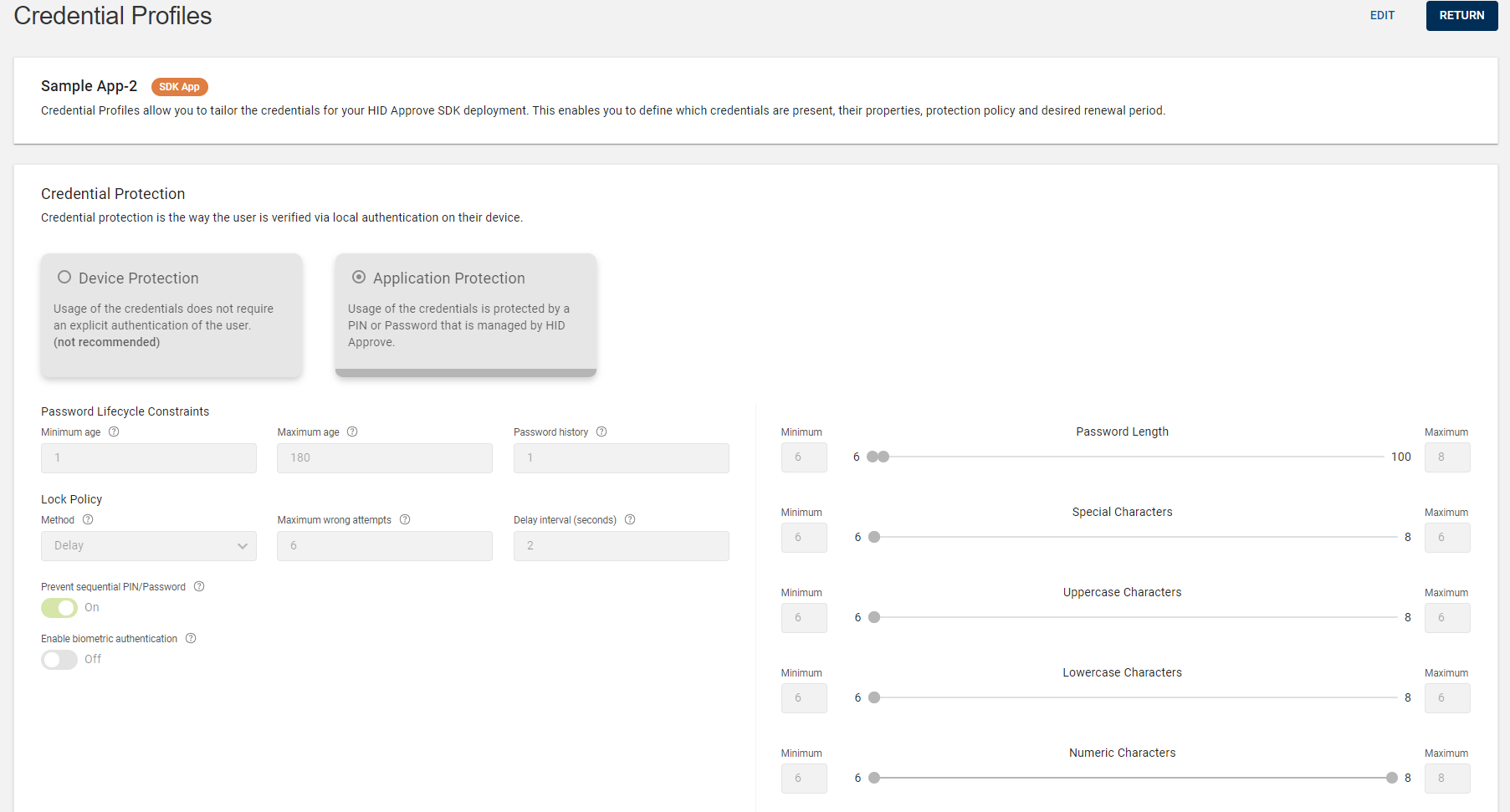
In the Credential Profiles view page, click EDIT to edit the credential profiles details.
-
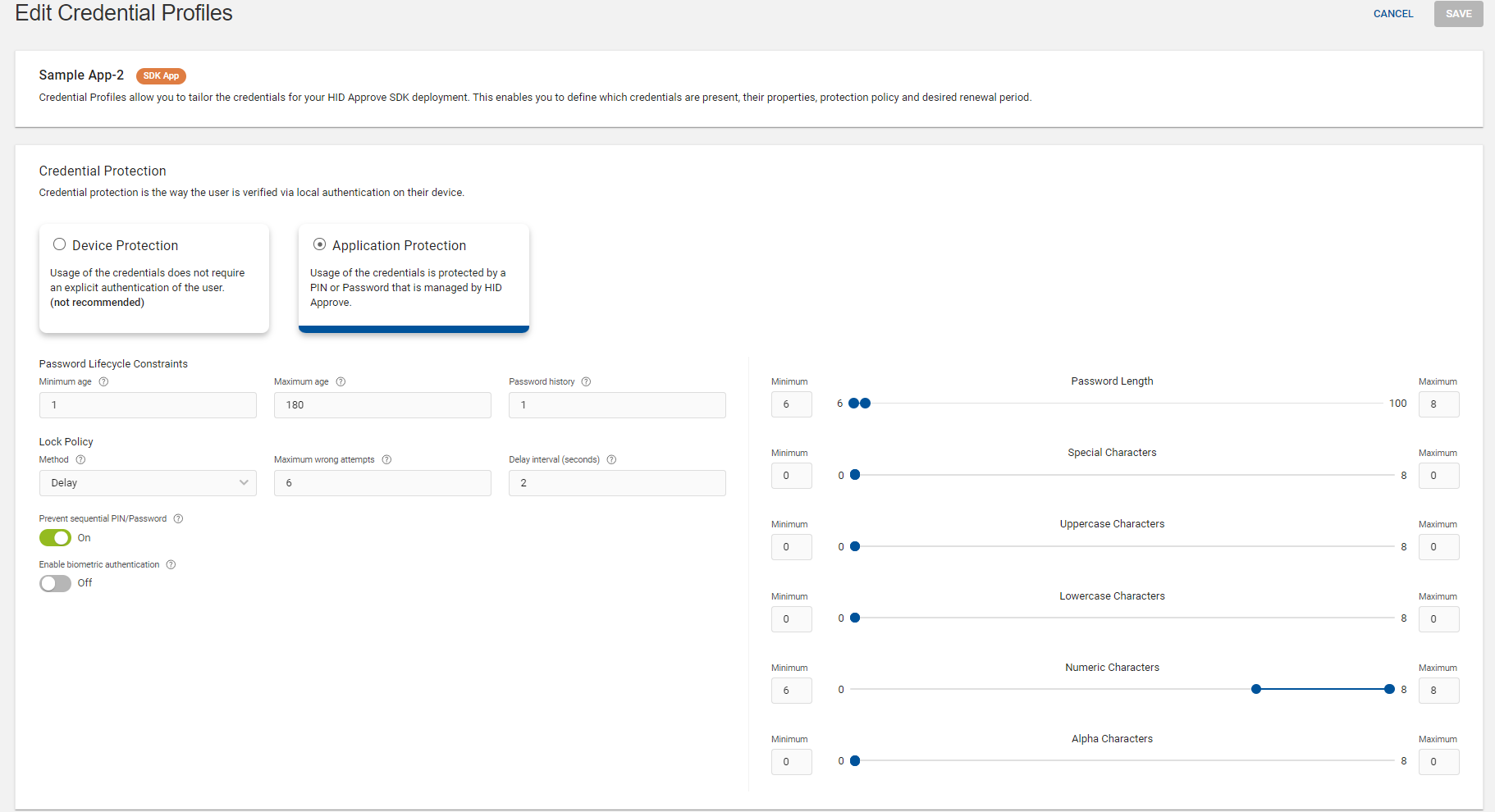
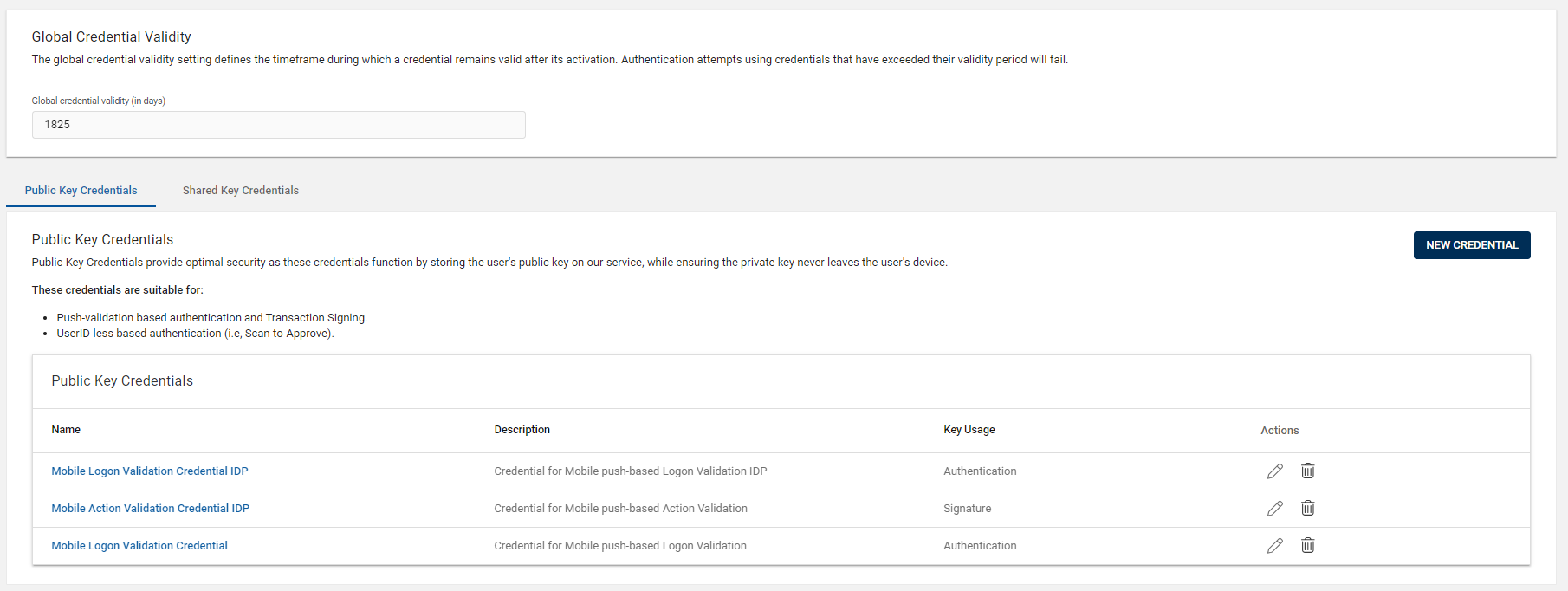
Edit Credential Profiles page opens and do the required changes for the below shown sections.
-
After making the required changes, click SAVE to save the changes.
Editing Credential Protection
You can edit and configure the HID Approve credential protection policy with the use of application protection and device protection settings. Refer to Configuring Credential Protection Policy for details.
Configuring Service Renewal
You can configure service renewal of HID Approve default app credential to facilitate a credential rollover in HID Approve based on a target credential expiry.
Service renewal will help facilitate a credential rollover in HID Approve based on a target credential expiry.
You can enable or disable the credential renewal in the HID Approve app with the use of a service renewal toggle switch.
-
Disable: By default, the key expiry duration for all the credentials is set to 10 years.
-
Enable: You can set the key expiry duration in yearly increments (choose 1 to 5 years from the drop-down).

Configuring Global Credential Validity
You can configure the global credential validity of HID Approve SDK App credential to set the timeframe during which a credential remains valid after its activation.
By default, the value configured in the global credential validity period should be applied to all the credentials associated with the respective device type.

Editing Public Key Credentials
Editing Shared Key Credentials
Shared key credentials, suitable for offline authentication, generate easy-to-use codes like OTPs without needing server connectivity. Unlike public key credentials, they use a single key shared between user and service.
You can edit a credential profile by clicking edit icon ( ) for the below shown parameters as per your requirement.

Parameters of a shared key credential profile:
| Parameters | Description |
|---|---|
| Key usage + Mode |
You cannot edit this Key usage + Mode. |
| Moving factor | Choose "Event" or "Time" as Moving factor. |
| OTP length | Defines the length of OTP value. |
| Challenge length |
Defines the length of the challenge provided to a user to generate an OTP on the device (in the challenge response mode). |
After making the required changes, click SAVE to reflect the changes.
Removing Credential
-
You can't delete key credentials if they are assigned to any apps that are used by users.
-
For the Default apps, you don’t have the privilege to delete shared key credentials.
-
You can't delete key credentials from converted legacy apps, but you can remove them from newly created apps.
If required, you can remove the public or shared key credential by clicking delete icon ( ) for the customized apps.
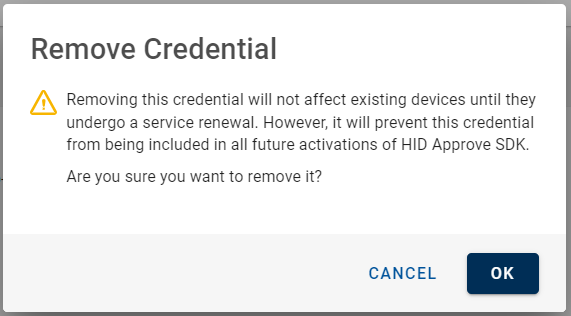
"Remove Credential" confirmation dialog box appears, click OK to remove the credential from credential list.
Suspicious Activity and Blocked Authenticator Handling
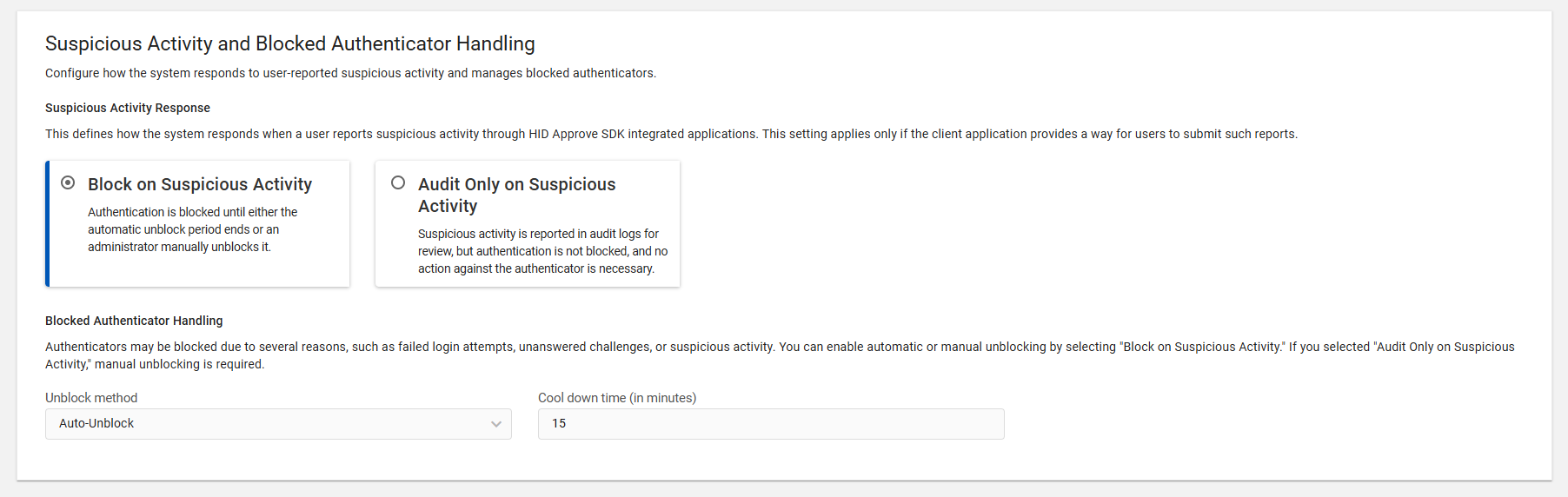
Authenticators may be blocked due to several reasons, such as failed login attempts, unanswered challenges, or suspicious activity (such as push notification fatigue attacks) and reported this suspicious activity through HID Approve SDK integrated applications.
You can manage blocked authentication requests and reset authentication through the HID Approve SDK configuration settings, such as the Block on Suspicious Activity or Audit Only on Suspicious Activity sections.
 Block on Suspicious Activity
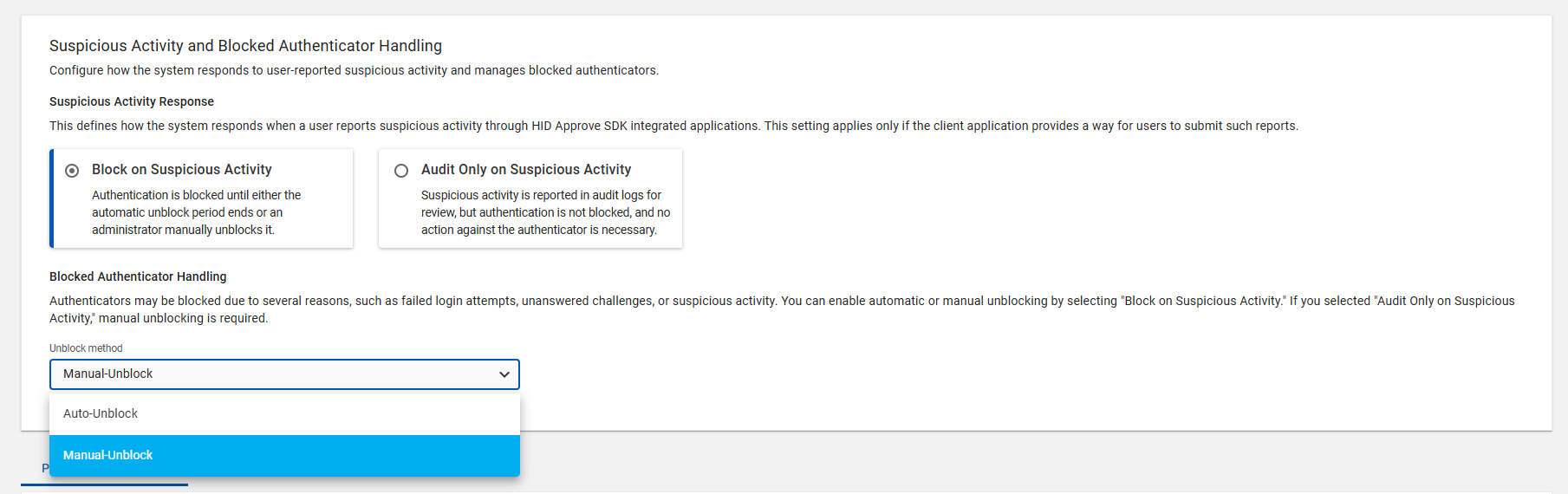
Authentication is blocked until either the automatic unblock period ends or an administrator manually unblocks it.
You can select either "Auto-Unblock" or "Manual-Unblock" from the unblock method drop-down.
-
Auto-Unblock: The blocked authenticator is automatically unblocked after the defined time period (cool-down period).
Note: The default cool-down period is 15 minutes. However, you can change the default cool-down period based on the requirement. -
Manual-Unblock: The blocked authenticator is unblocked after manual intervention. For instructions on how to manually unblock the authenticator, refer to Reporting User Suspicious Activity.
Audit Only on Suspicious Activity
Suspicious activity is reported in audit logs for review, but the authentication is not blocked, and no action against the authenticator is necessary.


