Using the DigitalPersona Credential Manager
The DigitalPersona Credential Manager is a fully featured desktop client which allows you to enroll and manage credentials used to log on to computers, websites and programs.
Accessing the Credential Manager
Launch the Credential Manager by tapping or clicking the Credential Manager tile from the DigitalPersona Console home page.
You can open the DigitalPersona Console in any of the following ways:
-
From the Apps screen, under DigitalPersona, select DigitalPersona Console.
-
Double-click the DigitalPersona Workstation icon in the notification area, at the far right of the taskbar.
-
Right-click the DigitalPersona icon, and click Open DigitalPersona Console.
-
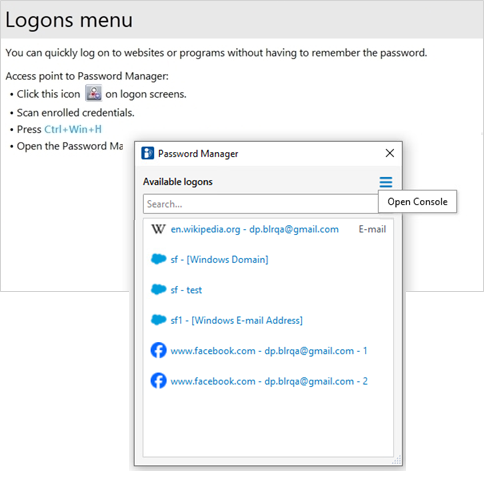
Press the hot key combination Ctrl+Win Logo Key+H to open the Logons menu and then click DigitalPersona Console (when no logons have been created yet) or Manage (after logons have been created).
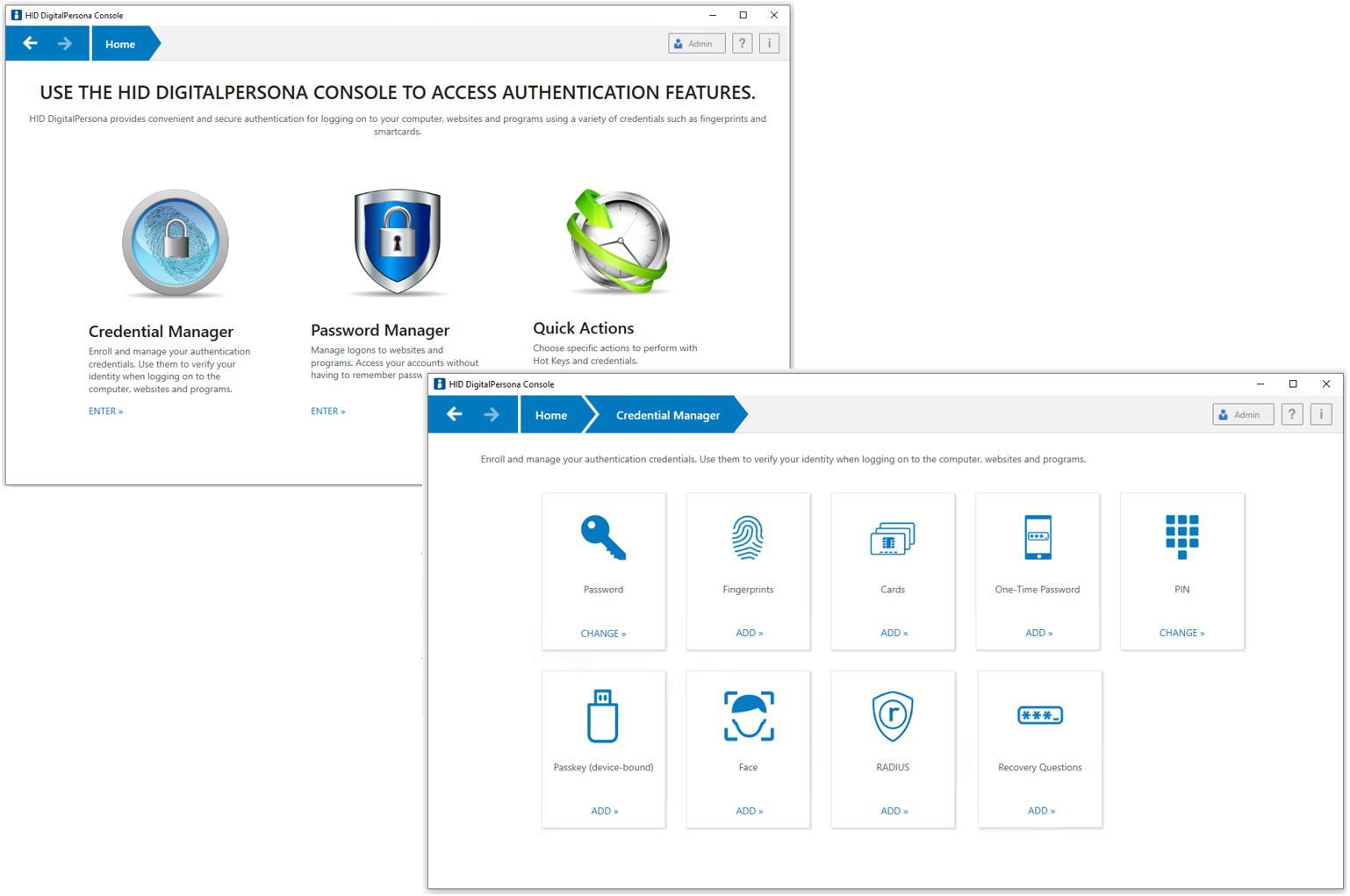
Each tile represents a credential type. Once enrolled, the tile also provides the available actions to manage the credential.
The available credentials can vary depending on the security devices built into or connected to the computer.
The exact credentials required to access a given resource may vary depending on
See Managing Your Credentials using the Desktop Console.
Enrolling Credentials
You should enroll as many credentials as possible from those shown on the Credential Manager screen.
-
To manage a credential - click the ADD or CHANGE button on the credential tile and then follow the on-screen instructions.
-
To delete a credential - refer to specific instructions in the help topic for that credential.
The sections in Managing Your Credentials using the Desktop Console explain how to enroll or set up your credentials for use with the product’s features and applications.
Once additional credentials have been enrolled, you can use any of those credentials or credential combinations to log in (as specified by any authentication policy in force).
-
Managing your credentials (adding, changing or deleting) requires a connection to the DigitalPersona Server:
-
When not connected to a DigitalPersona Server, you cannot manage your credentials, but you can use any cached credentials for authentication
Credentials are cached on a local machine upon first use on that machine.
-
Credentials enrolled through HID DigitalPersona Enrollment are not cached on a local machine until after their first use
-
-
Some credentials require the presence of built-in or attached hardware
About Mandatory Credentials
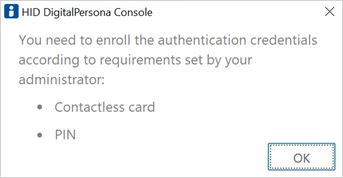
If your administrator has defined mandatory credentials that you need to enroll, a prompt is displayed when you launch the Credential Manager. For example:
-
Click OK to start the enrollment process.
-
Authenticate with an existing credential (for example, your password) to verify your identity.
You are then directed to the enrollment flow for the first mandatory credential.
If you exit the enrollment process or close the DigitalPersona Console, you are prompted to confirm your choice:
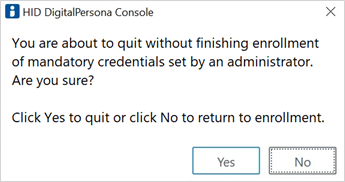
Until you have enrolled all the mandatory credentials, the prompt is displayed as a reminder each time you log on to your Microsoft Windows machine.
This prompt is not displayed when unlocking your machine.


