Using DigitalPersona Workstation
DigitalPersona Workstation is desktop -based application that enables you to enroll and manage your DigitalPersona credentials. It also allows you to configure associated settings (depending on configuration defined by your DigitalPersona Administrator).
Your credentials are also used at various times to verify your identity when making changes in the DigitalPersona Console.
Creating your DigitalPersona Account
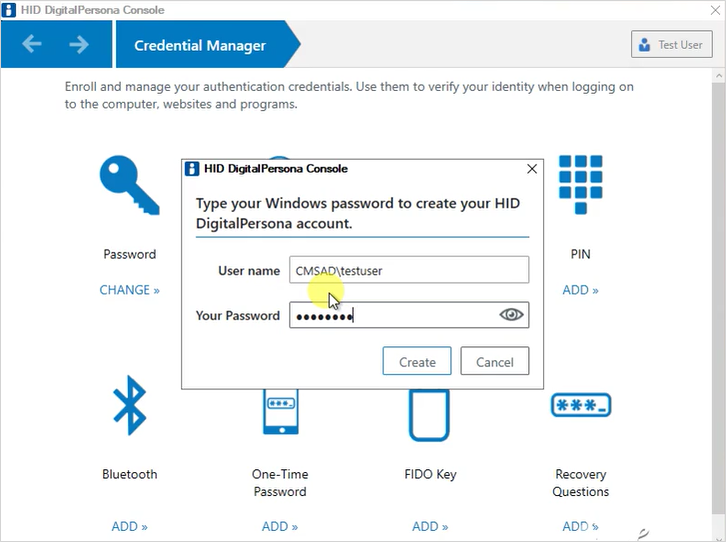
If required by your organization, the first time that you attempt to log on to a computer where a DigitalPersona Workstation client is installed, you might be prompted to create your DigitalPersona account and enroll required credentials.
-
Enter your Windows password and click Create.
-
Close the DigitalPersona Console by clicking on the Close (X) button in the upper right portion of the window.
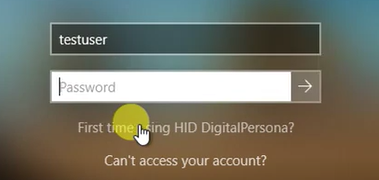
The Windows Logon screen redisplays, with a new link - First time using HID DigitalPersona?
-
Click the link to redisplay the HID DigitalPersona Console.
-
Authenticate with your password and then click the tile corresponding to the credential you are required to enroll (for example, PIN).
-
Follow the instructions to enroll the credential and then click on the Close (X) button in the upper right portion of the window
A message displays that you can now use the credentials for authentication.
The Windows Logon screen is displayed again.
-
Enter your password and, when prompted, the newly enrolled credential.
You can now access your computer.
The DigitalPersona Console
The DigitalPersona Console is the central location for primary access to the DigitalPersona Workstation features and settings.
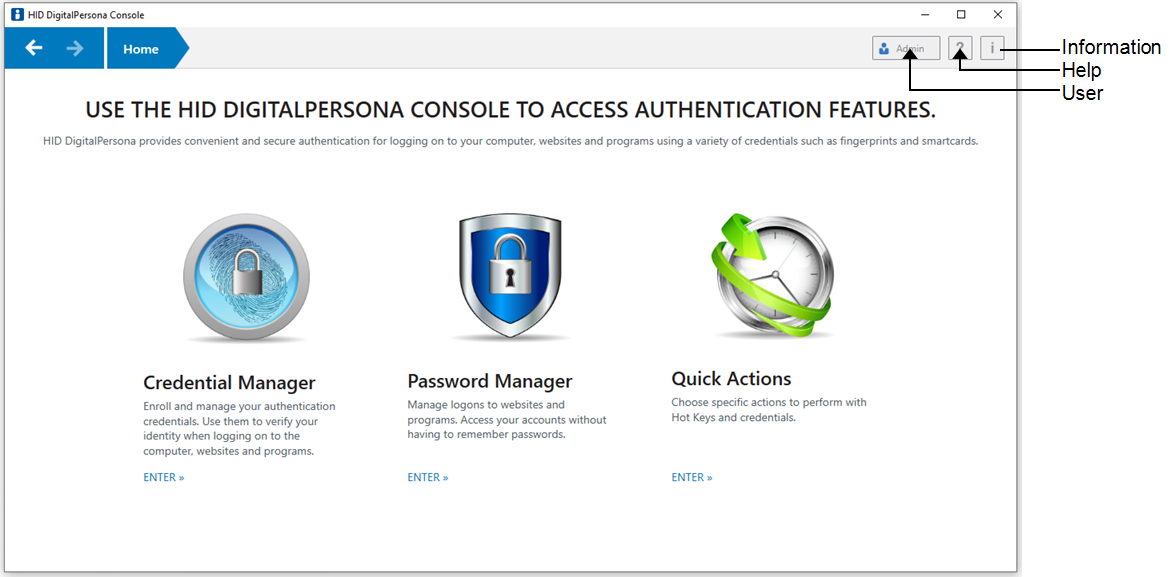
The DigitalPersona Console may include the following features.
-
Credential Manager - Enroll and manage DigitalPersona credentials and their settings.
-
Password Manager - (Optional) Create and manage Password Manager logons and accounts.
-
Quick Actions- Configure the DigitalPersona Hot Key sequence, and assign tasks to various credential and key+credential combinations. (Included with DigitalPersona Password Manager.)
-
Help - Displays online help for the DigitalPersona Console.
-
Information - Displays information about DigitalPersona Workstation, including the software version, copyright information and the DigitalPersona Server connection status.
-
User - Displays the Windows account name of the currently logged in user.
Opening the DigitalPersona Console
You can open the DigitalPersona Console in any of the following ways:
-
From the Apps screen, under DigitalPersona, select DigitalPersona Console.
-
Double-click the DigitalPersona Workstation icon in the notification area, at the far right of the taskbar.
-
Right-click the DigitalPersona icon, and click Open DigitalPersona Console.
-
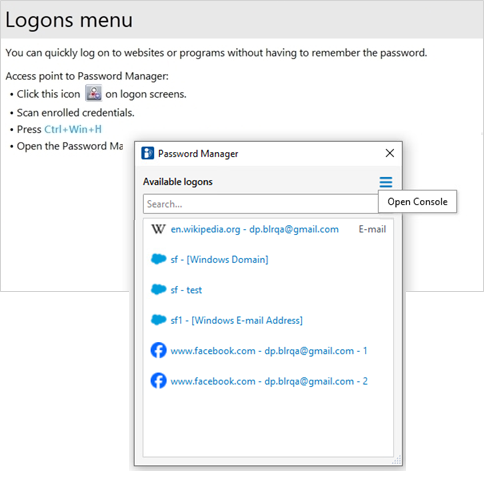
Press the hot key combination Ctrl+Win Logo Key+H to open the Logons menu and then click DigitalPersona Console (when no logons have been created yet) or Manage (after logons have been created).
Authenticating to your Microsoft Windows Computer with DigitalPersona Credentials
The actual process of using
This prompt is not displayed when unlocking the machine.
For further information, see About Mandatory Credentials.
Multi-Factor Authentication
One of the primary benefits of the DigitalPersona solution is the easy implementation of multi-factor authentication (MFA), that is, requiring more than one credential in order to log on to Microsoft Windows (and other resources as defined by the administrator).
When DigitalPersona MFA is enabled and you have logged on for the first time, the system will remember which credentials you have used to log on with, and the sequence they were used in. For example, if you used your Windows Password first and your fingerprints second, the next time you go to log on, you will not have to select these, but will automatically be presented with the UI necessary to authenticate with those credentials in that order.
Card Authentication
To use a Contactless ID card to log on to Microsoft Windows, you must click your user tile on the Windows Logon screen before presenting the card. Then you can use a Contactless ID card in conjunction with another credential as specified by the Logon Authentication Policy in force.
A PKI smart card or Contactless Writable card may be presented directly from the Logon screen for immediate logon to Windows.
Locking/Unlocking your Computer
To lock a DigitalPersona-managed computer:
-
From the Start screen, click your user name and select Lock from the menu.
-
Press the Windows Logo key+L.
-
When configured by the DigitalPersona administrator, you can lock the computer by removing the card which was used to log on to Windows from the card reader.
To unlock a DigitalPersona-managed computer:
Use any authorized credential or required combination of credentials to unlock the computer and log on to the workstation.


