Passkey (Device-Bound) Credentials
Passkeys (device-bound) supported by your organization may be used as a credential for authentication.
A passkey is a type of passwordless digital credential that is used as an authentication method. From a technical standpoint, passkeys are FIDO-based credentials that are discoverable by browsers or housed within native applications, or security keys for passwordless authentication.
The device-bound passkey credential is represented by the Passkey (device-bound) tile  .
Passkeys that are synced between devices via a cloud service are generally referred to as "synced passkeys", while ones that never leave a single device are referred to as "device-bound passkeys".
To enroll a Passkey (synced) credential, use the DigitalPersona web-based enrollment as described in Passkey (Synced) Credentials.
You can enroll multiple passkeys (for example, as backup passkeys or to access shared accounts using unique devices).
Changing or resetting the PIN associated with a passkey is not done in your DigitalPersona software, but through your Microsoft Account. Under Manage, select Microsoft Security Key (their name for passkeys).
Enroll a Passkey (Device-Bound) Credential
-
In the DigitalPersona Enrollment window, click the Passkey (device-bound) tile.
Note: User authentication may be required.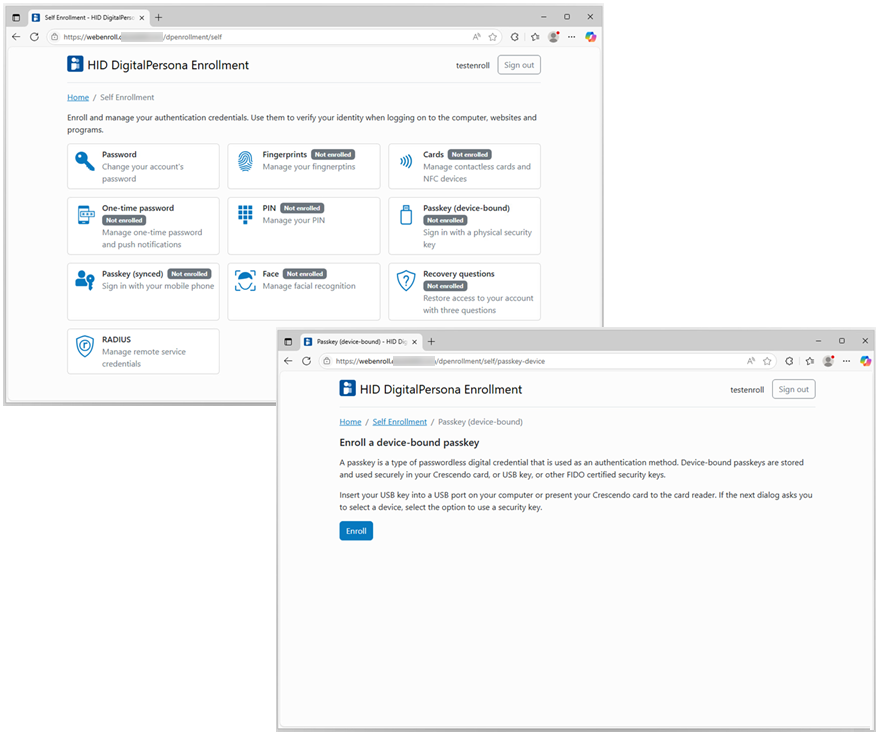
-
Insert your passkey and click Enroll to begin enrolling your device.
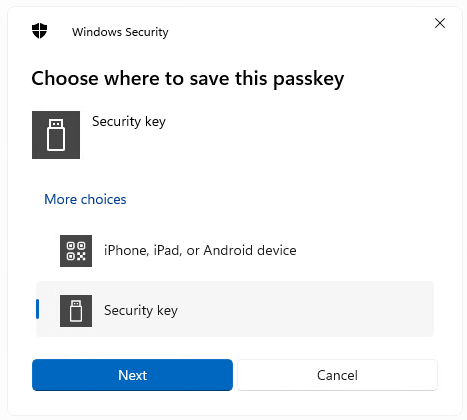
A device selection dialog may be displayed next.
-
If you are prompted to select where to save the passkey, select the option to use a Security key.
-
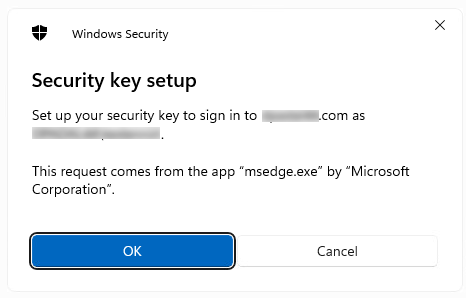
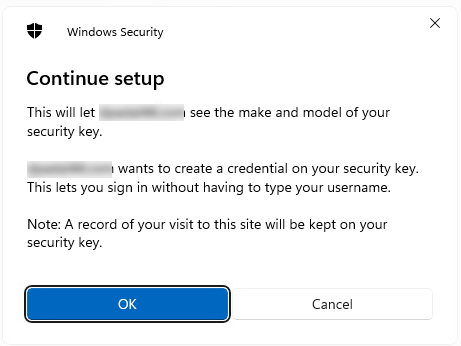
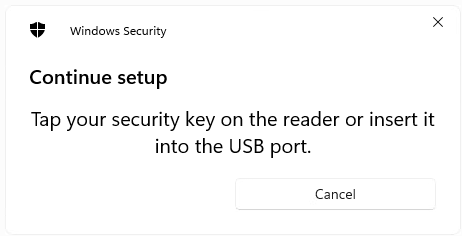
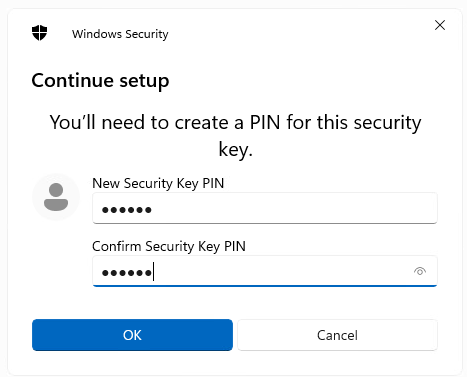
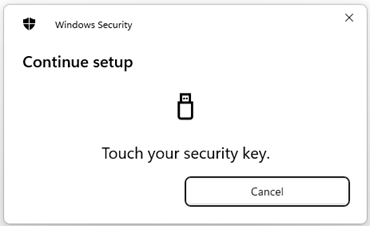
Then follow any onscreen instructions provided in the following Windows dialogs.
Depending on your passkey, you may be prompted to provide or create a PIN and to touch your security key.
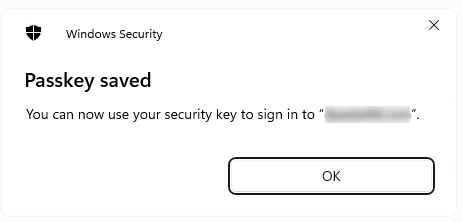
Authenticate with a Passkey (Device-Bound) Credential
-
In the DigitalPersona Identity Provider or Verify your Identity window, select the Passkey (device-bound) tile.
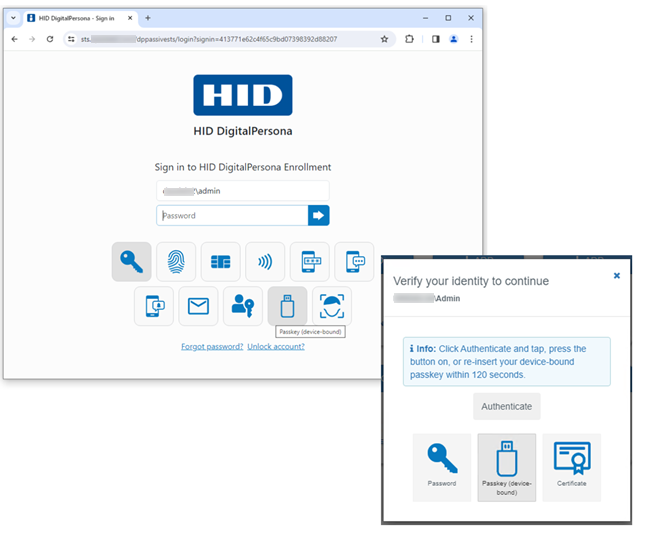
-
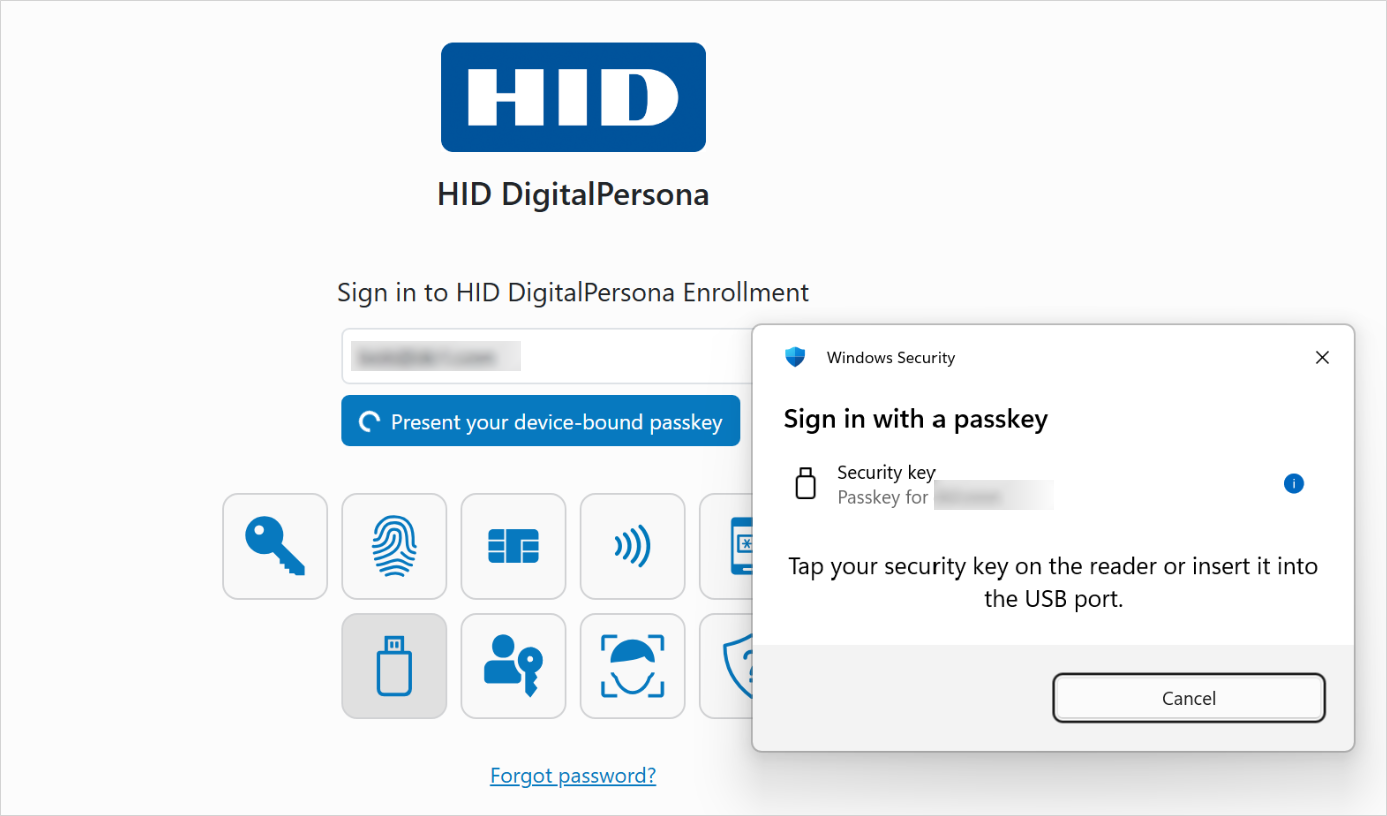
Follow any onscreen instructions.
Depending on your passkey and any authentication settings, you may be prompted to provide your PIN and/or touch your Security Key.
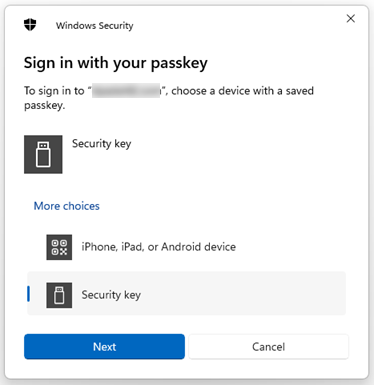
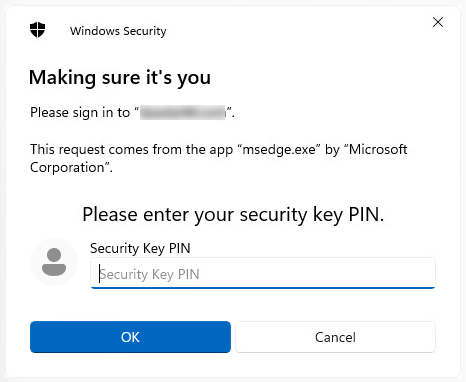
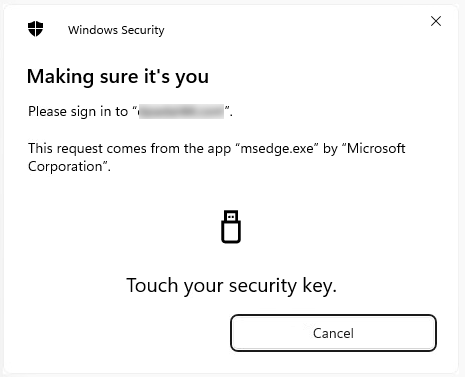
After touching your enrolled passkey, you will be automatically signed in.
Passkey Biometrics Support
Passkey Biometrics is an authentication system that leverages biometric characteristics, such as fingerprints, to enable true passwordless access to protected resources.
To enroll a Passkey Biometrics device with an embedded fingerprint reader (YubiKey Bio, TrustKey G320, etc.):
-
Enroll your fingerprint using the program supplied with the Passkey Biometrics device.
-
Then enroll the Passkey (device-bound) credential using the steps as described above.
To authenticate with a Passkey Biometrics device:
-
Insert the device into a USB port.
-
When prompted, touch the device's fingerprint reader with a previously enrolled finger.
Change a Passkey (Device-bound) Credential
-
First delete the previously enrolled Passkey (device-bound) credential.
-
Then enroll a new Passkey (device-bound) as described above.
Delete a Passkey (Device-bound) Credential
-
Click the Passkey (device-bound) tile.
-
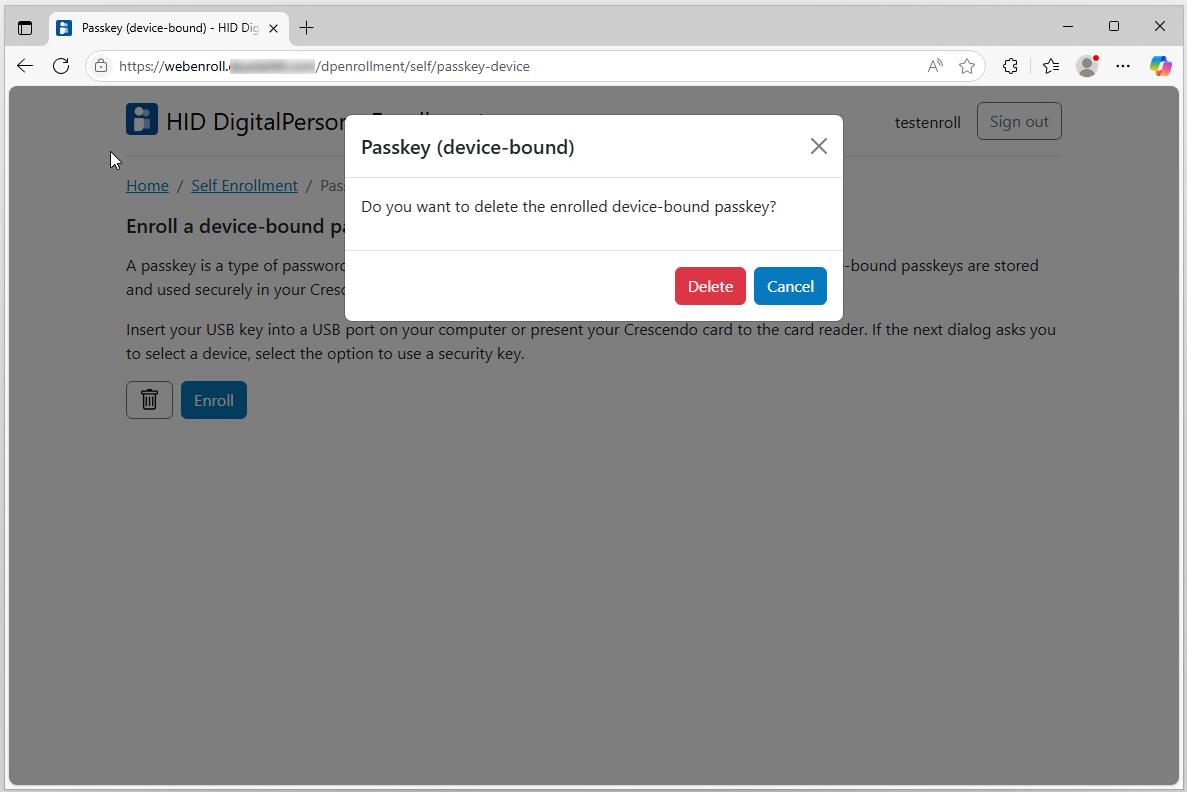
In the credential page, click the delete icon
 .
-
In the dialog, click Delete to confirm deletion of your passkey.


