Passkey (Synced) Credentials
A passkey is a type of passwordless digital credential that is used as an authentication method. From a technical standpoint, passkeys are FIDO-based credentials that are discoverable by browsers or housed within native applications, or security keys for passwordless authentication.
The synced passkey credential is represented by the Passkey (synced) tile  .
Passkeys that are synced between devices via a cloud service are generally referred to as "synced passkeys", while ones that never leave a single device are referred to as "device-bound passkeys".
To enroll a Passkey (device-bound) credential, use the DigitalPersona web-based enrollment as described in Passkey (Device-Bound) Credentials.
You can also enroll a Passkey (device-bound) credential using the Credential Manager as described in Passkey (Device-Bound) Credentials.
You can enroll multiple passkeys (for example, as backup passkeys or to access shared accounts using unique devices).
Changing or resetting the PIN associated with a passkey is not done in your DigitalPersona software, but through your Microsoft Account. Under Manage, select Microsoft Security Key (their name for passkeys).
Enroll a Passkey (Synced) Credential
-
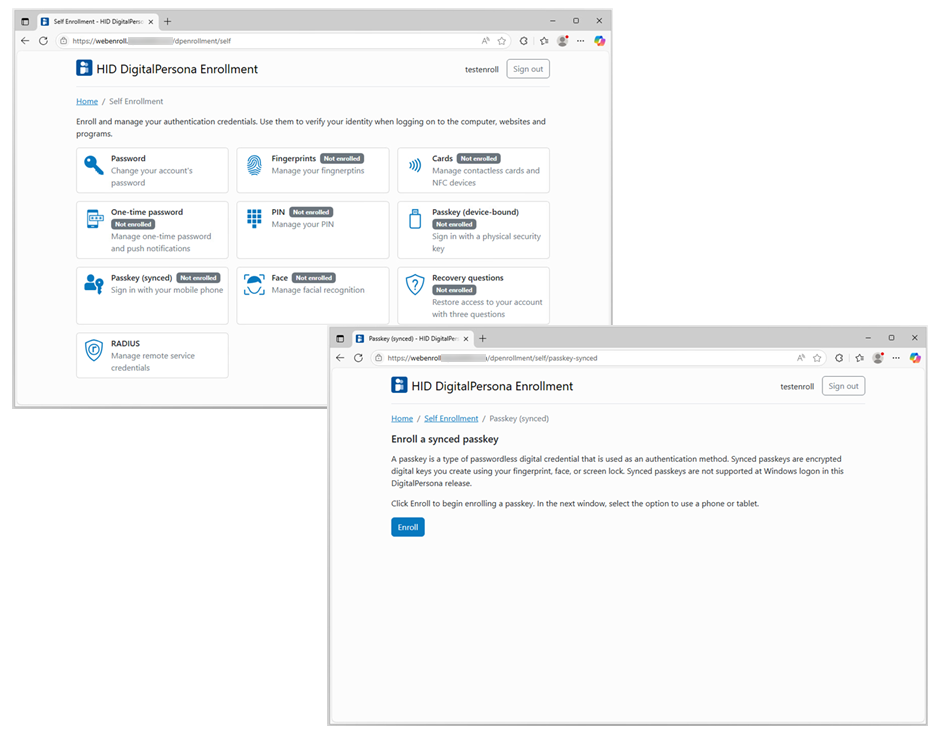
In the HID DigitalPersona Enrollment window, click the Passkey (synced) tile.
-
Click Enroll to begin enrolling your passkey.
-
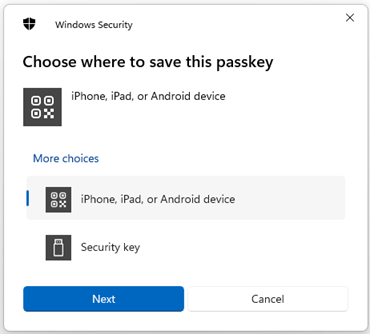
If the dialog on the above right displays, select the option to use a phone or tablet.
-
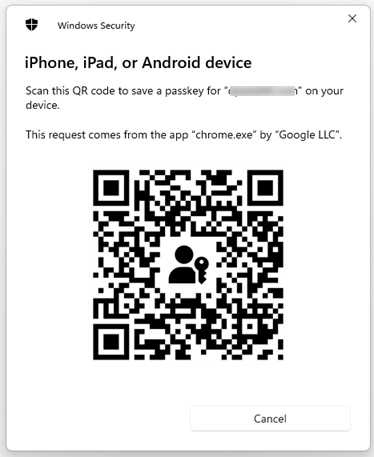
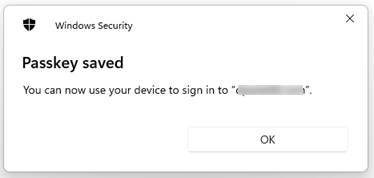
On the next dialog, scan the displayed QR code using the camera on the mobile device where you want to create a passkey.
Authenticate with a Passkey (Synced) Credential
-
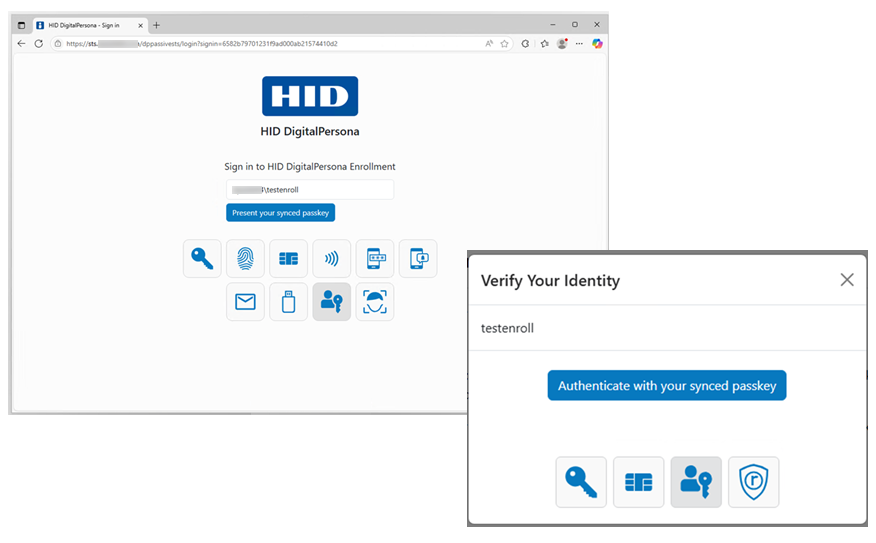
In an HID DigitalPersona Identity Provider or Verify your Identity window, click the Passkey (synced) tile.
-
On the dialog that displays, scan the displayed QR code using the camera on the mobile device that has your enrolled passkey on it.
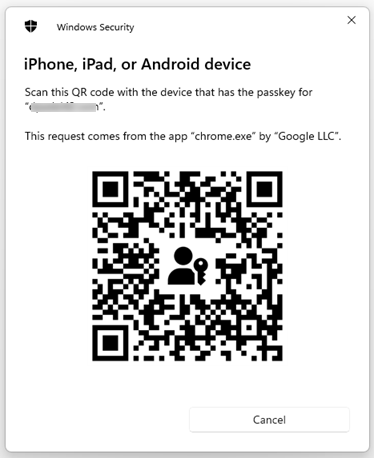
Upon a successful scan, the Passkey authentication is completed.
Change a Passkey (Synced) Credential
-
First delete the previously enrolled Passkey (synced) credential.
-
Then enroll a new passkey as described in Enroll a Passkey (Synced) Credential.
Delete a Passkey (Synced) Credential
-
Click the Passkey (synced) tile.
-
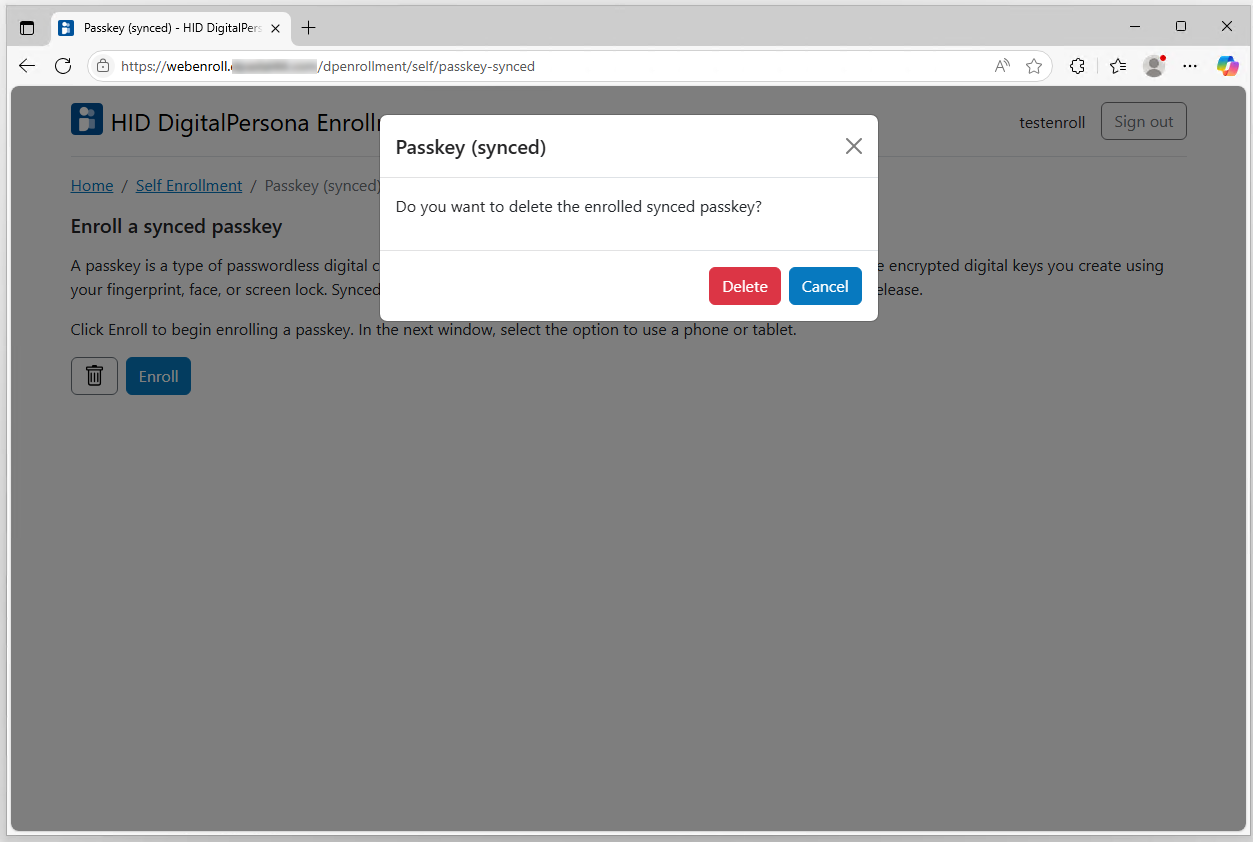
In the credential page, click the delete icon
 .
-
In the confirmation dialog, click Delete. Your current passkey will be deleted immediately.


