ActivClient Agent
The ActivClient Agent starts automatically with the system and monitors security device activity, including reader connections, token insertion, usage, and removal.
It also provides quick access to the following features:
-
ActivClient online documentation
-
Log folder
-
Clear Cache functionality
-
Forget PINs functionality
-
ActivClient Diagnostics
Accessing the ActivClient Agent
To access the ActivClient Agent:
-
Right-click the ActivClient Agent icon in the Windows system tray.
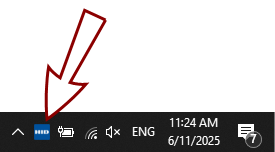
 If you don't see the icon: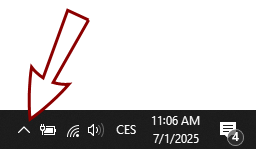
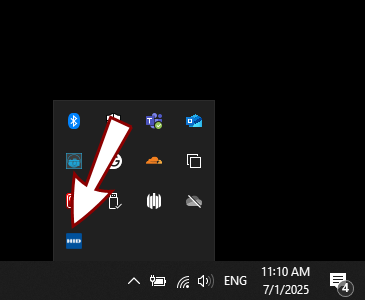
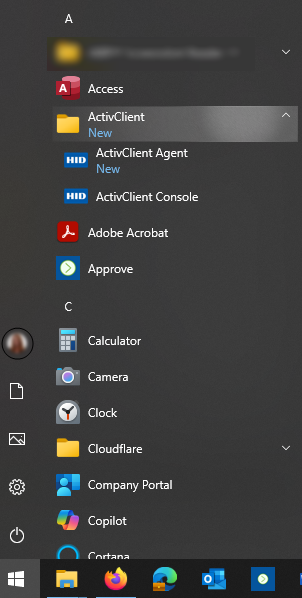
The icon changes based on the security device activity:

|
Recognized token connected |

|
No token detected in the connected reader |

|
No reader detected |

|
Token connected but not recognized |
ActivClient Agent Functionalities
To access available commands, right-click the ActivClient Agent icon in the Windows notification area (system tray):
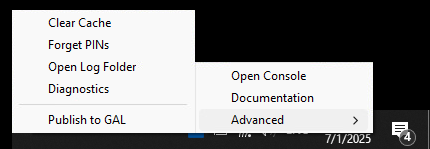
| Command | Description |
|---|---|
|
Open Console |
Launches the ActivClient Console. |
|
Documentation |
Opens the ActivClient documentation link in the default web browser. |
|
Advanced |
Expands to show advanced functions (listed below):
|
|
Clear Cache (Advanced) |
Clears all caches for all connected tokens. Note:
This is different from the Clear Cache option in the ActivClient Console, which clears the caches for the selected token only.
|
|
Forget PINs (Advanced) |
Clears the cached PIN information for all connected tokens. |
|
Open Log Folder (Advanced) |
Opens the folder containing ActivClient logs in File Explorer. |
|
Diagnostics (Advanced) |
Runs a diagnostic check of ActivClient and opens the resulting log file. |
| Publish to GAL (Advanced) |
Publishes your encryption certificate (stored on your token) to the Global Address List (GAL). Note:
This option is available only if the ActivClient Microsoft Outlook Usability Enhancements component has been installed.
|
Card or Key Auto-Update
ActivClient 9.7 includes the Card Auto-Update feature that can automatically update smart card and key content for security devices managed by HID Credential Management System (CMS).
If an update is available for your smart card or key, ActivClient Agent displays a notification:
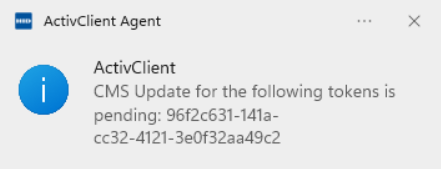
You can either postpone the update by dismissing the notification (ActivClient Agent will prompt you again after some time or the next time the token is inserted) or accept the update immediately.
To complete the update:
-
Click the ActivClient Agent notification.
-
Authenticate to the HID CMS Self-Service Portal opened by ActivClient in your default browser and follow the on-screen instructions to update your token.
-
When the update is complete, the Self-Service Portal prompts you to remove and then reinsert the token to apply the updated content.
Do not use the card or key for other operations (such as email signature). Any such requests will be automatically blocked until the update is complete.
Do not lock the screen or log off until the process is complete.
Do not remove the device until the process is complete.