Mobile Components
Onboarding Users
Component Overview
|
Component Package |
com.hid.mb.MobileApproveSDK |
|
User Interface |
Yes, Onboarding screen will be added based on the onboarding mode(Activation code or QR scan) selected. |
| Platforms Supported | Mobile |
| Functionality | This component is used for user onboarding, Login ,Secure code generation, Renew container, Delete container, and Password Expiry. |
| Dependent Components |
|
| Available from | Version 12.0.0 |
Server and Client App Settings
| Mandatory Server Settings |
HID_HOST |
<HID Authentication Service Host> (e.g., test123.aaas.hidcloud.com) |
|---|---|---|
|
HID_TENANT |
<HID Authentication Service Tenant Id> (e.g., tf98f45g90843781907) |
|
|
HID_KONY_APP_KEY |
<App key of the fabric application> (e.g., h728h89031832jdy9292) |
|
|
HID_KONY_APP_SECRET |
<App secret of the fabric application> (e.g., 89bv2894673792003jy2) |
|
|
HID_SERVICES_URL |
https://<temenos-cloud-host>/services
|
|
|
HID_ACTIVATION_CODE_AUTHTYPE |
<Activation Code Authenticator if other than AT_ACTPWD> | |
|
HID_PASSWORD_AUTHTYPE |
<Static Password Authenticator if other than AT_STDPWD> | |
|
HID_DEVICE_TYPE |
<Device type to be used for HID Approve if other than DT_TDSV4B> | |
| HID_API_VERSION |
<This server property defines the API version for the Authentication Service and Appliance, ensuring that updated APIs are used. (The default value is 10 for Authentication Service and 3 for Appliance.)> |
|
| HID_IS_MFA_REQUIRED |
<This setting enables the user to activate/deactivate the Multi-factor authentication (MFA)> (Default: true) |
|
| HID_CACHE_EXPIRY_TIME | 120 (by default) | |
| HD_OOB_SMS_OTP_AUTHTYPE | OOB SMS Authenticator (if other than AT_OOBSMS). | |
| HID_OOB_EMAIL_OTP_AUTHTYPE | OOB Email Authenticator (if other than AT_OOBEML). | |
| HID_ACT_EXPIRY_IN_DAYS | Sets the expiration period for the Activation Code Authenticator in days. Default: 1. | |
| HID_IS_GATEWAY_ENABLED |
Determines who sends the OTP:
|
|
| HID_IS_APPLIANCE |
Indicates whether HID is hosted as an Appliance or in the Cloud. Example: True (Appliance). |
|
| HID_SMS_DEVICE_TYPE |
Device type for SMS. Default Value: DT_OOBSMS. |
|
| HID_EMAIL_DEVICE_TYPE |
Device type for Email. Default Value: DT_OOBEML. |
|
| Mandatory Client App Settings | HID_IS_APPLIANCE | <HID is hosted in Appliance or Cloud.> (e.g., true if HID is hosted on Appliance) |
| HID_KEY_EXPIRY_ALERT | <Configure 20% of the total profile expiry duration.> | |
| HID_MANDATORY_KEY_EXPIRY_ALERT | 5 <This property defines the number of days prior to profile expiry when a mandatory ‘Renew Profile’ popup should be displayed to the user on the dashboard screen.> | |
| HID_PIN_EXPIRY_DAYS | 179 < Configure the total number of days before the PIN expires.> |
Minimum Supported Versions of the OS
| Operating System | Minimum Supported Versions |
|---|---|
|
Android |
Android 13 |
|
IOS |
IOS 10 |
| Mandatory File |
sdkNotificationManager.js |
It is mandatory for Approve push notification handling from Temenos Digital Component. It will register the device and handle all the notification callbacks.  Steps to add sdkNotificationManager.js file to project: Steps to add sdkNotificationManager.js file to project:
|
|---|---|---|
|
Manage Native Function Interface (NFIs) |
Visualizer steps to add NFIs:
Note:
|
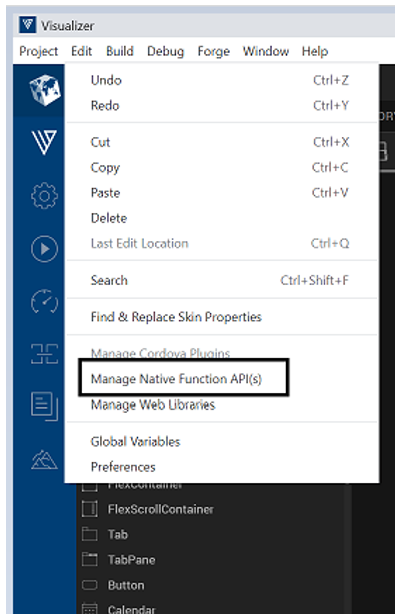
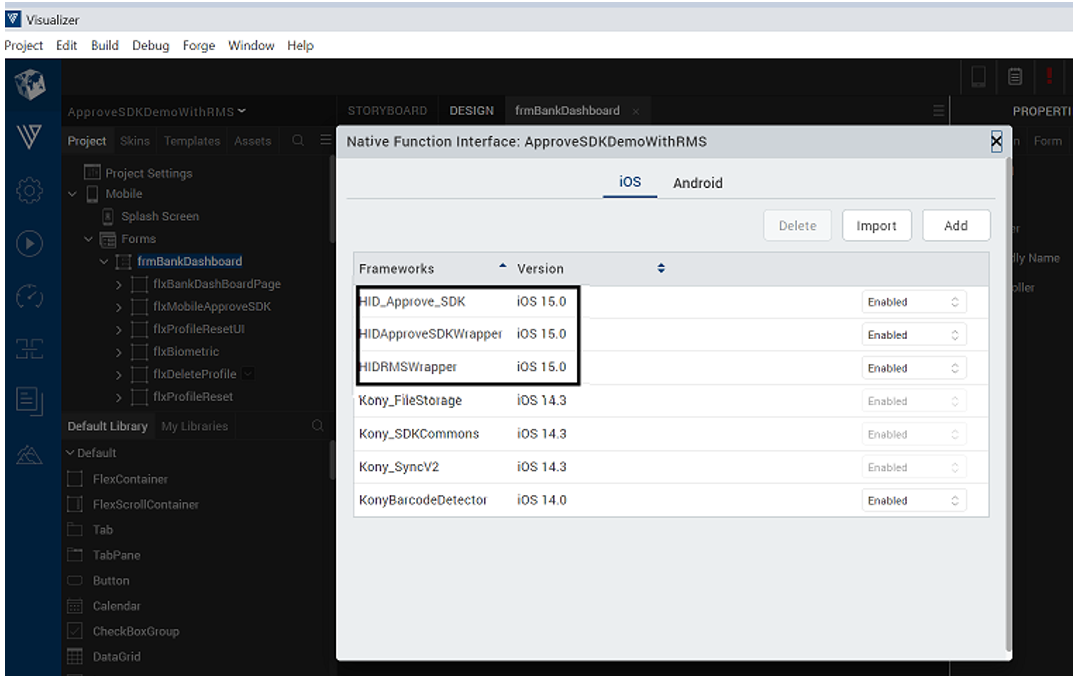
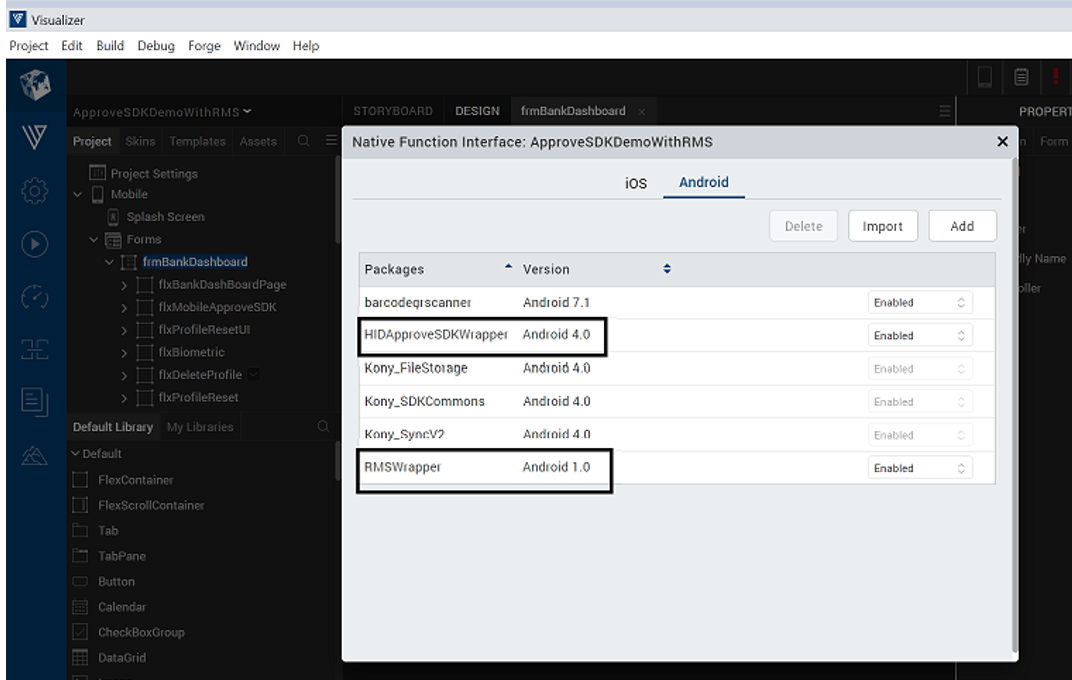 Steps to add sdkNotificationManager.js file to project
- Copy sdkNotificationManager.js file from path: com.hid.MobileApproveSDK\component\resources\common
-
Paste it to path ${project-Folder}\modules
-
Call registerNotifications function from App - Pre AppInit
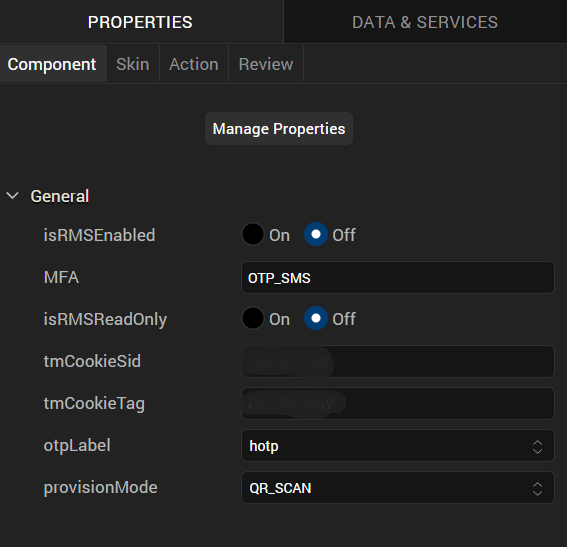
Component Properties
| Property Name | Purpose |
|---|---|
|
isRMSEnabled |
<ON/OFF options to enable or disable the RMS. ON means RMS is enabled; OFF means RMS is disabled> |
| MFA |
<MFA options for SMS or Email> The configured MFA will be called for medium risks. |
| isRMSReadOnly |
<ON/OFF options to enable RMS in Read-Only Mode. ON means RMS is in ReadOnly mode; OFF means RMS is enabled. The default value is always OFF >. If this field is ON → RMS will just record the user's behavior, but it won't perform any STEP-DOWN operations, all operations would be always STEP-UP. |
| tmCookieTag |
<cookie value associated with and provided by RMS>, mandatory field. This identifier is issued by RMS. Each new device used by the user to access the protected application will be tagged by RMS. This attribute is mandatory and should be always sent. |
| tmCookieSid |
<cookie value associated with and provided by RMS>, mandatory field. This identifier is issued by RMS and serves as a unique identification of a user's session. Its value is persistent throughout the whole session and is stored as a cookie pair. |
| otpLabel | This determines the type of OTP need to be generated internally for login process. |
| provisionMode | This determines what would be the mode for user registration. currently supported modes are Activation Code or QR Code. |
Onboarding Component Public Events
| Event Name | Description | Parameters |
|---|---|---|
| handlePinPopUp | Controls the visibility of the MobileApproveSDK component from the form controller. | Boolean |
| resetSCUI | Resets or updates the MobileApproveSDK UI widgets during Secure Code generation and Scan-to-Login flows. |
Boolean
|
| setMobileApproveSDKComponent | Initializes the MobileApproveSDK component during application launch. | N/A |
| enrolNewUser | Triggered when the user selects the Enroll option within the HID component. | N/A |
| handleFormBackGround | Invoked during the Scan-to-Login flow. Manages the form UI scan to login process. | N/A |
| onSuccessCB | Callback executed upon successful login. Handles post-authentication navigation and success flow. | N/A |
| handleProfileExpiryToastUI | Public event to handle the profile expiry and PIN expiry toast message UI. | State |
| goBackToFormNav | Allows the form navigation logic to be controlled at the form controller level. | N/A |
Onboarding Component Public Functions
| Method | Description | Parameters |
|---|---|---|
|
getLoginFlowPublic |
Retrieves the container from the SDK. Important: Use this method to initialize the SDK.
|
No payload is required |
| initiate | Initializes the MobileApproveSDK component. | No payload is required |
| setUsername | Sets the current username in the component controller. | username – Current logged-in or entered username |
| resetMobileApproveCompUI | Resets the MobileApproveSDK component UI to its default state. | True / False |
| checkBioAvailablityPublic | Checks biometric availability status for the given user. | username |
| setBioStatusToEnable | This function sets biometric state to enable for device explicitly. | N/A |
| setBioStatusToDisable | This function sets biometric state to disable for device explicitly. | N/A |
| showPinPopUp | Displays the PIN authentication popup during Secure Code generation or Login flow. |
|
| contextSwitch | Switches the UI between different flows within the component. | flowName – Target flow identifier |
| mapScanQRMethod | Handles component UI configuration for Scan-to-Login and QR-based onboarding. | flowName – Specifies QR flow type (Login / Onboarding) |
| getDeviceProperty | Retrieves device-specific information from SDK. | N/A |
| getUsername | Returns the username associated with the current active session. | N/A |
| showPinPopUp |
Handles PIN validation for login, secure code generation, and other secure operations.
|
|
| generateLoginOTP | Generates a OTP for login authentication | N/A |
| mapScanQRMethod | Handles component UI configuration for Scan-to-Login and onboarding processes. | Flow Type(scan to login or onboarding) |
| startScannerToLogin | Starts the QR scanning process required for login authentication. | N/A |
| getDefinedExpiryAlert | Invoke this method to determine whether the user's PIN or password is approaching expiration. This method manages the display of PIN/password expiration notification toast messages. | N/A |
| getPinRemainingDay | This function checks for remaining days left for PIN expiry. | N/A |
| getKeyProfileAge | This function checks for remaining days left for container expiry. | N/A |
| getSecureCode | This function can generate a secure code for login, which is a part of the MobileApproveSDK component. | Username, PIN |
| checkIsProfileRenewable | Invoke this method to determine whether the user profile is eligible for renewal or approaching expiration. This method manages the display of profile expiration notifications, including toast messages and mandatory pop-up alerts. | N/A |
| renewContainer | This function renews container before its expiry. | N/A |
| deleteContainer | Deletes the user profile (container) from the device. | N/A |
Onboarding User - Flow Chart Representation
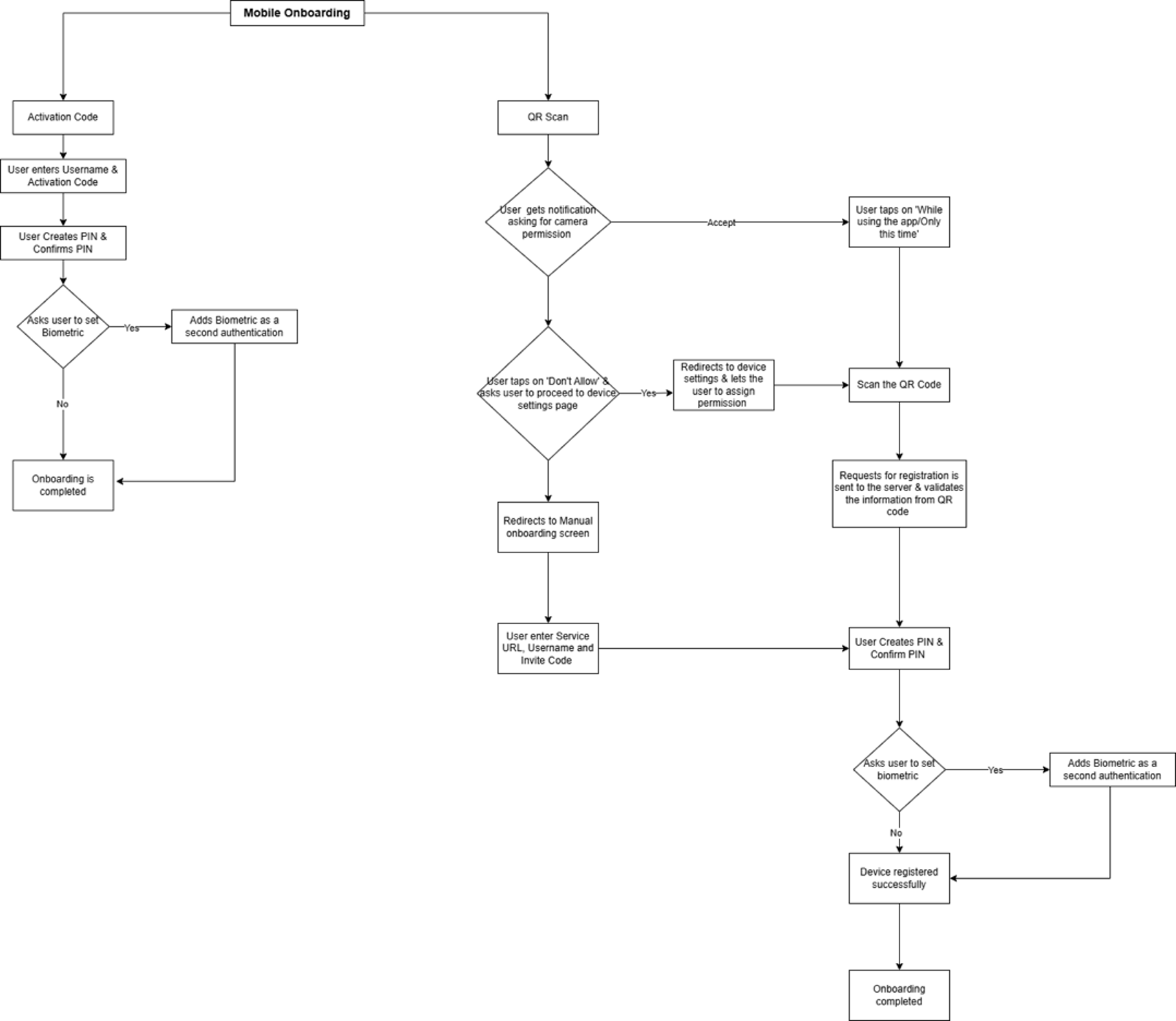
Onboarding Component Flow
There are two ways of onboarding a user:
Onboarding through Activation Code
-
User clicks on Enroll/Activate option from the pre-login screen to navigate to the "Enroll/Activate" screen.
-
Select the Activation code option to create a digital banking profile and start the onboarding process.
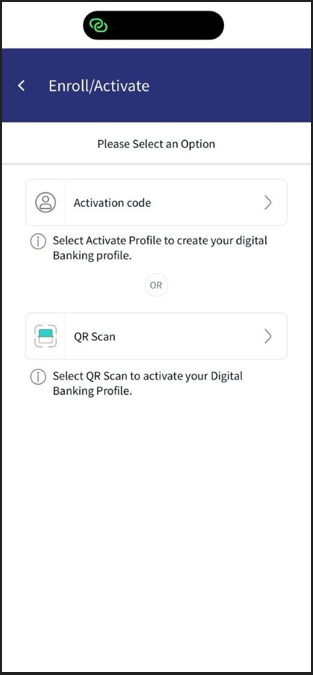
-
The user enters the Username and Activation Code received via registered contact details during enrollment, then clicks Verify.
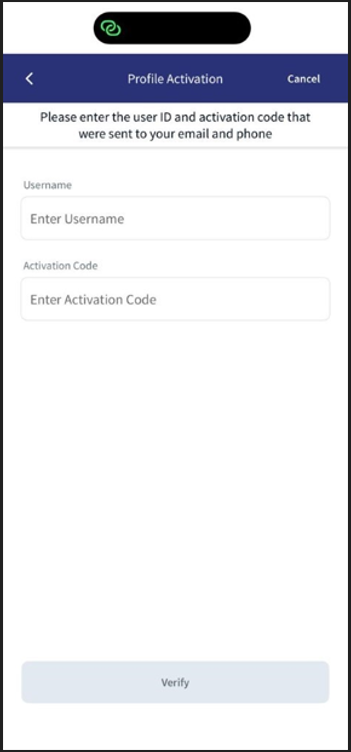
-
After successfully validating the activation code, the component displays the screen to create a PIN for the user then user enters and confirms a PIN and clicks Continue.
Note: The PIN must comply with the policy configured.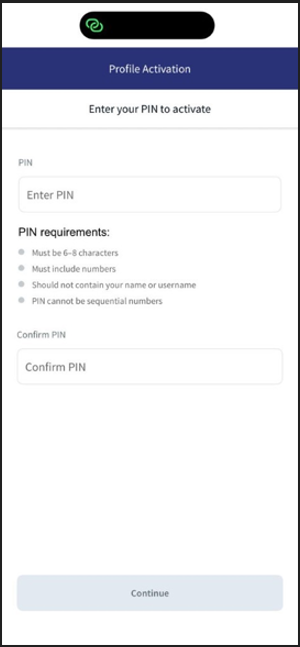
-
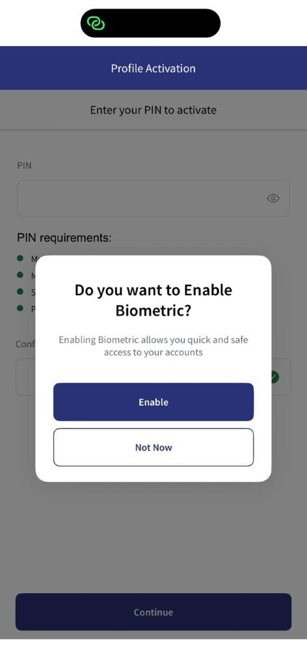
After successful PIN creation, it will ask user to enable biometric authentication (Face ID / Fingerprint) for login.
-
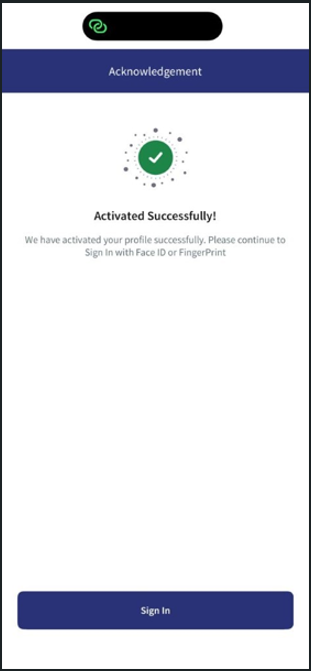
After successful biometric authentication, an acknowledgment message is displayed indicating that the profile has been activated successfully.
The onboarding process is now complete, and the user can sign in using biometric authentication (Face ID or Fingerprint).
Onboarding through QR Scan
-
User clicks on Enroll/Activate option from the pre-login screen to navigate to the "Enroll/Activate" screen.
-
Select the QR Scan option to create a digital banking profile and start the onboarding process.
-
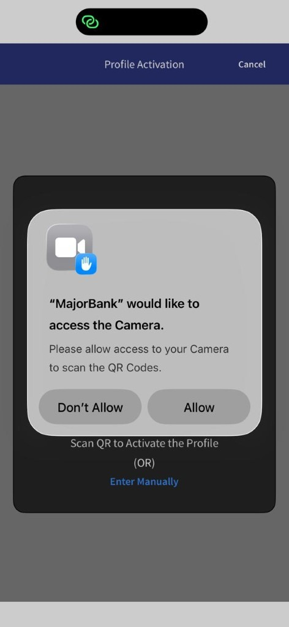
On selection of QR Scan, user gets a notification asking for permission.
-
On tapping Don't Allow, user gets a notification to enable permission by opening the device settings.
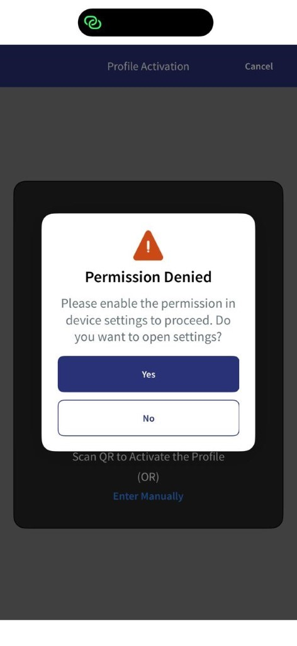 If user clicks "Yes"
-
User gets navigated to the device settings page and modify the permissions.
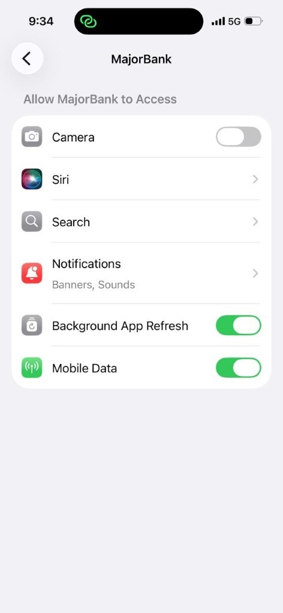
-
Once permissions are assigned/allowed, user can open camera app in the mobile app and scan QR Code from the web application.
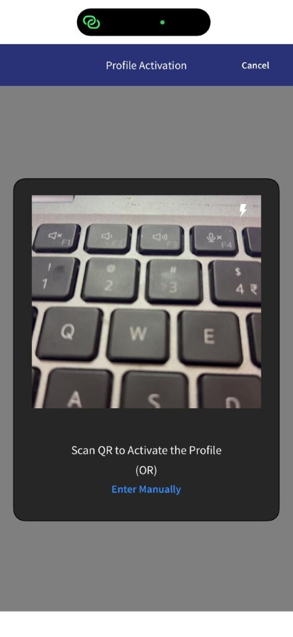
-
Then follow steps 5 to 7.
If user clicks "No" (Manual Onboarding)
-
User clicks on Enter Manually on QR Scan screen and gets navigated to manual onboarding screen.
-
User must enter the Username, Invite Code, and Service URL from the web application and click Verify - Manual registration
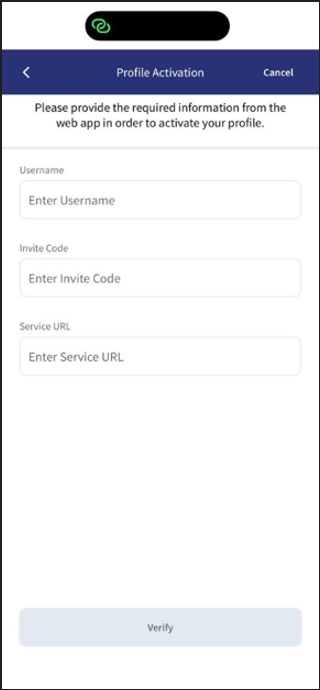
-
After successfully validating the Username, Invite Code, and Service URL the component displays the screen to create a PIN for the user then user enters and confirms a PIN and clicks Continue.
Note: The PIN must comply with the policy configured.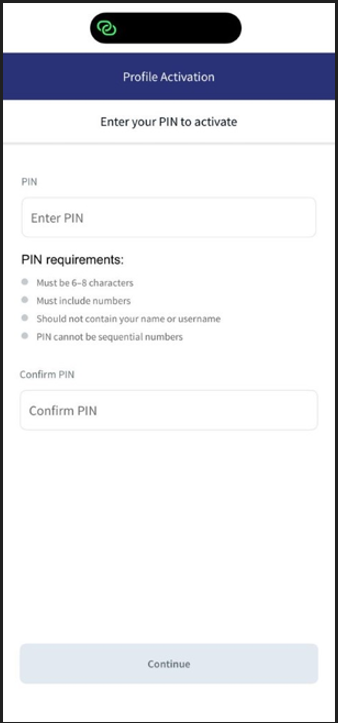
-
After successful PIN creation, it will ask user to Enable biometric authentication (Face ID or Fingerprint) for login.
-
After successful biometric authentication, an acknowledgment message is displayed indicating that the profile has been activated successfully.
The onboarding process is now complete, and the user can sign in using biometric authentication (Face ID or Fingerprint).
-
-
After successful scanning of QR Code from web application, the component displays the screen to create a PIN for the user. User enters and confirms a PIN and clicks Continue.
Note: The PIN must comply with the policy configured.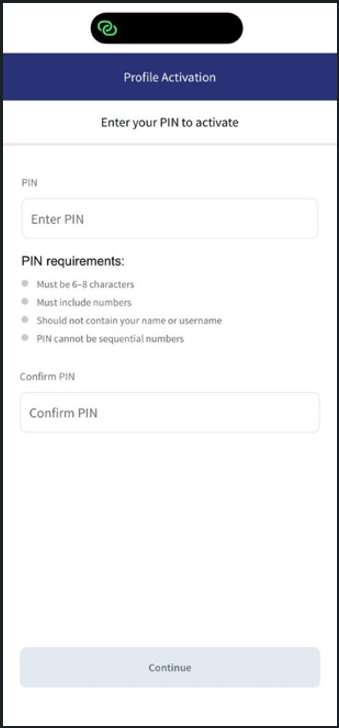
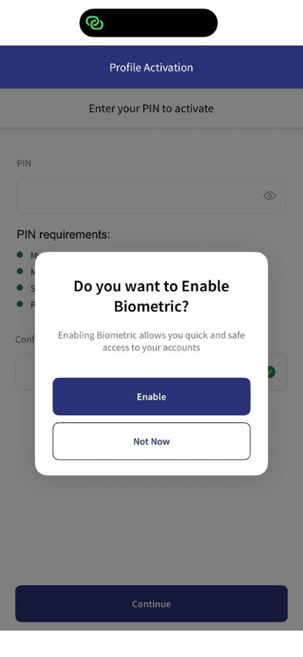
-
After successful PIN creation, it will ask user to enable biometric authentication (Face ID or Fingerprint) for login.
-
After successful biometric authentication, an acknowledgment message is displayed indicating that the profile has been activated successfully.
The onboarding process is now complete, and the user can sign in using biometric authentication (Face ID or Fingerprint).
Pre-Login Screen
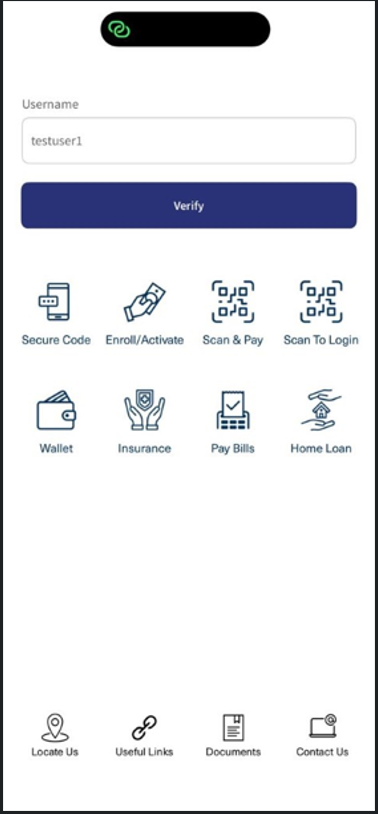
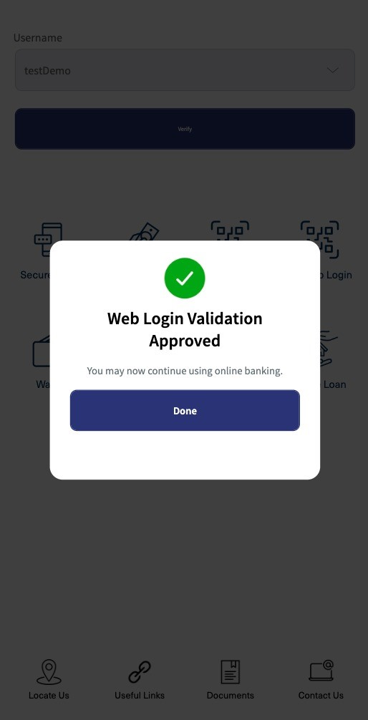
Once a user successfully onboarded, user can view the pre-login screen.
Single User Login
-
On the Pre-Login screen, the Username field is automatically populated. Click Verify to proceed.
-
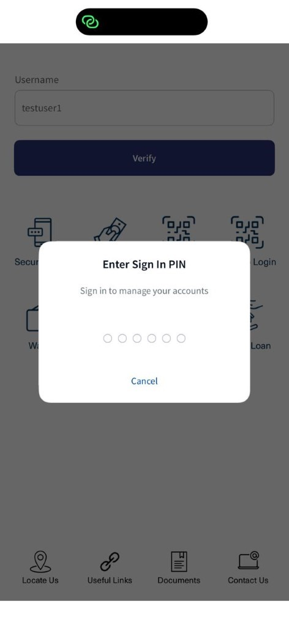
Once verified, the user will be prompted to authenticate using biometric authentication.
Important: Ensure that biometric authentication (Face ID or Fingerprint) is enrolled on the device and enabled during onboarding. -
If biometric authentication is not enabled, a PIN prompt will be displayed for authentication. Enter the PIN and verify.
-
After successful biometric authentication or PIN verification, the user is navigated to the Dashboard screen.
Multiple User Login
-
If more than one user is registered on the device, select the appropriate username from the list. The selected username is automatically populated in the Username field.
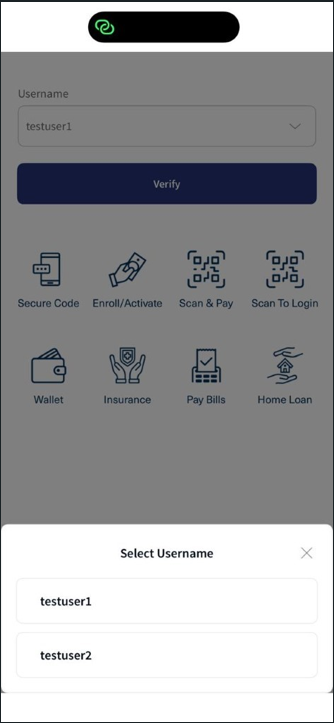 Note:
Note:The selected user will be treated as the current active user for all subsequent actions, such as:
-
Generating Secure Code
-
Login
-
Scan to Login
-
Scan to Pay
-
-
Click Verify to proceed.
-
Once verified, the user will be prompted to authenticate using biometric authentication.
Important: Ensure that biometric authentication (Face ID or Fingerprint) is enrolled on the device and enabled during onboarding. -
If biometric authentication is not enabled, a PIN prompt will be displayed for authentication. Enter the PIN and verify.
-
After successful biometric authentication or PIN verification, the user is navigated to the Dashboard screen.
Offline - Secure Code generation for login
Secure Code:
This feature will generate a secure code if there is no internet on mobile. This generated secure code can be used during Web channel login.
Functional Flow:
-
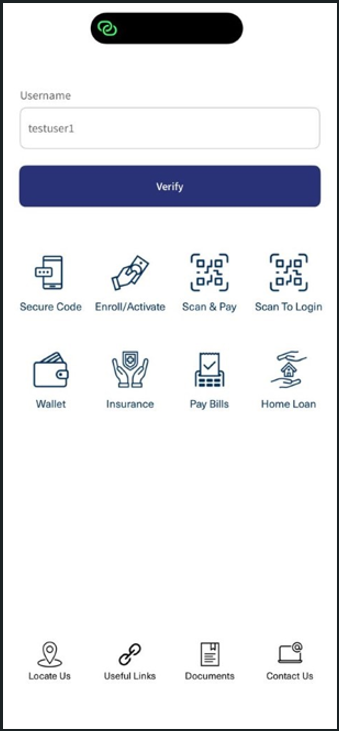
User must click on the Secure Code option on the pre-login screen.
-
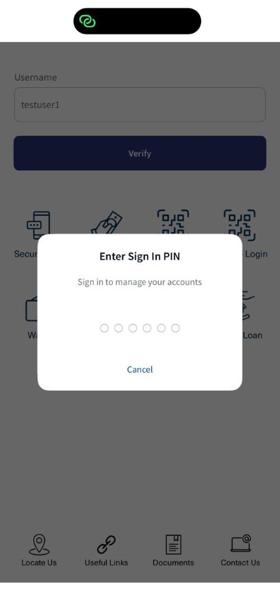
A screen will popup to enter PIN or biometrics.
-
After successful authentication, a secure code is generated and displayed on the screen.
Important: The secure code is valid for 60 seconds only, and a countdown timer starts immediately.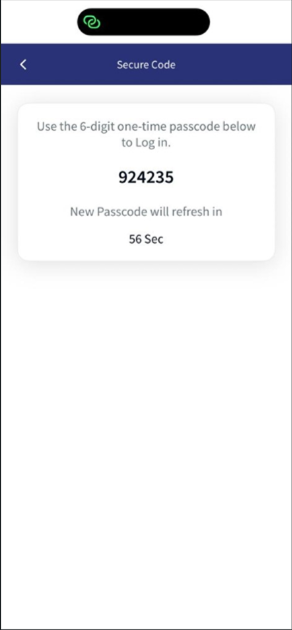
Once the timer expires, the code becomes invalid. Click Generate New Code to generate a new secure code.
Important: To generate a new code, the user must authenticate again using biometric or by entering PIN.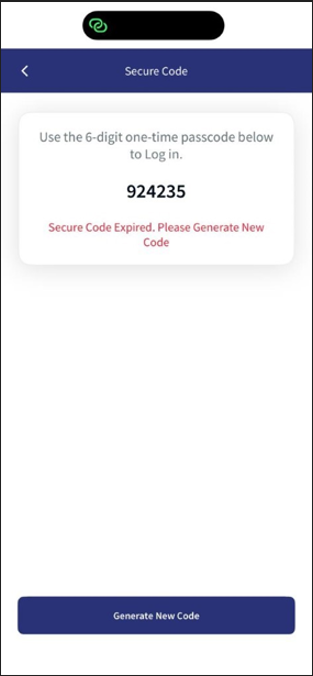
Scan to Login
The "Scan to Login" feature enables you to securely sign in to the web application by scanning a QR code with the mobile application. Complete both the Web Application Workflow and Mobile Application Workflow described below to sign in successfully.
Web Application Workflow:
-
Open the web application and initiate the login process.
-
The web application generates a unique QR code and displays it on the login screen.
To scan the displayed QR code and complete the "Scan to Login" process, follow the "Mobile Application Workflow" steps below.
Mobile Application Workflow:
-
Launch the mobile application.
-
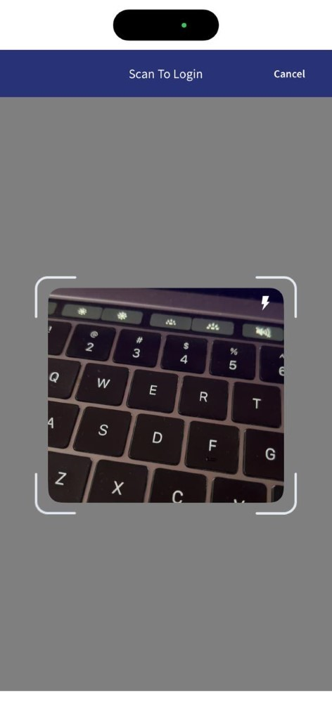
On the Pre-Login screen, select Scan to Login.
-
The application opens the device camera.
-
Scan the QR code displayed on the web application.
-
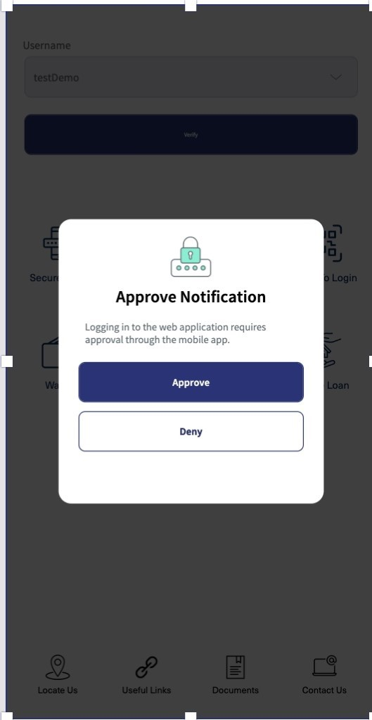
After a successful QR code scan, you are prompted to Approve or Deny the login request.
Click Approve to approve the login request.
-
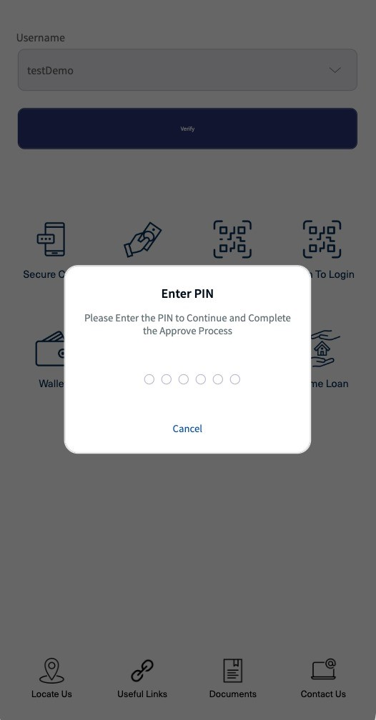
You will be prompted to authenticate using the configured authentication method (PIN, Biometrics, or Password).
-
After successful authentication, the login request is approved, and you are automatically signed in to the web application.
Renew Profile / Container
In the HID SDK, profile renewal notifications are displayed based on the remaining validity period of the profile.
A profile renewal notification is displayed when the profile enters the last 20% of its validity period. If the profile is within 2 days or fewer are left before expiry, a mandatory profile renewal notification is displayed, requiring the user to renew the profile before it expires.
Profile Renewal Notification / Reminder
-
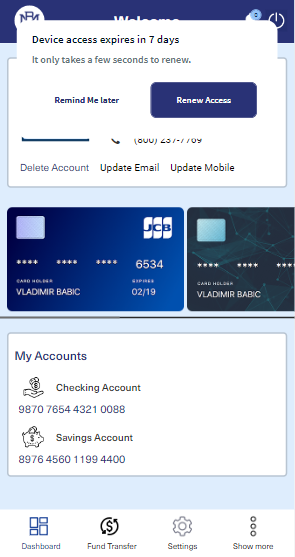
When the profile is approaching expiry, a Renew Access notification is displayed on the Dashboard each time the user logs in.
-
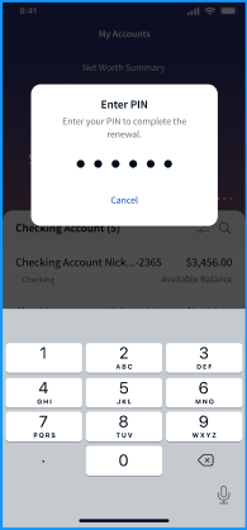
Click Renew Access. You will be prompted to authenticate using biometric (if enabled) or by entering PIN.
-
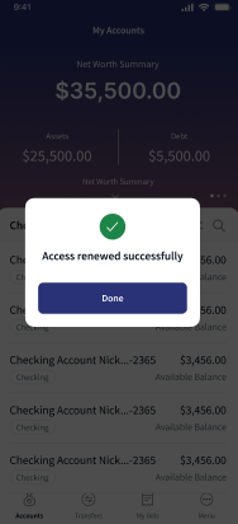
After successful authentication, a confirmation message is displayed that the profile access has been renewed successfully.
Mandatory Profile Renewal (forced renewal)
-
When the profile is within 2 days of expiry, a Mandatory Profile Renewal popup is displayed on the Dashboard, requiring the user to renew the profile to maintain uninterrupted access to the application.
Important: If you do not renew your profile before it expires, you will be signed out and may need to set up and activate the device again to continue the banking activities.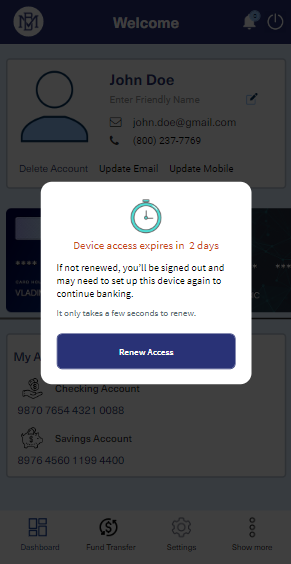
-
Click Renew Access. You will be prompted to authenticate using biometric (if enabled) or by entering PIN.
-
After successful authentication, a confirmation message is displayed that the profile access has been renewed successfully.
Delete Container without Authentication
The Delete Container feature allows the user to permanently remove their profile from the mobile banking application. The profile will be deleted after user confirmation without performing any authentication.
-
On the application, click Delete Account.
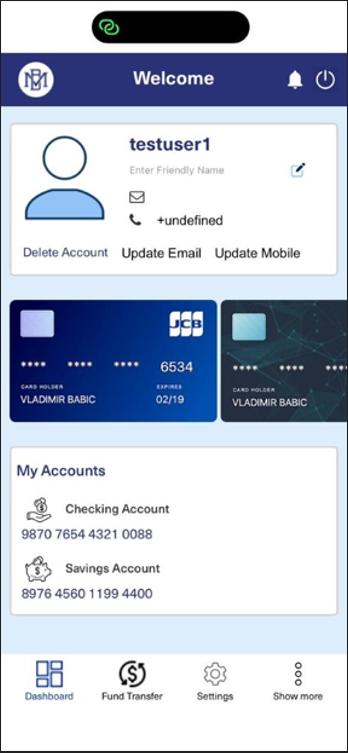
-
A "Remove Profile" confirmation screen is displayed, prompting the user to confirm the permanent deletion of their profile. An optional Reason field is also provided.
Click on Remove Profile button to permanently delete the profile.
Important: Removing your profile deletes all your data from the device and signs you out. To use the mobile banking application again, you must reactivate it, which may require verification or contacting your bank.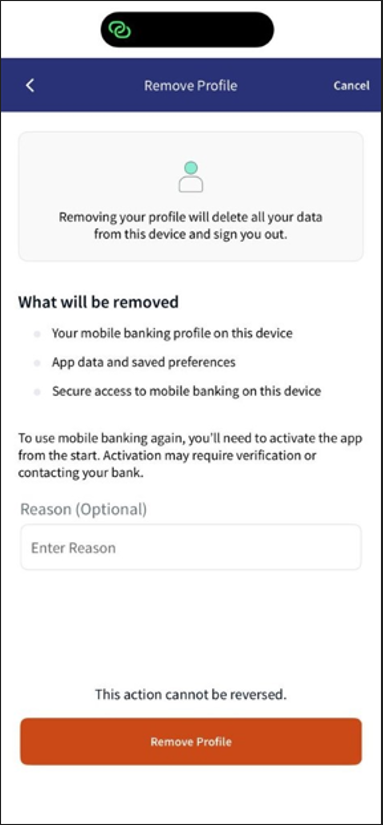
-
A confirmation message is displayed once the profile has been removed successfully.
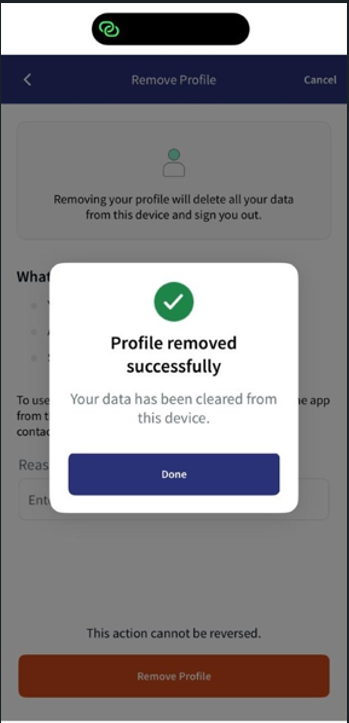
Delete Container with Authentication
The Delete Container feature allows the user to permanently remove their profile from the mobile banking application. The profile is deleted only after user confirmation and successful authentication using the configured verification method.
-
On the application, click Delete Account.
-
A "Remove Profile" confirmation screen is displayed, prompting the user to confirm the permanent deletion of their profile. An optional Reason field is also provided.
Click on Remove Profile button to permanently delete the profile.
Important: Removing your profile deletes all your data from the device and signs you out. To use the mobile banking application again, you must reactivate it, which may require verification or contacting your bank.
-
After clicking remove profile, you will be prompted to authenticate using biometric (if enabled) or by entering PIN.
Important: Ensure that biometric authentication is enrolled on the device and enabled during onboarding.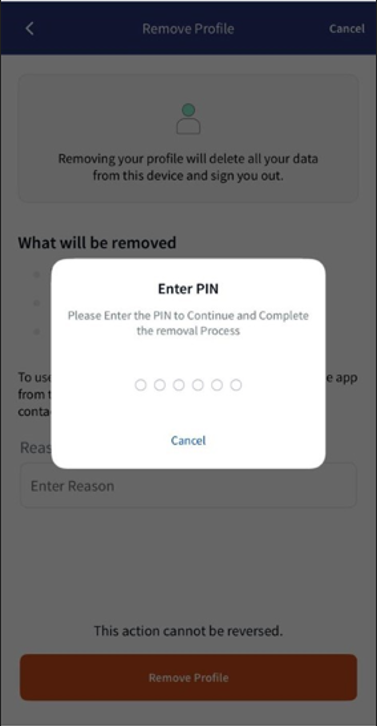
-
After successful authentication, a confirmation message is displayed that the profile has been removed successfully.
Renew Password /PIN
This feature allows users to renew their mobile banking Password/PIN when it is about to expire.
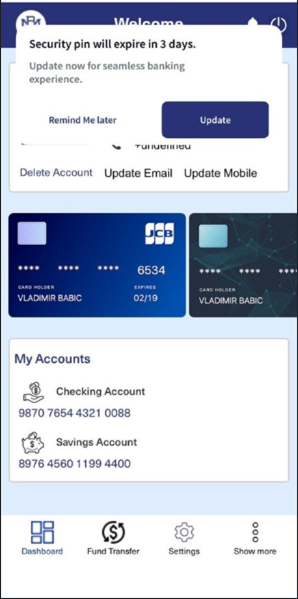
Based on the configured policy, a notification message is displayed on the Dashboard when the user's Password/PIN is approaching expiry.
-
The Password/PIN expiry duration is configured by the bank in the Admin Portal based on business requirements. These settings are applied to the user during the onboarding process.
-
If the bank updates the expiry configuration later, the new settings will not apply to already onboarded users. The user must onboard again to receive the updated configuration.
-
Click Update to open the Update Password/PIN screen.
-
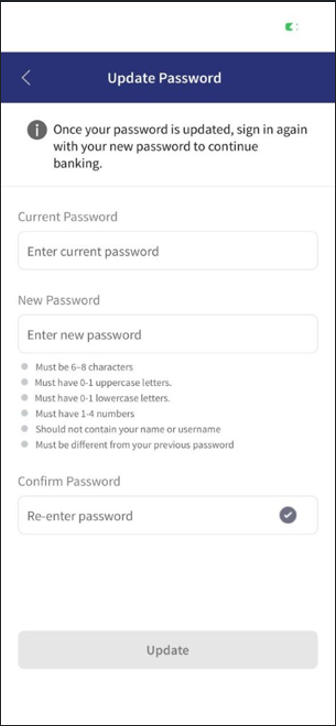
Enter the Current Password/PIN, then enter and confirm the New Password/PIN. Click Update to proceed.
-
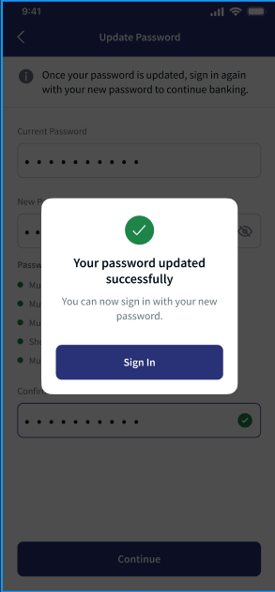
A confirmation message indicates that your Password/PIN has been updated successfully.
You can now sign in to the application using your new Password/PIN.
Onboarding Component Services
Object Services
| ServiceName | DataModel | Mapping | Purpose | Input Parameters | Invoking |
|---|---|---|---|---|---|
|
HIDObjects |
ActivationCodeValidation |
validateActivationCode |
Validate the user's activation code. |
filter (username), username, activationCode, authType |
OnboardingValidation > ValidateUser |
|
HIDObjects |
AddPasswordAuthenticator |
addPasswordAuthenticator |
Add a static password authenticator to the user. |
username, userId, password, authType |
ScimAPIsOrg > addPasswordAuthenticatorInt |
|
HIDObjects |
ApproveDeviceRegistration |
getInviteCodeTDSV4B |
Provision the HID Approve device to the user and get the invite code to add the HID Approve device. |
UserId, username, usernameWithRandomNo |
PushDeviceRegistrationOrch > getInviteCode TDSV4B |
|
HIDObjects |
PasswordPolicy |
getPasswordPolicy |
Gets the policy for Static Password Authenticator |
none |
ScimAPIs>getPasswordPolicy |
| HIDAuthService | OTPRequest | sendOTPLogin | Send the OTP(SMS/Email) to the user. | username, AuthenticatorType (AT_OOBSMS/AT_OOBEML) | OTPServices > sendOOBLogin |
| HIDObjects | AddOOBAuthenticator | addOOBAuthenticator | Adds a OOB authenticator to the user. |
AuthenticatorType, UserId, IsPasswordRequired, correlationId |
AddOOBAuthenticator > addOOBAuthenticator |
| HIDRMSService | RMSSessionService | sessionLogout | Used to terminate the current user session. |
Username, Session, Platform |
RMSSessionService >sessionLogout |
| Utility | CommunicationInformation | getUserCommunicationInfo | Fetch the Infinity user details such as email and MobileNumber to show on Screen when the OTP factres selected and used to send the OTP | userName | T24ISExtra (1.0).getUserCommunicationDetailsPreLogin |
Fabric Services
| Names | Operation Name | Service Type | Description |
|---|---|---|---|
|
HIDClientIdentity |
- |
Identity |
Fetches Client Bearer Token |
|
HIDUserLogin |
- |
Identity |
Used for validating secure code which is created internally |
|
HIDActivationCodeService |
Login |
Integration |
Authenticates the Activation Code |
|
HIDClientAuthIdentityWrapper |
getClientBearerToken |
Integration |
IntegrationWrapper of ClientIdentity |
|
HIDDeviceProvisionJava |
GetProvisonMsg |
Integration |
Fetches the Invite Code |
|
HIDApproveInitiation |
Initiate |
Integration |
Sends an HID Approve Push notification to the user's registered device. |
|
HIDScimAPIs |
SearchUser |
Integration |
Searches for the user. |
|
HIDScimAPIs |
getActivationCodeAuthenticator |
Integration |
An exclusive getAuthenticator service for the ValidateUser Orchestration service. This service does not work alone so use the getAuthenticator instead. |
|
HIDScimAPIs |
getPasswordPolicy |
Integration |
Provides the Password policy |
|
HIDScimAPIsOrg |
addPasswordAuthenticatorInt |
Integration |
Adds a Password Authenticator. |
|
HIDPushDeviceRegistrationOrch |
getInviteCode TDSV4B |
Orchestration |
Provisioning Push Device |
| HIDIdentityService | login | Integration | Identity service endpoint |
| HIDIdentityService | secondFactorLogin | Integration | Identity service endpoint for MFA |
| HIDOTPServices | sendOOBLogin | Integration | To send the OTP through SMS/EML |
| HIDResetUser | getUserDetails | Integration | This service is used to get the user's details. |
| HIDResetUser | DeleteEndUser | Integration | This service is used to delete the user. |
| HIDResetUser | CreateUser | Integration | This service is used to create the user. |
| HIDResetUser | AddActivationCodeAuthenticator | Integration | This service is used to add the activation code to the user. |
| HIDResetUserOrch | reset | Orchestration | This service is used to delete the user, create a user, and add an Activation code to the user. |
Java Services
| Service Name | Purpose | Dependencies | Called by (Service Name-Operation) |
|---|---|---|---|
|
HIDDeviceProvisionJava |
Java service to send the Device Provisioning request for HID Approve device registration and process the response to send the provisioning message. |
You need to configure following Server Properties:
|
DeviceProvisionJava-getProvisonMsg |
Self-Service Processors
| Names | Description | Used by (ServiceName-Operation) |
|---|---|---|
|
HIDIdentityServicePreProcessor |
Validates the login payload and extracts TransactionId from Meta, caching it so the subsequent OTP send can be authorized. Rejects the request if TransactionId is missing. | HIDIdentityService - login |
| SearchUserAuthPostProcessor | Reads totalResults and user id from the search response and sets the UserExist request flag (true only when a user record is returned). | HIDSearchServices -SearchUserAuth |
| ValidateUserPostProcessor | On success generates an Auth_Key (UUID) and caches the userId hash for the next step; on sequence failure returns the activation-code error. (Orchestration entry post-processor.) | HIDOnboardingValidation - ValidateUser |
| SearchUserPostProcessor | Sets userExists from totalResults/active, and sets AuthExists true/false depending on whether the activation-code authType is present in the user's authenticators. | HIDScimAPIs - SearchUser (within HIDOnboardingValidation) |
| ActivationCodeAuthentcatorPreProcessor | Confirms the user and activation-code authenticator exist (else sets a "user/auth not exist" error) and applies ACTIVATION_CODE_AUTHTYPE. | HIDScimAPIs - getActivationCodeAuthenticator (within HIDOnboardingValidation) |
| ActivationCodeAuthenticatorPostProcessor | Enforces activation-code state: expired, consecutive-failed threshold (≥3), and already-consumed checks. | HIDScimAPIs - getActivationCodeAuthenticator (within HIDOnboardingValidation) |
| ActivationCodeLoginPreProcessor | Aborts if the prior orchestration step failed, applies ACTIVATION_CODE_AUTHTYPE, and sets the username for the activation-code login. | HIDActivationCodeService - login (within HIDOnboardingValidation) |
| ActivationCodeLoginPostProcessor | Marks validationStatus = success when an id_token is returned (and blanks it out); otherwise sets failure with "incorrect activation code". | HIDActivationCodeService - login (within HIDOnboardingValidation) |
| GetInviteCodePreProcessor | Validates Auth_Key/UserId against cache, sets the X-Correlation-ID header and the onboarding-flow flag. | HIDPushDeviceRegistrationOrch - getInviteCode |
| GetInviteCodePostProcessor | Returns device-provisioning details (deviceId/provisionMsg), clears the auth-key cache, and surfaces an error if provisioning failed. | HIDPushDeviceRegistrationOrch - getInviteCode |
| AddOOBAuthenticatorPreProcessor | Blocks if the password authenticator is not yet added, maps the OOB type → SMS/EML authType and device type, and nulls OOB_PIN when no password is required. | HIDScimAPIsOrg - addOOBAuthenticator |
| AddSMSOOBAuthenticatorPostProcessor | Verifies the OOB authenticator was activated, then searches the user's devices and updates the SMS OOB friendly name and start/expiry date. | HIDScimAPIsOrg - addOOBAuthenticator |
| GetPasswordPolicyPostProcessor | Normalizes passwordpolicy → passwordPolicy (case-insensitive) and flattens minLength, maxLength, minDiffChars, notSequence, notOldPassword, notUserAttribute, and disableThreshold into the response. | HIDAuthenticatorPolicy - getPasswordPolicy |
| RMSBasePreprocessor |
Builds the RMS/ThreatMark base request used for the session-logout (RMS session teardown). |
HIDRMSThreatMarkAPI - sessionLogout |
Transaction Signing Component
Component Overview
|
Component Package |
com.hid.mb.TransactionSigningMobileSDK |
|
User Interface |
Yes, Scan to pay and Pinpopup screens are added newly. |
| Platforms Supported | Android & IOS |
| Functionality | This component is used to perform Transaction Signing. |
| Available from | Version 12.0.0 |
Server Settings
| Mandatory Server Settings | HID_KONY_APP_KEY |
<App key of the fabric application> (e.g., h728h89031832jdy9292) |
|---|---|---|
| HID_KONY_APP_SECRET |
<App secret of the fabric application> (e.g., 89bv2894673792003jy2) |
| Mandatory File |
sdkNotificationManager.js |
It is mandatory for Approve push notification handling from Temenos Digital Component 10.0. It will register the device and handle all the notification callbacks. |
|---|
Transaction Signing Component Properties
Step-1: Import Component
Import the Transaction Signing component (com.hid.mb.TransactionSigningMobileSDK) into the project.
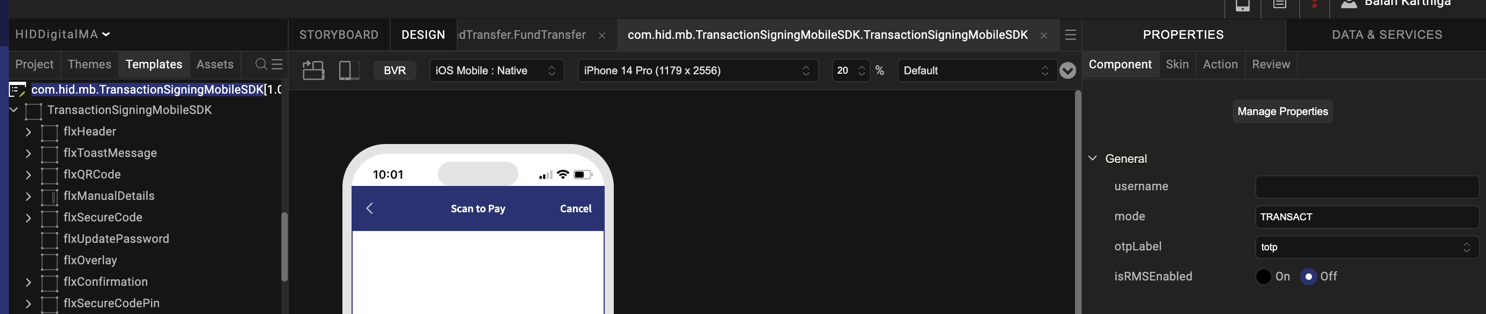
Step 2: Configure MFA Property
All the properties are mandatory and values should be set while invoking the component
| S.No. | Property Name | Purpose |
|---|---|---|
|
1 |
username |
This property is used to set the username to the component. |
|
2 |
otpLabel |
This property is used to generate the OCRA OTP. (e.g., hotp or totp) |
|
3 |
isRMSEnabled |
This property is used to enable and disable the RMS. (e.g., true or false) |
Transaction Signing Component Functions
Public Methods for APPROVE Flow:
-
showQRScanner: Displays the QRSCAN screen for Scan to Pay feature.
-
showTSScreen: Displays the Mobile Transaction Signing Screen (Pin popup).
Transaction Signing – Scan To Pay Workflow
Web Transaction Signing – Secure Code Workflow
-
In the OOTB Infinity Web application, the user enters the payment details and clicks Secure Code to initiate the transaction.
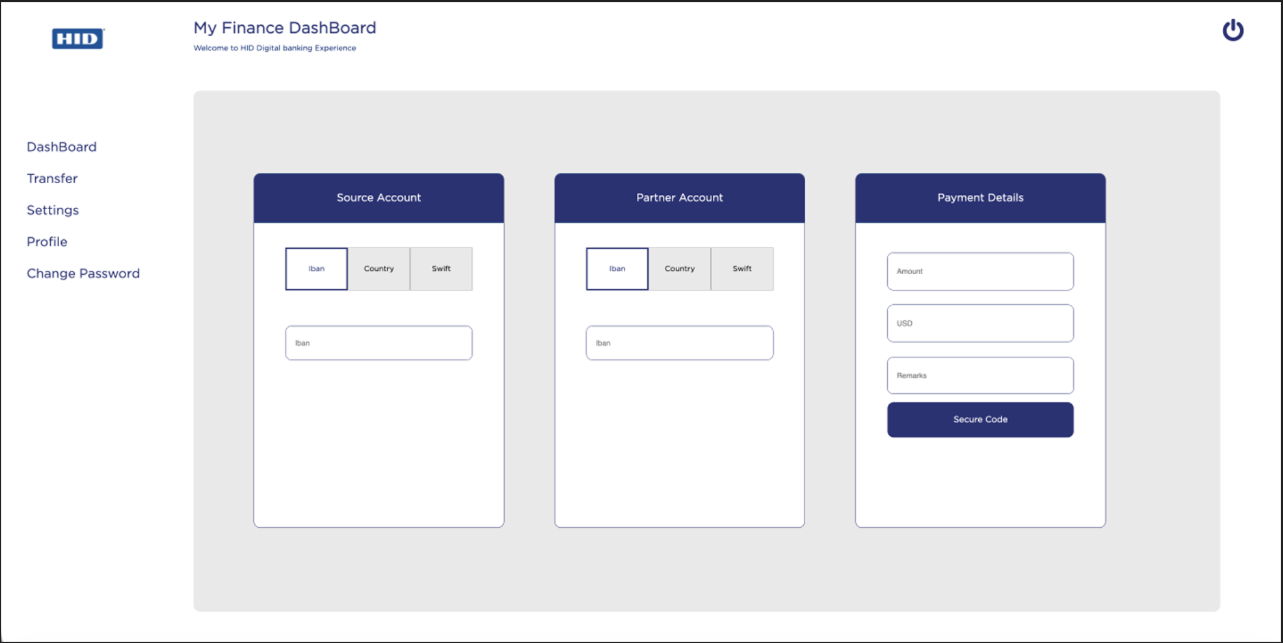
-
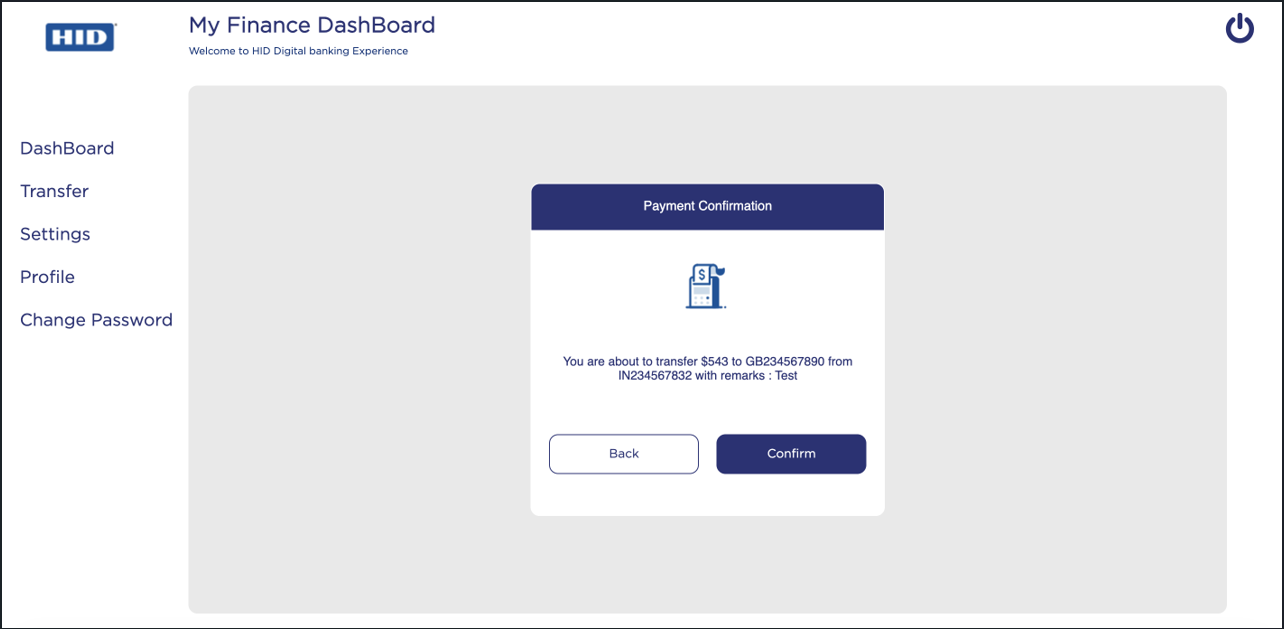
When the user clicks the Confirm button on the Payment Confirmation screen, a QR code is displayed.
The QR code is generated using transaction details such as account, amount, and remarks, along with manual entry data.
-
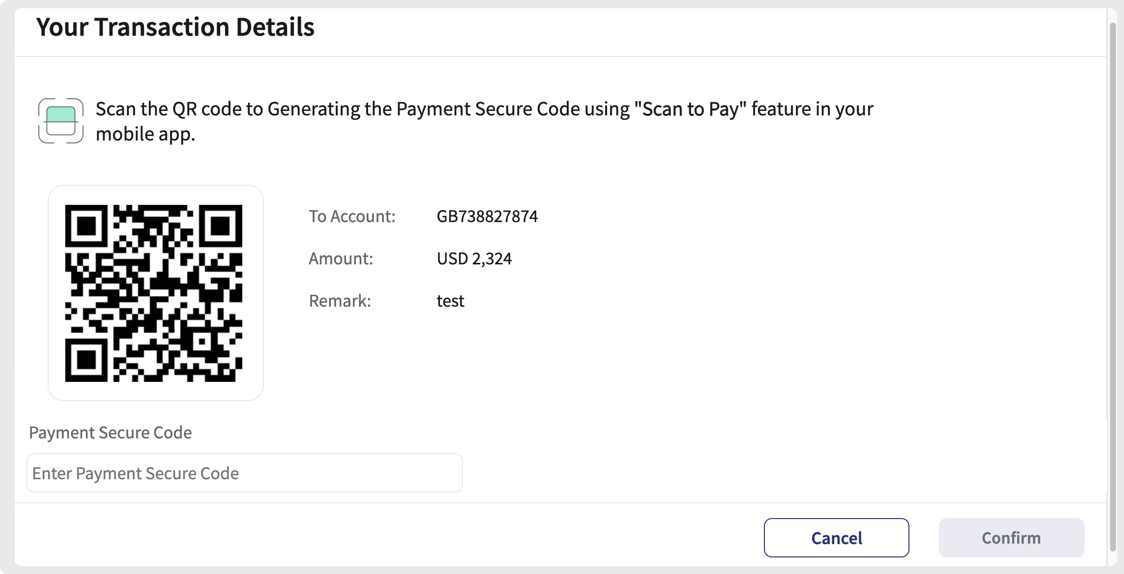
The user opens the HID Approve mobile application or the Mobile Banking App and select the Scan to Pay option, or manually enters the account, amount, and remarks to generate an OCRA OTP.
-
The user enters the generated OCRA OTP in the Payment Secure Code field and click Confirm to start the transaction process.
Once the transaction is successful, you will receive a Payment Success notification.
Note:-
If the entered Secure Code is incorrect, an error message is displayed for the incorrect secure code.
-
If the number of incorrect attempts exceeds the configured threshold, the system displays a Payment Approval alert stating that the threshold has been reached.
-
If the Secure code is validated successfully, it will trigger an event to Form.
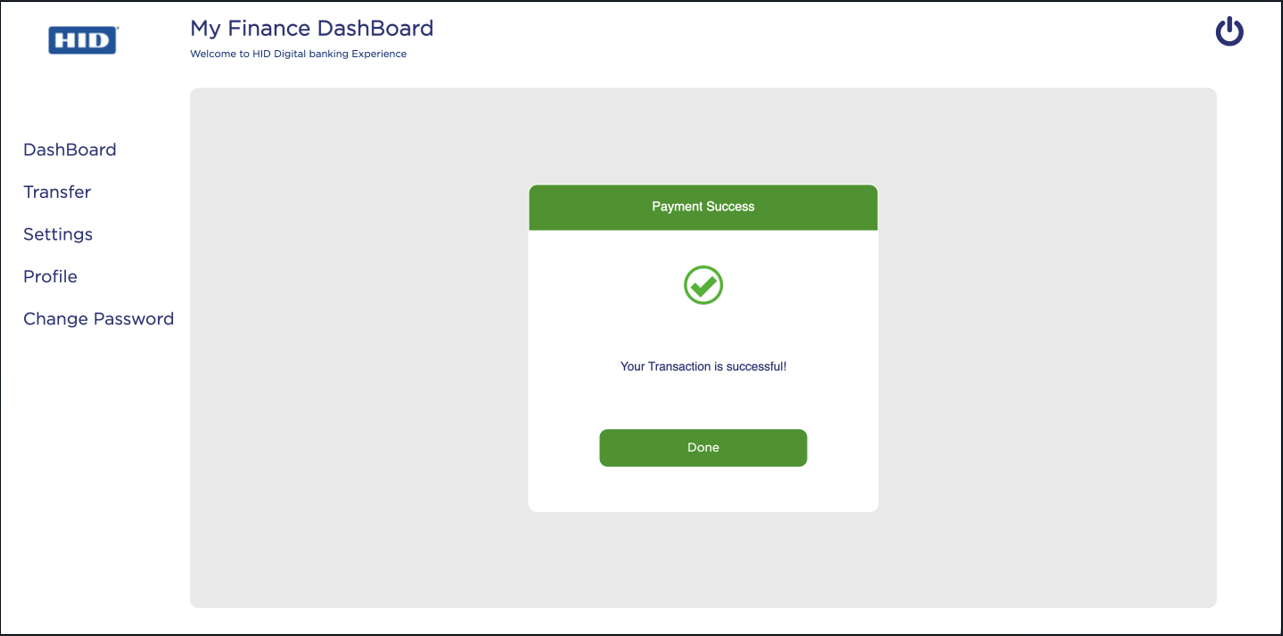
-
Mobile Scan to Pay
-
The user can open the Mobile application and access the "Scan & Pay" menu in either the pre-login or post-login screen.
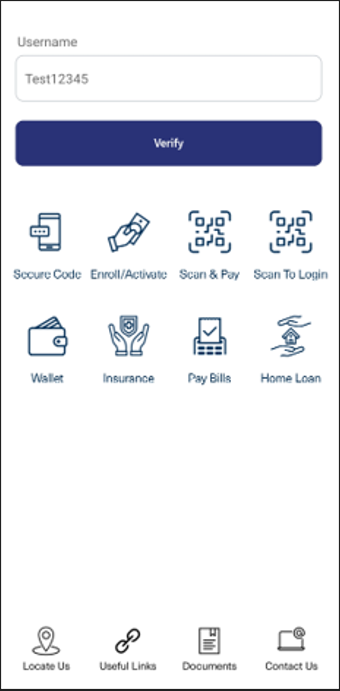
-
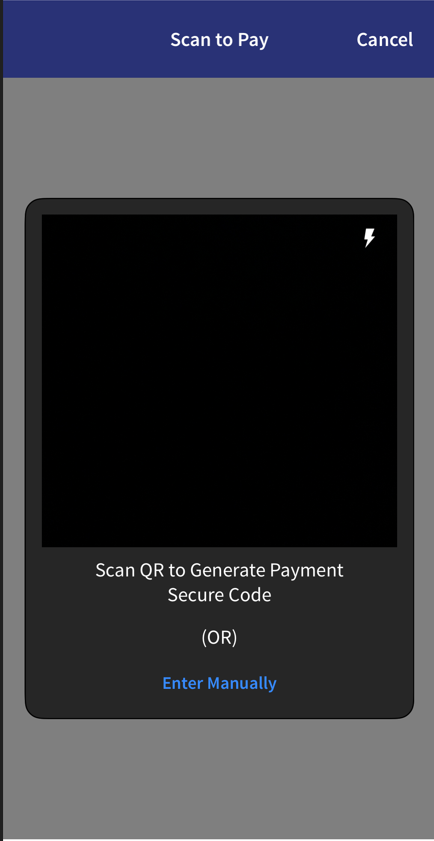
Upon clicking the "Scan & Pay" menu, the QR Code scanner screen is displayed, with an option for manual entry.
You can either scan the QR code displayed in the web application or manually enter the transaction details.
-
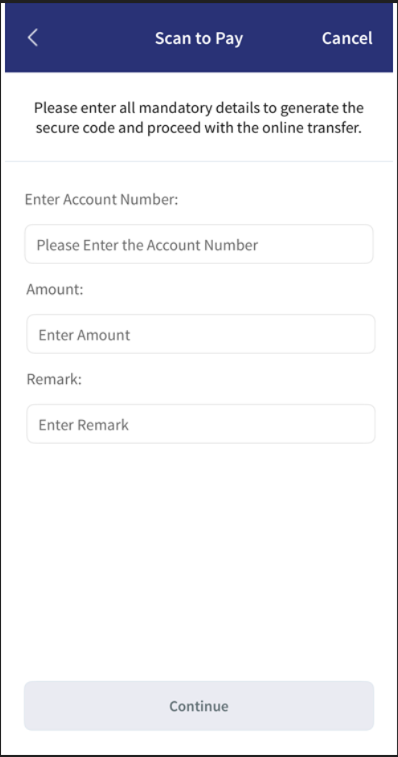
Once the QR code is scanned, verify the automatically populated payment details and click Continue.
If you choose "Enter Manually" option, enter the payment details manually.
Important:-
The Account Number and Amount fields are mandatory.
-
Remarks can be empty, as the Notes field in the Infinity Web application is optional.
-
Length of the Sign1, Sign2, Sign3 fields are 48. It can be configured max to 64. This configuration can be done for the fresh HID Tenants.
-
-
The Payment Confirmation screen is displayed. Review the payment details and click Confirm to proceed.
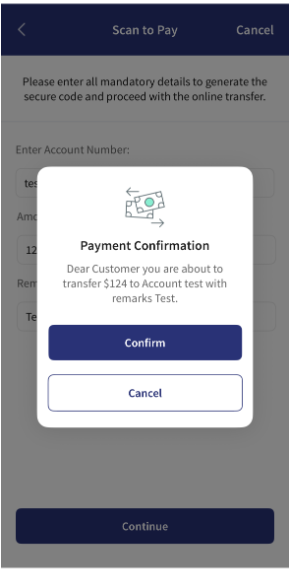
-
The user is prompted for biometric authentication or PIN verification, complete the authentication by using your biometric credentials or entering your PIN.
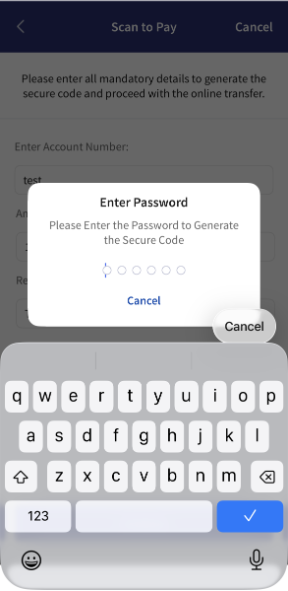
-
After successful authentication, a one-time secure code is generated and displayed with a 59-second countdown timer.
Use the one-time secure code to complete the payment process.
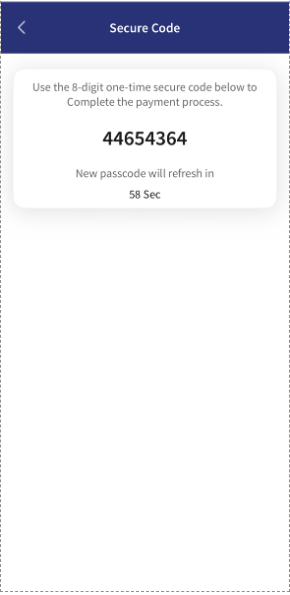
Mobile Transaction Signing Workflow
-
Enter the payment details and click Transfer to initiates the payment on the Mobile channel.
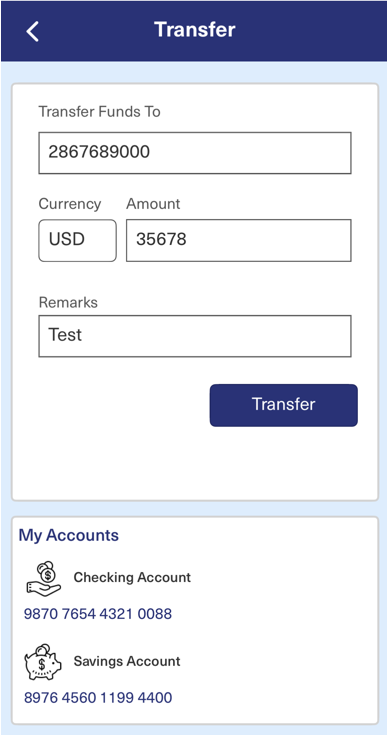
-
On the Transaction confirmation screen, review the payment details and click Confirm to proceed.
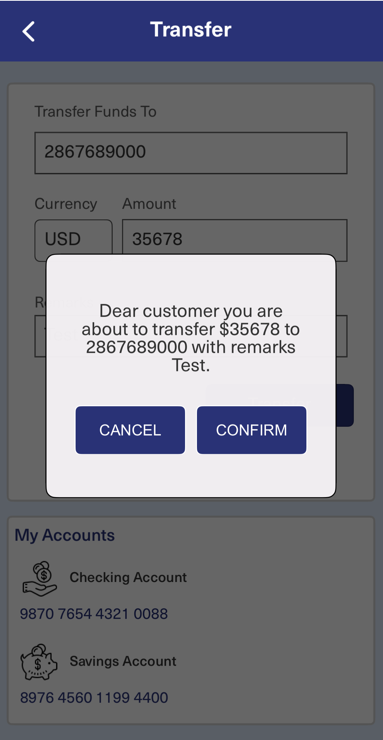
-
The user is prompted for biometric authentication (Fingerprint/Face ID) or PIN verification, complete the authentication by using your biometric credentials or entering your PIN.
Important:-
If the user is blocked, a User Blocked popup is displayed with a Contact Support option.
-
If any API error occurs while validating the OCRA OTP during Transaction Signing, a Server Error popup is displayed with a Contact Support option.
-
If the service fails, a Transfer Failed popup is displayed.
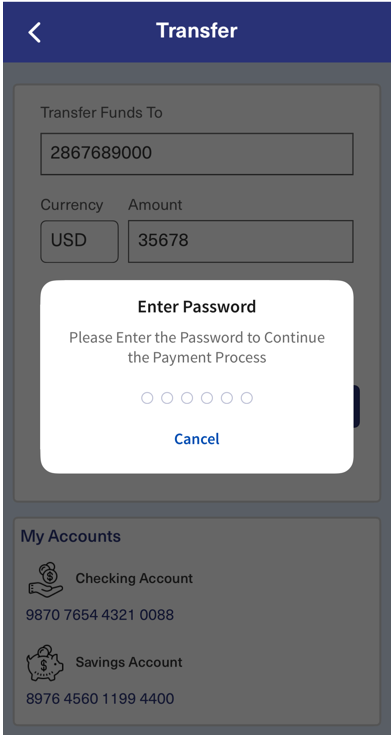
-
-
After successful authentication, you will receive a payment transfer success notification.
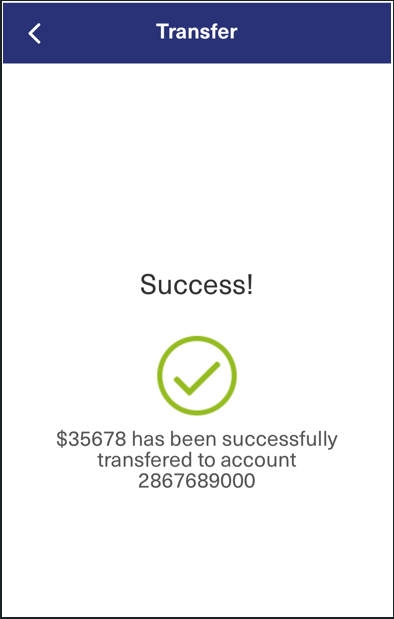
Transaction Signing Component Events
| Event name | Description | Parameters |
|---|---|---|
| showLoadingScreen | Triggered to show loader during service calls. | N/A |
| dismissLoadingScreen | Triggered to dismiss loader. | N/A |
| navigateToPreviousScreen | Triggered to navigate to Previous screen. | N/A |
| showPinPopupScreen | Triggered to show Transaction Signing Component to show Pin Popup. | True / False |
| contactSupport | Triggered when the User Blocked or Server Error or Transfer Failed. | - |
| enableDisableFormBg | Raised when push threshold is reached. | True / False |
| ogoutApp | Triggered upon a password exception during the Update PIN operation has done. | - |
| setHeaderVisibility | Triggered upon a password exception during the Update PIN operation is invoked. | True / False |
Transaction Signing Component Services
Object Services
| ServiceName | DataModel | CustomVerb | Purpose | Input Parameters | Invoking |
|---|---|---|---|---|---|
|
HIDTransactionSigning |
SignatureValidation |
validateSignature |
Offline transaction signing that validates the Transaction details. |
username, password (Secure Code), authType (Default) ClientID (Default) |
HIDChallengeValidationService > signatureValidation |
Fabric Services
| Names | Operation Name | Service Type | Description |
|---|---|---|---|
|
HIDClientIdentity |
- |
Identity |
Fetches the Client Bearer Token. |
|
HIDClientAuthIdentityWrapper |
getClientBearerToken |
Integration |
IntegrationWrapper of ClientIdentity. |
|
HIDChallengeValidationService |
signatureValidation |
Integration |
Validates the transaction details with the Secure Code obtained from the HID Approve app. |
Transaction Signing Pre/Post Processors
| Names | Description | Used by (ServiceName-Operation) |
|---|---|---|
| AddCorrelationIdPreProcessor | Adds the correlation ID to the API request to keep track of flow. | HIDChallengeValidationService > signatureValidation |
| SigntaureValidationPreprocessor | Updates custom AuthType if configured. | HIDChallengeValidationService > signatureValidation |
Approve Notification Component
Component Overview
|
Component Package |
com.hid.mb.ApproveNotificationMobileSDK |
|
User Interface |
Yes, New screens for Pending Notification and Push Notifications |
| Platforms Supported | Android & IOS |
| Functionality | This component is to handle the Push and Pending notifications with Approve/Deny/Report & Cancel features. |
| Available from | Version 12.0.0 |
| Mandatory File |
sdkNotificationManager.js |
It is mandatory for Approve push notification handling from Temenos Digital Component 10.0. It will register the device and handle all the notification callbacks. |
|---|
Approve Notification Component Properties
| S.No. | Property Name | Purpose |
|---|---|---|
|
1 |
transactionID |
This property is used to set the transaction ID to the component. |
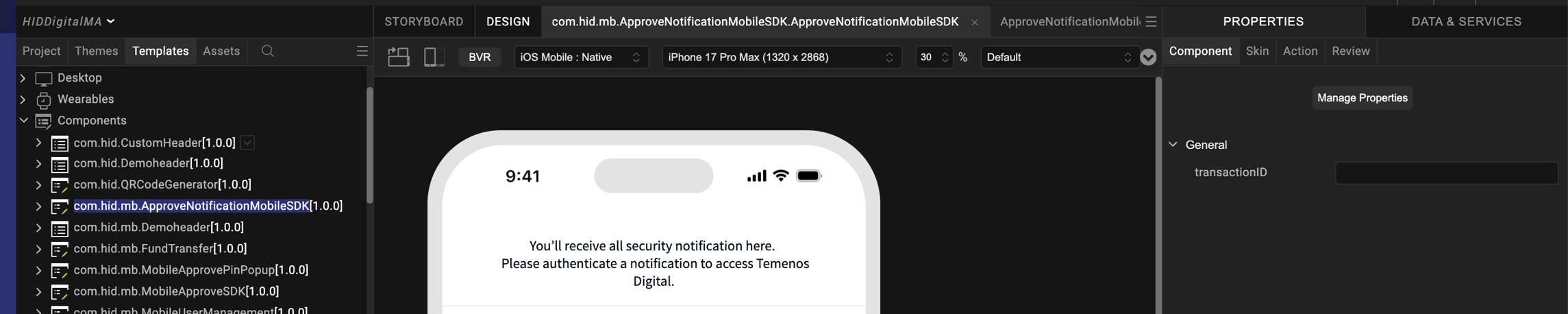
Approve Notification Component Functions
| Function Name | Purpose | Parameters | Return Type |
|---|---|---|---|
| showAuthentication | This function shows the authentication to open transaction details. | N/A |
CallbackFunction (retriveTransactionCallback) |
| retrieveTransactionIds | This function fetches the pending notifications. | N/A |
CallbackFunction(onRecievedNotificationsCallback) |
| getContainerRenewableDate | This function will indicate the remaining days for container renewal. | N/A | Integer |
| transactionCancel | This function is used to cancel the transaction with reason cancel or suspicious. | txID, message, reason,cancelCallback | N/A |
| updateTDSContent | This function is used to split the TDS value and pass the right string message in return. | txID, tds | N/A |
| retrieveTransaction | This function is to get the notification message for txID. | txID | CallbackFunction (retriveTransactionCallback) |
Configuring Dynamic Push Notifications with sdkNotificationManager.js
When creating dynamic push notifications using sdkNotificationManager.js, include the appName in the body to trigger pop-up notifications.
-
Update the Sender ID for the respective bundle identifiers.
-
Call the registerNotifications method from preAppInit (mandatory).
-
Ensure that pushconfig.xml and google-services.json are present in the workspace.
For example,
var notificationComponent = new com.hid.ApproveNotificationMobileSDK(
    {
      "clipBounds": true,
      "id": "ApproveNotificationMobileSDK",
      "appName" : "HIDDigitalMA",
      "isVisible": true,
      "left": "0dp",
      "top": "0dp",
      "width": "100%",
      "height": "100%",
      "zIndex": 200
    }, {}, {});
Approve Notification Mandatory Fabric Client Properties
| S.No. | Property Name | Purpose |
|---|---|---|
|
1 |
HID_IS_APPLIANCE |
Boolean Value (True/False) |
Approve Notification Component Events
| Event Name | Description | Parameters |
|---|---|---|
| onCompletion | To handle the completion of notification. | N/A |
| onUserBlocked | To handle the user block status while performing the actions on notification (If Max Wrong Pin Attempts Reached). | N/A |
|
onUserUpdate PINStatus |
To handle the PIN expiry status while performing the actions on notification. | N/A |
Security Notifications- Workflow
In the OOTB Infinity Web application, when a user initiates a login, transaction, user management, or any other workflow that requires push authentication, the request is sent to the user’s Mobile device.
The push authentication request appears in the Offline, Online, or Security Alerts - Pending section. When the user clicks a pending notification, the corresponding workflow is initiated.
Approving a Notification
-
Select Security Notification from the "Notifications" screen, or select the corresponding push notification (offline/online) to open the pending security notification request.
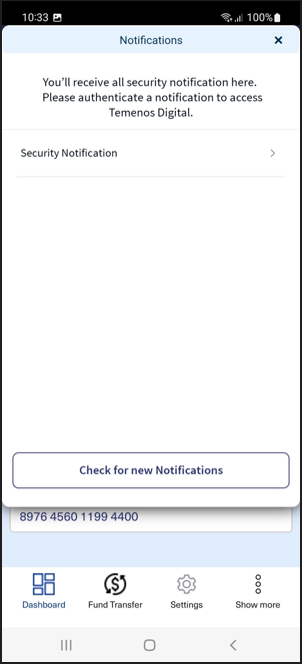
-
Click Approve to approve the notification request.
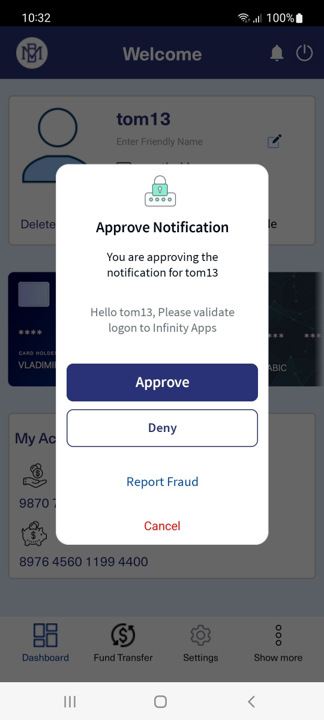
-
You will be prompted to authenticate using biometrics (Fingerprint, Touch ID, or Face ID) or by entering your PIN.
If biometric authentication is unavailable or unsuccessful, you can authenticate using your PIN.
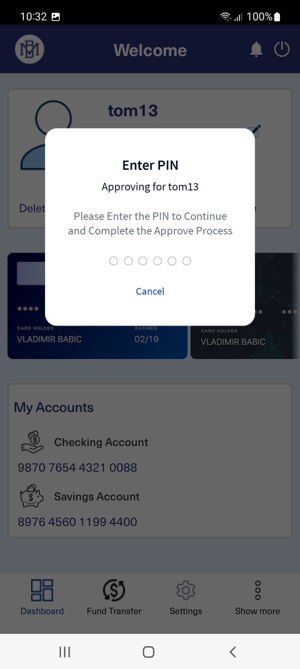
-
After successful authentication, a confirmation message is displayed confirming the approval of the security notification request.
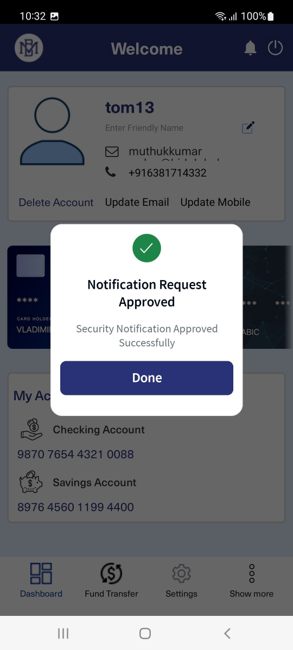
Denying a Notification
User Actions
-
Select Security Notification from the "Notifications" screen, or select the corresponding push notification (offline/online) to open the pending security notification request.
-
Click Deny to reject or decline the notification request.
-
To deny the request, you will be prompted to authenticate using biometrics (Fingerprint, Touch ID, or Face ID) or by entering your PIN.
If biometric authentication is unavailable or unsuccessful, you can authenticate using your PIN.
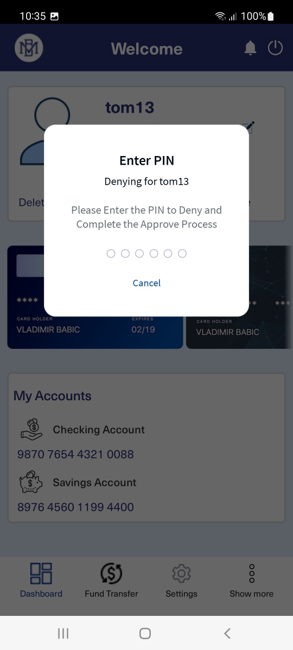
-
After successful authentication, a confirmation message is displayed confirming that the security notification request has been denied.
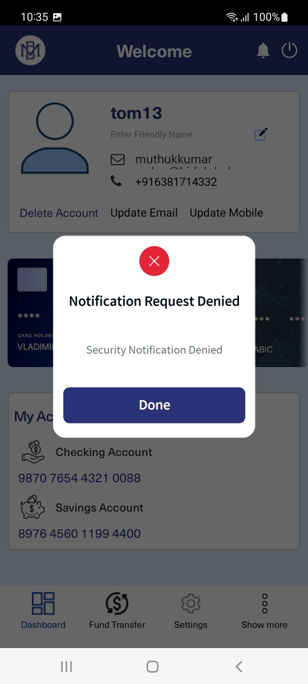
Reporting a Notification
-
Select Security Notification from the "Notifications" screen, or select the corresponding push notification (offline/online) to open the pending security notification request.
-
Click Report Fraud to report the suspicious or unauthorized notification request.
-
You will be prompted to authenticate using biometrics (Fingerprint, Touch ID, or Face ID) or by entering your PIN.
If biometric authentication is unavailable or unsuccessful, you can authenticate using your PIN.
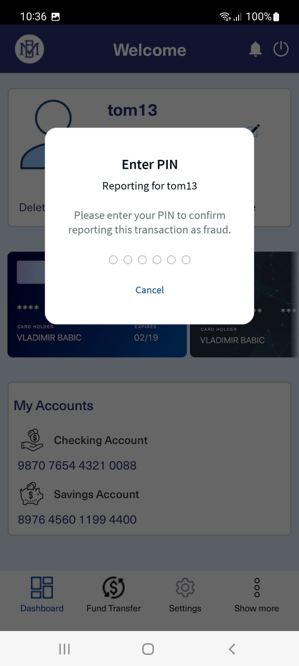
-
After successful authentication, a confirmation message is displayed confirming the notification has been reported.
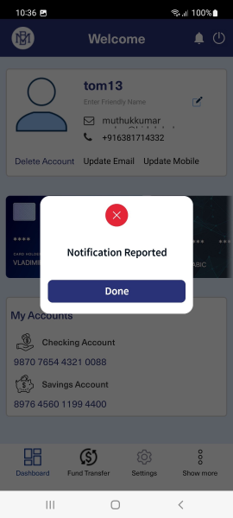
Cancelling a Notification
-
Select Security Notification from the "Notifications" screen, or select the corresponding push notification (offline/online) to open the pending security notification request.
-
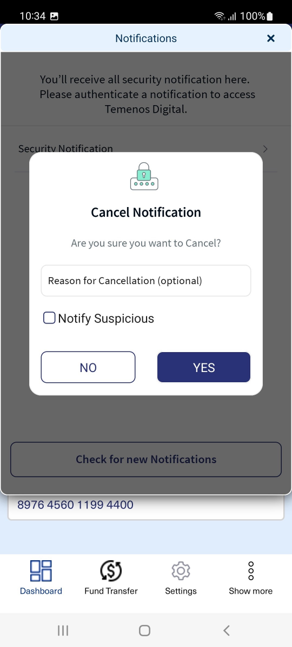
Click Cancel to cancel the notification request.
-
(Optional) Enter a reason for cancellation and select Notify Suspicious if the request is suspicious.
Click YES to confirm the cancellation, or NO to return to the notification.
-
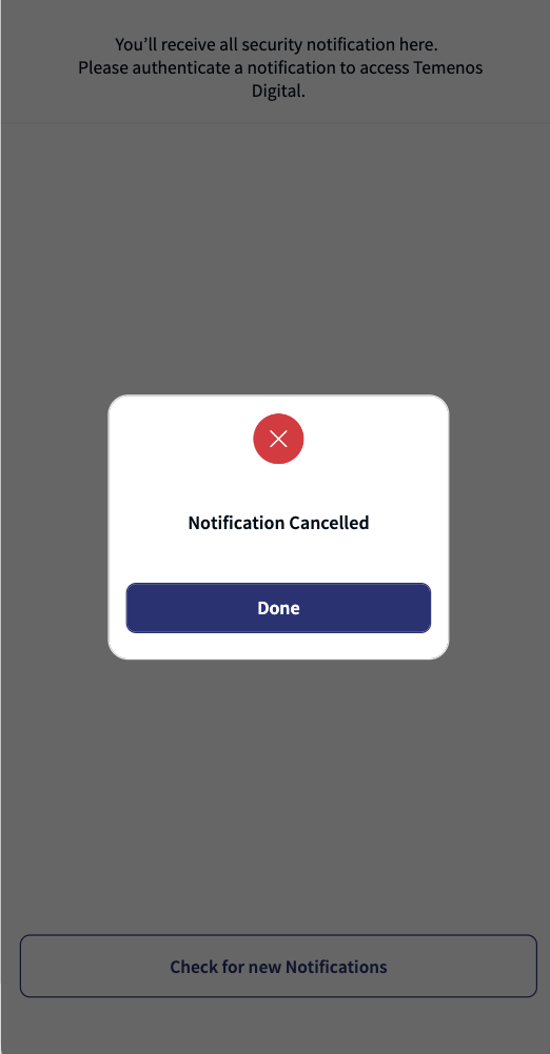
After confirmation, the notification request is cancelled and a confirmation message is displayed.
Offline Security Notification (App Closed)
When the mobile banking app is not actively in use and is completely closed, push authentication requests are delivered through offline security notifications.
Follow the steps below to receive and respond to a push authentication request in offline mode:
-
When a push authentication request is received while the mobile app is closed, a push notification is sent to your device.
-
Tap the push notification to open the app.
-
The app opens automatically and displays the approval screen.
-
Select Approve or Deny and authenticate using biometric or by entering PIN.
-
After successful authentication, a confirmation message is displayed.
Online Security Notification (App Open or Running in Background)
When the mobile banking app is open (foreground) or running in the background, push authentication requests are delivered through online security notifications.
Follow the steps below to receive and respond to a push authentication request in online mode:
-
When a push authentication request is received, a notification popup is displayed automatically in the app.
-
Select Approve or Deny directly from the approval screen.
-
Authenticate using biometric or by entering PIN.
-
After successful authentication, a confirmation message is displayed.
MobileUserManagement Component
The user management functions allow users to manage their authenticators.
Component Overview
|
Component Package |
com.hid.mb.MobileUserManagement |
|
User Interface |
Yes |
| Platforms Supported | Android & IOS |
| Functionality | This component is used for User Device Management. |
| Dependent Components |
|
| Available from | Version 12.0.0 |
Server Properties
| Mandatory Server Properties | HID_KONY_APP_KEY |
<App key of the fabric application> (e.g., h728h89031832jdy9292) |
|---|---|---|
| HID_KONY_APP_SECRET |
<App secret of the fabric application> (e.g., 89bv2894673792003jy2) |
|
| HID_HOST |
<HID Authentication Service Host> (e.g., test123.aaas.hidcloud.com) |
|
| HID_TENANT |
<HID Authentication Service Tenant Id> (e.g., tf98f45g90843781907) |
MobileUserManagement Component Properties
| S.No. | Property Name | Purpose |
|---|---|---|
|
1. |
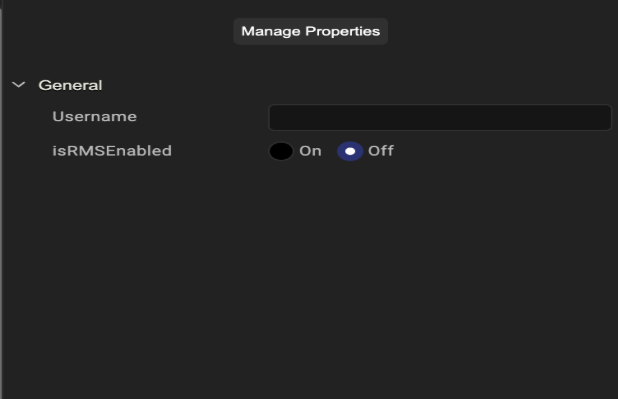
username |
Username for the user to manage the device and other settings. |
| 2. | isRMSEnabled | Indicates whether RMS is enabled. |
MobileUserManagement Component Functions
| Function Name | Description | Parameters |
|---|---|---|
| LoadUserManagement | Displays the list of registered devices to the user. | None |
| LoadBioInfo | Displays the PIN and biometric information to the user. | sessionId, deviceId, userName |
| updateAttributes | Validates requests to update the email address or mobile number. | As required by the update request. |
| getUserAttributes | Retrieves user details such as Email Address and Phone Number. | None |
| UpdatePinPublic | Displays the UI for PIN update scenarios. | Notification Flow: IsNotificationFlow = true, Username, IsExpiryFlow = true/falsePIN Expiry Flow: IsNotificationFlow = false, Username, IsExpiryFlow = trueChange PIN Flow: IsNotificationFlow = false, Username, IsExpiryFlow = false |
MobileUserManagement Component Public Events
| Event Name | Description | Parameters |
|---|---|---|
| showLoading | Triggered to show loader during service calls | N/A |
| dismissLoading | Triggered to dismiss loader | N/A |
| navigateToPreviousScreen | Triggered to navigate to Previous screen | N/A |
| registeredDeviceBackButtononClick | Triggered to close the User management screen | True / False |
| updateAttributesSuccess | Triggered when the update email or phone number is successful | Success |
| updateAttributesFailure | Triggered when the update email or phone number is failed | Failure |
| updateAttributesCancel | Triggered when the update email or phone number is Cancel | Cancel |
| updatePinCallback | Triggered when the pin is updated successfully during Pin Expire call |
MobileUserManagement Component Flow
Accessing User Management
-
Log in to the app.
-
Go to Settings.
-
Select User Management.
Managing Registered Devices
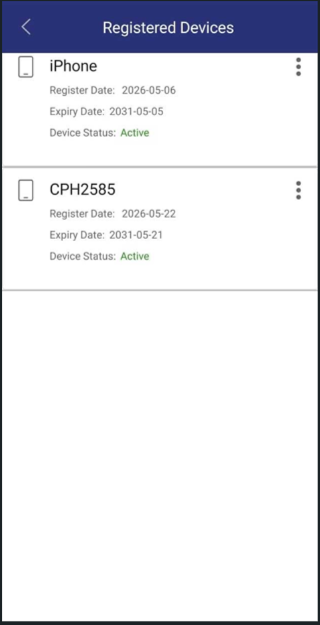
You will see a list of your registered devices.
-
In the list of your registered devices, select the device you want to manage.
-
Click on the three dots action menu (
 ) to see the device manage actions (such as Edit Device Name, Suspend Device, and Remove Device).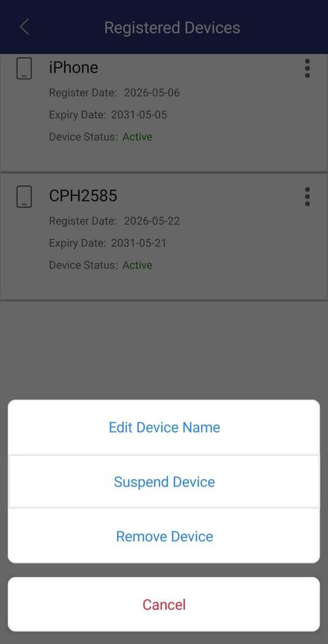
-
Choose one of the following device manage options based on your requirements:
-
Edit Device Name:
-
Click Edit Device Name and enter a new friendly name. Then, click Update.
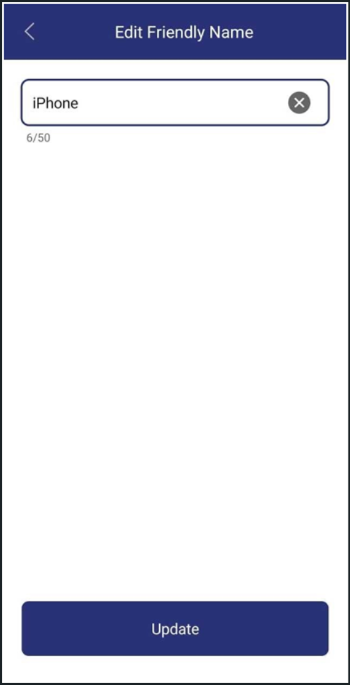
-
You will be prompted for Bio-metric or PIN authentication based on your configuration.
Confirm with your app's login credentials (PIN, password, secure code, or OTP).
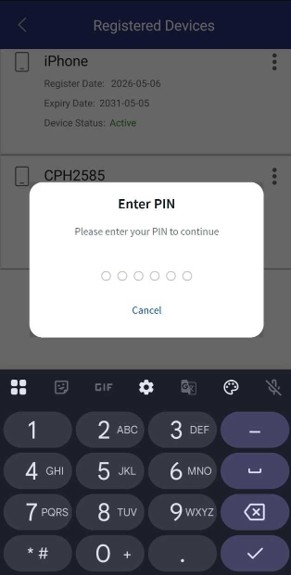
-
Tap Submit. A success message will appear.
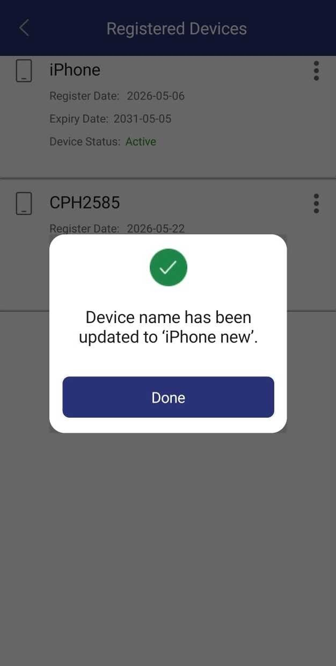
-
-
Suspend Device:
-
Click Suspend Device, then you will be prompted for Bio-metric or PIN authentication based on your configuration.
-
Confirm with your app's login credentials (PIN, password, secure code, or OTP) to suspend the selected device.
A success message is displayed once the device is suspended.
-
-
Remove Device:
Important: This option is only available if you have two or more registered devices. If you only have one device, a warning will be displayed.-
Click Remove Device, then you will be prompted for Bio-metric or PIN authentication based on your configuration.
-
Confirm with your app's login credentials (PIN, password, secure code, or OTP) to remove the selected device.
A success message is displayed once the device is removed.
-
-
Updating Your Profile
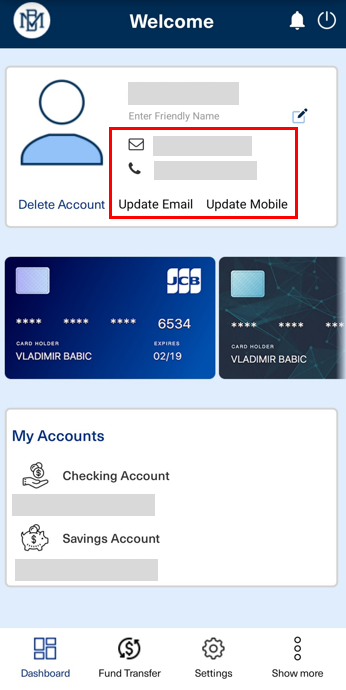
Your registered email and phone number are displayed on the dashboard with options to edit them.
Update Email
-
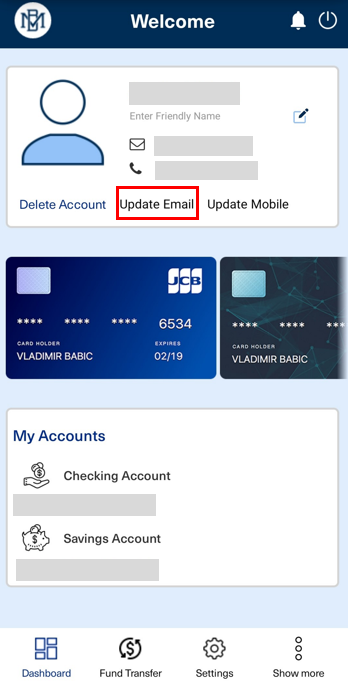
On the dashboard, tap Update Email.
-
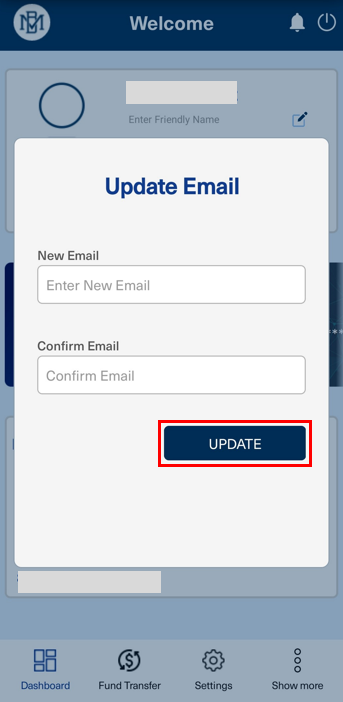
Enter your new email address.
-
Tap Update.
-
Confirm with your PIN or biometrics.
-
After successful validation, your email will be updated and you will be returned to the dashboard.
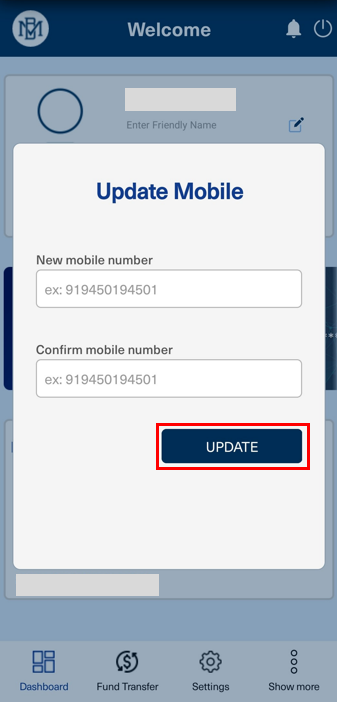
Update Mobile
-
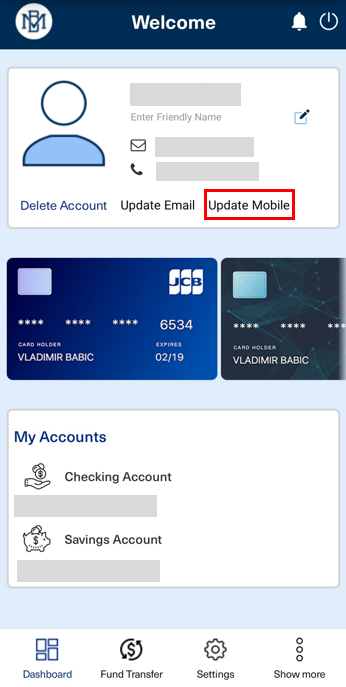
On the dashboard, tap Update Mobile.
-
Enter your new mobile number.
-
Tap Update.
-
Confirm with your PIN or biometrics.
-
After successful validation, your phone number will be updated and you will be returned to the dashboard.
Updating PIN and Biometric Authentication Methods
User can set Biometric or PIN as a default authentication method for sign in to your application.
Set Biometric as the Default Sign in Method
-
Open the "Default Sign In" screen to view the registered Biometric and PIN authentication methods.
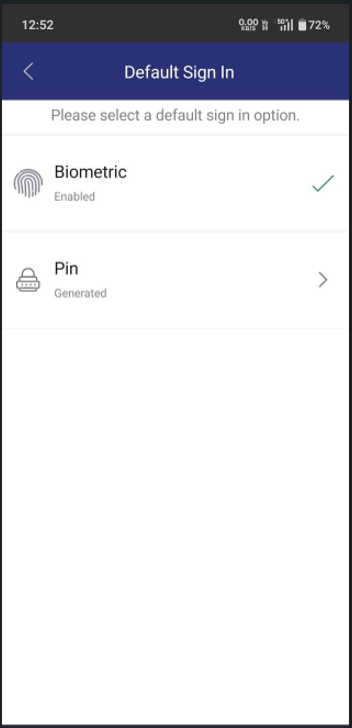
-
Select Biometric method that you want to use as your default authentication method for sign in.
-
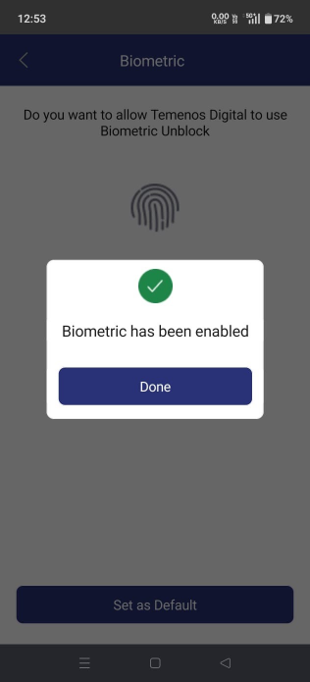
Click Set as Default. You will be prompted to enter your PIN.
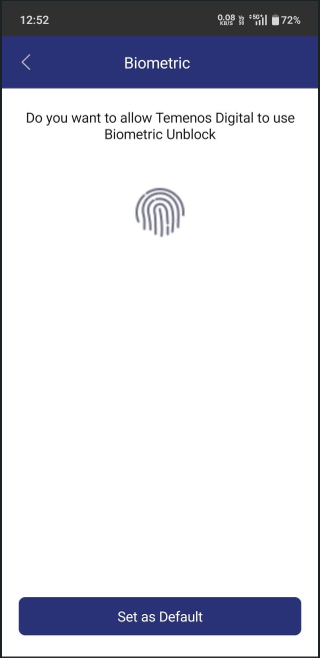
-
Enter your PIN to complete the verification process and enable biometric authentication.
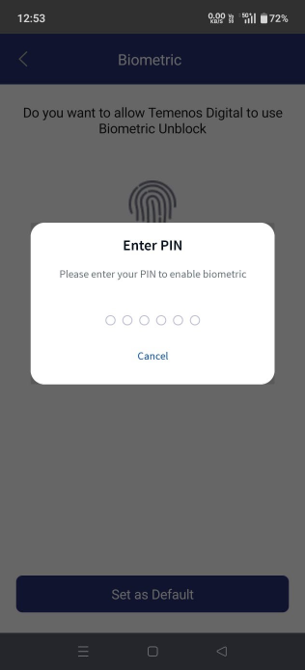
-
Once verification is complete, a success notification confirms that biometric authentication has been set as the default authentication method.
Set PIN as Default
-
Open the "Default Sign In" screen to view the registered Biometric and Pin authentication methods.
-
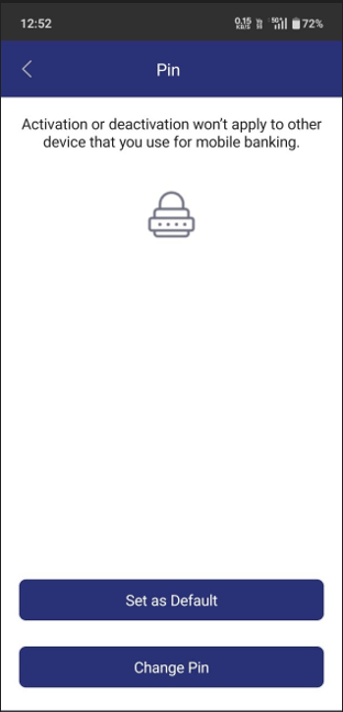
Select Pin method that you want to use as your default authentication method for sign in.
-
Click Set as Default.
-
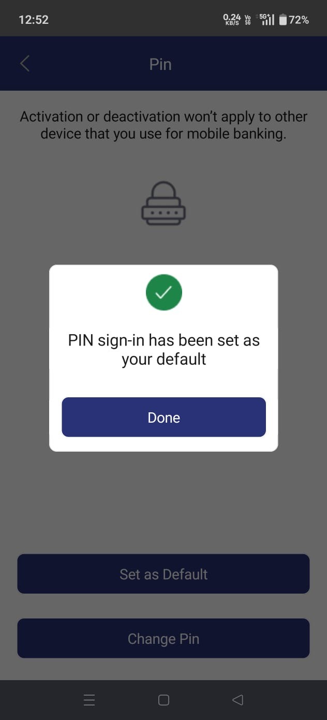
The system updates your authentication settings, and a success notification confirms that PIN authentication has been set as the default authentication method.
Change PIN
-
Open the "Default Sign In" screen to view the registered Biometric and Pin authentication methods.
-
Select Pin authentication method to open the PIN management screen.
-
Click Change Pin to update your PIN.
-
In the "Update PIN" screen, enter your Current PIN, New PIN, and Re-enter PIN, then click Update.
Note: The PIN must comply with the policy configured.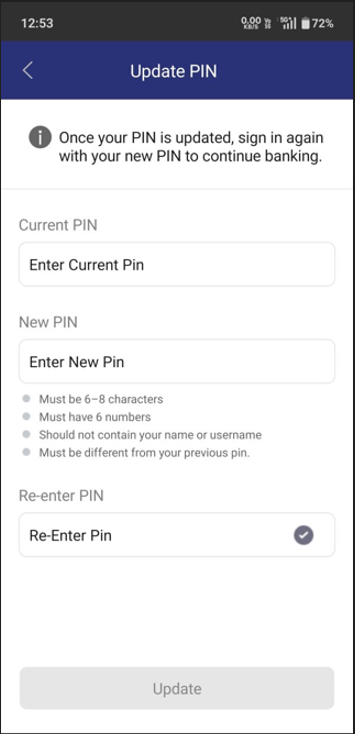
-
A confirmation message indicates that your PIN has been changed successfully.
You can now sign in to the application using your new PIN.
Self-Service Component Services
Object Services
| ServiceName | DataModel | Mapping | Purpose | InputParams | Invoking |
|---|---|---|---|---|---|
|
HIDUserManagement |
PasswordPolicy |
getPolicy |
Get the password policy instructions. |
authType |
AuthenticatorPolicy> getPasswordPolicy |
|
HIDUserManagement |
RegisterDevice |
getProvisioningMsg |
Register a new device for the user. |
userName, DeviceId, usernameWithRandomNo |
ApproveDeviceRegistrationOrch > getInviteCode |
|
HIDUserManagement |
SearchDevices |
SearchDevices |
Display the user's devices. |
username, userId |
SearchDevices > searchDevices |
|
HIDUserManagement |
UpdateDeviceName |
updateFriendlyName |
Update the device friendly name. |
deviceId, friendlyName |
UserManagementService > updateDeviceFriendlyName |
|
HIDUserManagement |
UpdateDeviceStatus |
updateDeviceStatus |
Update the device status. |
deviceId, status |
ScimAPIs > updateDeviceStatus |
| HIDUserManagement | AssignUnassignDevice | assignUnassignDevice | Unassign the device before deleting it. | username, deviceId, status | AssignUnassignDevice > assignUnassignDevice |
| HIDUserManagement | DeleteDevice | deleteDevice | Delete the selected device. | deviceId | DeleteDevice > deleteDevice |
| HIDUserManagement | ValidatePassword | validatePassword | PasswordAuthServices > passwordValidation | ||
| HIDUserManagement | ValidateSecureCode | validateOTPAuth | OTPAuthServices > validateOTPAuth | ||
| HIDAuthService | ValidatePassword | validatePassword | Validate the password. | username, password | PasswordAuthServices > passwordValidation |
| HIDAuthService | ValidateOTP | validateOtp | Second factor check to validate the OTP. | username, password, authType | OTPServices > validateOOB |
| HIDAuthService | OTPRequest | sendOTP | To send the OTP for registered mobile number. | username, AuthenticationType | OTPServices > sendOOB |
| HidUserManagement | GetUserAttributes | getUserAttributes | Purpose to get user attributes (email and Phone Number) to show in the User Management Component | username, correlation id | GetUserAttributes (1.0) > getUserAttributes |
| HidUserManagement | UpdateUserAttributes | updateUserAttributes | To Update the user attributes (email and Phone Number). | username, externalId, mobile, email, first name, last name, correlation id | UpdateUserAttributes (1.0) > updateUserAttributes |
HID Fabric Services
| Names | Operation Name | Service Type | Description |
|---|---|---|---|
|
UserManagementService |
SearchUser |
Integration |
Performs a user search. |
|
UserManagementService |
getPasswordPolicy |
Integration |
Displays the Password policy. |
|
SearchServices |
SearchUserAuth |
Integration |
|
|
SearchServices |
SearchDeviceAuth |
Integration |
|
|
SearchDevices |
searchDevices |
Orchestration |
|
|
ScimAPIs |
createNewDevice |
Integration |
Creates a new DeviceId. |
|
ScimAPIS |
updateDevice |
Integration |
Updates the owner of the device during HID Approve device registration request |
|
DeviceProvisionJava |
getProvisonMsg |
Integration |
Java code to generate a device provisioning message. |
|
UserManagementService |
updateDeviceFriendlyName |
Integration |
|
|
ScimAPIs |
updateDeviceStatus |
Integration |
|
| AssignUnassignDevice | assignUnassignDevice | Integration | Assign or unassign a device. |
| DeleteDevice | deleteDevice | Integration | Delete a device associated with the provided deviceId. |
| OTPServices | sendOOB | Integration | Sends an OOB (SMS/Email) OTP to the user. |
| OTPServices | validateOOB | Integration | Validates the OOB (SMS/Email) OTP. |
| PasswordAuthServices | passwordValidation | Integration | Validates the user's static password. |
| AuthenticatorPolicy | getPasswordPolicy | Integration | Provides the Password policy. |
| GetUserAttributes | getUserAttributes | Orchestratiom | Used to get user attributes (Email & Phone number) |
| GetUserAttributes | GetUserAttributes | Integration | Used to get user attributes (Email & Phone number) |
| UpdateUserAttributes | UpdateUserAttributes | Integration | Used to Update user attributes (Email & Phone number) |
Self-Service Processors
| Names | Description | Used by (ServiceName-Operation) |
|---|---|---|
| SearchUserPreProcessor | It retrieves values from the configuration properties of "PASSWORD_AUTHTYPE" and applies them to the request. | UserManagementService- SearchUser |
| SearchUserPostProcessor | Processes the output of SearchUser API and adds an error flag to the request if noUserRecords, if userActive empty or with the flag FALSE. If the "authType" present in request is not available in the authenticator (results of SearchUser), then updates the "AuthExists" flag to false. If it is present, updates the flag to true. | UserManagementService- SearchUser |
| FetchUserDetailsPostprocessor | Used to Fetch Phone Number to send OTP. | HIDOTPUtilService |
| UpdateAttributesPreProcessor | It retrieves values from the configuration properties of "HID_USER_GROUP" and applies them to the request groups. | UpdateUserAttributes |
| UpdateUserMobilePreProcessor | Validates that the user exists and that mobileNumber is present, updates the ATR_MOBILE attribute inside the request dataset, serializes the updated attributes back into inputMap, and forwards userId. | N/A |


