HID VM PACS Connector Integration Guide
Overview
The HID Visitor Manager PACS Connector Integration Guide lets HID Visitor Manager (“HID VM”) integrate with Physical Access Control Systems (PACS) through the HID Integration Service (HIS) platform. This connection ensures smooth communication between systems and supports key security workflows.
What does this integration do?
-
Imports master data like access areas and card formats from PACS to HID VM
-
Provisions visitors, their credentials and access details
Which PACS systems are supported?
See the full list of supported PACS platforms and requirements here:
https://docs.his.hidglobal.com/user-documentation/his-agents/requirements
Who is this guide for?
Anyone who's deploying and maintaining a HID VM integration with a supported PACS system via HIS, needs to follow this guide. It could be HID VM professional services team and/or could be customer’s IT team managing the integration.
Before you start
Ensure that:
-
You have administrator access to HID VM instance.
-
Your HID Visitor Manager instance has the required HIS PACSadd-on activated.
Once activated, you must see an relevant PACS integration system in Settings → General → System Configuration → Launch System Config Manager → Systems -
Agent docker images are installed and configured in the same network as the PACS server for on-prem agent setup
-
Internet access is available for on-prem agent to access HIS Integration Service and HID Authentication Services
-
HID Integration Service -
-
The outbound static IPs for HID Integration Service his.hidglobal.com are 50.19.226.228 and 13.217.151.35
-
HID Authentication Service
-
For more information on HID Auth service network requirements, pls check here -
https://docs.hidglobal.com/auth-service/docs/advanced/hid-authentication-service-platforms-around-the-world.htm
-
-
You have access to HIS Agent Administration Portal.
-
Your tenant in HIS Agent Admin Portal has necessary PACS subscriptions. The portal provides necessary credentials needed by HID VM to connect to integration platform.
Configuring HIS Details in HID VM
This section explains how to configure the HIS agent in HID VM. It enables HIDVM to communicate with the HIS platform and connect to PACS systems.
Note that, to complete this section, services team member or end-customer must be onboarded on the HIS Agent Admin portal with required PACS subscriptions and that user has received the welcome email and can log successfully to the portal.
Update HIDVM configuration
Step 1: Open the HIS agent in HID VM:
-
Navigate to HID VM → Settings → General → System Configuration → Launch System Config Manager.
-
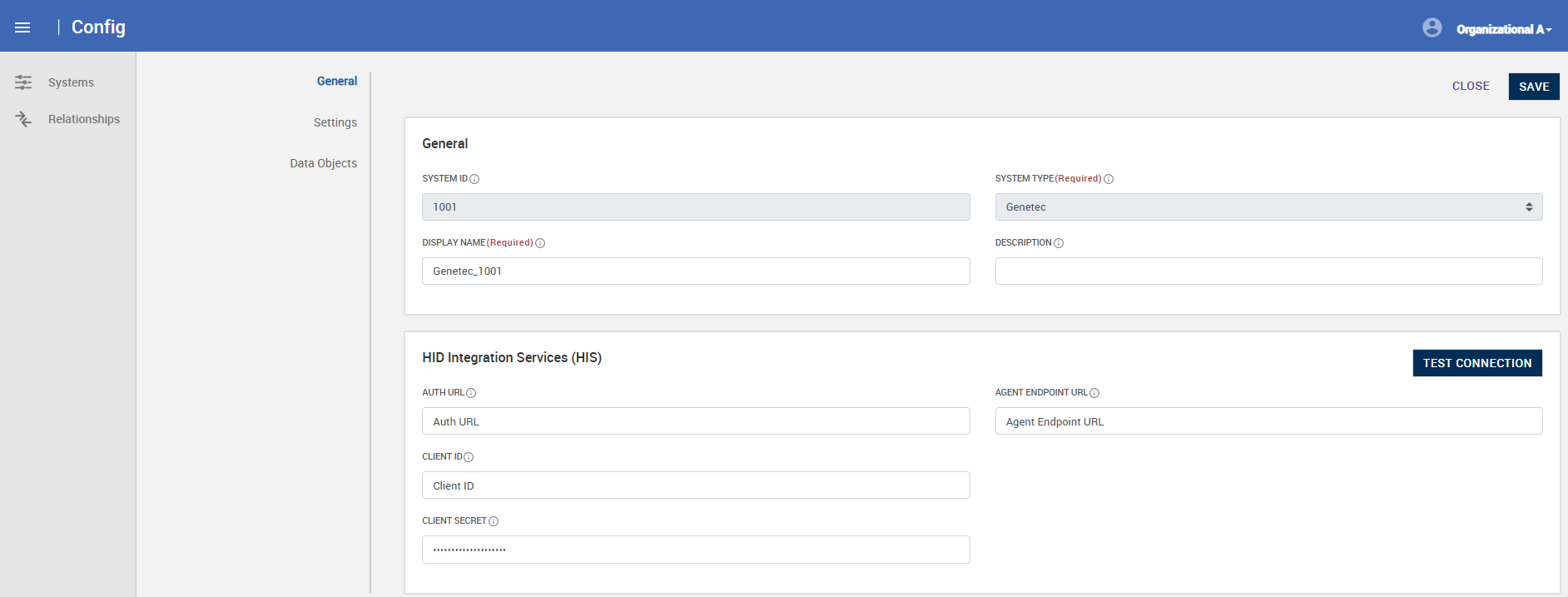
Go to Systems → Select the PACS system → General tab → General tab
-
Enter:
-
Display Name: A name for the agent.
-
Description: A short description of the integration.
-
-
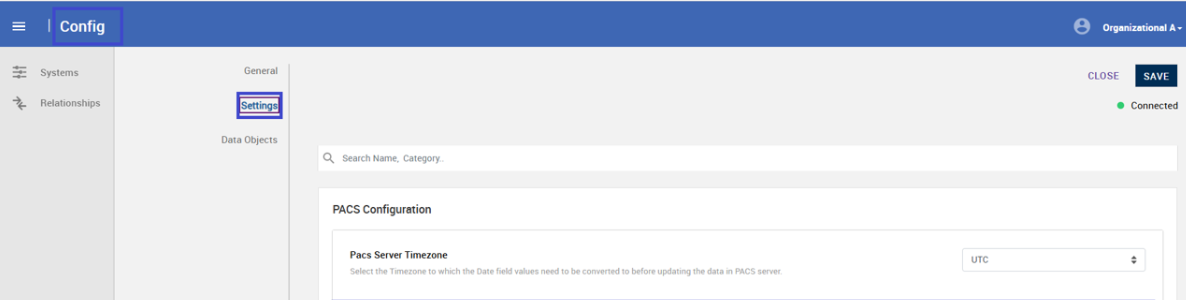
Go to Systems > Select the PACS system > Settings tab.
-
Optional – Set PACS server timezone
-
Use this only if HID VM and PACS database servers are in different time zones.
-
This corrects time values broadcasted from HID Visitor Manager to PACS.
-
Step 3: Log into HIS Agent Admin Portal
-
Use the credentials from your HIS Agent Admin Portal welcome email.
-
You may need to change your password on first login.
-
-
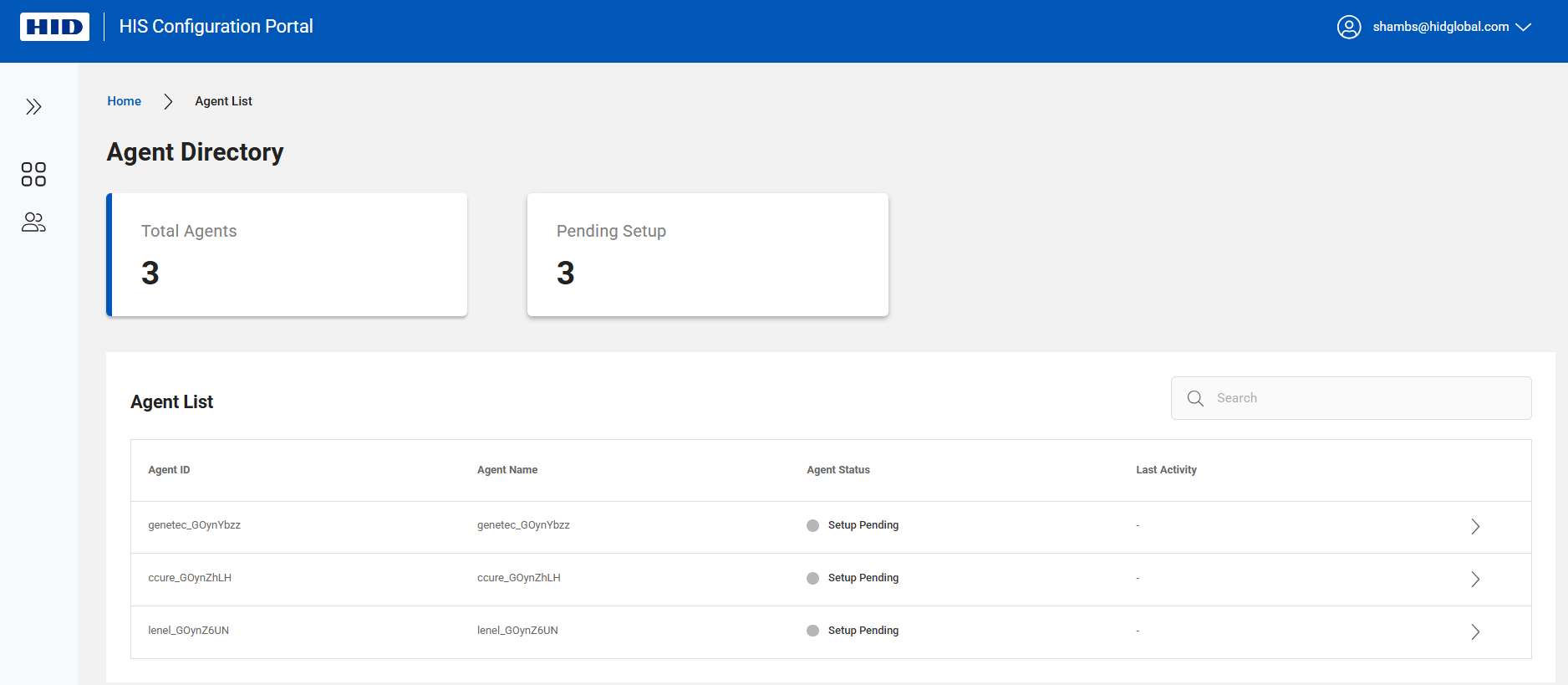
A list of subscribed agents appears.
-
Find the agent assigned for this integration.
-
Agents with Setup Pending status need configuration. Click Setup Pending to start.
-
Step 3: Configure the Agent
-
On the Setup Configuration page:
-
Provide a unique name for the agent.
-
Click Save before continuing.
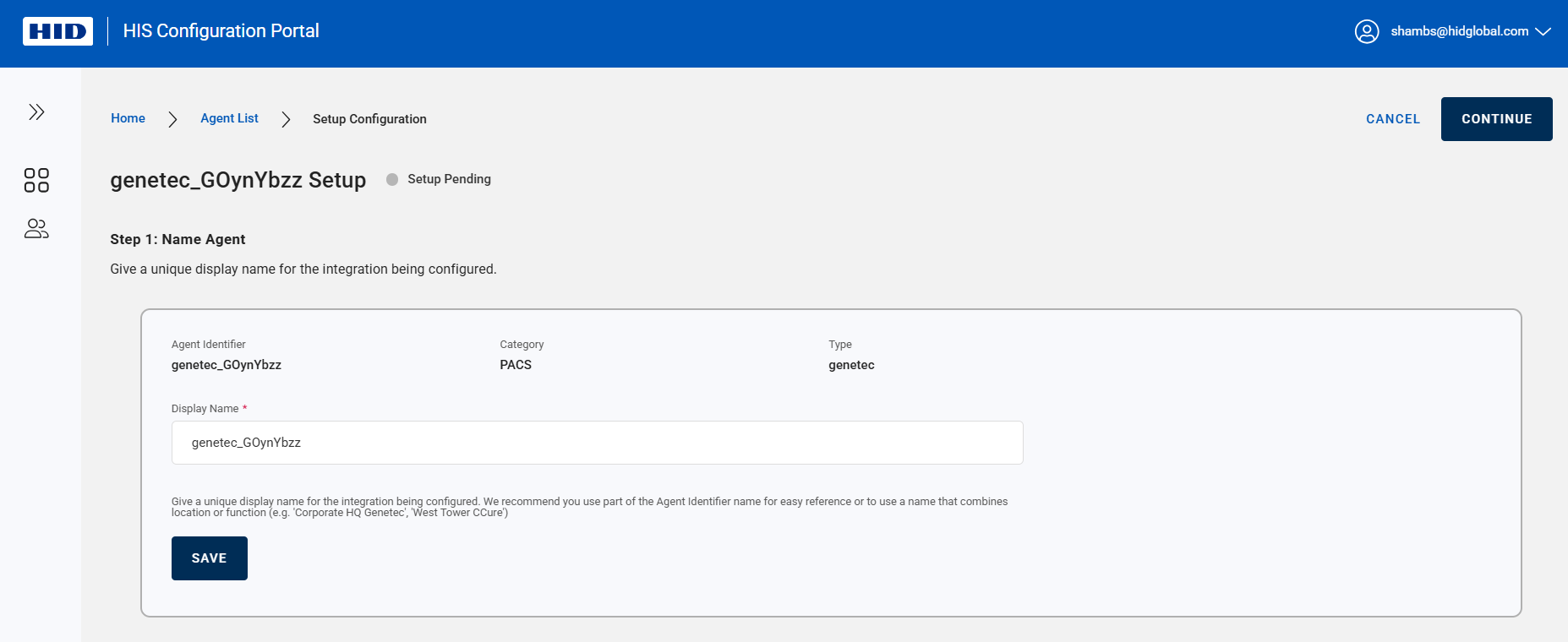
Note:Tip: Use part of the Agent Identifier or the location/function name.
Examples: Corporate HQ Genetec, West Tower Ccure.
-
Step 4: Copy the required fields from HIS Agent Admin Portal
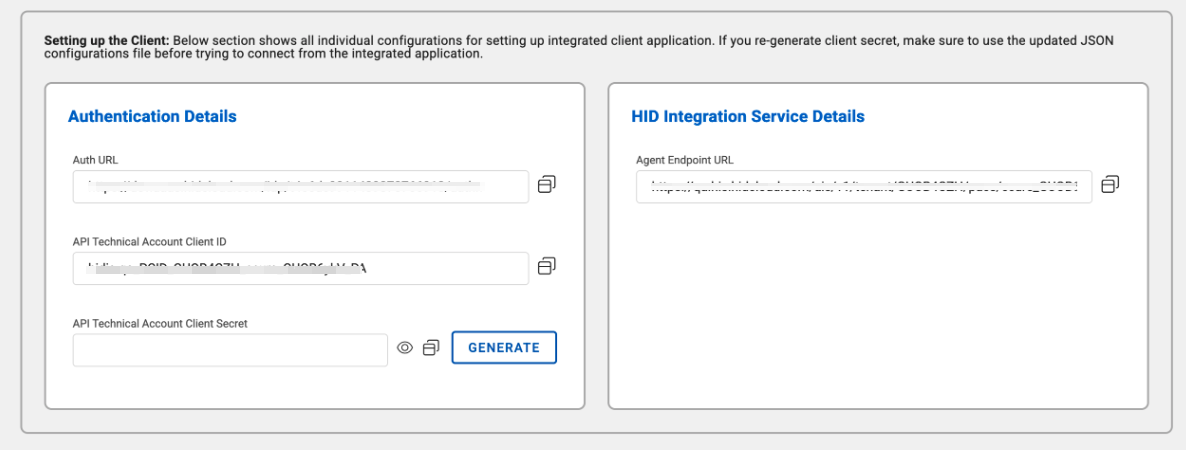
From the Authentication Details and HID Integration Service Details sections, copy:
-
Auth URL
-
API Technical Account Client ID
-
API Technical Account Client Secret
-
Click the Generate icon to create the code. Note: The API client secret appears only during the current session. Copy it before leaving or closing the page.
-
-
Agent Endpoint URL
-
The client secret appears only during the current session. Copy it before leaving the page.
-
Generating a new secret code replaces the old one and breaks existing connections.
-
Follow your organization’s security policy for periodic secret code rotation.
Step 5: Enter the Details in HID VM and Test Connection
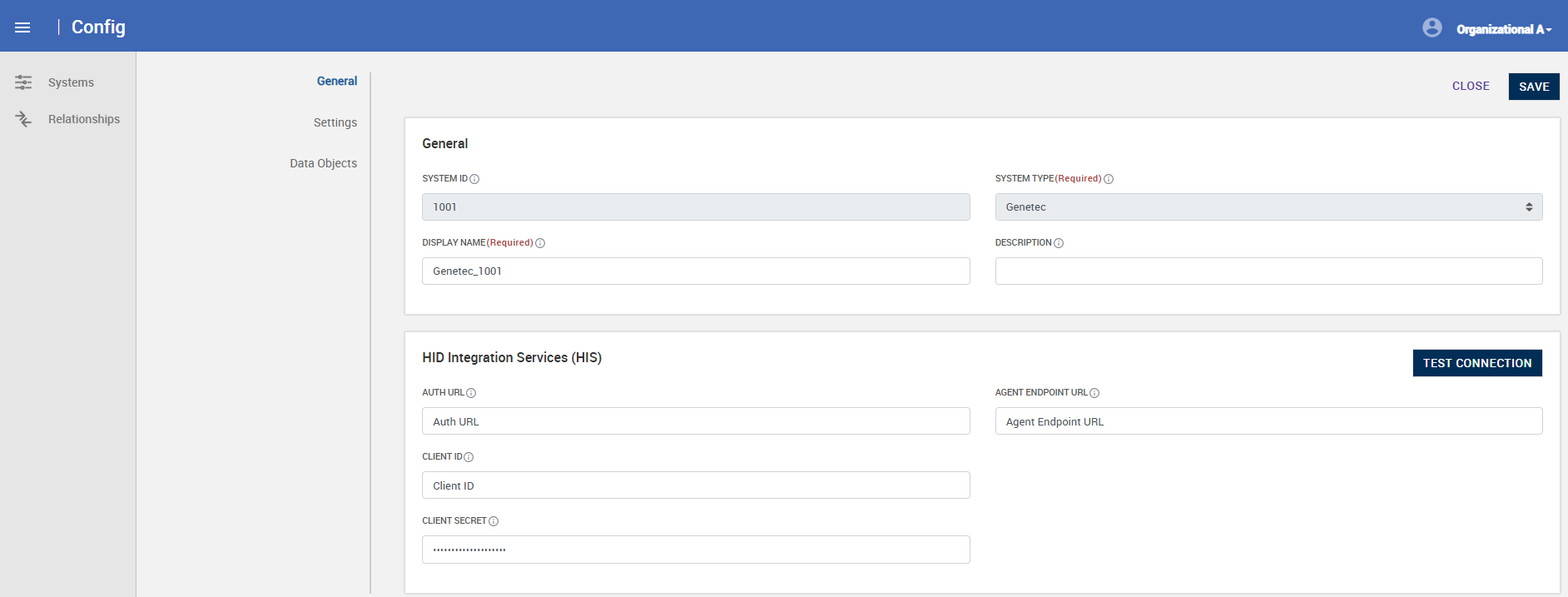
In the HID Integration Services (HIS) section of HID VM (the same section you opened in Step 1):
-
Paste each value you copied from the HIS Configuration Portal into the matching fields:
-
Auth URL
-
API Technical Account Client ID
-
API Technical Account Client Secret
-
Agent Endpoint URL
-
-
Review all entries carefully to make sure they are complete and accurate.
-
Click Save to apply the configuration. Upon, first save, necessary infrastructure is created.
-
After saving your configuration, test the connection to confirm that HID VM can communicate with the HIS platform. When testing for the first time, wait for about 5 mins after saving.
-
Look for the Test Connection option and run the test.
-
A successful test means:
-
This HID VM Agent instance is now linked to the HIS platform.
-
You can proceed to the next step.
-
Installing the HIS Agent to communicate with PACS
Overview
This section explains how to install the HIS on-premises agent so it can communicate with your PACS.
Before You Start
Make sure:
-
Docker hosting software is installed and configured in the hosting environment.
-
The PACS server is set up and accessible from the hosting environment.
-
The hosting environment has internet connectivity to communicate with the HIS platform.
-
You have reviewed:
-
HIS system requirements [HIS On-prem agent system requirements].
-
Steps for running HIS agents [How to run HIS agent – HID Integration Service | User Documentation].
-
Step 1:Access the HIS Agent Administration Portal
-
Log in to the HIS Agent Administration Portal.
-
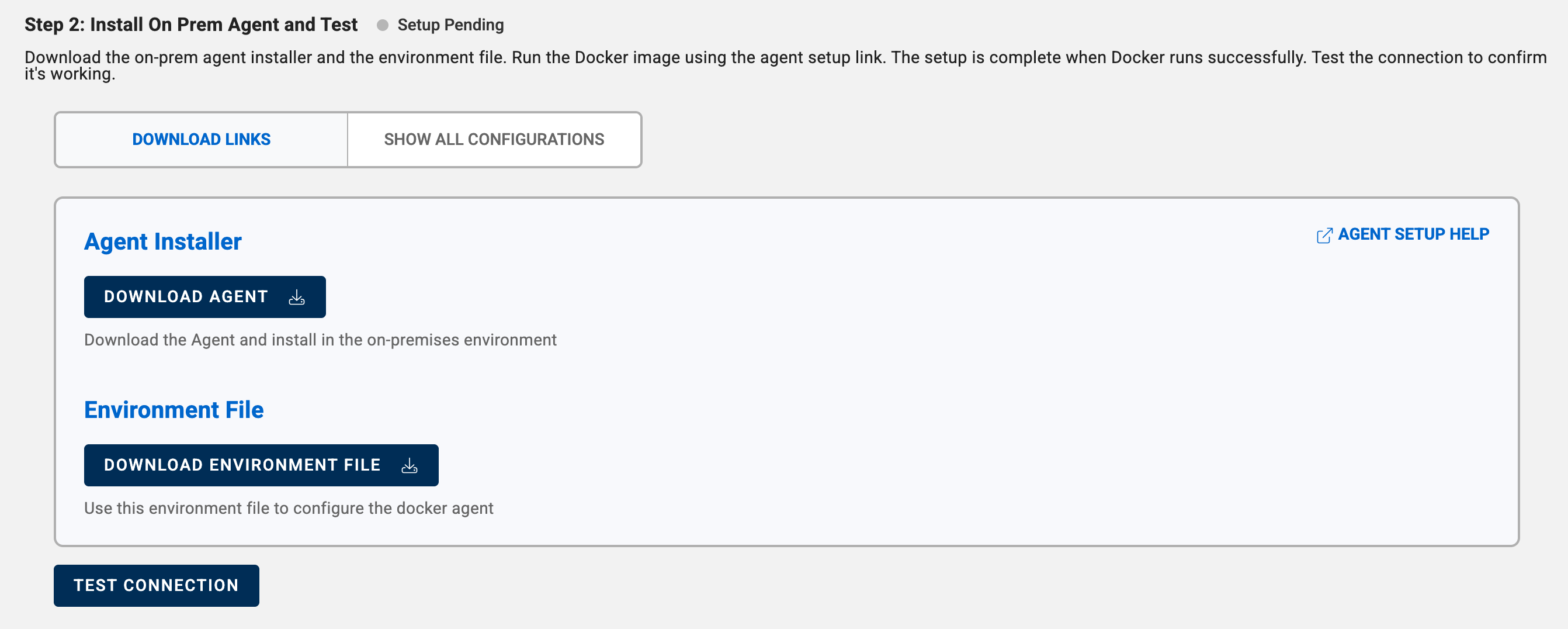
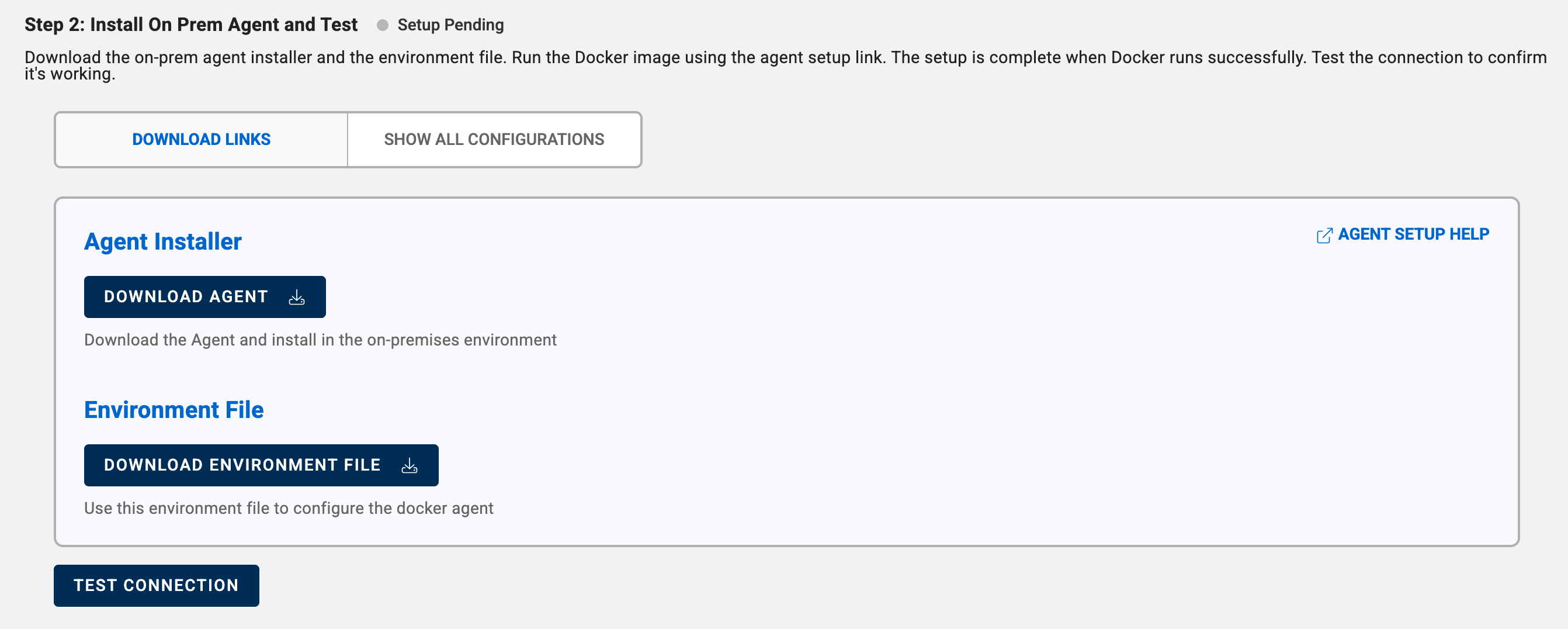
Navigate to the agent and go to InstallOn-Prem Agent and Test step.
Step 2: Download the Agent
-
Use the provided download link to get the agent onto your hosting environment.
-
Locate the AGENT SETUP HELP link on the right side of the page.
-
This link contains detailed instructions for configuring the agent in Docker using the environment file.
-
Step 3: Configure the Environment File
-
Download the environment file.
-
Update agent-specific parameters as described in the Agent Setup Help documentation.
Step 4: Review Agent-Specific Help Pages
Check the HIS agent documentation for:
-
Agent prerequisites
-
PACS setup steps
-
Agent configuration details
-
Running Docker Image
Examples of agent-specific help pages:
-
Mock Agent: HIS Mock Agent | HIS User documentation
-
Genetec: HIS Genetec Security Center Agent | HIS User documentation
Step 5: Run the Docker Image
Start the Docker container for the HIS agent. Confirm the agent is running by following the instructions in the respective agent setup help pages as shown in step 4.
For enhanced security:
-
Handle sensitive information (such as environment files and secrets) using a secure secrets management solution.
-
Ensure compliance with the end-customer’s security policies.
-
Never leave sensitive information (such as environment files and secrets) in plain files.
Step 6: Verify the Agent Connection
-
After the Docker image for the HIS agent is running successfully, go back to the HIS Agent Administration Portal.
-
Navigate to the Install On-Prem Agent and Test step.
-
Click TEST CONNECTION.
-
If the HIS agent can communicate with the HIS platform, you’ll see a success message.
-
If the test fails, review the help pages and confirm all configurations are correct.
-
What Success Means
-
The agent status changes to Connected.
-
The on-premises HIS agent is now able to communicate with the HIS platform.
-
The agent is ready for further configuration as needed.
End-to-End Integration
Once both connections (HID VM ↔ HIS and HIS ↔ PACS) have been tested and confirmed:
-
An end-to-end connection between HID VM and PACS is established through HIS.
-
HID VM can now:
-
Import master data from PACS. Note: It can take up to 5 mins for initial data sync to happen. Subsequent syncs do not have this wait time.
-
Broadcast updates to PACS via the HIS service.
-
Configuring HID VM HIS Connector
Step 1: Verify Access Areas
Go to HID VM → Admin → Access Area and confirm that access areas from the connected PACS have been imported. Note that, first sync can take up to 5 mins to pull in first batch of data.
Step 2: Check Location Configuration
Ensure that the relevant Location(s) in HID VM are linked to the newly created PACS system. This is done by reviewing Managed By attribute under Location Details → General tab
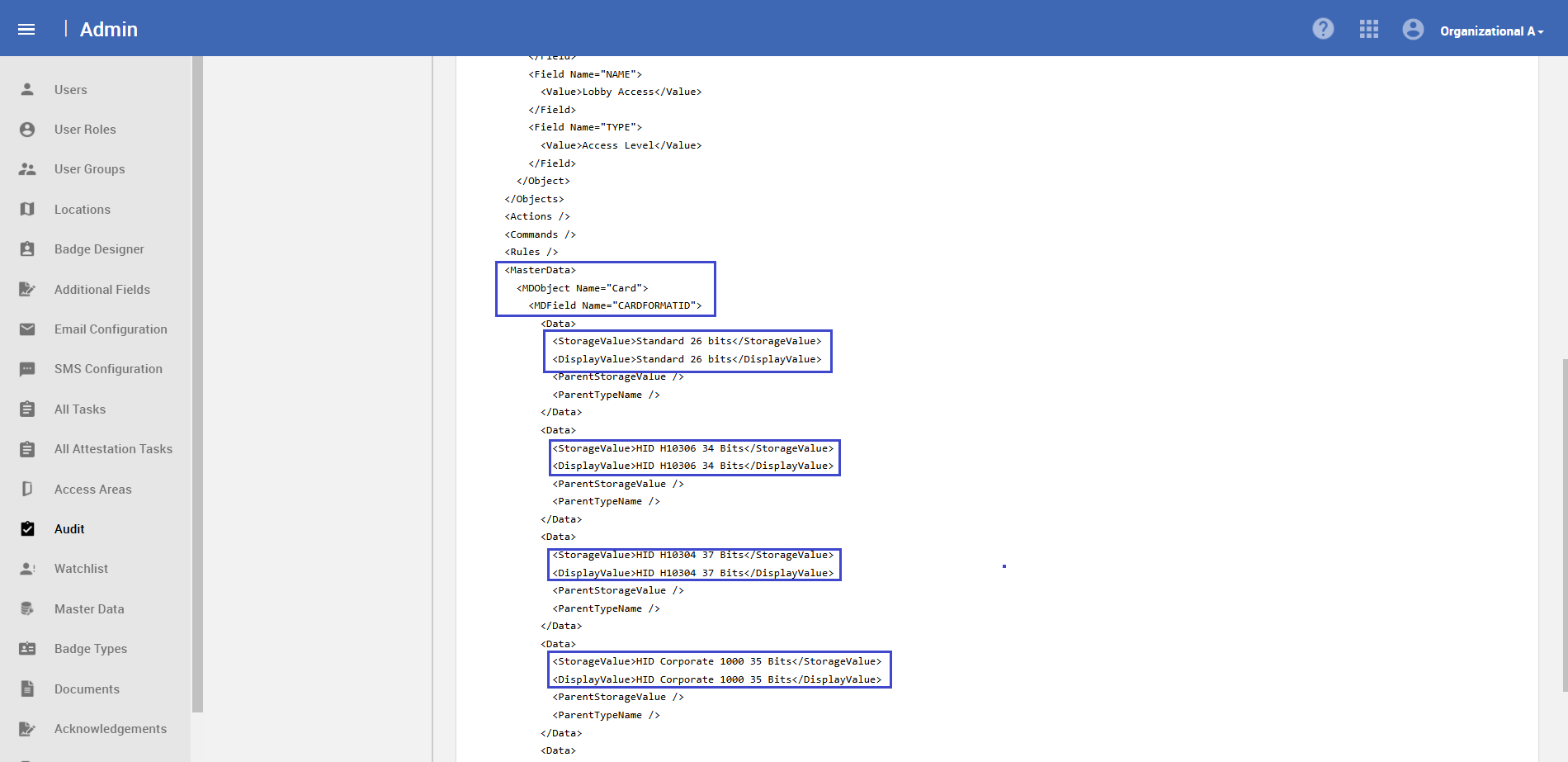
Step 3: Review Card Format Information
-
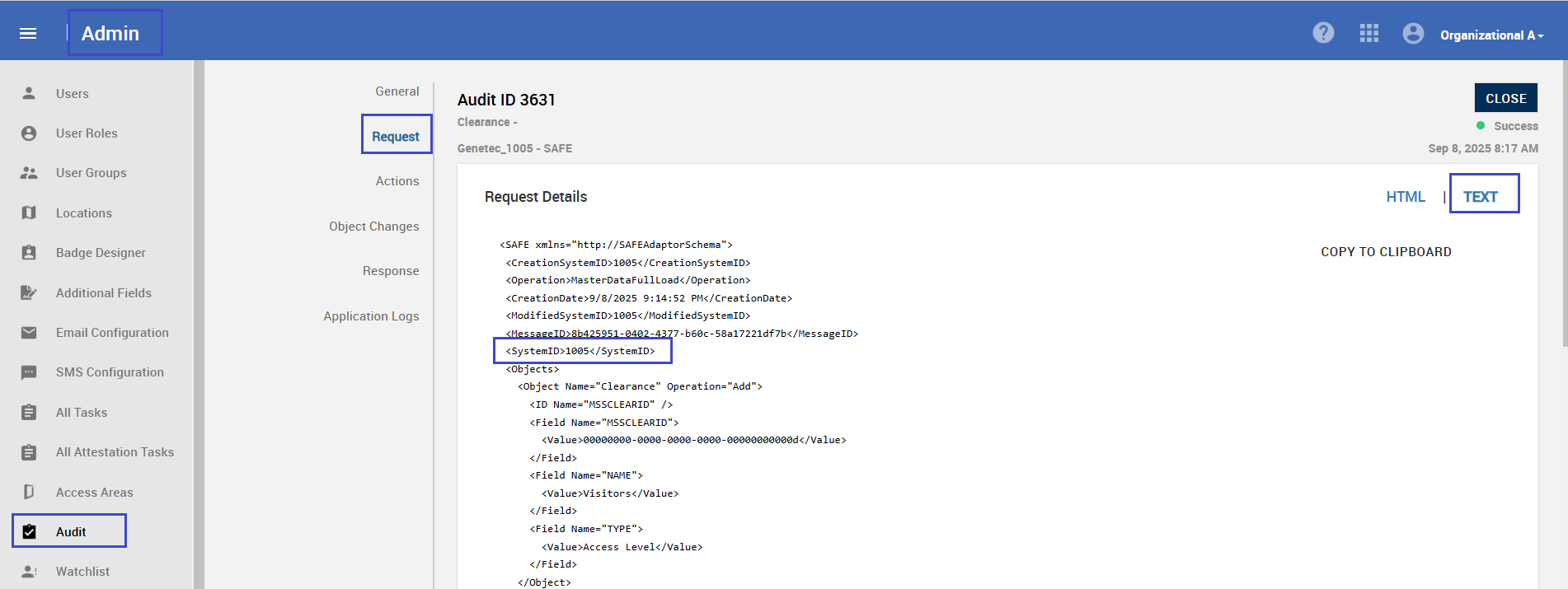
Navigate to HID VM → Admin → Audits.
-
Open the master data read entry for the configured PACS system.
-
Go to the Request tab and click Text to view details.
Alternative:
Check imported badge types by going to Admin->Badge Type → Open any Badge Type → Badge Format dropdown.
-
Confirm that imported badge formats appear in the list.
Step 5: Configure other Visitor Management Settings
To enable visitor management and broadcasting:
-
Assign default visitor areas
-
Go to Locations in HID VM and make sure each location has default visitor areas assigned.
-
-
Enable card broadcasting for visitor check-in
-
In Location Preferences, confirm that the options for broadcasting cards when visitors check in are enabled.
-
-
Configure Visitor Settings in the Agent
-
Open the agent in HID VM:
-
Navigate to Settings → General → System Configuration → Launch System Config Manager.
-
Go to Systems → Select the PACS system → General tab.
-
-
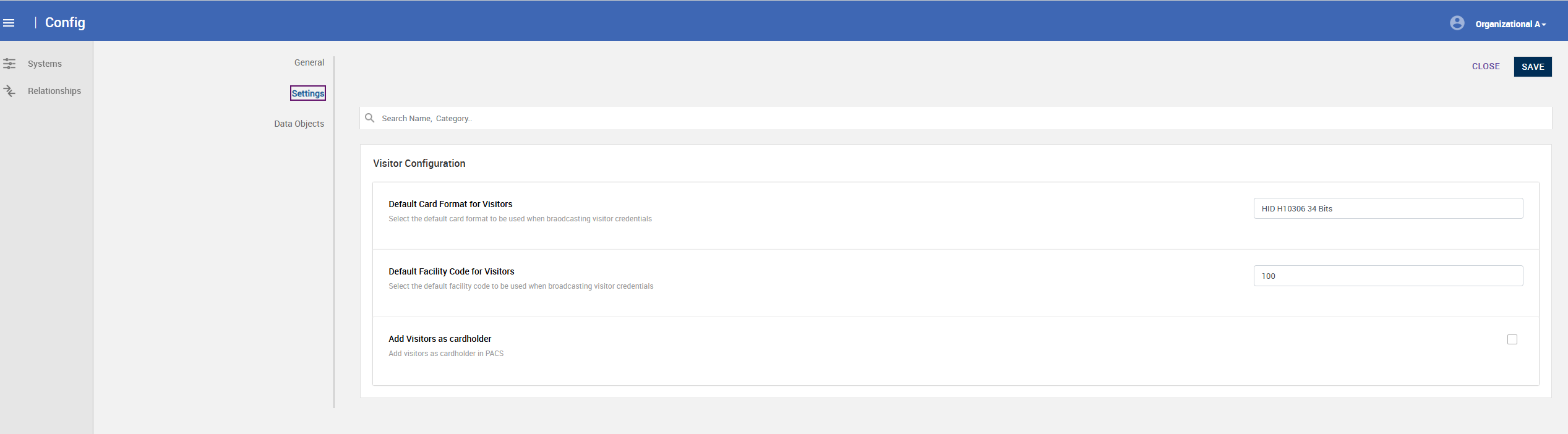
In the Visitor Configuration section:
-
Enter the default card format and facility code to use for visitor broadcasts. Select default values from steps above.
-
Select Add Visitors as Cardholder if visitors must be created as cardholders in the PACS system.
-
-
Adding Extension Fields and Field Mappings
This section explains how to enable field broadcasting, add extension fields, and map them to PACS fields for custom data synchronization.
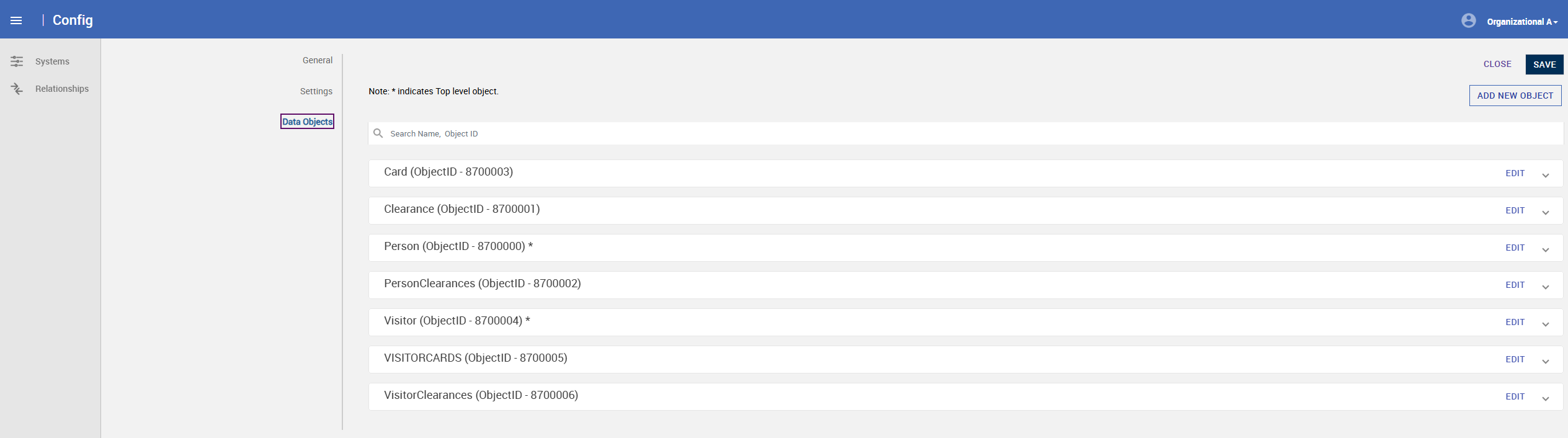
Step 1: Open Data Objects in HID VM
-
In HID VM, go to: Settings → General → Launch System Configuration Manager.
-
Navigate to Systems and open the agent details.
-
Select the Data Objects tab.
Step 2: Confirm Fields for Broadcast
-
Review the list of fields. Select a field using checkbox and click on Edit to see field details.
-
Make sure Enable Field Broadcast is checked for all fields that need to be sent to PACS.
Step 3: Add Extensions Fields
-
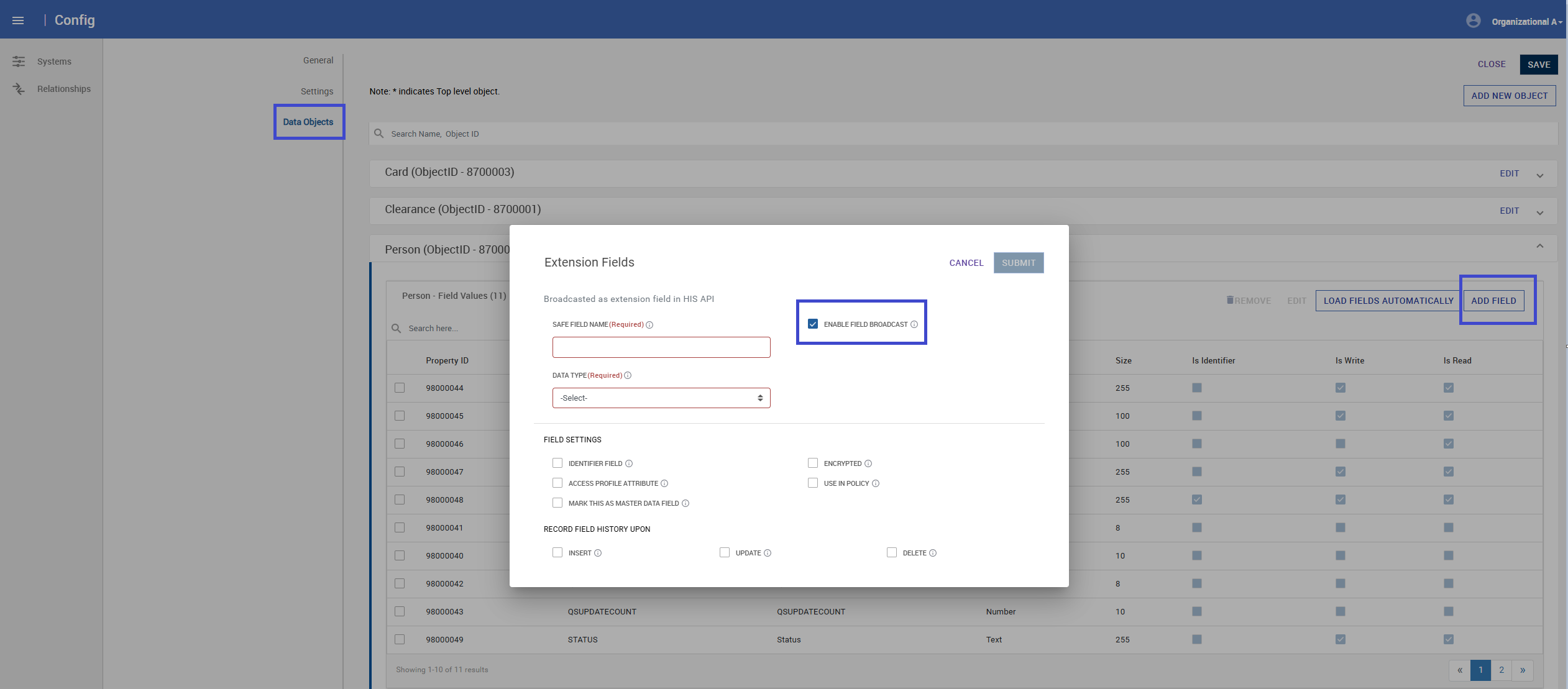
If new field mappings are needed, add them as Extension Fields.
-
To add an extension field:
-
You must know the HID VM Field Name and Data Type.
-
-
Extension fields are supported only for:
-
Person
-
Card
-
Visitor
-
Visitor Card
(They are not supported for Clearance or PersonClearance objects.)
-
To facilitate deployment processes, a list of all internal field names within these four objects is available on request. Please connect with your HID representative for more.
Step 4: Map Extension Fields to PACS
-
Log in to the HIS Agent Administration Portal.
-
Select the agent and go to the Field Mappings tab.
-
Navigate to the corresponding object tab.
-
Confirm that the extension fields added in HID VM appear automatically.
-
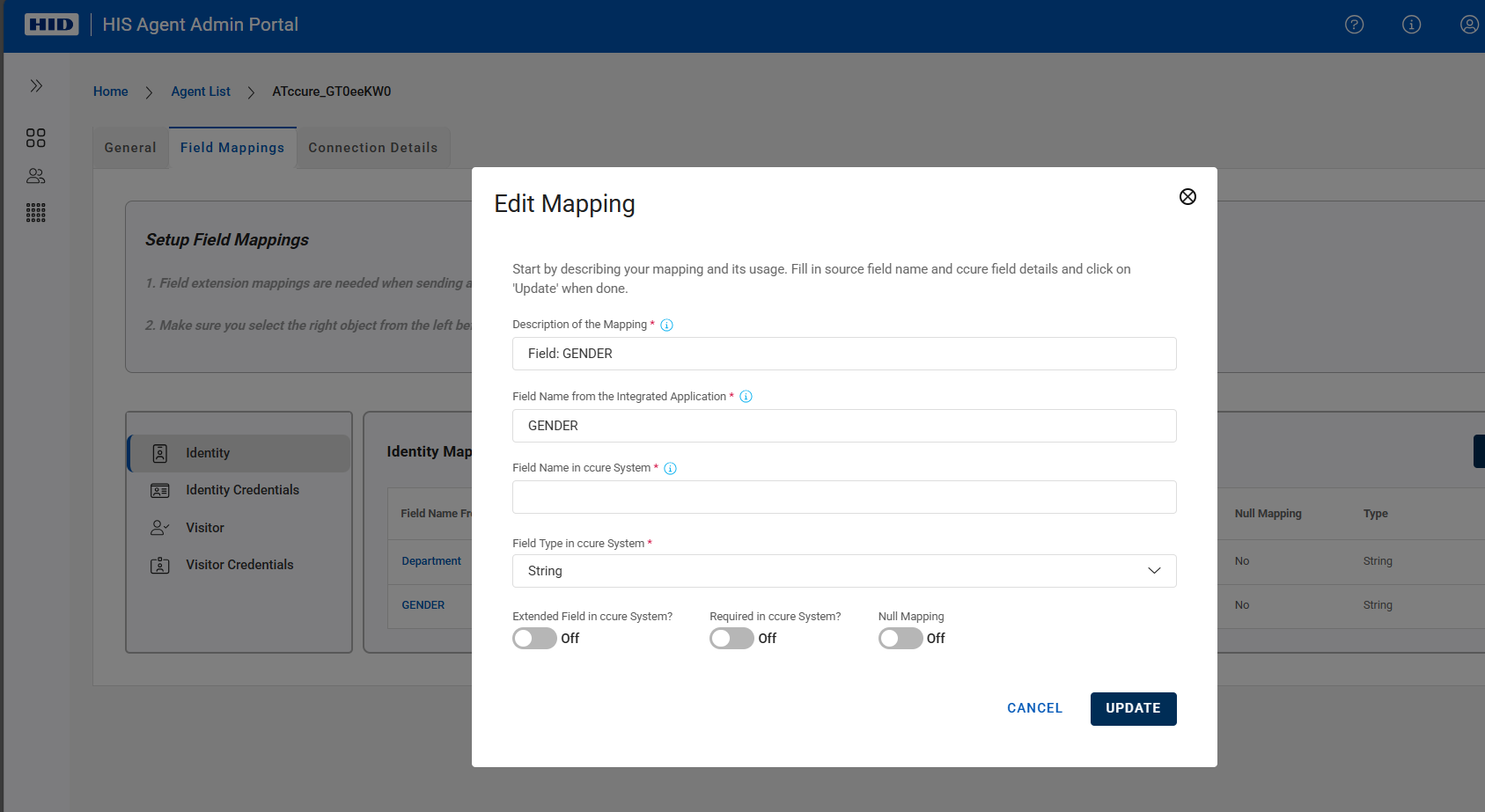
For each field:
-
Provide a description for reference.
-
Enter the Field Name and Field Type in the target PACS system.
-
Specify if the target field is:
-
Native (already exists in PACS)
-
Extended (must be created in PACS before mapping)
-
-
Indicate if the target field is required.
-
If the field needs to be skipped for the selected PACS, enable Null Mapping.(Refer Extension fields doc for more details)
-
-
Click Update, then Save to apply the mappings.
-
Step 4 is only needed for extended fields. Standard fields are already mapped and do not need to be mapped again.
-
Some PACS systems like Genetec support automatic creation of extension fields once specified above.
-
Other systems like CCure, do not have capability to automatically create extension fields. Their apis do not support that. They need to be manually created in target system before they are added here. Check the respective agent guides for more guidance.
Outcome
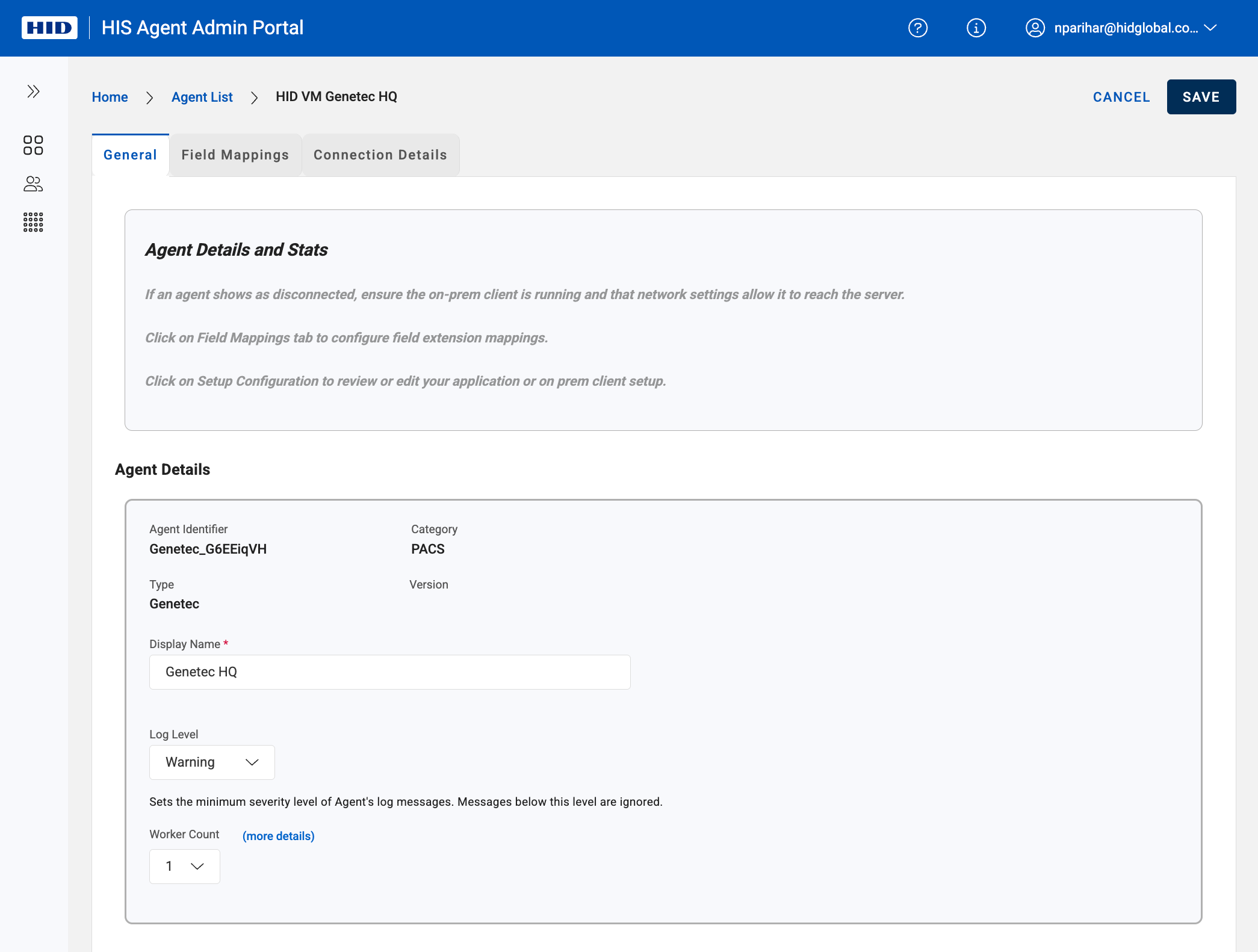
HID VM system is now configured to send additional data to target PACS system using the extension fields you defined.
Managing Agent Details
Overview
This section explains how to update general settings for an HIS agent, including display name, log level, and performance scaling options.
Step 1: Access Agent Settings
-
Log in to the HIS Agent Administration Portal.
-
From the agent list, select the agent you want to update.
-
Navigate to the General tab.
Step 2: Update Display Name
-
Change the Display Name if needed to make the agent easier to identify.
Step 3: Configure Log Level
-
Adjust the Log Level for troubleshooting:
-
Use Debug or Trace when diagnosing issues (these options provide detailed logs).
-
Return to the default level after troubleshooting to avoid excessive logging.
-
Step 4: Set Agent Instances
-
Configure the number of agent instances to manage worker processes in the on-premises environment:
-
Recommended range: 1 to 5 (default is 3).
-
Increasing this value may improve performance but can overload PACS listeners.
-
Adjust only when optimizing performance.
-
Best Practices
-
Increase instances only when processing large backlogs.
-
Monitor system performance after changes to avoid crashes or instability.