Manage Field Mappings
Field mappings are utilized to manage field extensions for objects such as Identity, Visitor, and Credentials. The HIS Configuration Manager maps these fields from integrated application with their respective counterparts in the target system.
To verify and configure the fields to correspond with those in the target system, please follow these steps:
-
Log in to HIS Agent Admin portal.
-
Select an agent from the list and navigate to the Field Mappings tab.
-
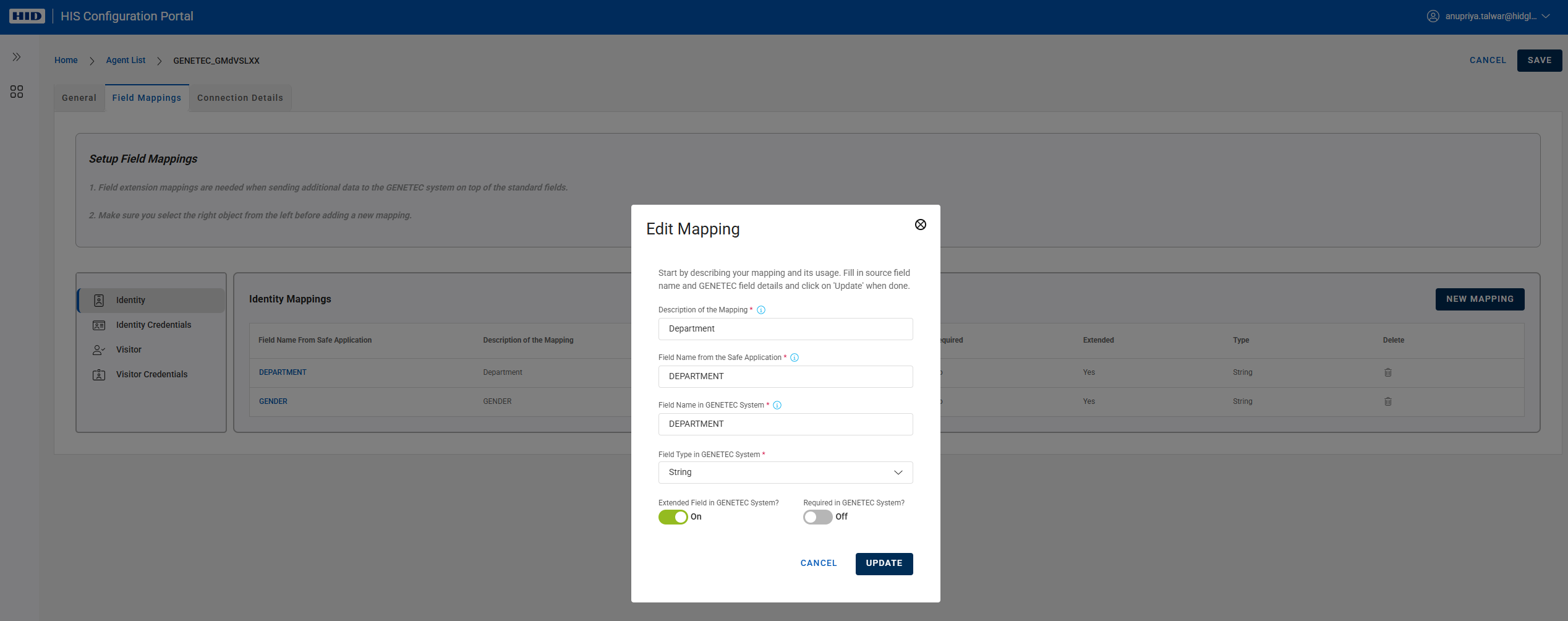
Click on the required object tab and the specific field mapping created by integrated client application. Note that, in the below example, the mappings have been automatically created by the integrated application using HIS APIs. If that is not the case, create new mapping using NEW MAPPING button.
-
Provide the following details for a field mapping
-
A description of the mapping to help you remember the purpose of the mapping later.
-
Field Name and Field Type in target system
-
Specify whether the target field is an extended field in that system
-
Specify whether the target field is a required field in that system
-
-
Click on Update when done.
-
Select Save to apply the field mappings.
-
Source system should now be able to send additional data to target system using extended fields.
Next step - Managing Agent General Details


