Management Console
This chapter presents an overview of the Validation Responder Management Console. All routine Validation Responder operations are performed through this web-based interface.
Log on to the Validation Responder Management Console.
-
The first time you log on to the Validation Responder Management Console, your web browser will warn you that the server’s SSL certificate is not trusted. To configure the SSL certificate for your environment, see section Update Server Certificate.
-
The first time that you log on to the Validation Responder Management Console, you will enter the user name admin, and the password that you specified during the initial configuration process.
After you have configured additional required Validation Responder Management Console user accounts, you can use a different account to log on.
After successful validation of the user name and password, an OTP will be generated and sent to the user email. Subsequently, the user will be prompted to enter the OTP received through the email.
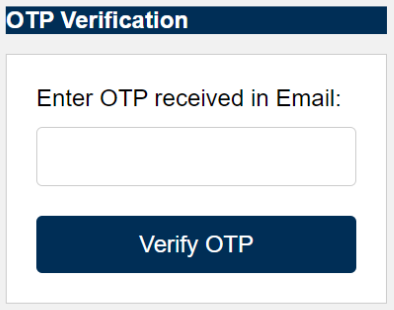
Once the OTP is entered and verified, then user is allowed to log in to the management console.
-
Open a web browser and connect to the Validation Responder Management Console using the IP address assigned during initial configuration.
The Validation Responder Management Console is available on port 3605, for example:
https://responder-hostname:3605.
-
Enter a Login user name and Password, and then click Login.
The Welcome page displays information about the version of the software that is running.
Topics in this section:


