End User Guide
Note: Desktop Environment Assumption
Unless stated otherwise, procedures in this documentation apply to the GNOME desktop environment. Steps may differ in other desktop environments.
This section provides information about using ActivClient on your computer.
Learn More About ActivClient Components
Main User Scenarios
Smart Card and Security Key Operations
Location:  ActivClient Console > Devices view
To open the ActivClient Console use either of the following methods:
Using the Activities overview
-
Open the Activities overview by selecting Activities in the top-left corner of the top bar or pressing the Super key on your keyboard.
-
Open ActivClient Console in either of the following ways:
-
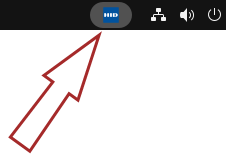
Select the ActivClient icon.
-
Begin typing "ActivClient", then select ActivClient from the search results.
The Console will be launched, with the Devices view displayed by default.
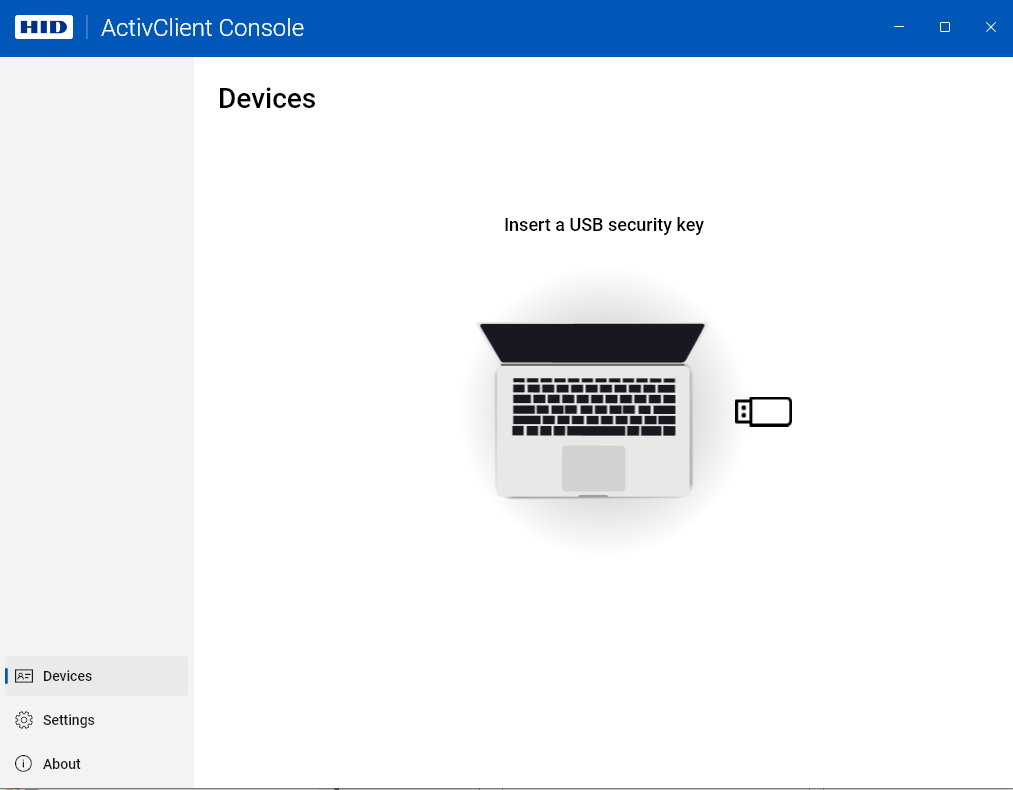
If no token is connected, the interface prompts you to insert a USB security key or a smart card:
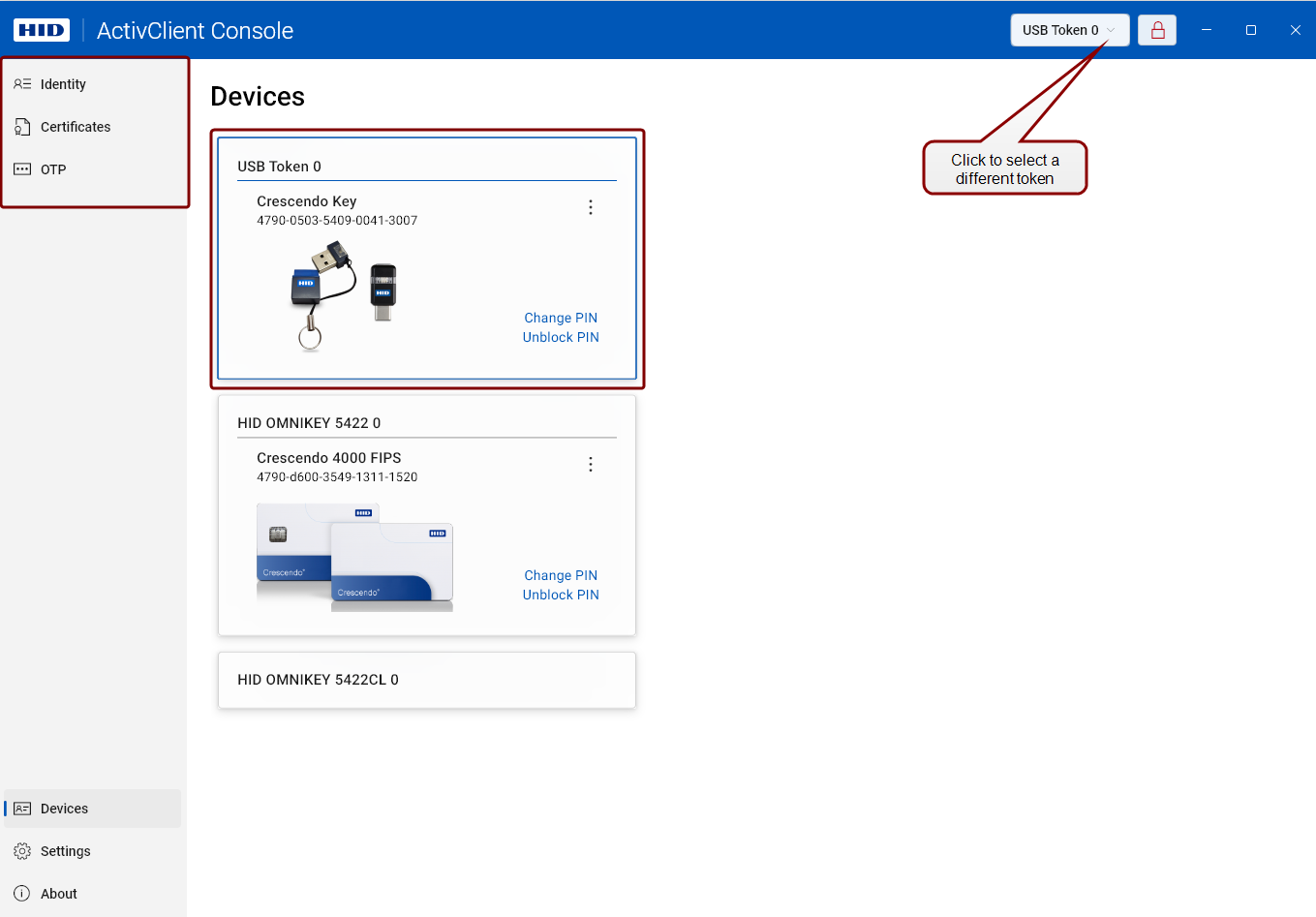
Once you connect a device, you can see and start using all user interface elements available for it.
Note:
-
If you have connected multiple , the first connected token will remain selected unless you select a different one.
-
Token-specific actions will become visible in the top-left corner of the application window.
Tip!
For more device-related actions in
ActivClient Console, see
Devices.
Working With Certificates and Cryptographic Keys
Location: ActivClient Console > Certificates view
To open the ActivClient Console use either of the following methods:
Using the Activities overview
-
Open the Activities overview by selecting Activities in the top-left corner of the top bar or pressing the Super key on your keyboard.
-
Open ActivClient Console in either of the following ways:
-
Select the ActivClient icon.
-
Begin typing "ActivClient", then select ActivClient from the search results.
The Console will be launched, with the Devices view displayed by default.
If no token is connected, the interface prompts you to insert a USB security key or a smart card:
Once you connect a device, you can see and start using all user interface elements available for it.
Note:
-
If you have connected multiple , the first connected token will remain selected unless you select a different one.
-
Token-specific actions will become visible in the top-left corner of the application window.
Tip!
For more certificate-related actions in
ActivClient Console, see
Certificates.
Using One-Time Passwords (OTPs)
Location: ActivClient Console > OTP (One-Time Passwords) view
To open the ActivClient Console use either of the following methods:
Using the Activities overview
-
Open the Activities overview by selecting Activities in the top-left corner of the top bar or pressing the Super key on your keyboard.
-
Open ActivClient Console in either of the following ways:
-
Select the ActivClient icon.
-
Begin typing "ActivClient", then select ActivClient from the search results.
The Console will be launched, with the Devices view displayed by default.
If no token is connected, the interface prompts you to insert a USB security key or a smart card:
Once you connect a device, you can see and start using all user interface elements available for it.
Note:
-
If you have connected multiple , the first connected token will remain selected unless you select a different one.
-
Token-specific actions will become visible in the top-left corner of the application window.
FIDO Credentials
Location: ActivClient Console > FIDO view
To open the ActivClient Console use either of the following methods:
Using the Activities overview
-
Open the Activities overview by selecting Activities in the top-left corner of the top bar or pressing the Super key on your keyboard.
-
Open ActivClient Console in either of the following ways:
-
Select the ActivClient icon.
-
Begin typing "ActivClient", then select ActivClient from the search results.
The Console will be launched, with the Devices view displayed by default.
If no token is connected, the interface prompts you to insert a USB security key or a smart card:
Once you connect a device, you can see and start using all user interface elements available for it.
Note:
-
If you have connected multiple , the first connected token will remain selected unless you select a different one.
-
Token-specific actions will become visible in the top-left corner of the application window.