Getting Started With ActivClient Console

Launching ActivClient Console
When you first launch the ActivClient Console, the Devices view is displayed by default.
If no token A physical device, such as a smart card or USB key, that securely stores certificates, cryptographic keys and credentials used for authentication, digital signing, and encryption tasks. is connected, the interface prompts you to insert a USB security key or a smart card:
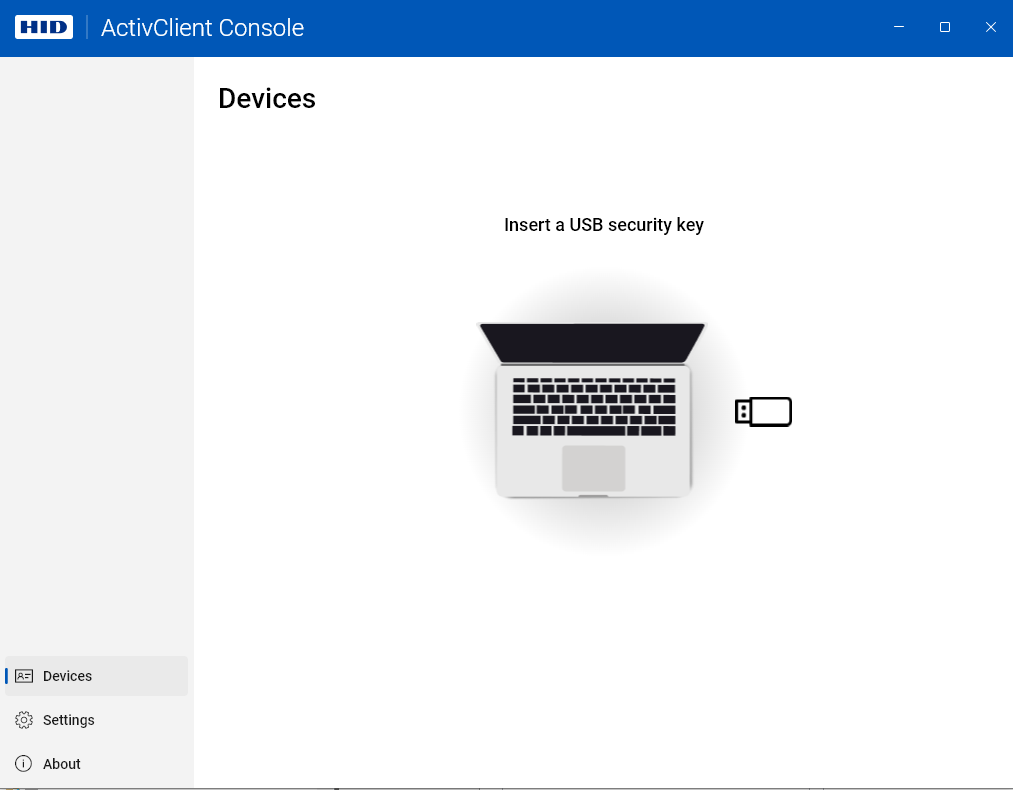
Once you connect a device, you can see and start using all user interface elements available for it.
-
If you have connected multiple tokens A physical device, such as a smart card or USB key, that securely stores certificates, cryptographic keys and credentials used for authentication, digital signing, and encryption tasks., the first connected token will remain selected unless you select a different one.
-
Token-specific actions will become visible in the top-left corner of the application window.
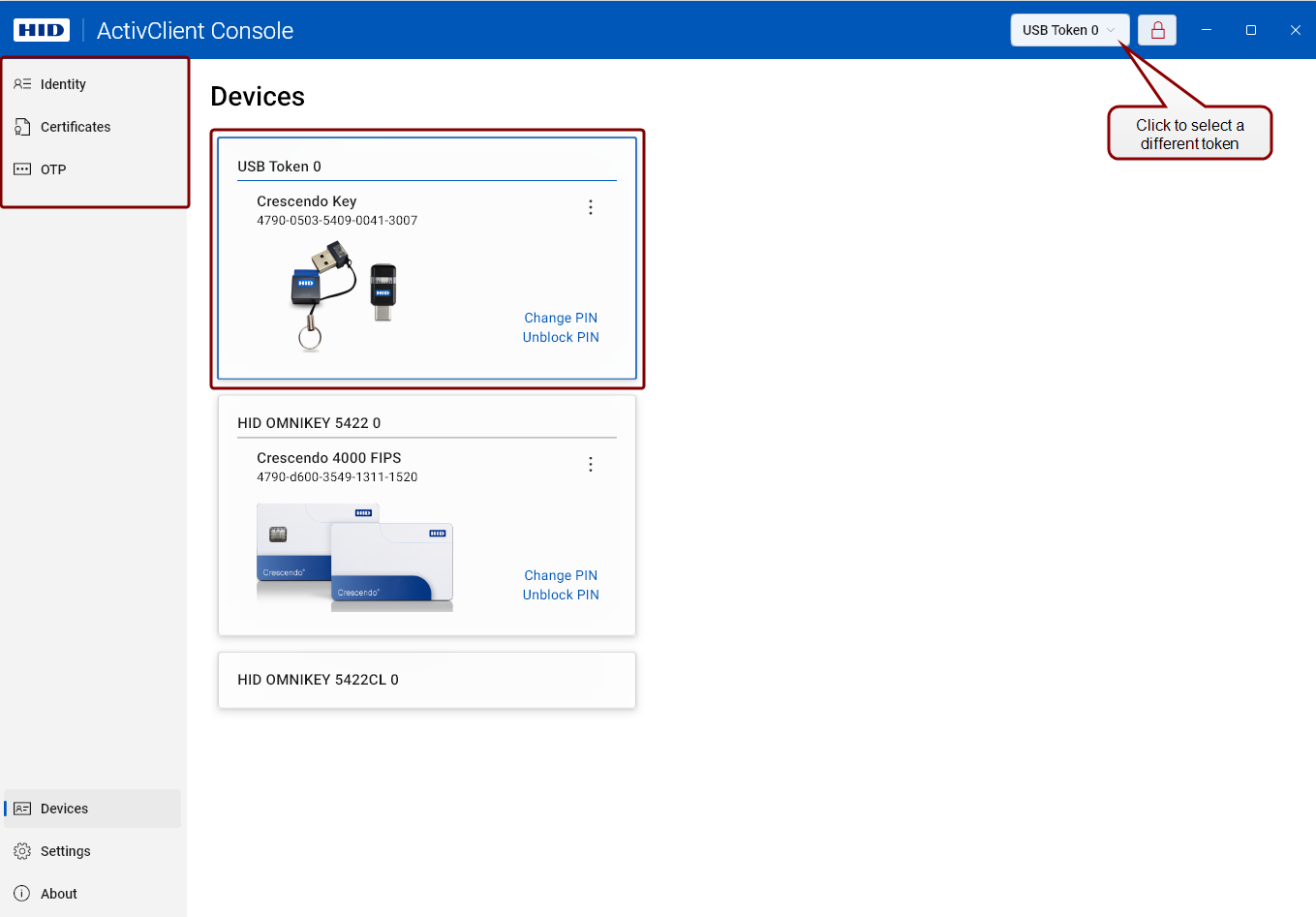
Navigating ActivClient Console User Interface
ActivClient Console provides an intuitive user interface, allowing you to quickly navigate between devices and various functionalities.
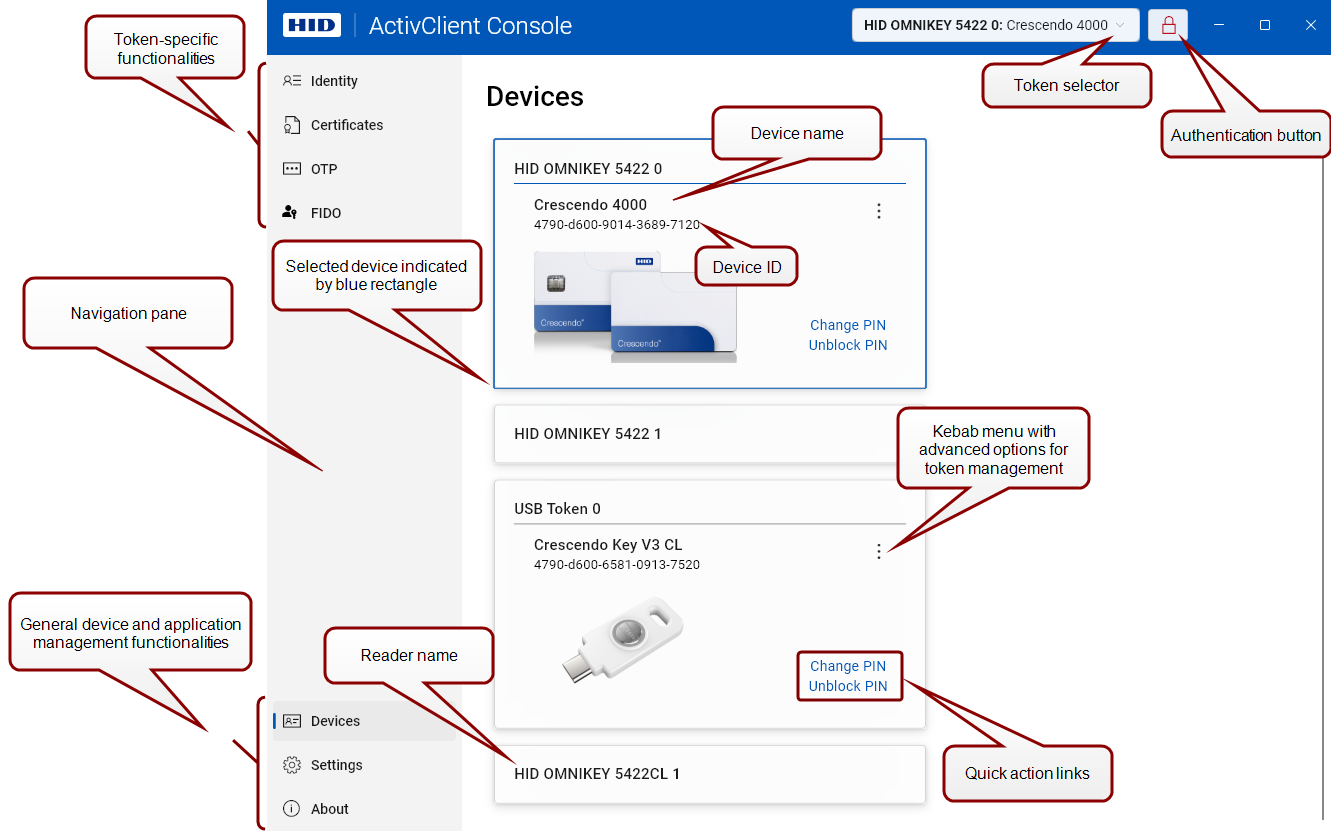
Token Selector
This button allows you to select a connected device from a drop-down list.

The Token Selector can be configured in Settings to display either the selected reader or token or not to be displayed at all.
Authentication Button
This button, marked with a lock symbol, shows whether you are authenticated to the selected device.
Click the button to change the authentication state (authenticate/deauthenticate).

-
A closed red lock symbol
 indicates that the PIN hasn't been entered, and the token is locked.
 -
An open blue lock symbol
 indicates successful authentication.
 -
A closed gray lock symbol
 indicates that authentication is not possible (e.g., the PIN is blocked).
Navigation Pane
The navigation pane on the left gives you access to the individual features and functionalities of ActivClient.
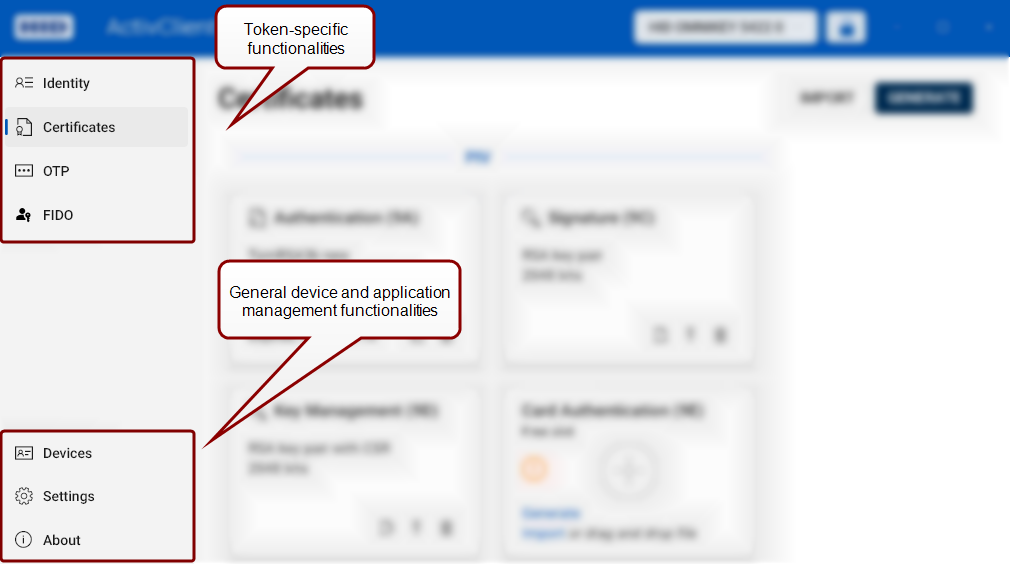
Token-Specific Functionalities
-
Identity – View personal and token information
-
Certificates – Import, export, generate, and manage certificates and cryptographic keys stored on your device
-
OTP (One-Time Passwords) – Configure and generate OTPs
-
FIDO – View and delete FIDO credentials on your device