Add an End-Customer
This procedure describes steps that Partner Administrators need to follow in HID Customer Central to add their end-customers, invite their end-customer administrators and assign agents based on their assigned billing plans.
-
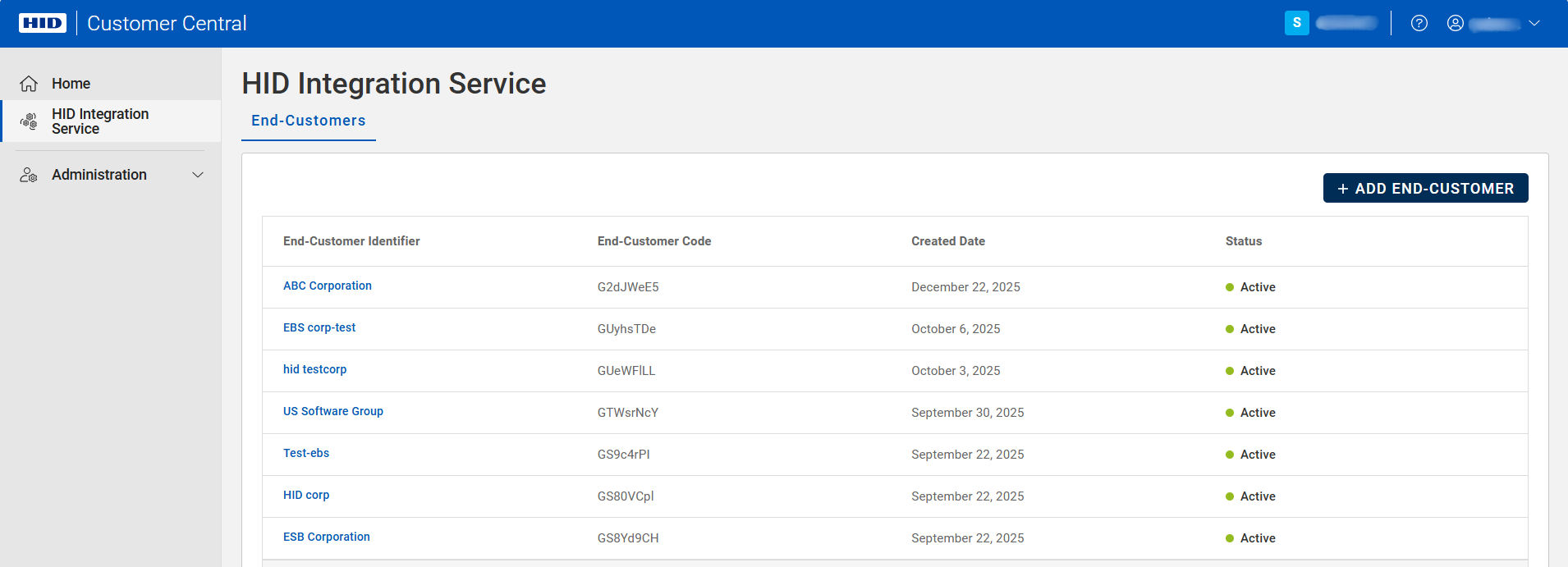
Click HID Integration Service
 in the left menu.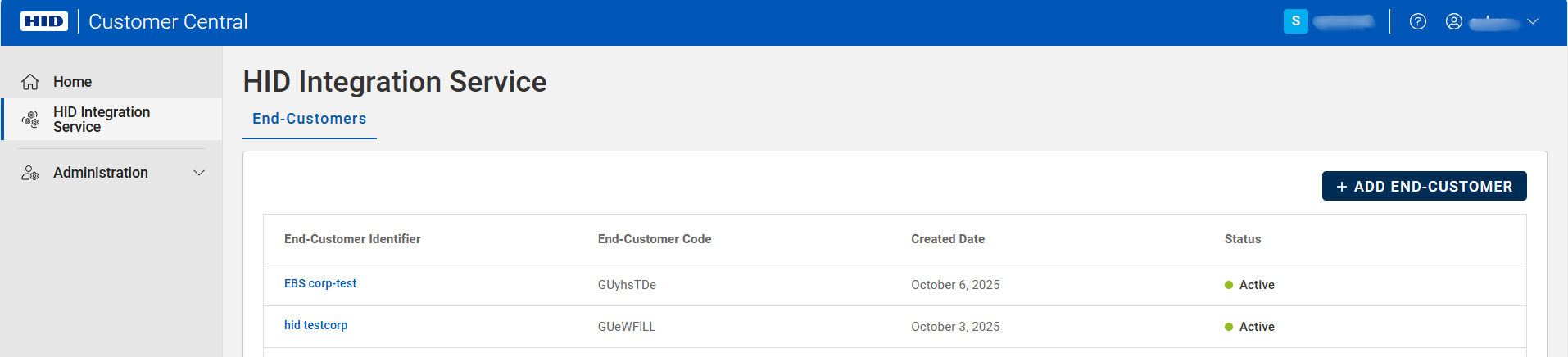
-
Click ADD END-CUSTOMER to open the "Add End-Customer" page, then follow the four steps shown below to add an end-customer.
 1. End-Customer Information
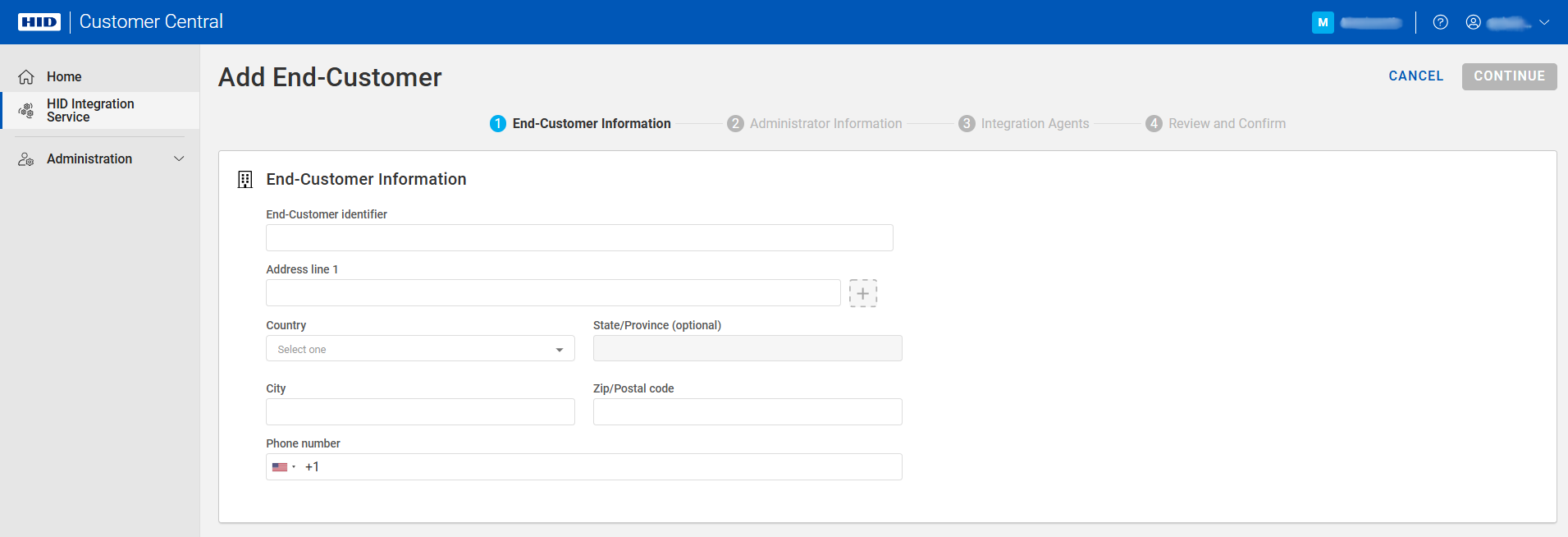
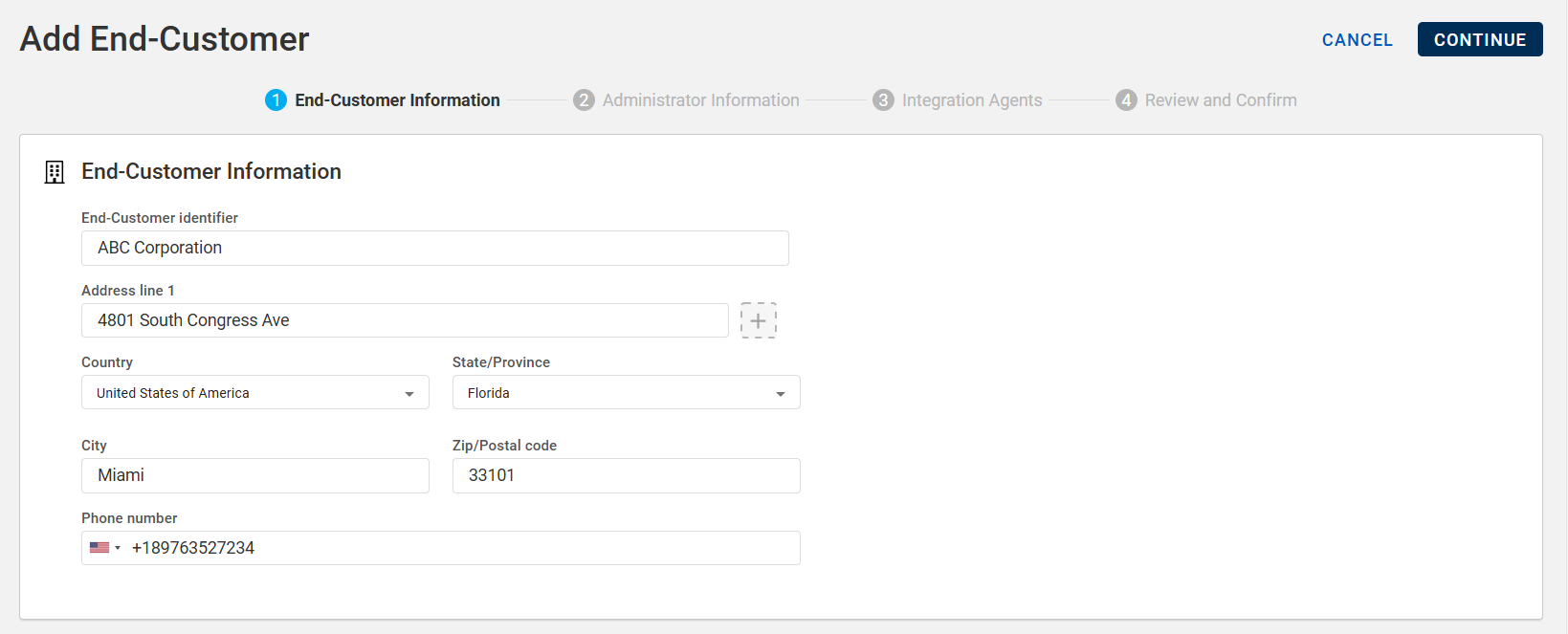
Enter the end-customer details in the fields shown below and click CONTINUE.
-
End-Customer identifier: Name or Identifier of the end-customer. This must be unique across all your end-customers. It is used for generating invoices, tracking data usage, and managing service cancellations or renewals.
-
Address: Address of the end-customer or integrator. This field is validated, so please make sure that correct details are entered. This information must be entered accurately to avoid any typos.
-
Phone number: Phone number of the end-customer or integrator. Our team may reach out on this phone number when providing support.
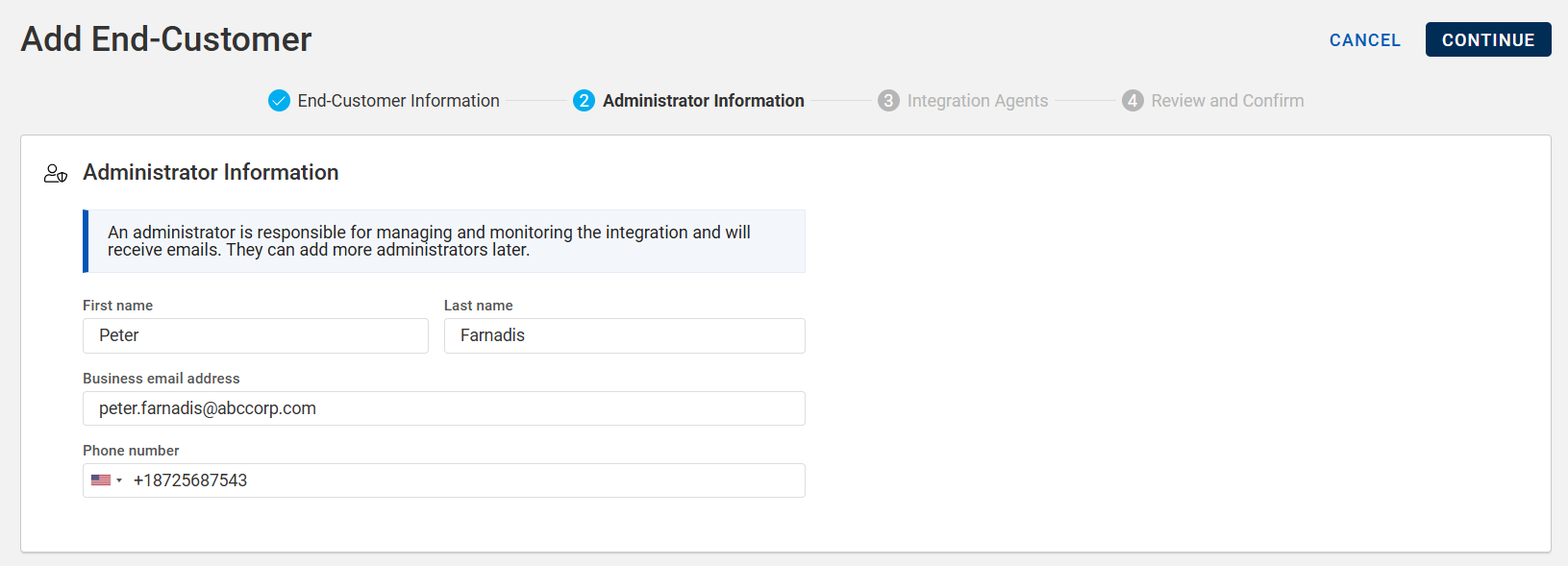
 2. Administrator Information
Note: End-Customer Administrators need to know details on PACS infrastructure and local topology where agent is being installed, and they should also have a general understanding of IT systems and networks. They are typically part of end-customer's IT team or may be affiliated with a Partner's or Integrator's professional services team.
2. Administrator Information
Note: End-Customer Administrators need to know details on PACS infrastructure and local topology where agent is being installed, and they should also have a general understanding of IT systems and networks. They are typically part of end-customer's IT team or may be affiliated with a Partner's or Integrator's professional services team.Enter the end-customer administrator details in the fields shown below and click CONTINUE.
Important: It is essential to provide a valid name and email address here, as this information is used to send onboarding instructions for the HIS Agent Configuration Portal, which is used to activate and configure the purchased agents.-
First name: First name of the end-customer administrator.
-
Last name: Last name of the end-customer administrator.
-
Business email address: Email address of the end-customer administrator.
-
Phone number: Phone number of the end-customer administrator.
 3. Integration Agents
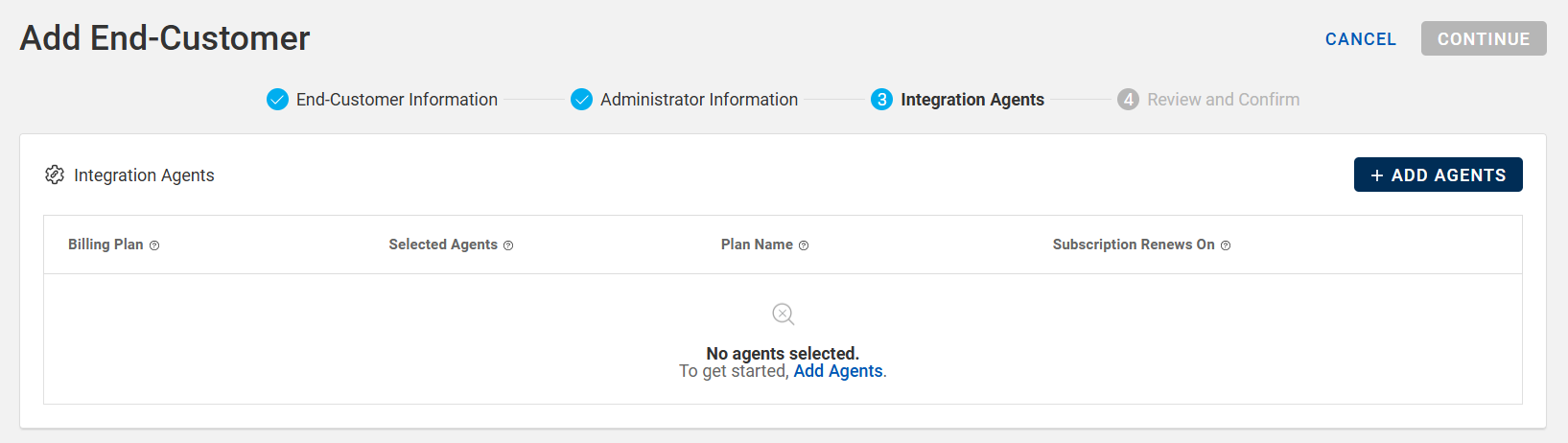
To add agent(s), follow the steps below:
-
Click ADD AGENTS to select a billing plan and then proceed with agent(s) selection.
-
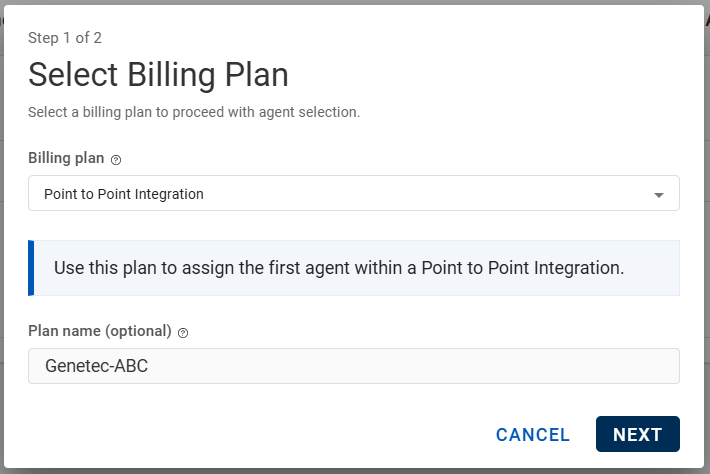
The 'Select Billing Plan' pop-up will appear. Select a billing plan from the drop-down based on your requirements, then click NEXT to proceed with agent(s) selection.
In the optional 'Plan name' field, you can provide a friendly name for your subscription plan to help you identify it easily.
Note:Billing plans are pre-arranged sellable modules with pre-configured prices and agents as agreed with partners.
They are used by partners as templates to create a subscription order for distributing or selling HIS integrations agent to end-customers. They are assigned to partner during their onboarding.
Partners may also use these plans to assign a test or demo 'End Customer' to themselves for the purpose of developing, testing, or demonstrating integrations.
 Important:
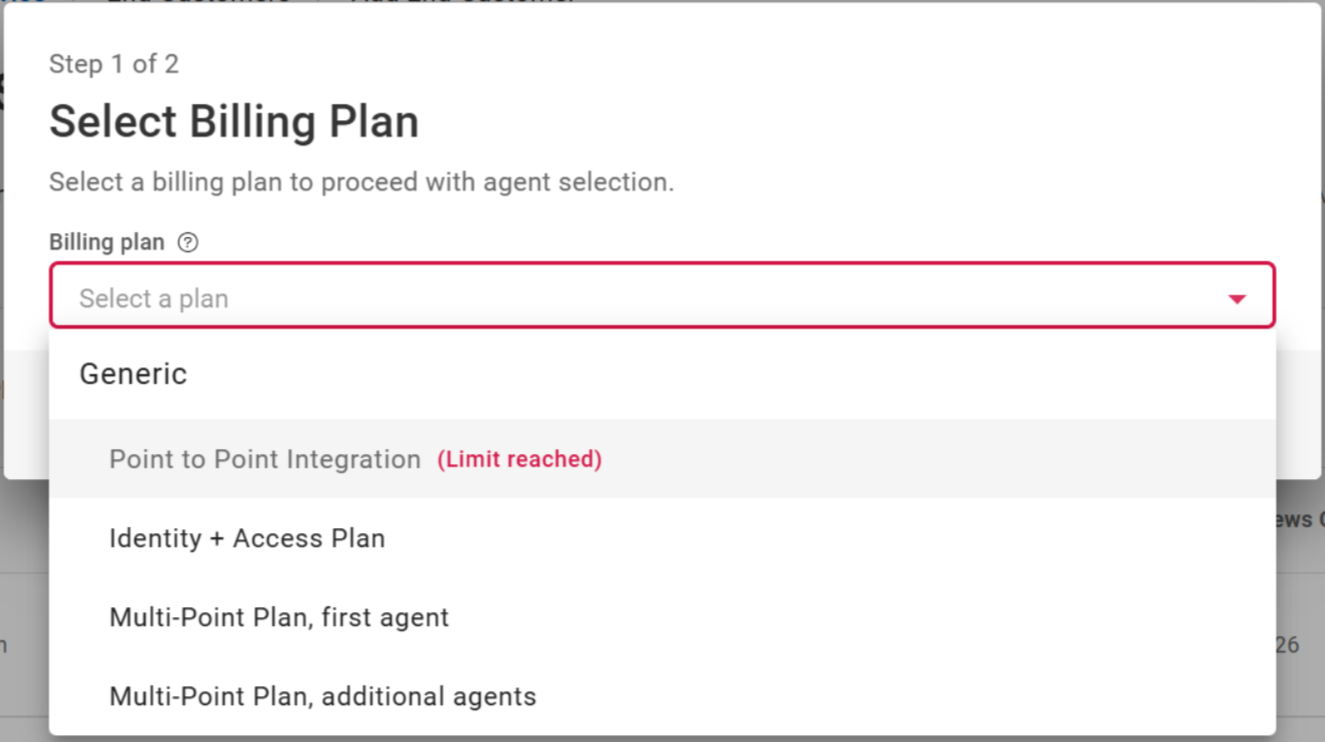
Certain subscriptions can only be distributed a limited number of times to an end-customer. For example, the 'Multiple Point Plan, First Agent' can be distributed only once to an end-customer. Future agent assignments must use the 'Multiple Point Plan, Additional Agents' plan.
If the "Limit reached" notification appears for any of the billing plans, select a different billing plan to continue with the billing plan selection.
For more information on this limitation or to upgrade it, contact your HID sales representative.
-
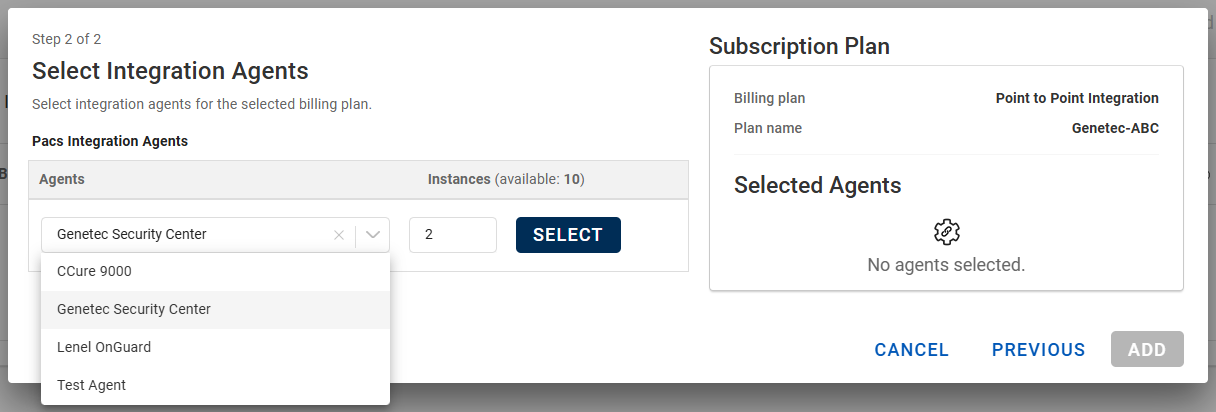
The "Select Integration Agents" pop-up will appear. Select the integration agent(s) with number of instances, then click SELECT.
Important:Each Billing Plan is pre-configured with the agents and the number of agent instances that can be distributed through it.
Select instances up to the number of available agents displayed. Selecting more instances than the available agents is not allowed.
-
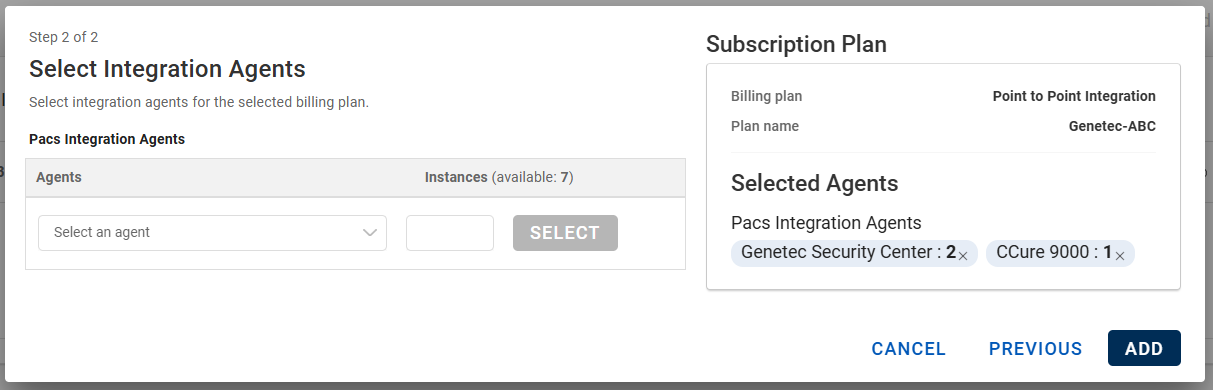
Once selected, the selected agent(s) along with the number of instances will appear in the "Selected Agents" section (on the right side) and then, click ADD.
If necessary, you can also remove the selected agents by clicking "X" and then select the appropriate agent(s) again.
-
Now, the selected billing plan along with the agent(s) will be listed in the Integration Agents list. Then, click CONTINUE.
If necessary, you can remove the added billing plan along with all its agents by clicking delete icon (
 ). To continue for the next step, make sure that at least one agent is selected.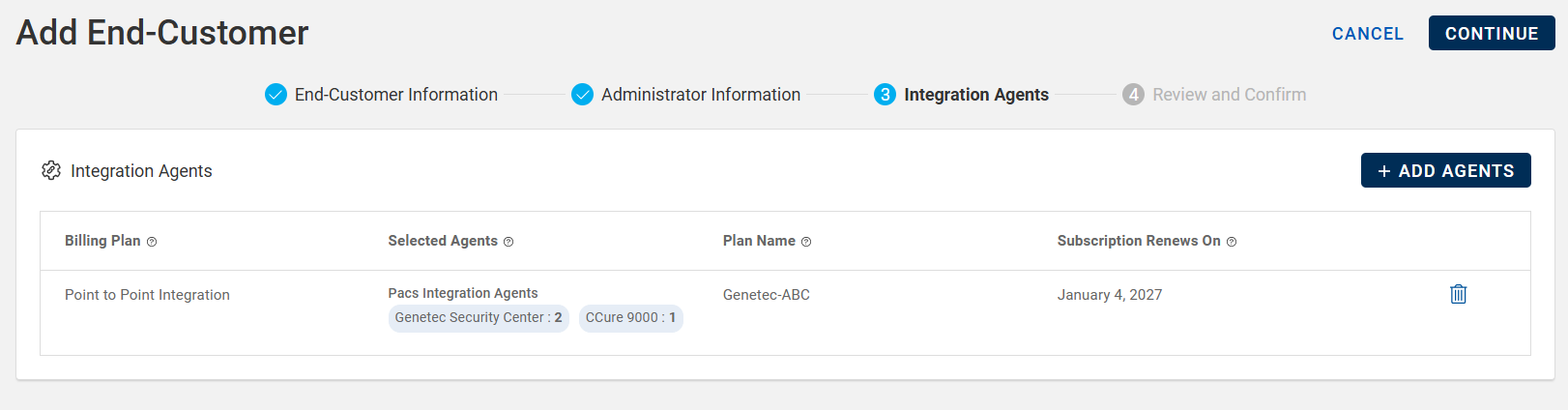
4. Review and Confirm
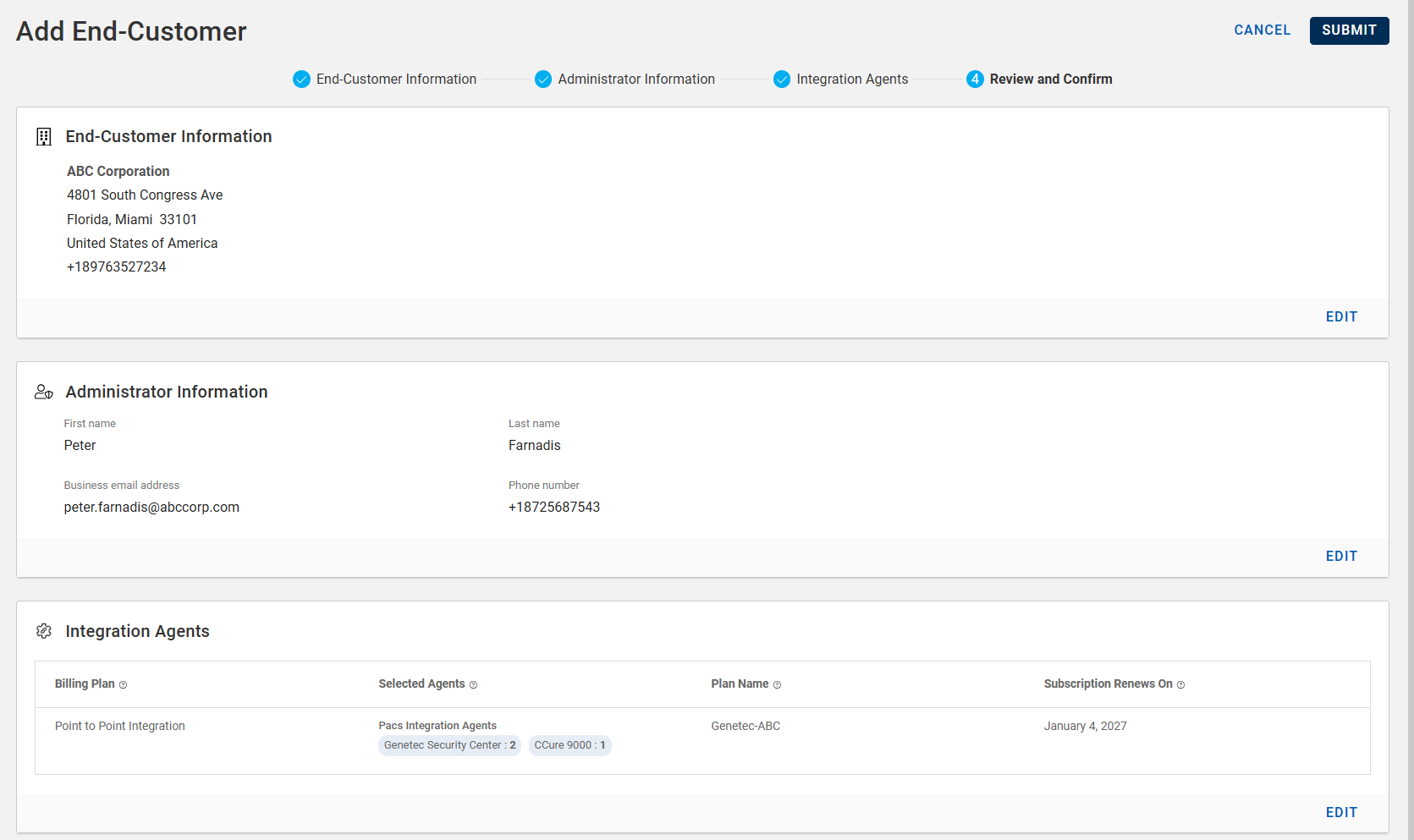
Verify and confirm that all end-customer details entered in each section above are correct, then click SUBMIT to add the end-customer.
If necessary, you can modify or update the end-customer details during the review by clicking EDIT.
-
-
Once an end-customer account is added, a success message appears, and an email will be sent to the end-customer administrator.
Now, the newly added end-customer appears in the End-Customers list.