Crescendo Manager Basics

Installing Crescendo Manager
macOS users: Crescendo Manager can be installed directly from the App Store.
Windows users: The Crescendo Manager installer is provided as a signed MSI Microsoft Installer is a software component used for the installation, maintenance, and removal of software on modern Microsoft Windows systems. package.
Configuring WDAC or AppLocker to use PowerShell Constrained Language Mode may prevent the PowerShell scripts included in the Crescendo Manager MSI installer from running. As a result, you may be unable to install a new version of Crescendo Manager or uninstall or update an existing installation on a Windows machine.
Until a solution is available, temporarily disable this mode before installing, updating, or uninstalling Crescendo Manager on Windows. We are working on an installer update that will support this security mechanism.
To install Crescendo Manager on Windows:
- Download the signed MSI package and save it to your desired location.
- Double-click the MSI file to start the installation process or run the
msiexeccommand directly. - Follow the on-screen instructions to complete the installation. There are no optional components to select, simplifying the setup.
Launching Crescendo Manager
When you first launch Crescendo Manager, the Devices view is displayed by default.
If no devices The security hardware held by an end user, used for authentication, digital signing, and encryption tasks. This is typically a hardware token or a reader. are connected, the interface prompts you to insert a USB security key or a smart card:
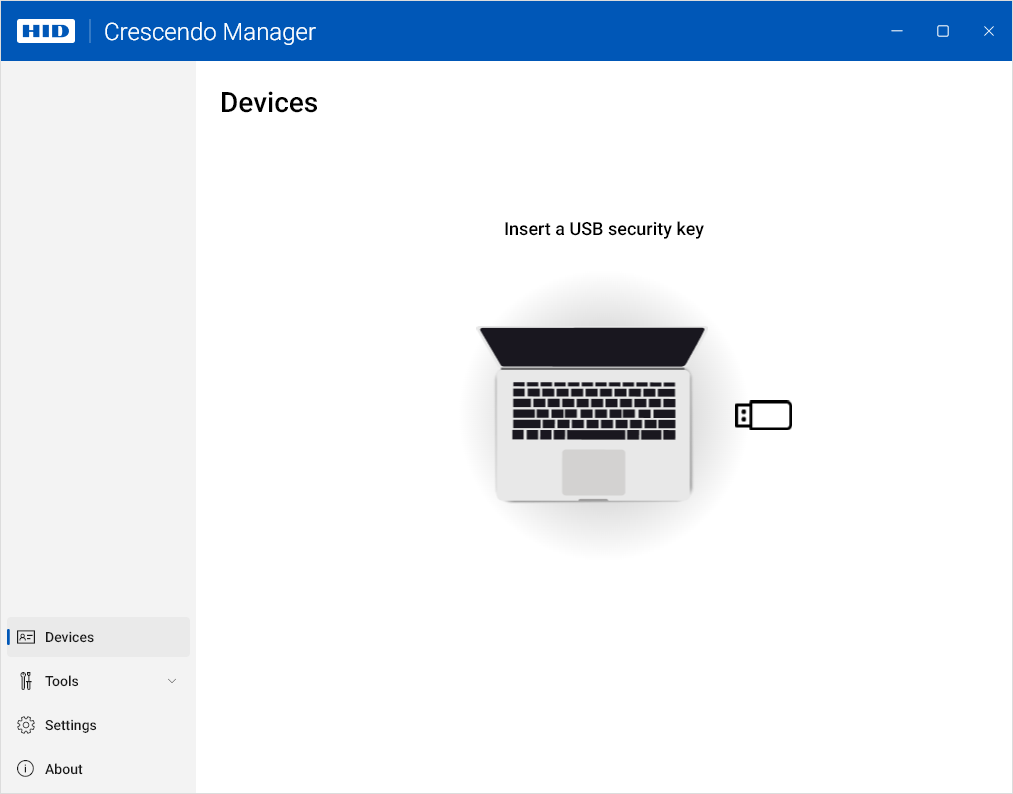
Once you connect a device, you can see and start using all user interface elements available for it.
-
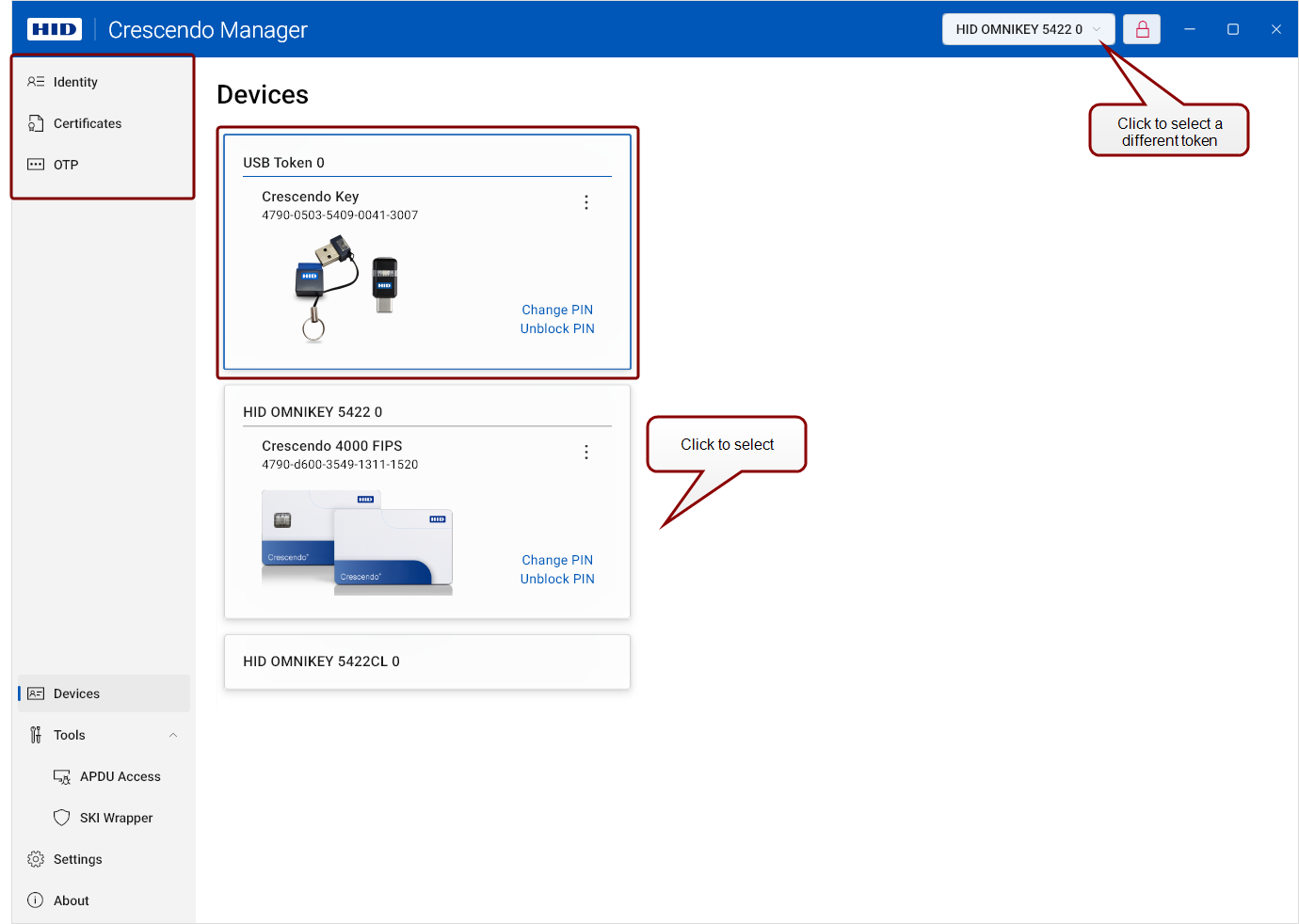
If you have connected multiple tokens A physical device, such as a smart card or USB key, that securely stores certificates, cryptographic keys and credentials used for authentication, digital signing, and encryption tasks., the first connected token will remain selected unless you select a different one.
-
Token-specific actions will become visible in the top-left corner of the application window.
Navigating Crescendo Manager User Interface
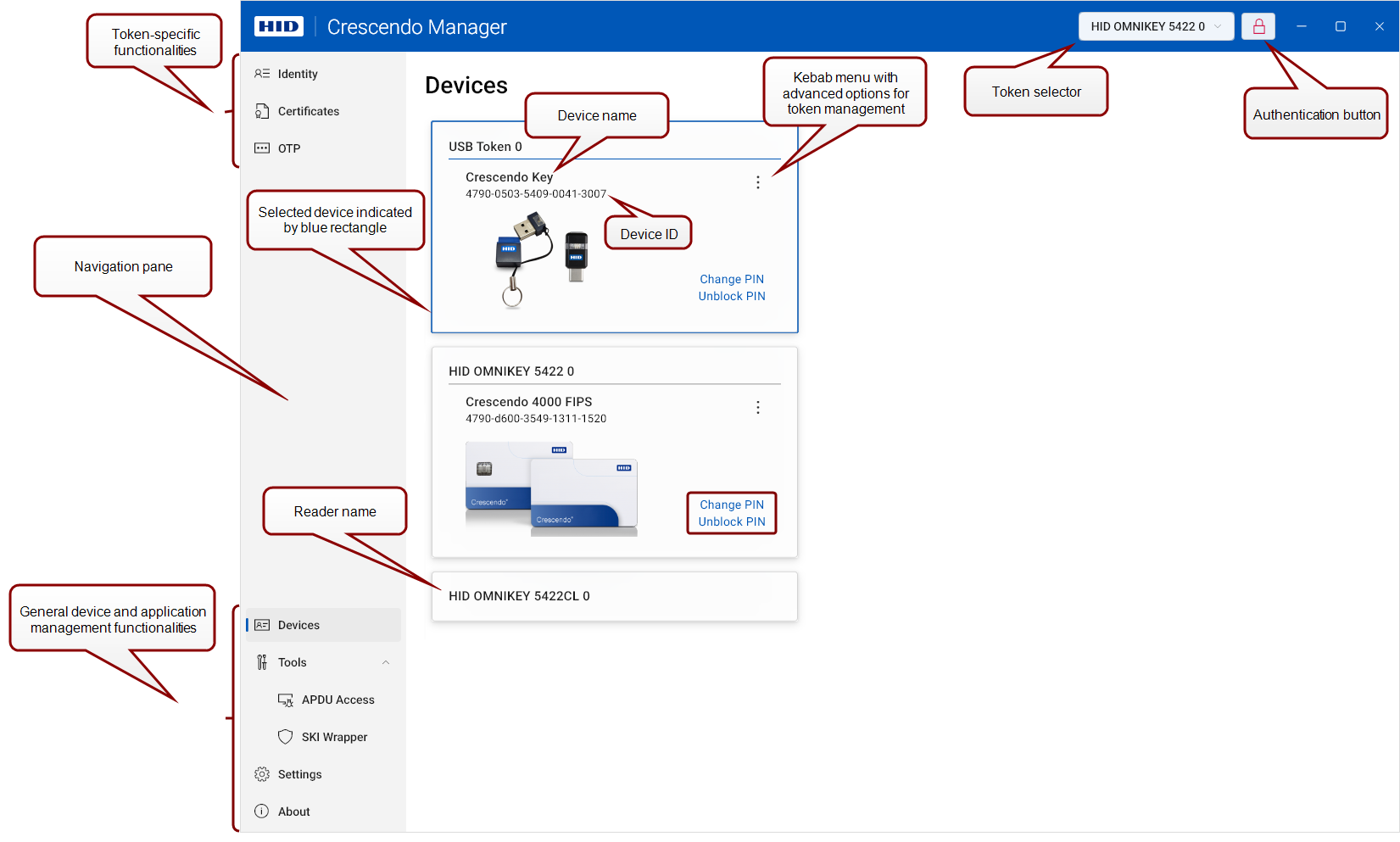
Crescendo Manager provides an intuitive user interface, allowing you to quickly navigate between devices and various functionalities.
Token Selector
This button allows you to select a connected device from a drop-down list.

The Token Selector can be configured in Settings to display either the selected reader or token first or not to be displayed at all.
Authentication Button
This button, marked with a lock symbol, shows whether you are authenticated to the selected device.
Click the button to change the authentication state (authenticate/deauthenticate).

-
A closed red lock symbol
 indicates that the PIN hasn't been entered, and the token is locked.
 -
An open blue lock symbol
 indicates successful authentication.
 -
A yellow warning circle
 indicates that the token hasn't been personalized and still uses the default PIN. The user is authenticated with this default PIN and can perform certain actions without being prompted for a PIN.
 -
A closed gray lock symbol
 indicates that authentication is not possible (e.g., the PIN is blocked).
Navigation Pane
The navigation pane on the left gives you access to the individual features and functionalities of Crescendo Manager.
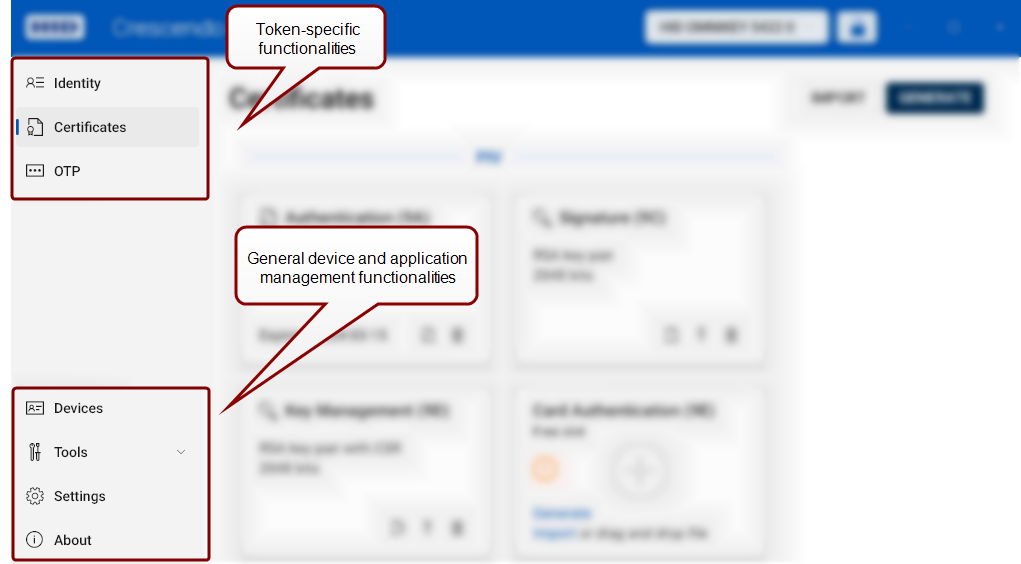
Token-Specific Functionalities
General Device and Application Management Functionalities
Uninstalling Crescendo Manager
Windows Users
Using Windows Installed Apps
-
Use any of these ways to open Installed apps:
-
Right-click the Windows Start button and select Installed apps.
-
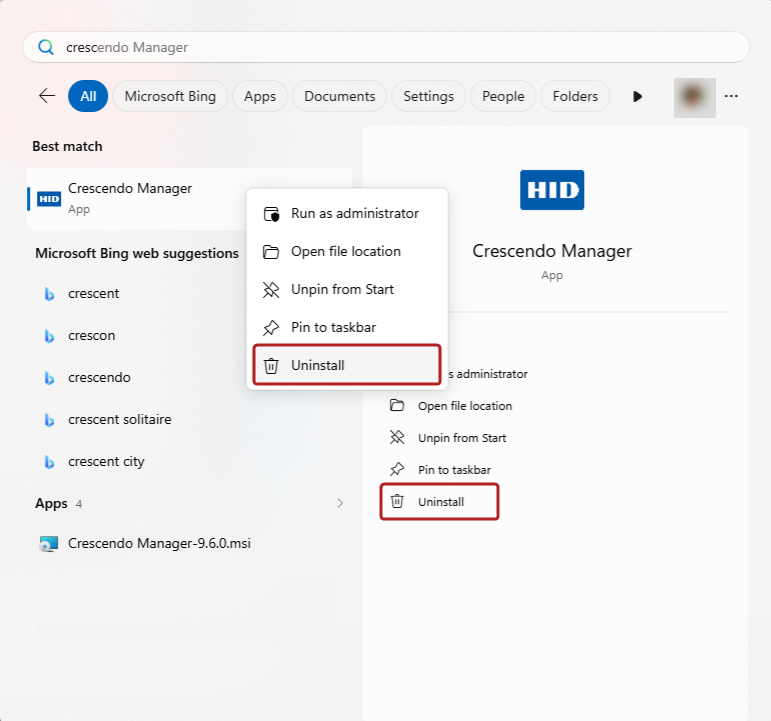
Click the Windows Start button and begin typing "Crescendo Manager". When Crescendo Manager appears under Best match, right-click it and select Uninstall, or click Uninstall in the right-hand pane.
-
-
In the list of installed applications, locate Crescendo Manager.
-
Click the More options (
 ) button next to Crescendo Manager and select Uninstall.
 -
Click Uninstall again to confirm.
Using the Installation Wizard
To uninstall Crescendo Manager using the installation wizard:
-
Run the HID Global Crescendo Manager installer.
-
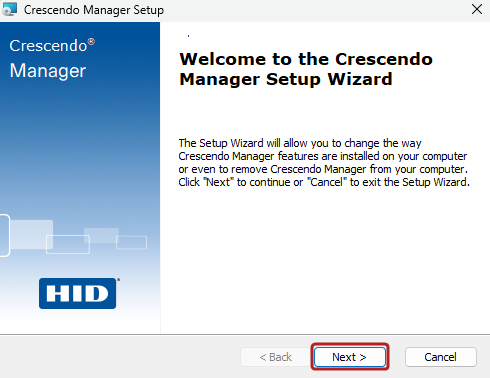
When the Crescendo Manager Setup Wizard opens, click Next.
-
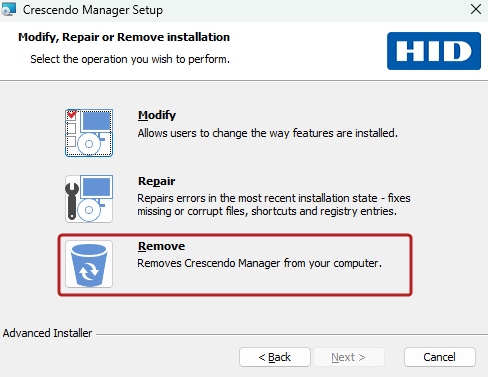
Click the Remove button and then click Next.
-
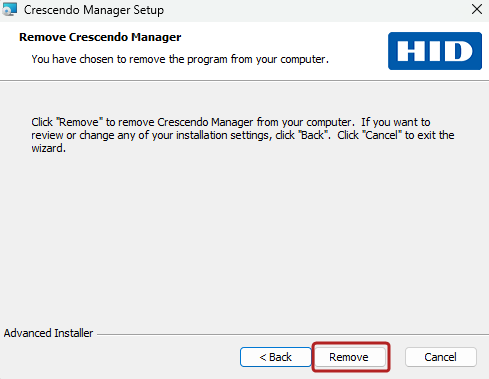
In the Remove Crescendo Manager dialog, click Remove to confirm.
-
When prompted by User Account Control (UAC), click Yes.
-
Click Finish to close the dialog box.
macOS Users
To uninstall Crescendo Manager using Finder:
-
Switch to the Finder, such as by clicking your desktop or clicking the Finder icon in the Dock.
-
Find Crescendo Manager, then click to select it.
-
Use any of these ways to move the app to the Trash/Bin:
-
Drag the app to the Trash/Bin.
-
Select the app and choose File > Move to Trash/Bin from the menu bar.
-
Select the app and press Command-Delete on your keyboard.
-
-
If you're asked for a username and password, enter the name and password of an administrator account on your Mac.
-
To delete Crescendo Manager after moving it to the Trash/Bin, choose Finder > Empty Trash/Bin from the menu bar.