View the Devices
A valid license for the FIDO Provisioning service
To purchase new licenses or renew existing ones, contact your HID Account Manager.
The Administrator, Device Service Administrator, or View Only role
Alternatively, you can use a custom role with the Inventory privilege.
-
Expand Inventory
 in the left menu and select Devices to open the Devices page.
The Devices page displays:
-
Summary of devices in the Inventory, such as the total number of Devices, HID Devices, and Provisioned Devices.
-
The list of devices includes:
-
Device provisioned through the FIDO Provisioning functionality.
Note: Provisioned devices will not be displayed in the Inventory immediately. It may take approximately 30 minutes to appear. This is a known limitation and will be fixed in an upcoming release. -
Shipped HID Crescendo cards ordered by the customer.
-
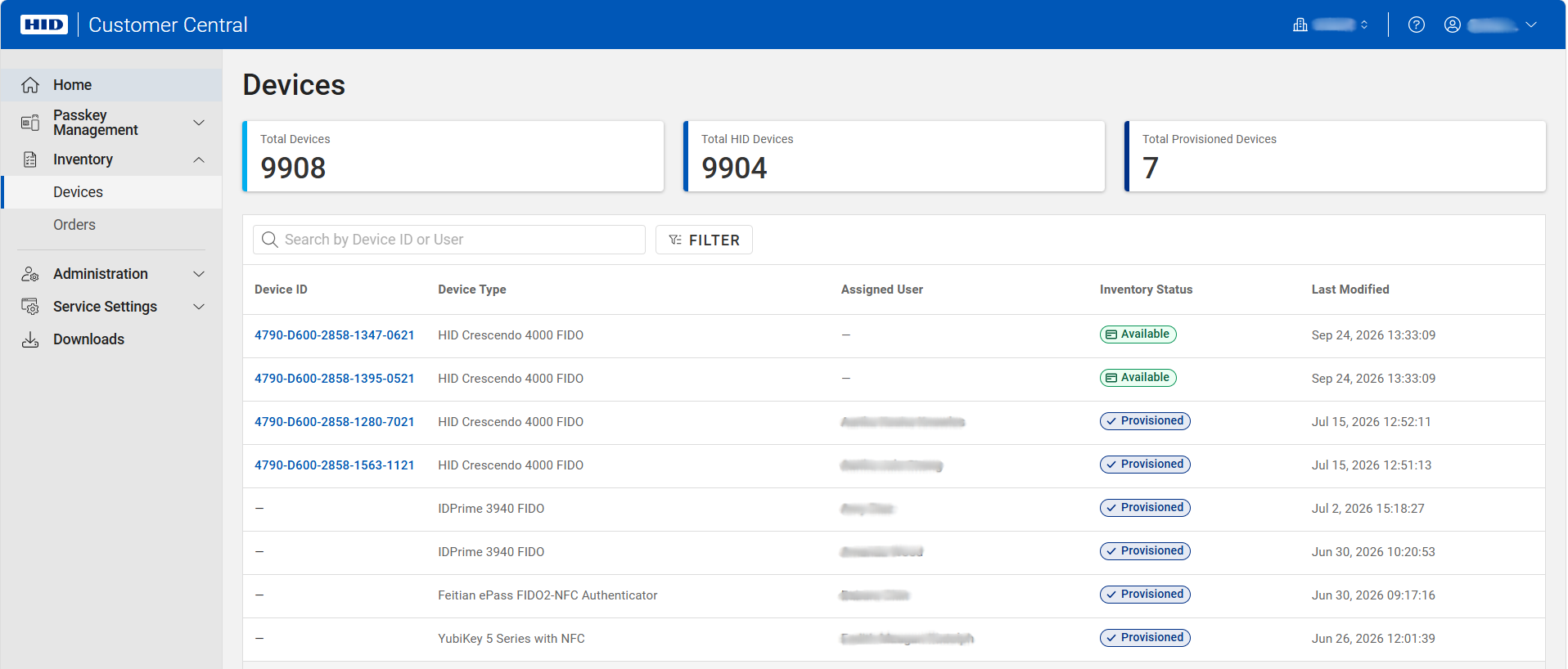
The list of devices contains the following information:
-
Device ID - the unique identifier for a device in the inventory (not available for non-HID devices).
-
Device Type - the type or model of the device (see the list of the supported devices).
-
Assigned User - the user to whom the device is assigned. A user is assigned only when the device is provisioned.
-
Inventory Status - the device’s current status ("Available" or "Provisioned") in the inventory.
-
Last Modified - when the device information was last updated or modified.
-
-
To find your device, you can search by Device ID or User.
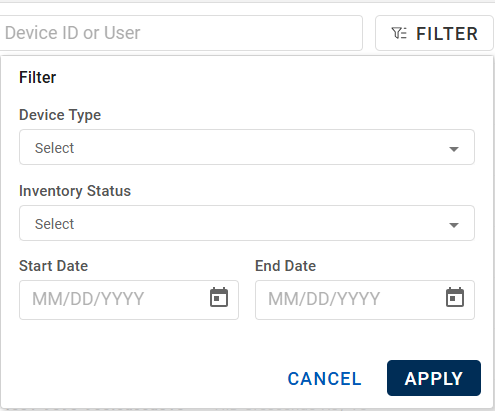
You can also FILTER the list using the following filters:
-
Device Type - select the type of device.
-
Inventory Status - select the device status ("Available" or "Provisioned") in the inventory.
-
Start Date and End Date - select the date range when the device was provisioned.
-
-
Click on the Device ID or a row of a device list, for which you want to view detailed information about the device.
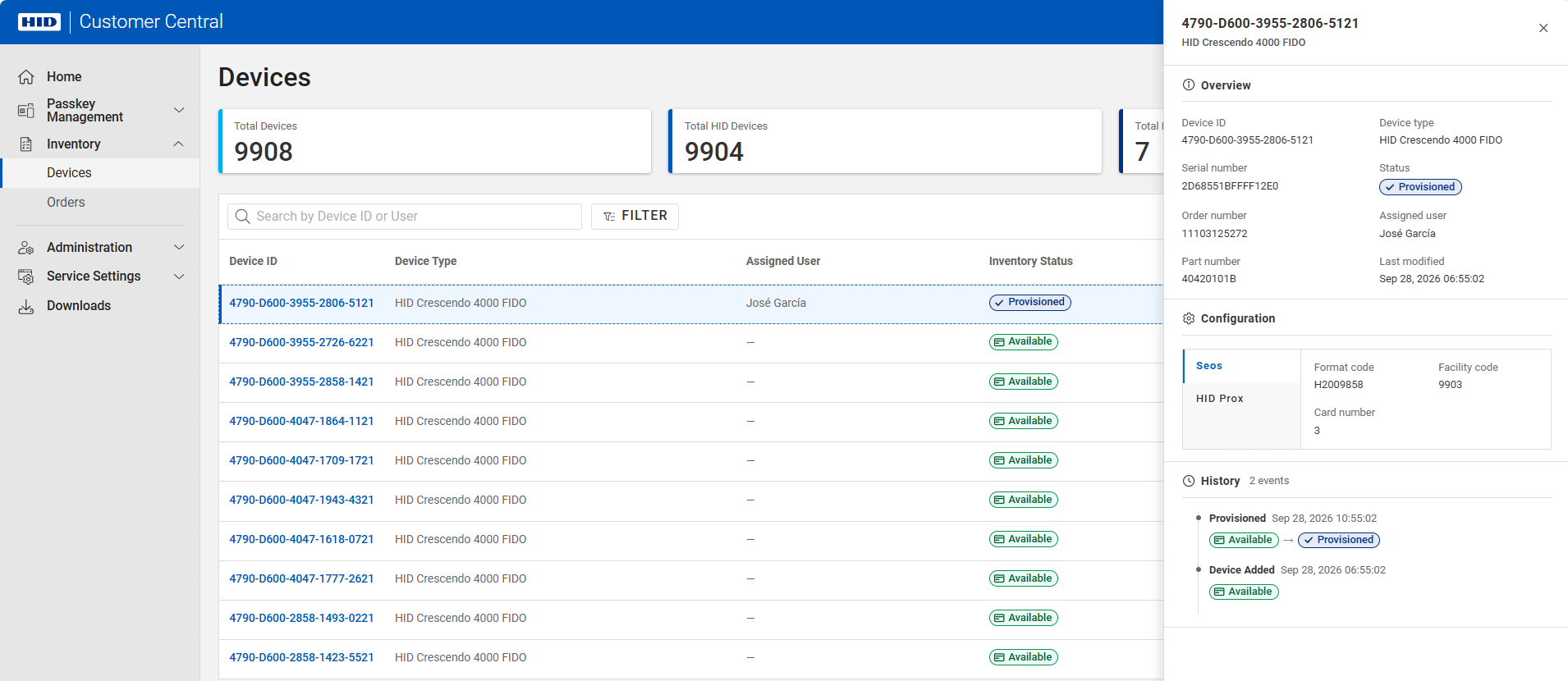
The device details panel opens and displays the Overview, Configuration, and History sections.
 Overview
This section displays general information about the selected device, including device identification, assigned user, inventory status, and modification details.
Parameter Description Device ID The unique identifier for a device in the inventory (not available for non-HID devices) Device type The type or model of the device (see the list of the supported devices) Serial number The serial number of the device Status The device’s current status ("Available" or "Provisioned") in the inventory Order number The order number associated with the device Assigned user The user to whom the device is assigned. A user is assigned only when the device is provisioned Part number The part number associated with the device Last modified The date and time when the device information was last updated or modified Configuration
This section displays the Physical Access Control System (PACS) credential configuration associated with the selected device.
If the device supports multiple PACS technologies, such as Seos, HID Prox, iCLASS, or MIFARE etc, select a technology to view the corresponding configuration details.
Parameter Description Format code Identifies the format used to interpret the credential data Facility code Identifies the facility or site associated with the credential Card number Identifies the credential or badge number for the selected PACS technology History
This section provides a chronological record of events associated with the selected device. Each event displays the event type and the date and time when the event occurred.
For example,
-
Device Added - when the device was added with an "Available" status.
-
Provisioned - when the device status changed from "Available" to "Provisioned".
-